
What you will make
A straight row of three Round 3.00 stones, 0.80 apart, held in one closed frame: a rail along each side and a cross bar between each pair of stones. A Round 3.00 is a round stone 3.00 mm across. A bar is the strip of metal between two stones, as a rib is between two openings (P5-08). Each bar bites into the girdle, the widest edge, of the two stones beside it, so the opening under a stone is narrower than the stone and it cannot drop through. A bar setting at the bench has bars between the stones and its sides open. This frame has bars and rails, so a bench would call it a bar channel. At the top each bar is 0.70 mm wide: the gap, 0.80, less 0.05 on each side, so 0.10 in all. That is a little under the bench’s structural 0.80 and over the Standards Check’s own least of 0.60, so it is a practice figure: for a bar of 0.80 you would leave a gap of 0.90.
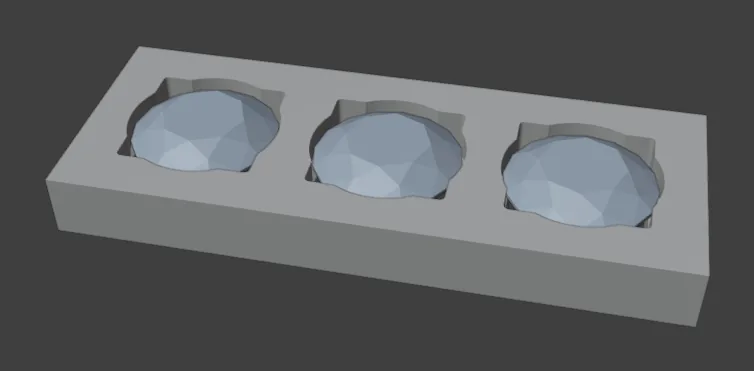
About 15 minutes.
Files
- p5-11-start.blend (104 KB): open this one to begin.
- p5-11-finished.blend (141 KB): the result, to compare with yours.
Both were made in Blender 5.2.0.
Before you start
- CAD/CAM Jeweller 2.22.0 or later (Preferences > Add-ons shows the version). You have done Part 0, Blender from nothing, and Choose what lies under a seat: a divot or a hole through (P5-06). The start file is in millimetres.
- The start file holds three Round 3.00 stones laid in a straight row 0.80 apart, every table facing up. Row of Stones (Lay stones along a curve, P3-06) lays a row like it: give it a Gap of 0.80. Bar takes round stones of one stocked size in a flat row, and says so if they are not. Pink handles may show on a piece before its exercise: they change numbers by dragging, so leave them alone for now.
- To get a new start file, open it again from your Downloads folder (Open an exercise file and keep the start file safe, P0-07, shows how): when Blender asks whether to save the changes, choose Don’t Save, the button that drops what you did since the last save.
Build it
Step 1. Open the start file and save your copy
WhereThe top bar: the row of words that begins File, Edit.
DoDownload p5-11-start.blend from Files above and open it. Then choose File > Save As and save it under the name below, in a folder of yours. Open an exercise file and keep the start file safe (P0-07) shows how.
Typemy-bar-row.blend
You should seeThe 3D view shows three round stones in a straight row, a little apart. The title bar, the strip above File and Edit, begins my-bar-row.
It worked whenThe title bar, the strip above File and Edit, begins my-bar-row.
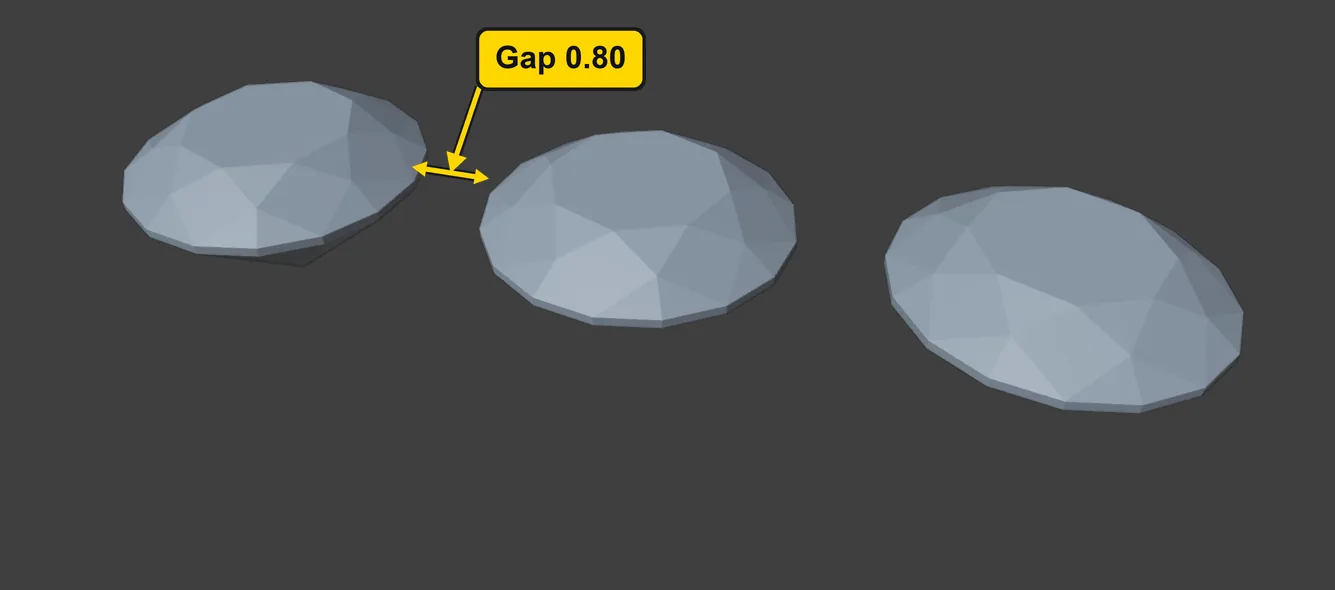
Step 2. Select the three stones
WhereThe 3D view: move the pointer off the sidebar and into the dark area.
DoPress A, which selects everything in the file.
You should seeThe three stones outlined in orange. The file holds only the row, so A selects the stones Bar needs: the stones of one row. Bar judges the whole row at once.
It worked whenThe three stones are outlined in orange.
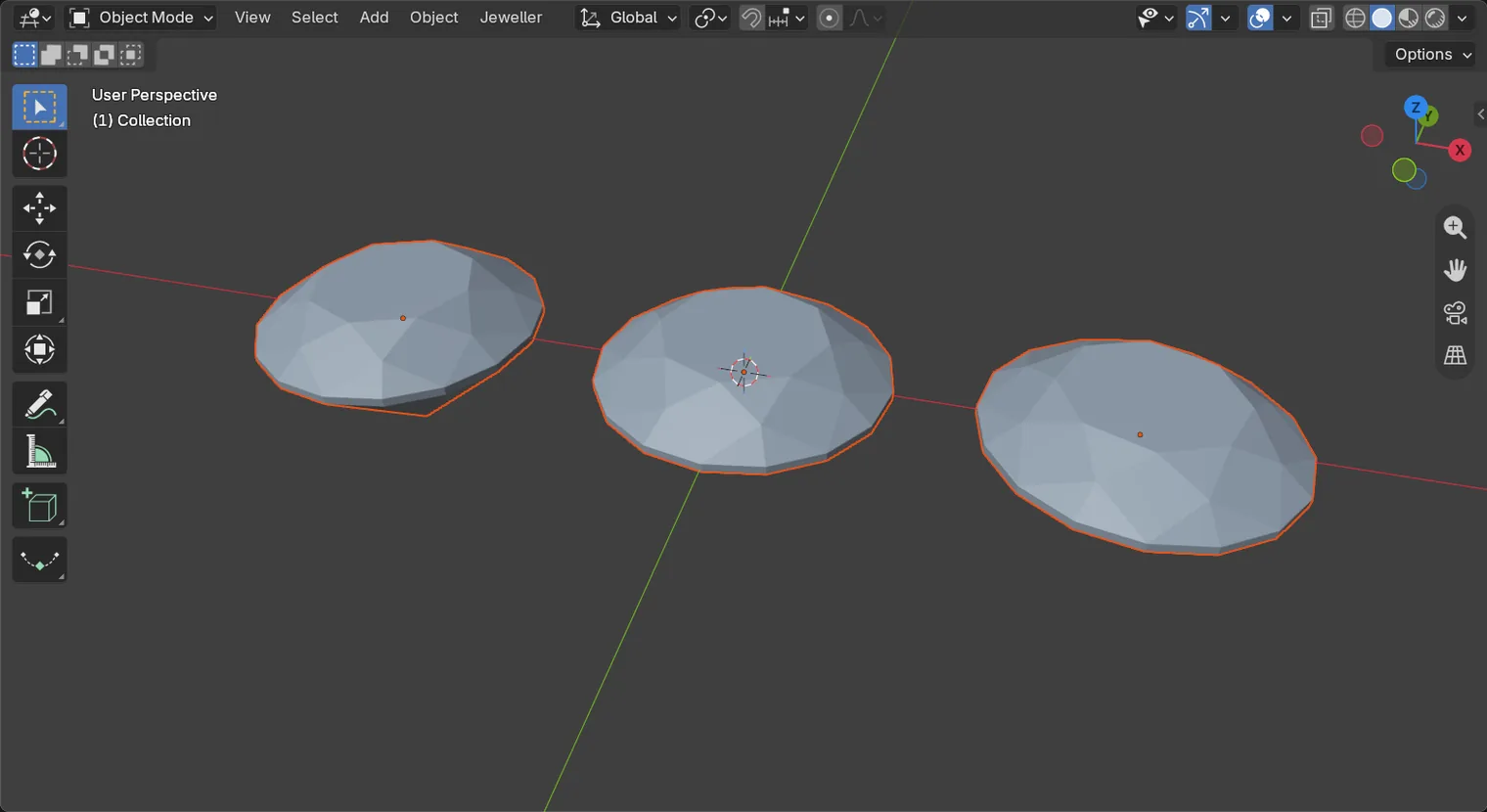
If it goes wrongNothing moves and the key types nowhere: the pointer is still over the sidebar. Move it over the 3D view and press A again.
Step 3. Open the Bar box and read its numbers
WhereThe sidebar: the CAD/CAM tab, the section bar, Setting, then the More Settings panel and its Bar box. If the sidebar is shut, press N with the pointer over the 3D view.
DoClick Setting in the section bar, open More Settings by its title, then open Bar by its title.
You should seeThe top line of the box reads “3 stones selected”, then six numbers: Clearance 0.05, Rail Wall 0.8, Depth Below Girdle 1, Top Above Girdle 0.3, Corner Radius 0.1 and Bite 0.15, and the buttons Make Bar Frame and Read Verdicts. A bar bites into each girdle by the bite, and the clearance is the gap left between the stone and the metal. The panel shows the whole numbers without their zeros (“0.8 mm” is 0.80). Leave all six as they are. The grey note under the buttons says every number is “a house default”, which means the add-on’s own starting number. It also says “Lay the stones with Gems Along Curve at a gap of 0.70”: that is a suggestion, so ignore its 0.70, because your gap is 0.80 and the frame accepts it. Gems Along Curve is the older name: in 2.22.0 the button is Row of Stones (P3-06).
It worked whenThe top line of the box reads “3 stones selected”.
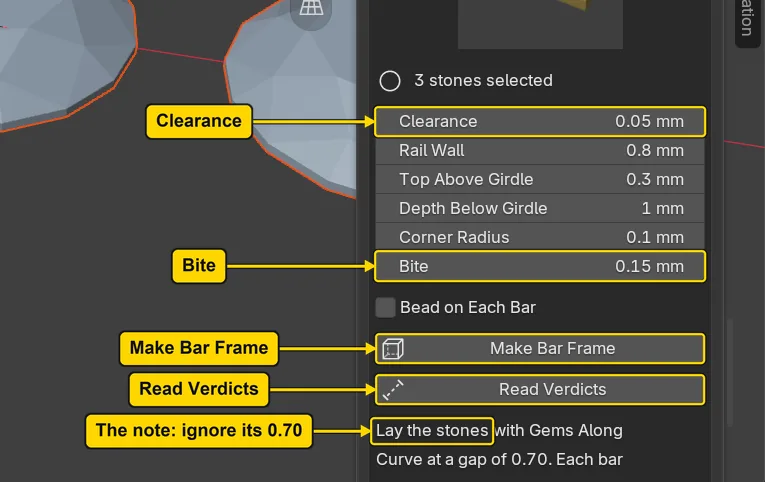
Step 4. Read the verdicts first
WhereThe Bar box.
DoPress Read Verdicts.
You should seeA line under the buttons that reads “Bar frame read: 3 stones, 2 bars, all OK.”, and a line for each stone. The line for Stone 2 names two bars, one each side of it, and the rail; each reads “bar 0.70”, the width at the top. Nothing in the 3D view has changed. The bar is the gap, 0.80, less the clearance 0.05 on each side, so the gap less 0.10. This 0.70 is under the bench’s structural 0.80 and over the Standards Check’s least of 0.60: a practice bar.
It worked whenThe box reads “Bar frame read: 3 stones, 2 bars, all OK.”.
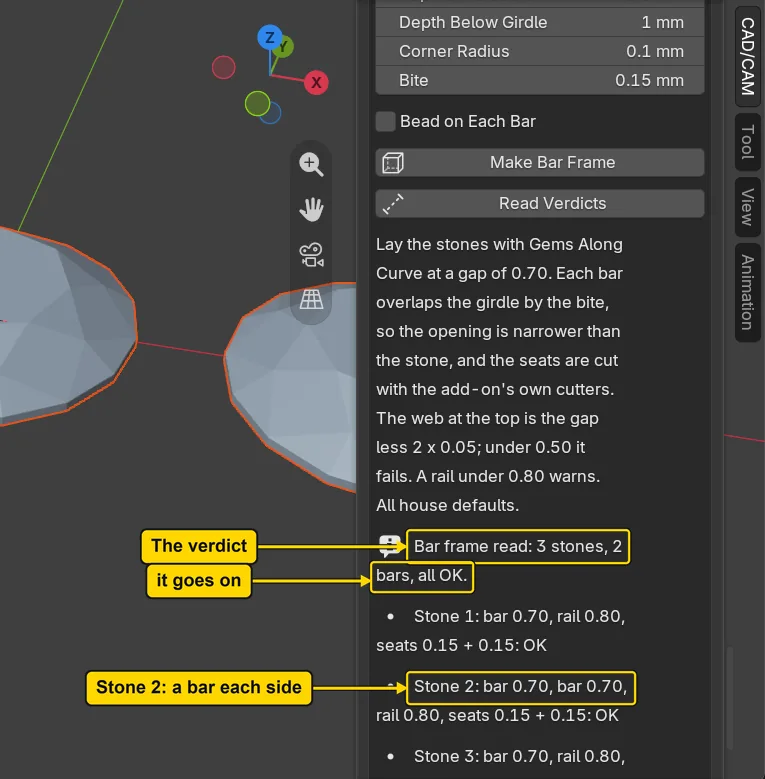
Step 5. Press Make Bar Frame
WhereThe Bar box.
DoPress Make Bar Frame. Wait a moment.
You should seeThe line “Bar frame made: 3 stones, 2 bars, all OK.” and the same three stone lines. In the 3D view a frame now stands under and between the stones. The add-on cut the seats with its own seat cutters, which it keeps hidden.
It worked whenThe box reads “Bar frame made: 3 stones, 2 bars, all OK.”.
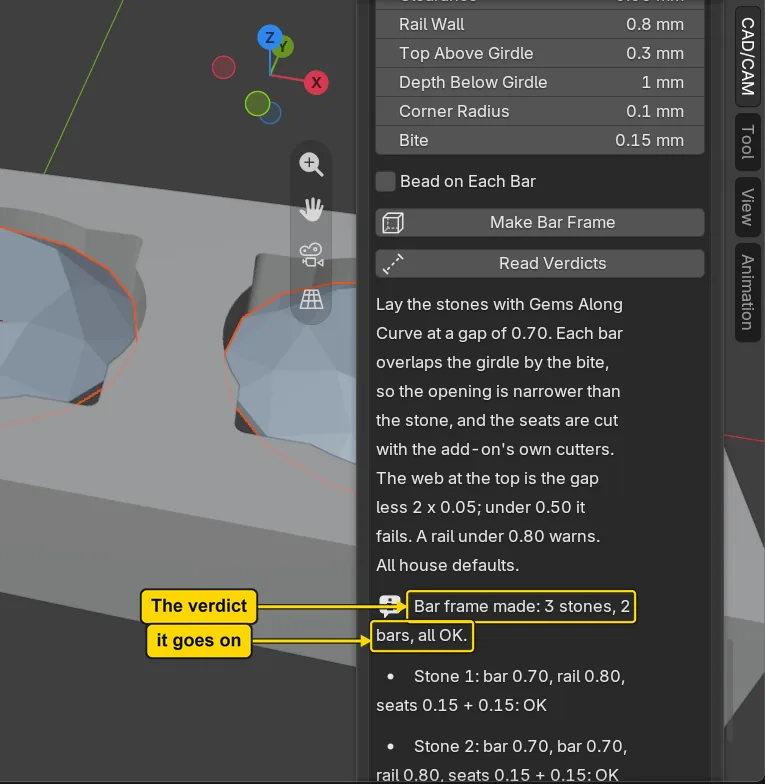
Step 6. Look at the frame
WhereThe 3D view. The picture looks from a little above and is framed on the row for this picture only.
DoLook at the picture.
You should seeOne frame holding the three stones: a rail along each side and a bar between each pair. Each stone sits in its own pocket in the frame. The four corners of each opening are open windows for light and the setter’s tool. The culet, the stone’s point at the bottom, stands 0.35 mm below the frame’s underside (measured on the stone and the frame), so the three points show under the frame: a finger would feel them, and a bench would make the frame deeper than the stones.
It worked whenYou can see a rail along each side of the row and a bar between each pair of stones.
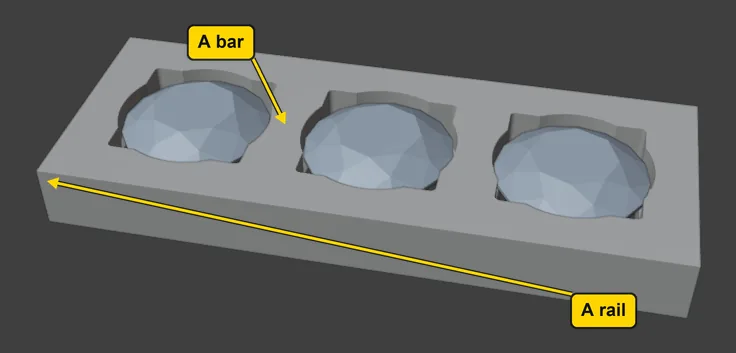
Step 7. Save your work
WhereThe 3D view: move the pointer over it.
DoPress Ctrl+S.
You should seeBlender writes your copy at once, with no question, because the file already has a name. An asterisk, *, in the title bar marks changes that are not saved, and it goes now. Save your work and get it back (P0-12) says more about saving.
It worked whenThe title bar begins my-bar-row and carries no asterisk.
No picture: the only change is a message on the status bar, and it fades.
Check your result
| What to read | Where | What it should say |
|---|---|---|
| The verdict | The CAD/CAM tab, Setting section, More Settings panel, Bar box, under the buttons | It reads “Bar frame made: 3 stones, 2 bars, all OK.” |
| A line for each stone | The same box, under that line | Three lines, “Stone 1” to “Stone 3”, each ending ”: OK”. Stone 2 names two bars |
| The frame | The 3D view | One frame under the three stones: a rail each side and a bar between each pair |
Try it yourself
Open your copy again (Blender asks whether to save the changes: choose Don’t Save) and do steps 2 to 4. Then type 0.10 in Bite and press Read Verdicts again: the bite is how far each bar bites into a girdle, and the box says what the opening becomes. Put it back to 0.15 afterwards.
What you learned
- Read Verdicts judges every bar, rail and seat and changes nothing. Make Bar Frame builds one closed frame for the whole row.
- A bar is as wide as the gap it fills, less the clearance on each side: a gap of 0.80 gives a bar 0.70 wide at the top, so the bar is the gap less 0.10. A bar carries load, so it is structural metal: the bench’s figure is 0.80 and 0.60 at the least. This practice bar, 0.70, stands between the two; for 0.80 leave a gap of 0.90.
- Next, Lay out a cluster before any metal (P5-12).