

There are three ways to get the other half. Live Mirror shows the other half of what you are working on across the ring’s middle, joined at the middle, in Edit Mode or Object Mode. Live Turn shows copies turned round the ring’s axis. Mirror and Turn Copies work on any object, about a reference you choose, and the copy can follow its original. For the add-on’s own stones and claws, use Symmetry.
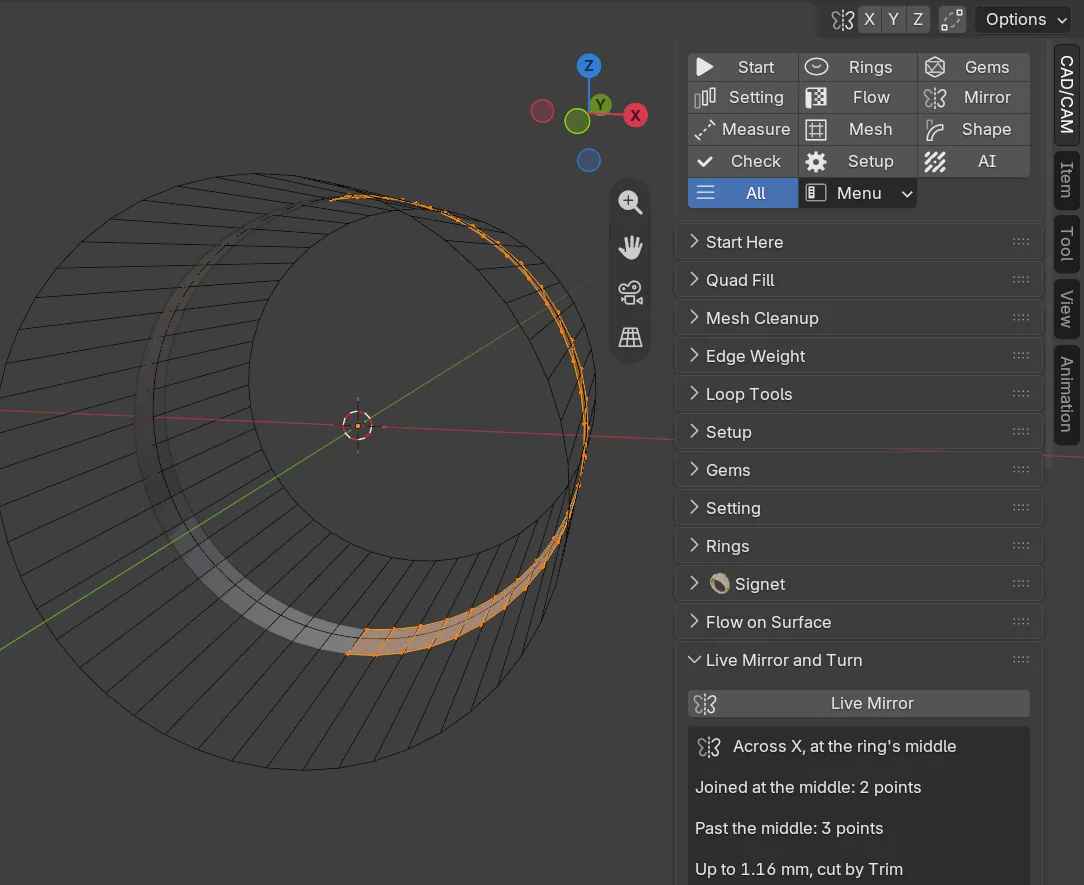
Where to find it
CAD/CAM tab > Mirror section > Live Mirror and Turn panel, then Mirror and Copy below it. Menu: Jeweller > Mirror and Copy. In Edit Mode, Live Mirror and Live Turn are in the Jeweller menu itself. Key: Alt+M mirrors in Object Mode. Pie: press J, then Mirror and Copy (top left).
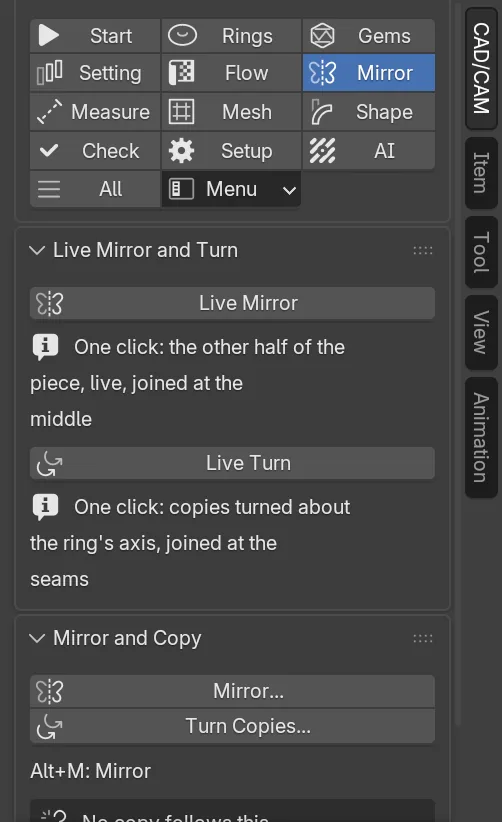
Use it
Step 1. Mirror what you are working on
Wherethe Live Mirror and Turn panel, Live Mirror.
Doin Edit Mode or Object Mode, with the mesh active, click Live Mirror.
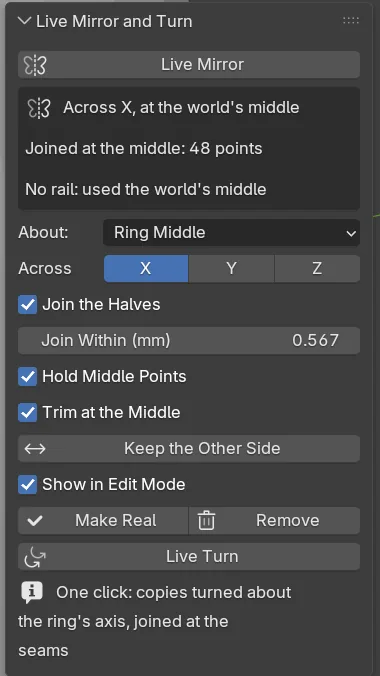
You should seethe other half drawn at once, joined to the first at the middle. A box of short lines says what it did, for example “Across X, at the world’s middle”, “Joined at the middle: 48 points” and “No rail: used the world’s middle”. The Across buttons X, Y and Z show the way it guessed. Change them if it guessed wrong.
If it goes wrongstones, claws, cutters, rails and guides are left out, each named in the status bar. A mesh used by two objects is refused with a sentence.
Step 2. Close the middle
Wherethe report box under Live Mirror.
Doif it reads “Open near the middle” with a gap, click Join These. Click Keep the Other Side to keep the other half instead.
You should seeJoin These raises Join Within (mm) to just above the widest gap, and the bottom of the ring closes.
Step 3. Finish
Wherethe foot of the Live Mirror block.
Doclick Make Real to apply the mirror, or Remove to take it off.
You should seewith Make Real, one real mesh, joined where it was set to join. With Remove, the mesh as it stands.
Step 4. Turn copies round the ring
Wherethe Live Turn block, under Live Mirror.
Doclick Live Turn. Use the - and + beside Copies to set the count.
You should seecopies turned about the ring’s axis, joined at the seams. The report says, for example, “6 copies about the ring’s axis”. Make Real and Remove work as above.
Step 5. Mirror any object
Wherethe 3D view, in Object Mode.
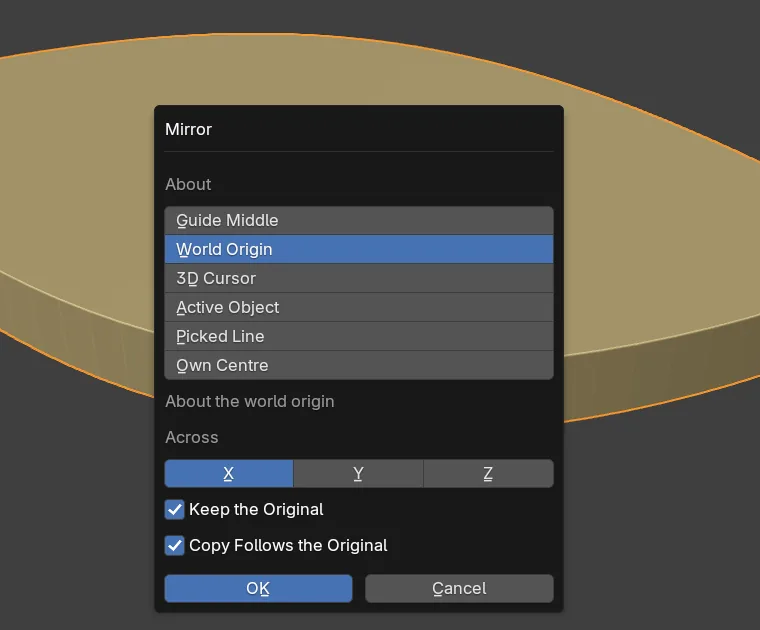
Doselect the object and press Alt+M. In the window choose About and Across, then press Enter.
You should seea mirrored copy, a true mirror and never a negative scale. Untick Keep the Original to mirror the object itself. Tick Copy Follows the Original and the copy redraws itself when the original is moved or edited.
Step 6. Turn copies about a reference
Wherethe Mirror and Copy panel, Turn Copies….
Doselect the object and click Turn Copies…. Set About, Axis, Count and Angle, then press Enter.
You should seethe copies, the original included in the count. An angle of 360 goes all the way round. Count 2 at 30 degrees is one copy turned 30 degrees.
Step 7. Set a copy free
Wherethe Mirror and Copy panel.
Doselect a copy that follows, or its original, and click Stop Following. If an original was deleted, click Free Lost Copies.
You should seeeach copy become an ordinary object where it stands.
Step 8. Mirror about an edge
Wherethe 3D view, in Edit Mode.
Dopick an edge, or two points. Click Mirror Line from Selection: it is in the panel, the right-click menu, the Edge menu and Jeweller > Mesh. Back in Object Mode, press Alt+M and choose About Picked Line.
You should seeone small object, CJ Mirror Line, drawn as three arrows. X mirrors across the line and Y across its middle.
Settings
Live Mirror. Every field is the Mirror modifier’s own.
| Setting | Default | What it changes |
|---|---|---|
| About | Ring Middle | Ring Middle, World Middle, Guide Middle, Mirror Line or 3D Cursor. |
| Across | Guessed | X, Y, Z. All three off takes the mirror off. |
| Join the Halves | On | Points of the two halves that meet become one. |
| Join Within (mm) | 0.05 | The widest gap between a point and its twin that still joins. Least 0.001. |
| Hold Middle Points | On | Points on the middle stay on it while you move them. |
| Trim at the Middle | On | Whatever runs past the middle is cut at it. |
| Show in Edit Mode | On | Draws the other half while you edit this one. |
Live Turn.
| Setting | Default | What it changes |
|---|---|---|
| Around | Auto | The ring’s own axis when the scene has a rail, else Z. |
| Copies | 2 | The count, 2 to 64. |
| Angle | 360 | 360 spreads the copies round a full circle and joins the last to the first. Less spreads them from first to last. |
| Join the Copies, Join Within (mm) | On, 0.05 | Joins the seams, as for Live Mirror. |
The Mirror window.
| Setting | Default | What it changes |
|---|---|---|
| About | World Origin | Also Guide Middle, 3D Cursor, Active Object, Picked Line or Own Centre. |
| Across | X | On a guide, X swaps the two shoulders and Y swaps the two edges. |
| Keep the Original | On | Off mirrors the object itself. |
| Copy Follows the Original | Off | The copy redraws from its original. |
Turn Copies: Axis Z, Count 6, Angle 360, Copies Follow the Original off.
Good to know
- Live Mirror is Blender’s own Mirror modifier, named CJ Live Mirror and put first in the stack. If the object already has a Mirror, Live Mirror uses it and changes none of its settings.
- Make Real is refused while another modifier stands above the mirror, and when the object has shape keys or shares its mesh. Move It First puts the mirror on top.
- A mesh of more than 20,000 points is read once, not at every redraw. Click Read.
- A following copy has no mesh of its own and is locked. To move it, move the original.
- A copy on its own keeps Subdivision, Solidify, Bevel, Weld, Edge Split, Smooth, Laplacian Smooth, Remesh and Weighted Normal. Any other modifier makes it a plain mesh, and the report says so.
- Cut Metal applies live modifiers first. Castle Setting refuses until the mirror is made real.