

The Gems panel makes the stones. You pick the cut from a picture, set its size and see its weight in carats before you make it. Each cut is one closed body, exactly symmetric, and it scales to any size. Seats, claws, bezels and halos all read a stone’s own outline, so make the stone first. Then place it with Place gems.
Where to find it
CAD/CAM tab > Gems section > Gems panel, with the Gem Groups sub-panel under it. Menu: Jeweller > Stones. There is no key.
Use it
Step 1. Pick the cut
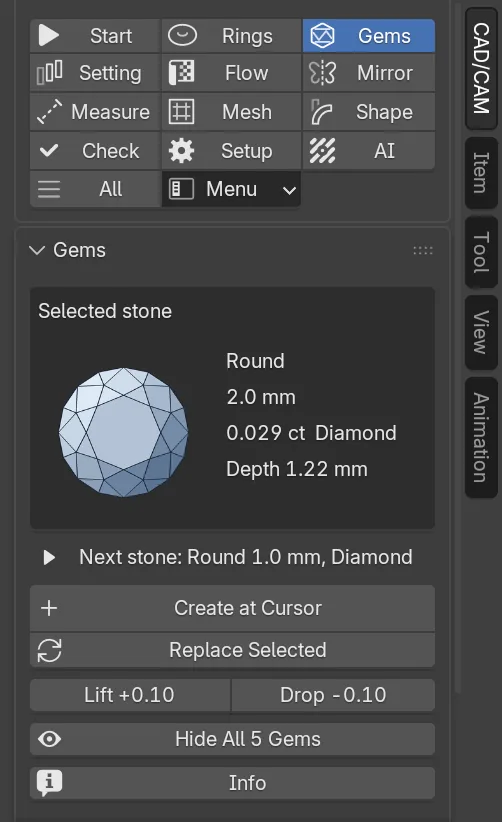
Wherethe Gems panel, the top box. With a stone selected the panel leads with that stone. Click the line Next stone: to open the settings for the next one.
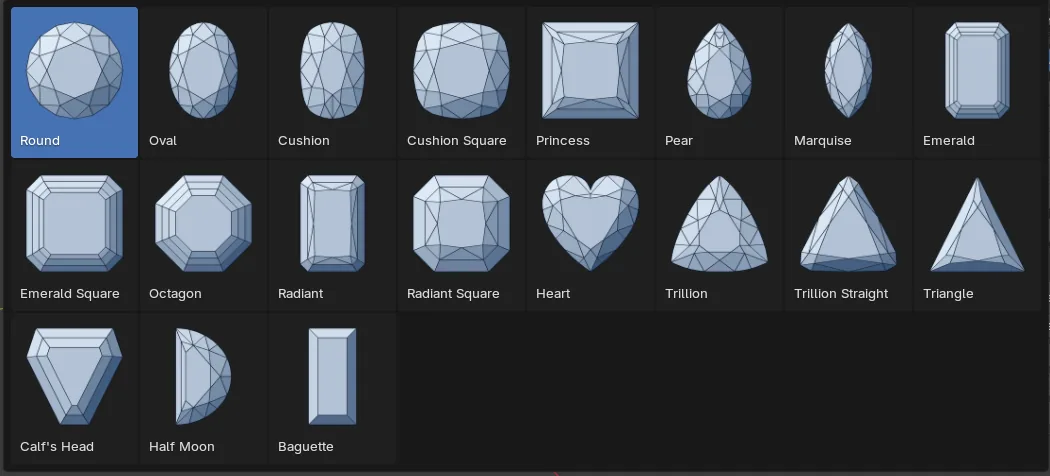
Doclick the picture of the cut, then click a cut in the grid that opens.
You should seebeside the picture, the stone the settings would make: the cut, its size, its weight in carats for the stone you chose, and its depth.
Step 2. Pick the stone and the size
Wherethe Stone drop-down in the top box, then the Size, mm box under it.
Dopick a stone. Diamond is the default. Click a size chip. A chip for a long cut reads length x width, such as “6 x 4”, and one click sets both numbers.
You should seethe weight and depth beside the picture change. The chips are the sizes a supplier stocks for that cut. The round has two pages of chips, 0.6 to 3 in tenths and then 3.1 to 12. Click a page tab above the chips for the other page.
Step 3. Or type any size
Whereunder the chips, the W and L fields.
Dotype a width in W. Keep the chain button (Link) on and L follows at the cut’s own proportion. Switch it off to type a length of your own.
You should seethe readout beside the picture follows.
If it goes wronga chip that is not the cut’s own proportion switches Link off, for an oval at 6 x 4 for example. Choosing another cut switches it back on.
Step 4. Make the stone
Wherethe Gems panel, Create at Cursor, the large button.
Doput the 3D cursor where you want the stone and click Create at Cursor.
You should seethe stone in the CJ Gems collection, selected and active, with a name such as CJ_Gem_Oval_7.00x5.00. The status bar describes it.
Step 5. Change a stone you have made
Wherethe Gems panel, under Create at Cursor.
Doselect the stone, change the cut or the size above, then click Replace Selected. Click Lift +0.10 or Drop -0.10 to move the selected stones along their own axis. Click Info for the measured figures.
You should seeReplace Selected rebuilds each selected stone in place and keeps its position and direction. Info reports the active stone’s size, depth, table, volume and weight in the status bar.
If it goes wronga warning that says “Select one or more gems first” means nothing is selected.
Step 6. Hide, show and group
Wherethe eye button under Lift +0.10 and Drop -0.10, and the Gem Groups sub-panel.
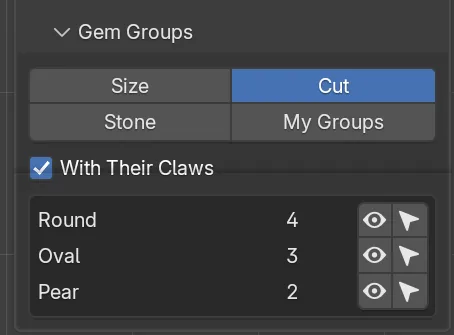
Doclick the eye button to hide every stone. Its label gives the count, for example “Hide All 12 Gems”. Click it again to show them. To work on part of them, open Gem Groups and click Size, Cut, Stone or My Groups.
You should seeone row per group with its count, an eye to hide or show it and an arrow to select it. With Their Claws is ticked, so hiding a stone also hides its claws. Cutters and bezels stay.
If it goes wrongAlt+H shows everything again.
To make a group of your own, select the stones, click My Groups, click Add Selected to Group and type a name. Remove from Group takes the selected stones out.
The 19 cuts
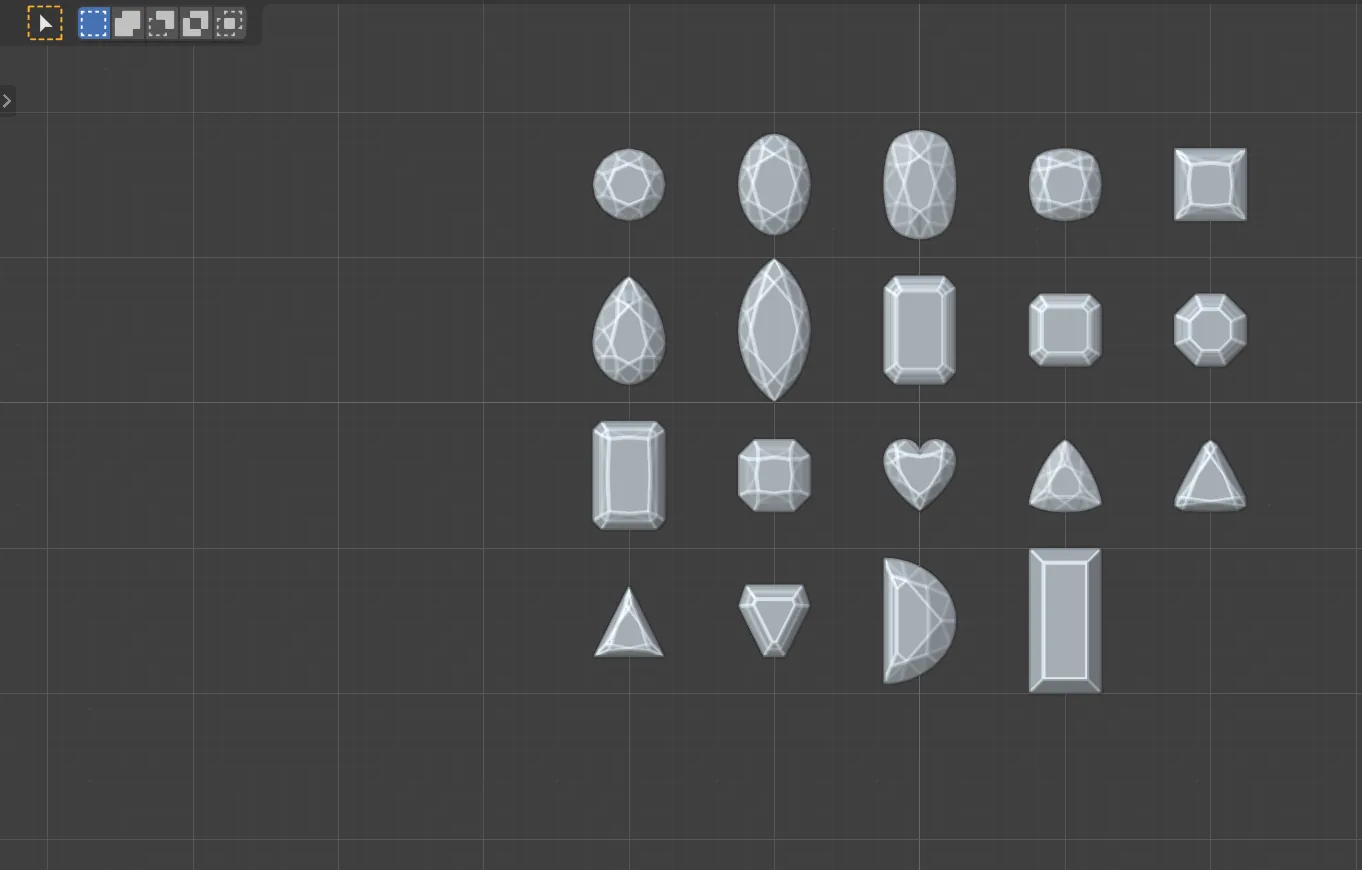
The picture grid shows them in this order. Length to width and depth are the cut’s own proportions. Claws is the number Make Claws uses by default.
| Cut | Length to width | Depth, % of width | Claws |
|---|---|---|---|
| Round | 1 | 61.2 at the starting proportions | 4 |
| Oval | 1.4 | 61.2 | 4 |
| Cushion | 1.5 | 60 | 4 |
| Cushion Square | 1 | 68.83 | 4 |
| Princess | 1 | 74.6 | 4 |
| Pear | 1.5 | 64.26 | 5 |
| Marquise | 2 | 56.33 | 4 |
| Emerald | 1.5 | 64.75 | 4 |
| Emerald Square | 1 | 64.2 | 4 |
| Octagon | 1 | 69.2 | 4 |
| Radiant | 1.5 | 66.25 | 4 |
| Radiant Square | 1 | 71.67 | 4 |
| Heart | 1 | 60 | 3 |
| Trillion | 1 | 50 | 3 |
| Trillion Straight | 1 | 50 | 3 |
| Triangle | 1 | 45.2 | 3 |
| Calf’s Head | 1 | 49 | 3 |
| Half Moon | 1.735 | 79.79 | 4 |
| Baguette | 2 | 64 | 4 |
Settings
| Setting | Default | What it changes |
|---|---|---|
| Cut | Round | The cut to make, picked from its picture. |
| Stone | Diamond | One of 14: Diamond, Ruby, Sapphire, Emerald, Amethyst, Topaz, Aquamarine, Garnet, Peridot, Citrine, Tanzanite, Morganite, Opal or Onyx. Its specific gravity sets the weight. |
| W | 1.00 mm | The girdle width, or the diameter of a round. 0.50 to 30.00 mm. |
| L | 1.00 mm | The girdle length. 0.50 to 60.00 mm. |
| Link | On | Keeps L at W times the cut’s own length to width. |
| Proportions | Off | A fold that shows the depth and, for a round, the table, angles and girdle. |
| Depth | Auto | Auto takes the depth from the cut’s own proportions. Manual lets you type it. |
| Total Depth | 0.62 mm | Table to culet, used when Depth is Manual. 0.20 to 40.00 mm. |
| Table | 57 % | Round only. The table as a share of the diameter. 40 to 75 %. |
| Crown Angle, degrees | 34.5 | Round only. 20.0 to 45.0 degrees. |
| Pavilion Angle, degrees | 41.0 | Round only. 30.0 to 50.0 degrees. |
| Girdle | 3 % | Round only. The girdle’s thickness as a share of the diameter. 0.5 to 10 %. |
| Group by | Size | How Gem Groups sorts the stones: Size, Cut, Stone or My Groups. |
| With Their Claws | On | Hiding or showing a stone does the same to its claws. |
Good to know
- The weight is the mesh’s volume times the stone’s specific gravity. The round reads a little light against a supplier’s chart: a 6.5 mm diamond weighs 0.98 ct here, against about 1.05 ct on a chart.
- A length that is not the cut’s own proportion stretches the cut along its length. The outline, the depth and the weight stay exact. The facet angles are the cut’s own only at its own proportion.
- Only the round can be re-proportioned (table, crown angle, pavilion angle). The other cuts keep their facets and scale.
- There is no tapered baguette, no briolette and no cabochon.
- Seats, claws, bezels and halos follow each cut’s own outline, and claws stand on the points. Nothing here is checked against a cast or a set stone.