

Three tools read the model in millimetres. Reference Image puts a picture in the scene at its true size to draw from. The Ruler measures between two points and reads a wall’s thickness. Live Sizes writes sizes in the 3D view while you model, with nothing to start. They only read: none of them changes the model.
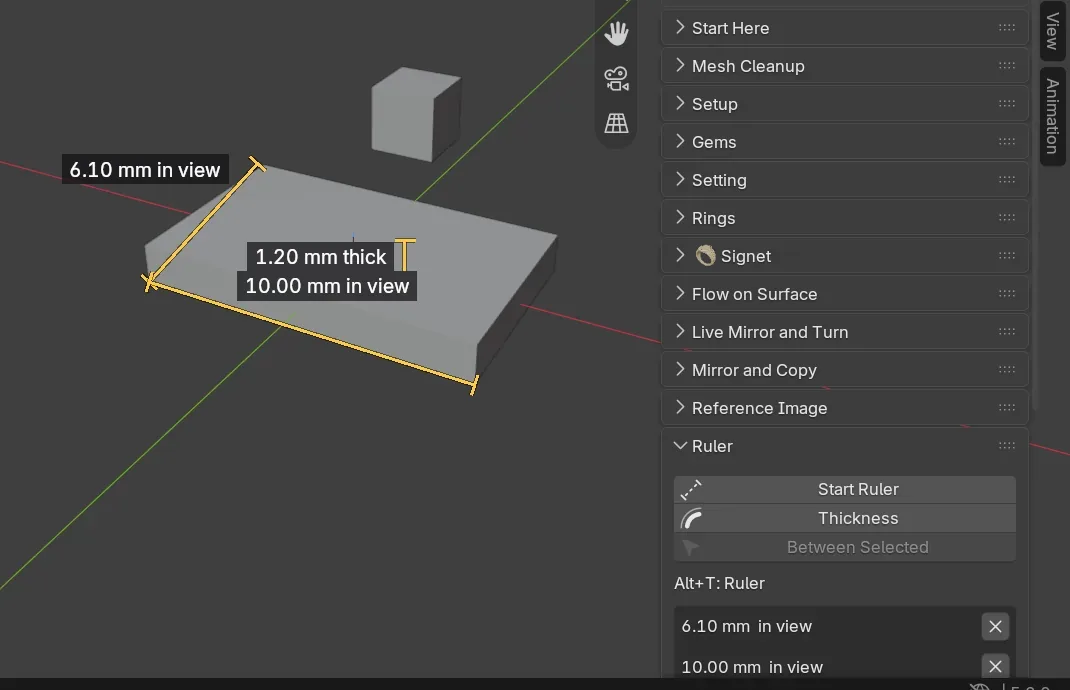
Where to find it
CAD/CAM tab > Measure section > Reference Image, Ruler and Live Sizes panels. Menu: Jeweller > Measure and Reference, in Object Mode and in Edit Mode. The picture entry is also under Add > Image > Reference Image (true size). Key: Alt+T starts the Ruler in Object Mode and in Edit Mode.
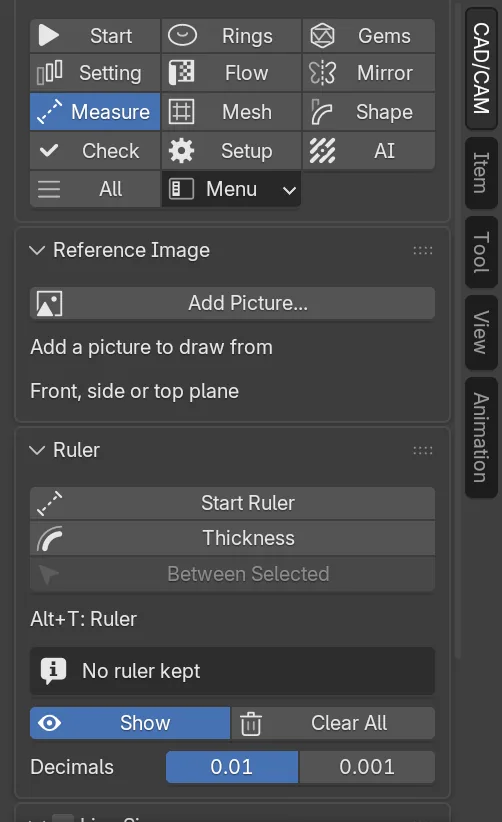
Use it
Step 1. Check the scene is in millimetres
Wherethe Reference Image panel, at the top.
Doif a box reads “The scene is not in mm”, click Set Units to mm.
You should seethe box gone. Metric units are set, with 1 Blender unit equal to 1 mm, the scale every tool works in.
Step 2. Add a picture at true size
Wherethe Reference Image panel, Add Picture….
Doclick Add Picture… and choose the file. The file browser has a side panel on its right with Plane, True Size, Pixels per mm and Keep in the .blend. Before you confirm, leave Plane on Front and True Size on Pixels per mm, at 100.
You should seethe picture centred on the world origin, upright in the front view (numpad 1), 60 % opaque and behind the model. It is locked, so a stray click never moves it. A 2000 x 1000 px picture at 100 pixels per mm is 20 x 10 mm.
Step 3. Set its size and its centre
Wherethe picture’s box in the panel, 2 Points and Origin.
Doclick 2 Points and click two points on the picture. In the small True Distance window, type how far apart they really are in True Distance (mm) and press OK. Then click Origin and click one point on the picture.
You should seethe picture scaled about the first point, then moved so the point you clicked is at the world origin. The status bar says “The point you clicked is now at the origin”.
If it goes wrongEsc or a right-click cancels and changes nothing. “This view is edge on to the picture” means you should turn the view. Its own plane view is best.
The same box has an eye and a padlock to hide and lock the picture, a bin to remove it, Opacity, Front, Side and Top, Behind and In Front, and Size. Above the pictures, Hide All, Show All, Lock All and Unlock All act on every picture.
Step 4. Measure between two points
Wherethe 3D view, with the mouse over it.
Dopress Alt+T. Click the start, then click the end. Or press on the start, drag, and release on the end.
You should seea line and a reading in millimetres that follows the mouse. The ruler snaps to a corner (a small square), the middle of an edge (a triangle), a point along an edge (a cross) or the surface (a ring). The second click keeps the ruler on screen. The tool stays on for the next measure. Esc or a right-click ends it.
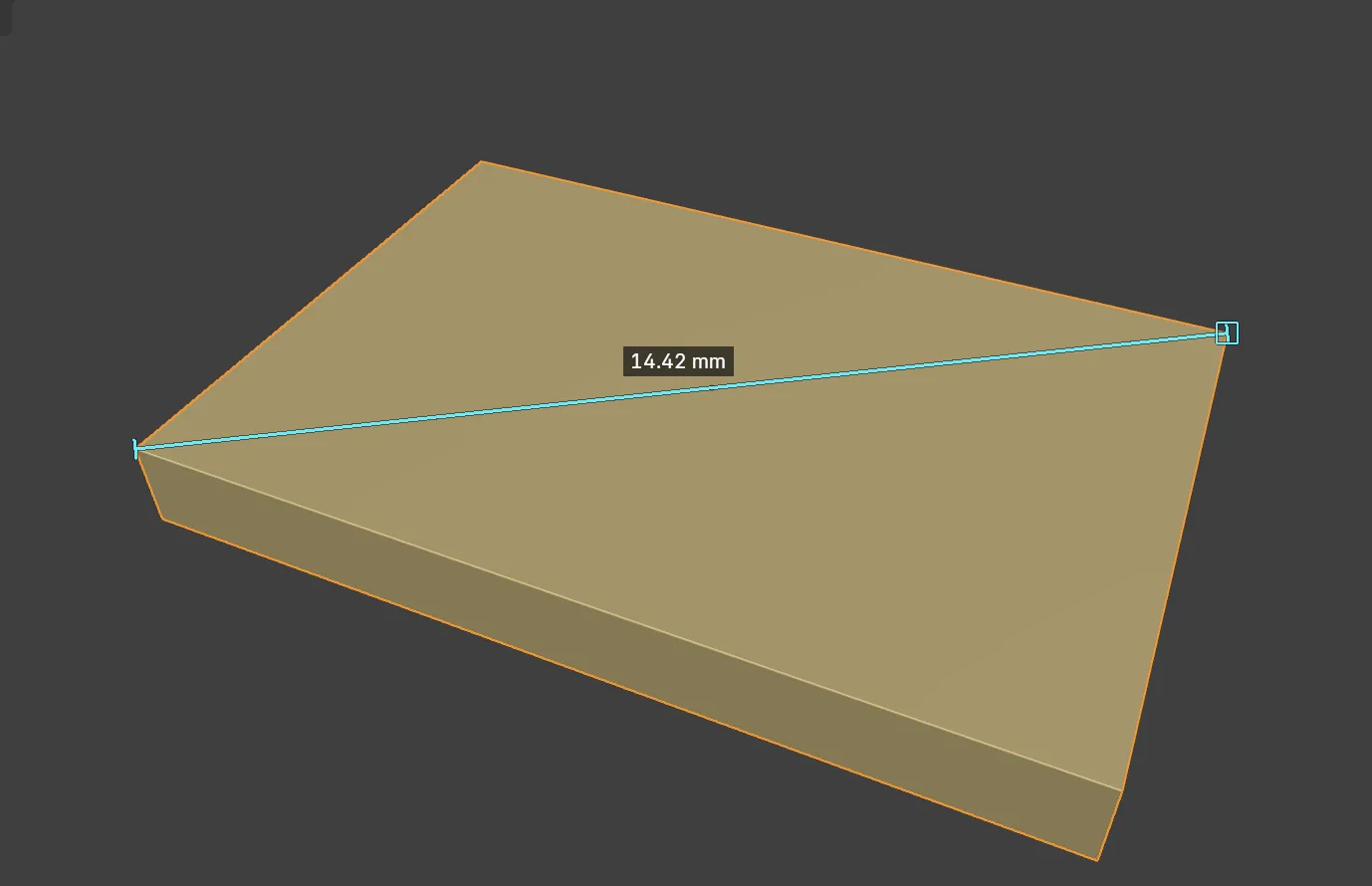
Step 5. Read a wall’s thickness
Wherethe Ruler panel, Thickness.
Doclick Thickness, or press T while the ruler runs. Move the mouse over the metal and click to keep the reading.
You should seea short line drawn straight through the wall, from the point under the mouse to the next surface of the same object, with its reading. Press T again to go back to points.
If it goes wronga single sheet with nothing behind it has no thickness, and the status bar says so.
Step 6. Measure what is already selected
Wherethe Ruler panel, Between Selected.
Doin Edit Mode, select two points, or one edge, and press Alt+T. In Object Mode, select two objects and click Between Selected.
You should seea ruler made at once with no click. In Object Mode it runs from one origin to the other and its label says “centres”.
Step 7. Switch on Live Sizes
Wherethe Live Sizes panel, Sizes Off.
Doclick Sizes Off, which then reads Sizes On. Scale an object with S, then Y.
You should seethe object’s size written along X, Y and Z, falling as you drag. In Edit Mode, the length of each edge a move changes is written, with how much it changed, for example 2.31 -0.12.
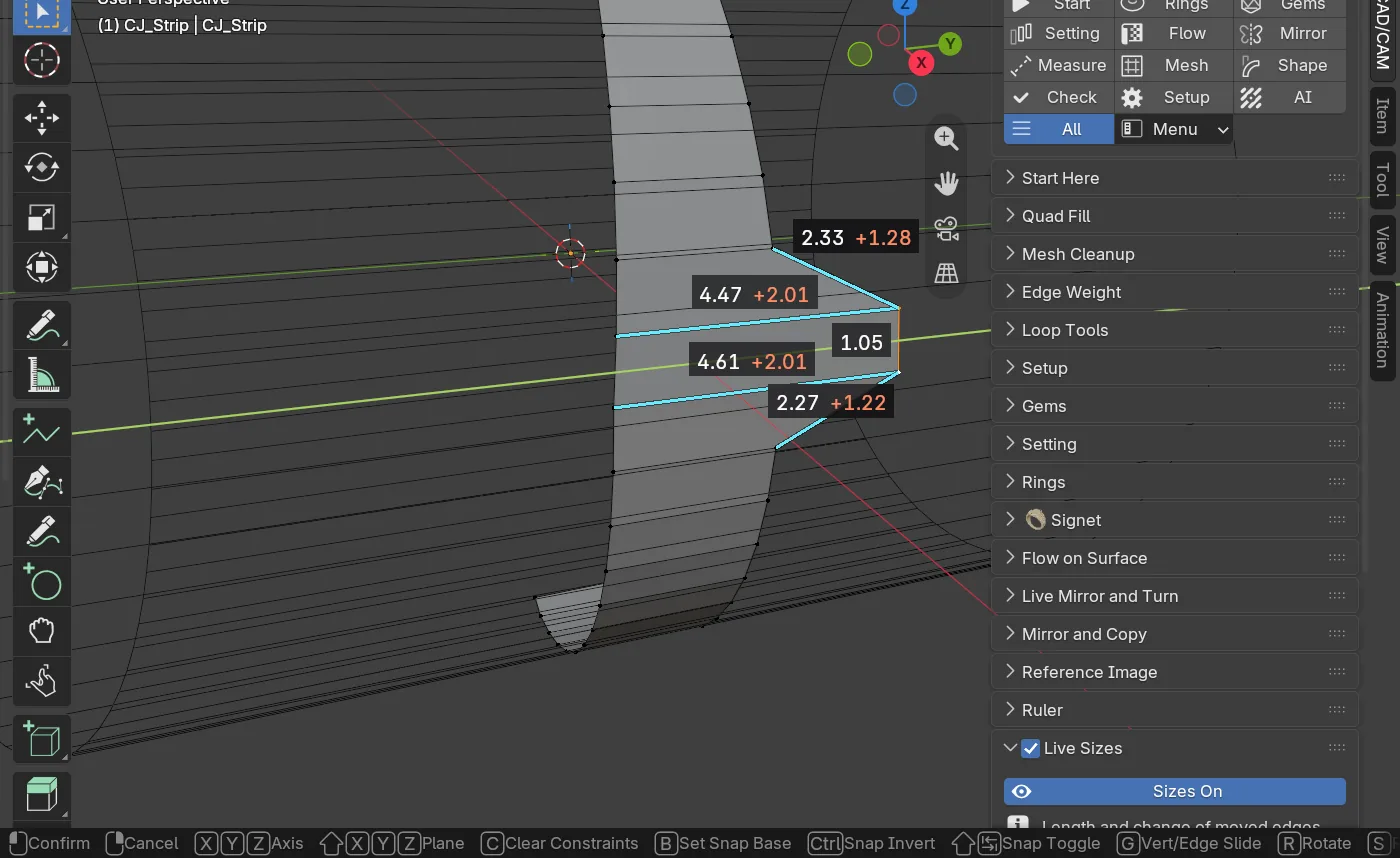
Settings
| Setting | Default | What it changes |
|---|---|---|
| Plane | Front | Front, Side or Top, for a new picture. |
| True Size | Pixels per mm | Pixels per mm (100), Width in mm (100) or Fit, calibrate after, which fits the longer side to 100 mm for now. |
| Keep in the .blend | On | Stores the picture in the Blender file, so it shows on another machine. |
| Show | On | Draws the kept rulers in every 3D view. Off keeps them unseen. |
| Decimals | 0.01 | Readings to a hundredth. 0.001 gives a thousandth. |
| Live Sizes | Off | The button reads Sizes Off until you switch it on. It is a scene setting, saved with the file. |
| Object Size, Edge Lengths, Change, Selection | On | What Live Sizes writes in Object Mode and in Edit Mode. |
| Most Labels | 24 | The most edge lengths written at once. 1 to 60. |
Keys while the Ruler runs.
| Key | What it does |
|---|---|
| Click, click | Start point, end point. |
Enter | Keeps the reading on show. With nothing to keep, it ends the tool. |
Backspace | Removes the last kept ruler. |
P | Project on or off: the distance as you see it in the view. On by itself in a flat view, off in perspective. |
X, Y, Z | Locks the measure to that world axis. Press again to let go. |
Shift, held | Keeps the measure level or upright in the view. |
Ctrl, held | Snapping off. |
T | Wall thickness on or off. |
Good to know
- The ruler snaps to what you can see, as the model is shown: modifiers applied, hidden objects ignored. Objects drawn as wire, such as seat cutters, are looked through. To measure a cutter, show it solid first.
- A kept ruler is a drawing. It selects nothing, is not exported, is saved with the file and does not follow the model if you move it.
- The ruler never moves the 3D cursor, the pivot point, the selection or the mode.
- On a round part made of flat faces the thickness is true to the faces. A tube with a 1.00 mm wall and 64 flat sides reads between 0.999 and 1.002 mm.
- A picture bigger than Blender’s display limit still comes out the true size. The rest is carried in the object’s scale.
- Live Sizes reads world lengths, so an unevenly scaled object still reads true. If Blender’s own Edge Length overlay is on, the panel says its numbers show twice.