

The add-on gives you three ways in to every tool: the tab and its section bar, a quick pie on J, and the Jeweller menu in the 3D view header. This page opens each one once. Nothing here changes your file.
Find your way round
Step 1. Open the CAD/CAM tab
Wherethe 3D Viewport.
Domove the mouse over it, press N, then click the CAD/CAM tab at the edge of the sidebar.
You should seethe section bar at the head of the tab, with the panels below it.
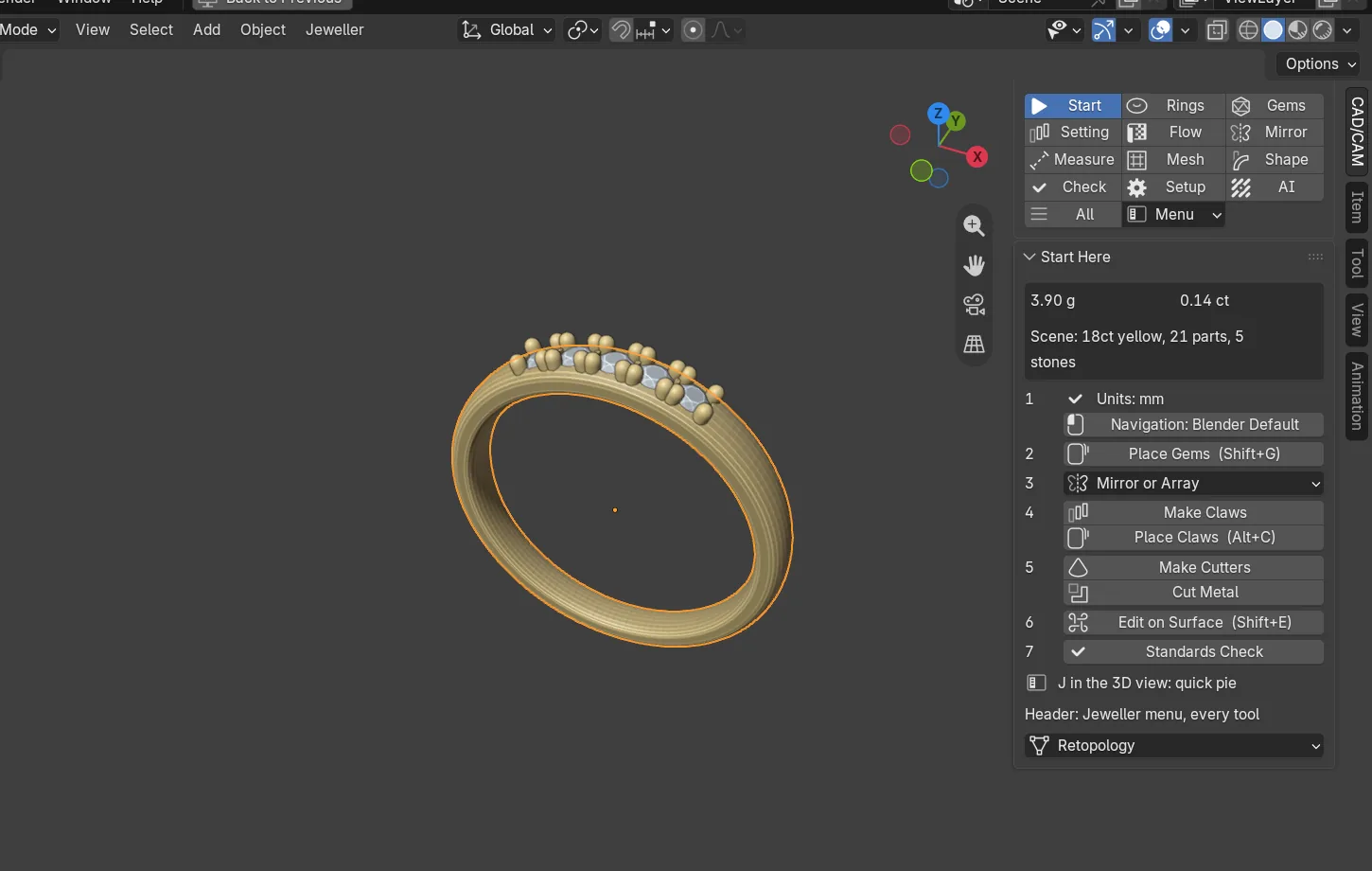
If it goes wrongno CAD/CAM tab means the add-on is not installed or not switched on. See Install the add-on.
Step 2. Read the section bar
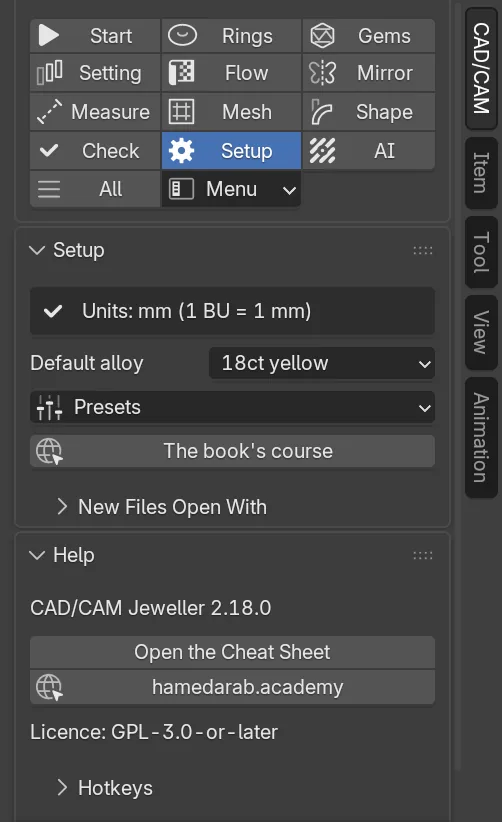
Wherethe head of the CAD/CAM tab, a grid of buttons with an icon and a word, three to a row.
Doclick Rings.
You should seethe button pressed and only the Rings panels showing. Click All and every panel is back, one under the other. All is chosen when you start.
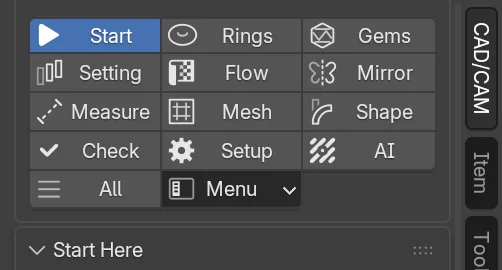
| Button | What it shows |
|---|---|
| Start | The usual order of work, as numbered buttons |
| Rings | Ring size, the rail and the band |
| Gems | Stones: make, place, twins and groups |
| Setting | Cutters and seats, claws, bezels, pave |
| Flow | Ornament drawn flat and carried onto the piece |
| Mirror | Mirror and turn copies of any object |
| Measure | The ruler and reference pictures |
| Mesh | Clean-up, edge weights, Quad Fill and Loop Tools |
| Shape | Falloff, Centre and Size in mm |
| Check | Weight, standards check, print check, export |
| Setup | Units, alloy, what new files open with, help |
| AI | Pictures and models from words, at true size |
| All | Every panel, one under the other |
| Menu | The Jeweller menu: every command |
Blender remembers your choice between files.
Step 3. Open Start Here
Wherethe section bar.
Doclick Start.
You should seethe Start Here panel. At the top, a small box with the metal’s weight in grams and the stones’ weight in carats. Below it, numbered buttons in the usual order of work: 1 units and navigation, 2 Place Gems (Shift+G), 3 Mirror or Array, 4 Make Claws and Place Claws (Alt+C), 5 Make Cutters and Cut Metal, 6 Edit on Surface (Shift+E), 7 Standards Check. At the foot: two reminders about J and the Jeweller menu, and a Retopology menu button.
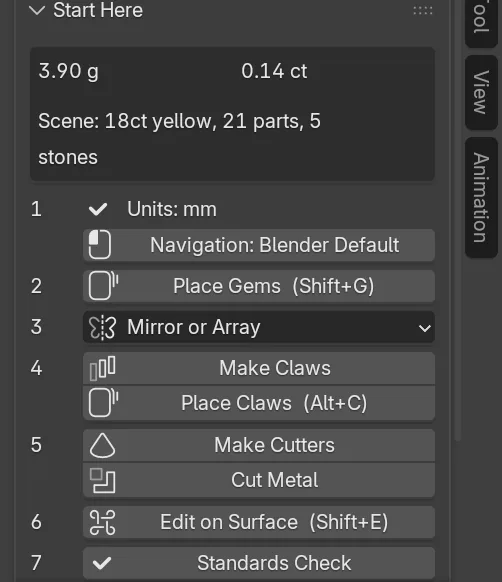
If it goes wronga red Set Units to mm button in row 1 means the scene is not in millimetres. Click it. Set up explains why it matters.
Step 4. Open the quick pie
Wherethe 3D Viewport, in Object Mode.
Domove the mouse over the view and press J.
You should seea pie of eight entries. Place Gems on the left, Place Claws on the right, Edit on Surface at the bottom, Make Claws at the top, Mirror and Copy at the top left, Make Cutters at the top right, Guides On / Off at the bottom left and All Commands at the bottom right.
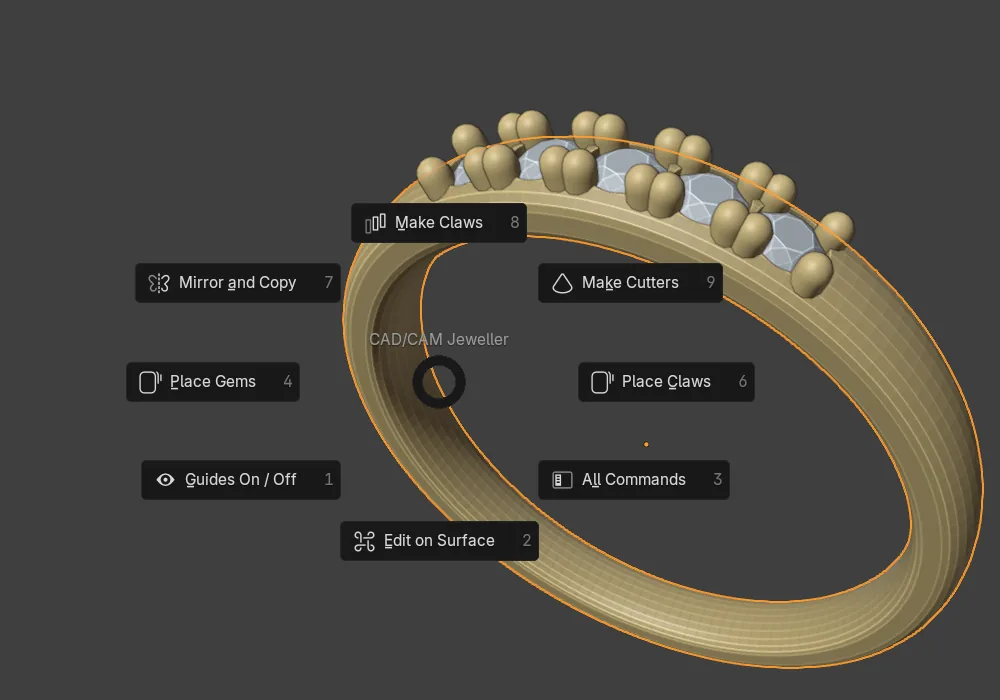
If it goes wrongthe pie opens in Object Mode only. In Edit Mode, press Tab first. Esc closes the pie without choosing anything.
Step 5. Open the Jeweller menu
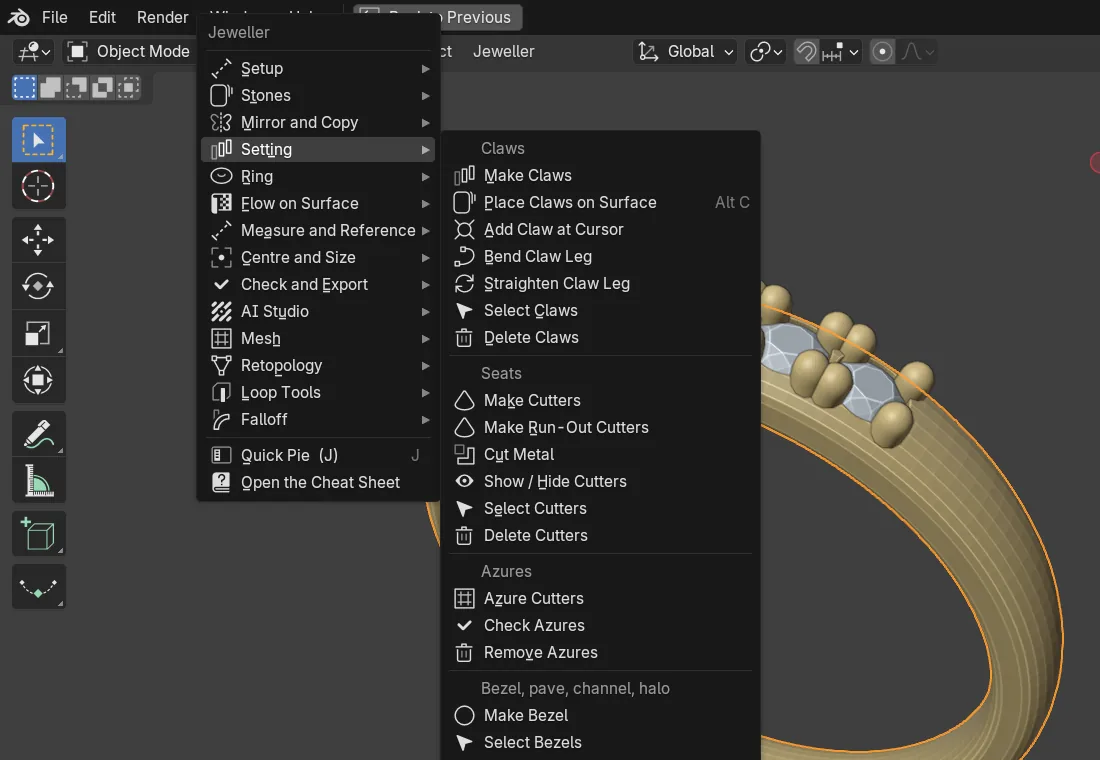
Wherethe header of the 3D Viewport. In Object Mode it sits after Object.
Doclick Jeweller.
You should seeevery command, grouped in submenus: Setup, Stones, Mirror and Copy, Setting, Ring, Flow on Surface, Measure and Reference, Centre and Size, Check and Export, AI Studio, Mesh, Retopology, Loop Tools and Falloff. At the foot are Quick Pie (J) and Open the Cheat Sheet. Blender prints each command’s key beside it.
Step 6. Find your version and Help
Wherethe section bar.
Doclick Setup.
You should seethe Setup panel, with the units line, Default alloy, Presets and a link to the book’s course. Under it the Help panel. Its first line reads CAD/CAM Jeweller 2.18.0: that is the version you run. Below that are two buttons, a licence line and the folded panels Hotkeys and Standards Used.
Next
Make something: Your first ring in five minutes.