

Flow on Surface lets you draw flat and see the drawing on the piece. It lays a face of the piece out flat beside it, at true size, with a millimetre grid. Whatever you draw on that guide appears on the piece at once and follows every change you make. Reach for it for leaves, scrolls and ornament on a band.
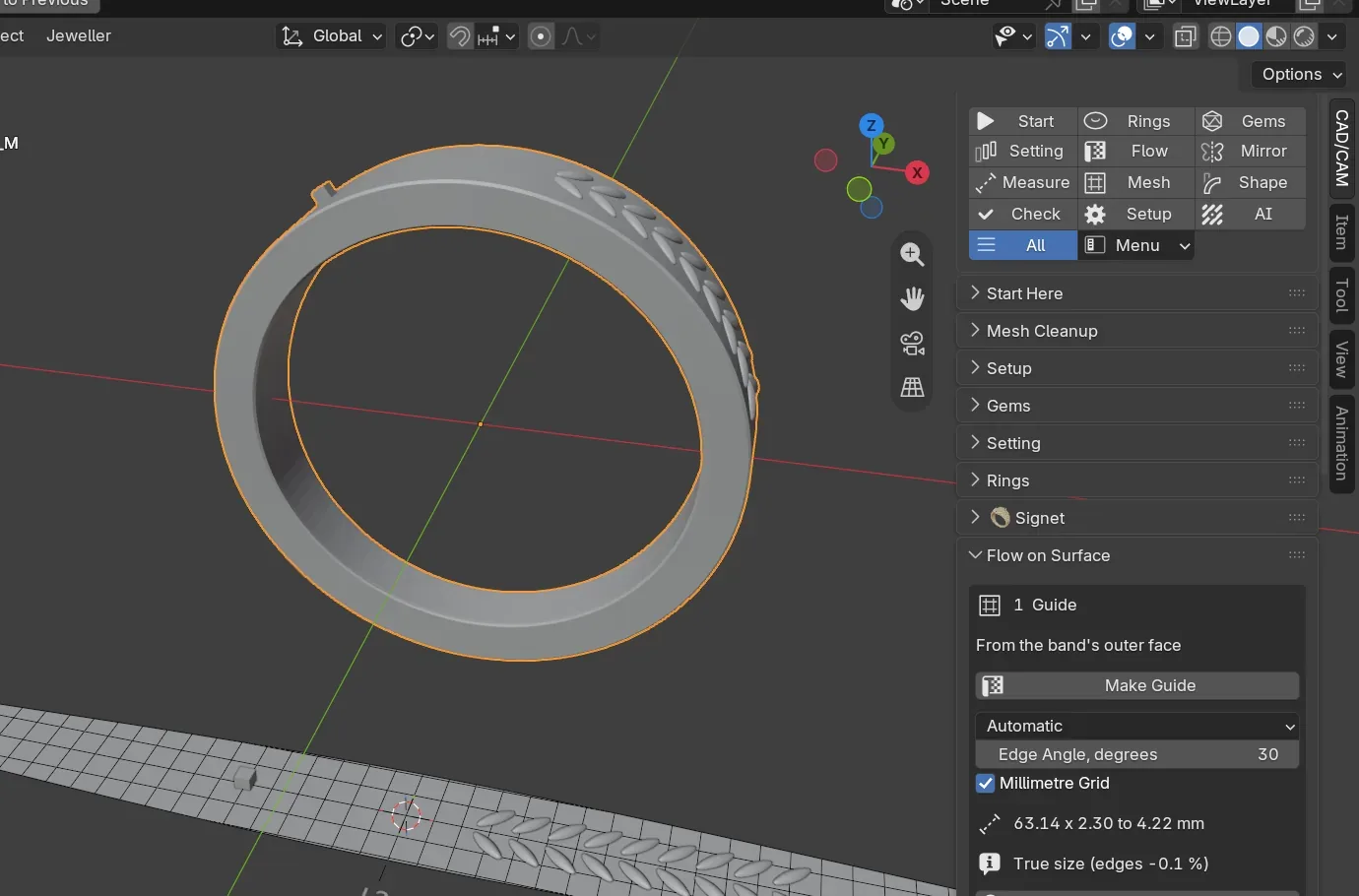
Where to find it
CAD/CAM tab > Flow section > Flow on Surface panel, in three numbered boxes: 1 Guide, 2 Draw and 3 Finish. Menu: Jeweller > Flow on Surface. There is no key of its own. Alt+M mirrors a drawing on the guide.
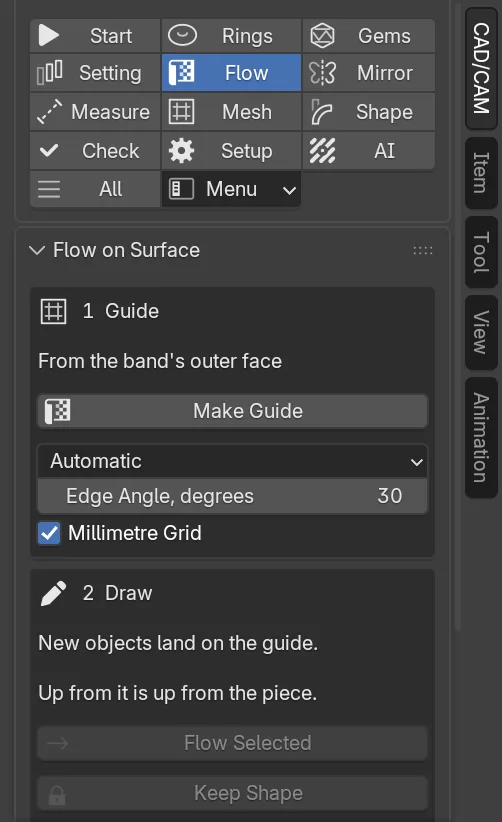
Use it
Step 1. Make the guide
Wherethe Flow on Surface panel, the 1 Guide box.
Dowith a band built by this add-on active in Object Mode, click Make Guide. For any other piece, press Tab for Edit Mode, pick the faces to decorate, then click Make Guide.
You should seethe faces laid out flat in front of the piece: the outline, a one-millimetre grid and, on a ring, the 12, 3, 6 and 9 o’clock marks. Under the button a line gives the guide’s size and a second line says how true it is, for example “True size”.
If it goes wrong“Pick the faces to lay flat first” means no face is picked. “In Edit Mode, pick the faces to lay flat, then Make Guide” means the active piece is not a band built here.
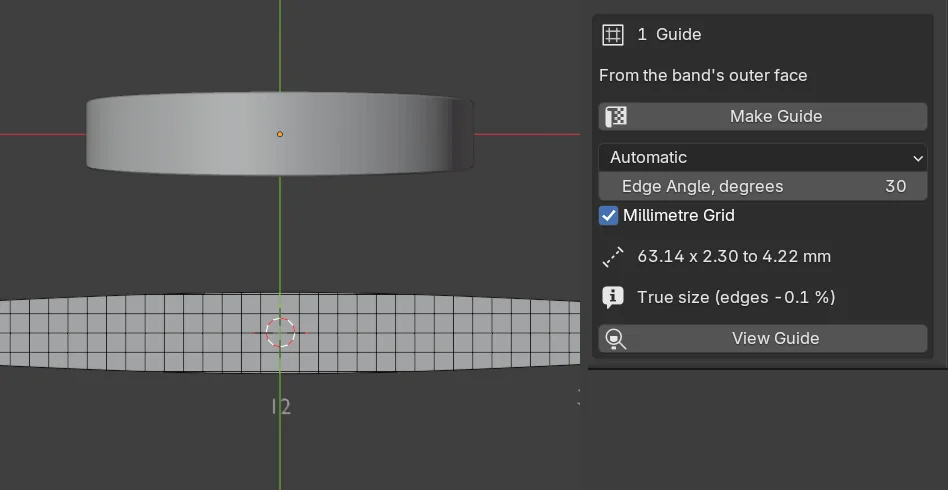
Step 2. Look straight down at it
Wherethe 1 Guide box, View Guide.
Doclick View Guide.
You should seethe 3D view turned to look straight down on the guide, framed on its length. Home shows everything again.
Step 3. Draw on the guide
Wherethe 3D view, in Object Mode, over the guide.
Doadd a mesh, a curve with a bevel or a text object over the guide and shape it.
You should seethe drawing on the piece at once. Across the guide is across the face. Up from the guide is up from the face, and below it is sunk in. Mirror, Array and Subdivision on the drawing are carried too.
If it goes wrongan object made before the guide is not on it yet. Select it and click Flow Selected in the 2 Draw box.
Step 4. Keep a stone or a drop whole
Wherethe 2 Draw box, Keep Shape.
Doselect the stone, drop or setting and click Keep Shape.
You should seethe button pressed in, and a line such as “1 lands whole”. Each separate piece is set down at the place its middle lands, turned to the face, at its own shape and size. Click again and it bends with the face once more.
Step 5. Draw one shoulder, see both
Wherethe 2 Draw box, Mirror on the Guide….
Doselect what you drew on one shoulder and click Mirror on the Guide…. In the window, tick Copy Follows the Original and press Enter.
You should seea copy across the guide’s middle, 12 o’clock on a band, carried onto the piece too. It redraws itself when the original changes. See Mirror and Copy.
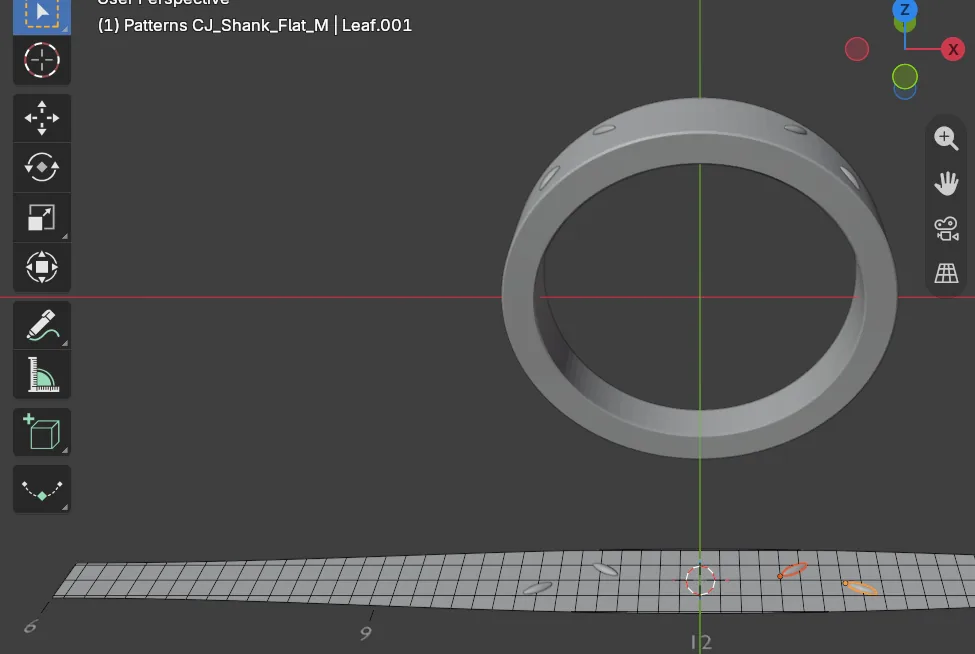
Step 6. Make it real
Wherethe 3 Finish box.
Doclick Make Real. Tick Join to Piece first to union the pattern into the metal.
You should seethe pattern as an ordinary mesh in the CJ Metal collection, and the line “Made real as” with its name. With Join to Piece it reads “Joined to” the piece, “one closed body”, with the metal added in mm3. The drawing and the guide stay, so you can change the pattern and make it real again.
If it goes wronga refused join puts the piece back as it was and says why. “Parts of the pattern do not touch the piece”: sink the drawing 0.05 to 0.1 mm into the guide. “Hollows would be trapped under the pattern”: model it as a solid with a flat base. “The pattern is not made of closed solids”: give a curve Fill Caps.
Remove Guide takes the guide, its grid and the live copy away and leaves the flat drawing.
Settings
| Setting | Default | What it changes |
|---|---|---|
| Method | Automatic | Automatic rounds the ring for a band built here and unwraps anything else. Round the Ring needs sections round the band. Unwrap lays any picked faces flat. |
| Edge Angle, degrees | 30 | On a band, how far a face may lean from square-on and still count as the outer face. 5 to 85. 30 keeps the flat or the crown. 75 takes a dome right to its edges. |
| Millimetre Grid | On | Draws one-millimetre lines on the guide. |
| Join to Piece | Off | After Make Real, unions the pattern into the piece and checks the result. |
How true the guide is, as the panel says it.
| Line | Meaning |
|---|---|
| True size | Every edge is within 0.05 % of its length on the piece. |
| Centre true, edges -7.9 % | A domed face: the centre line and width are true, the edges land squeezed by that much. |
| Lands -1.2 to +0.8 % | An unwrapped patch: lengths are true on average and stretch by this much at worst. |
Good to know
- A flat face rolls out exactly. A dome cannot be laid flat without squeeze. The number tells you how much, so you can keep a pattern to the crown.
- Six o’clock is at both ends of the guide, so a pattern drawn off one end comes round onto the other.
- The face is carried 0.75 mm past its own edge. Anything further out is left off, and the status line says how many points.
- Turn a drawing in Edit Mode, or apply its rotation with
Ctrl+A. An Array or a Mirror works in the object’s own axes. - The guide is a snapshot of the face. After Resize or any change to the face, make the guide again.
- Tick Show on Piece in the 2 Draw box to hide or show the live copy.