

There are two ways to install the add-on. Choose one and keep to it.
- The repository (recommended). You add the add-on’s address to Blender once. Blender then offers every new version by itself.
- The zip. You install one file. It never updates itself: you install the next zip the same way.
The pictures were taken in Blender 5.2. In another version a button may sit a little differently, but the steps are the same.
Route 1. Install from the repository
Step 1. Open Get Extensions
WhereBlender’s top menu bar, Edit > Preferences.
Doclick Get Extensions in the list on the left.
You should seethe list of extensions, a search box at the top, and a small arrow menu at the top right.
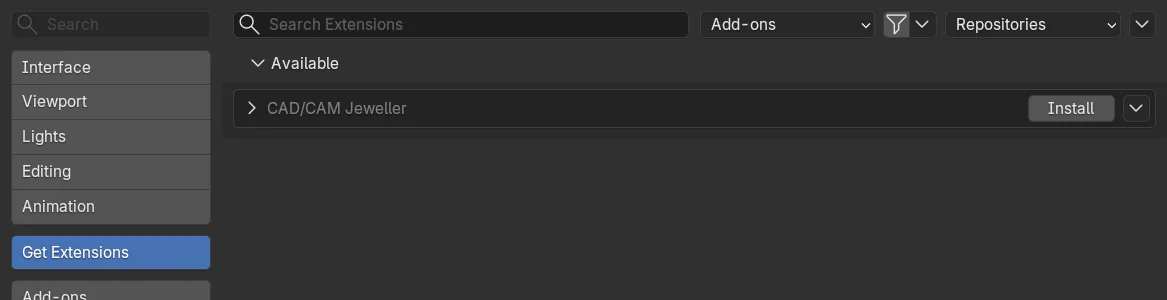
If it goes wrongno Get Extensions item means Blender is older than 4.2. See What you need.
Step 2. Allow online access
Wherethe top of the Get Extensions page.
Doif Blender asks, click the button that allows online access. If it does not ask, go to the next step.
You should seethe question gone and the list of extensions filling in.
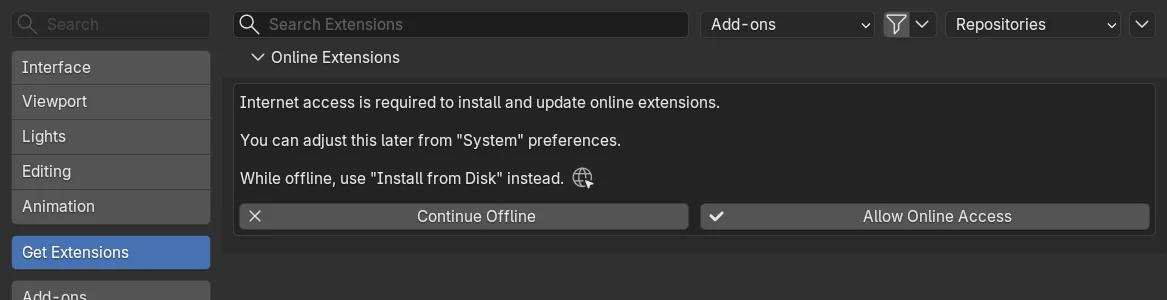
If it goes wrongthe same switch is Allow Online Access in Edit > Preferences > System > Network. Tick it, then return to Get Extensions.
Step 3. Open the Repositories menu
Wherethe top right of the Get Extensions page.
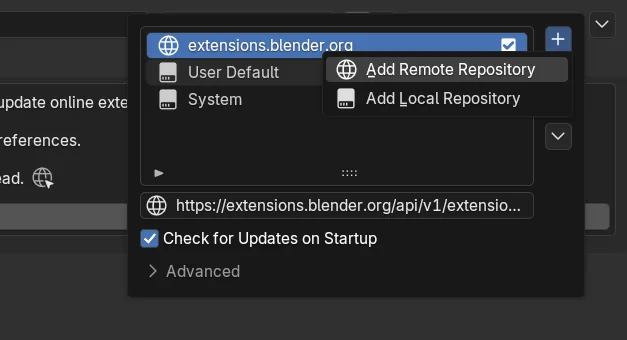
Doclick Repositories, then click + and choose Add Remote Repository.
You should seea small window with a box for an address.
Step 4. Paste the address
Wherethe Add Remote Repository window.
Typehttps://www.hamedarab.academy/blender-jewellery-addon/index.json
Dotick Check for Updates on Startup, then confirm the window.
You should seethe window close and Blender read the new repository.
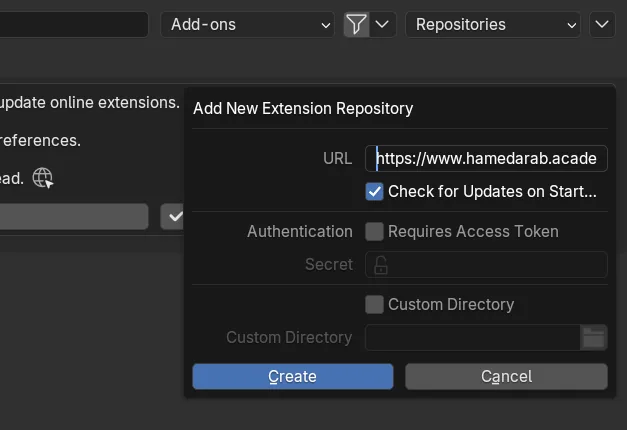
If it goes wrongcheck every character of the address. A wrong address gives an empty list.
Step 5. Find the add-on and install it
Wherethe list of extensions on the Get Extensions page.
TypeCAD/CAM Jeweller in the search box.
Doclick Install beside CAD/CAM Jeweller.
You should seea short download of about 4.2 MB, then the entry marked as installed.
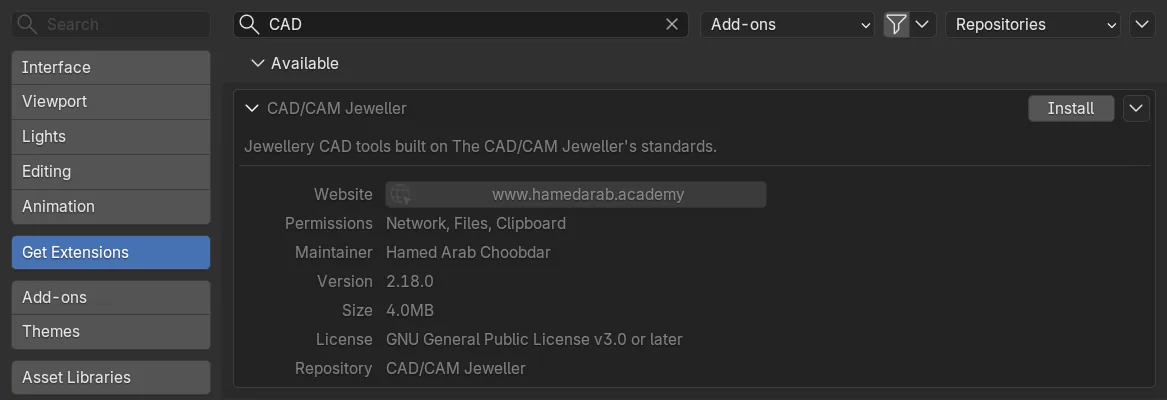
If it goes wrongif the add-on is not in the list, check online access (Step 2) and the address (Step 4).
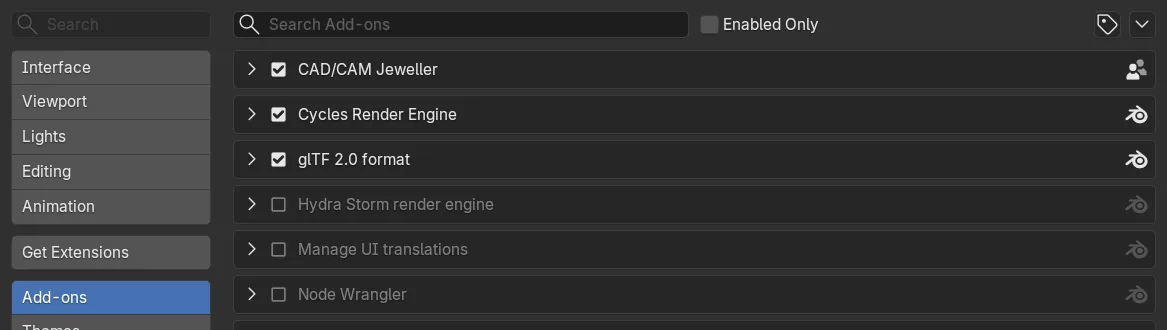
Step 6. Check that it is switched on
Wherethe same list, or the Add-ons tab of the Preferences.
Dolook for the tick beside CAD/CAM Jeweller. If it is missing, tick it.
You should seeCAD/CAM Jeweller listed as installed and enabled.
Step 7. Answer the Set Up window
Wherea window titled CAD/CAM Jeweller: Set Up. It opens by itself, once, after the add-on is switched on.
Dochoose Hamed’s Bench or Blender Default, then click Use This Setup.
You should seethe window close, and the status bar say which navigation you chose.
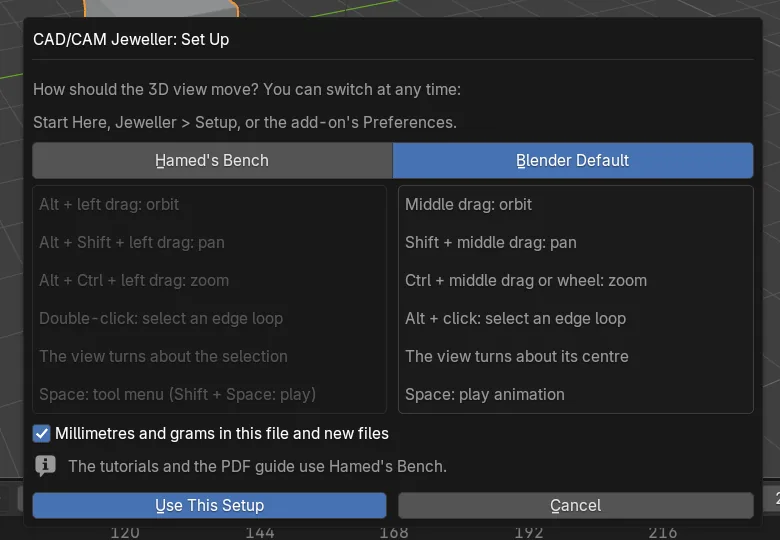
The two choices differ in how you move the 3D view.
| Hamed’s Bench | Blender Default | |
|---|---|---|
| Orbit | Alt + left drag | Middle drag |
| Pan | Alt + Shift + left drag | Shift + middle drag |
| Zoom | Alt + Ctrl + left drag | Ctrl + middle drag, or the wheel |
| The view turns about | The selection | The view’s centre |
Keys and menus lists the rest. Leave Millimetres and grams in this file and new files ticked, because the tools work in millimetres. You can change both choices later from Start Here, from Jeweller > Setup > Navigation and Units… or from the add-on’s Preferences.
Step 8. Open the CAD/CAM tab
Wherethe 3D Viewport.
Domove the mouse over it, press N, then click the CAD/CAM tab.
You should seethe section bar at the head of the tab, with the Start Here panel below it.
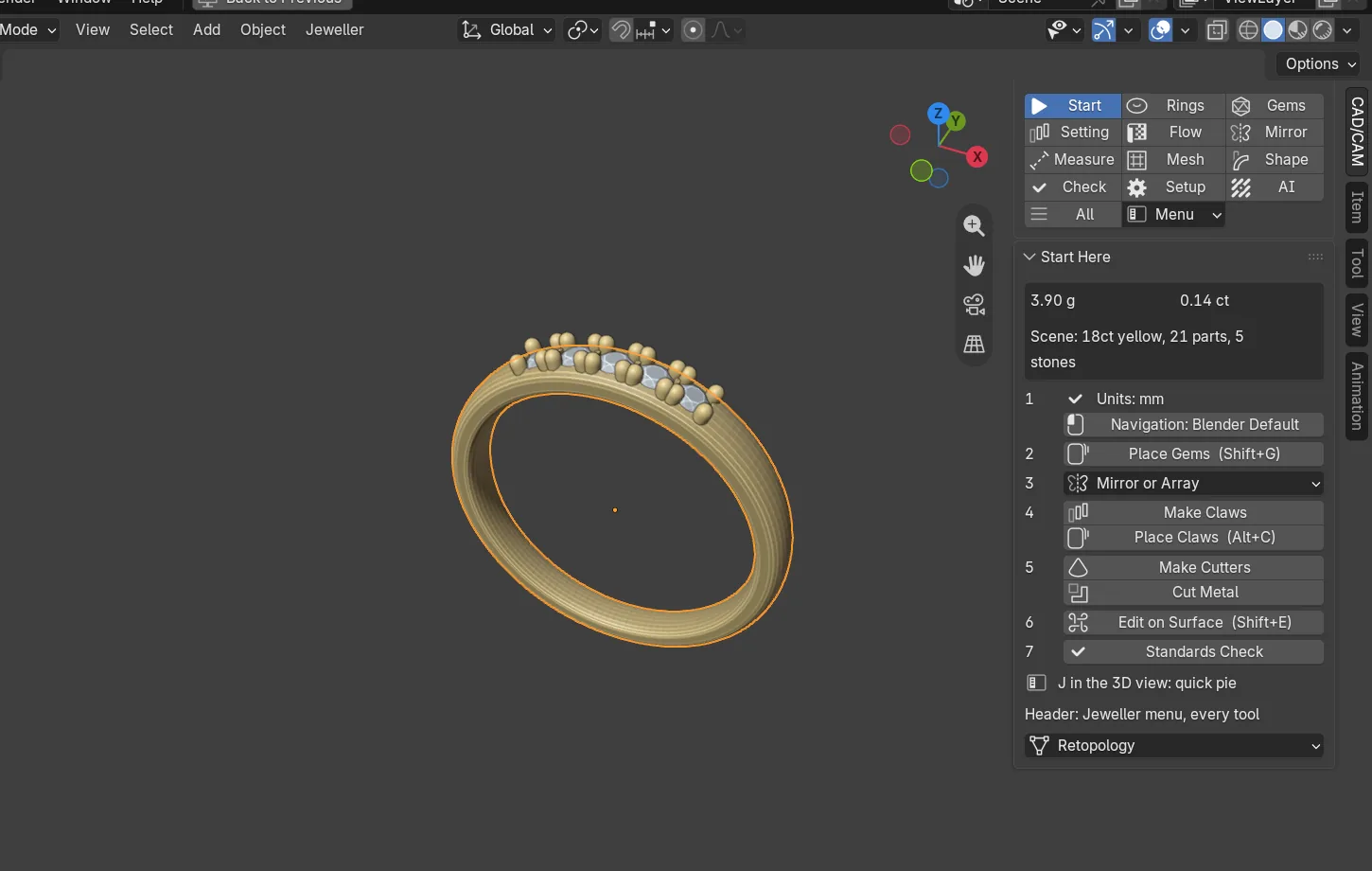
If it goes wrongno CAD/CAM tab means the add-on is not switched on. See If something goes wrong.
Route 2. Install from the zip
Get the zip from the download form. The file is cadcam_jeweller-2.18.0.zip, about 4.2 MB. Do not unzip it: Blender installs the zip itself.
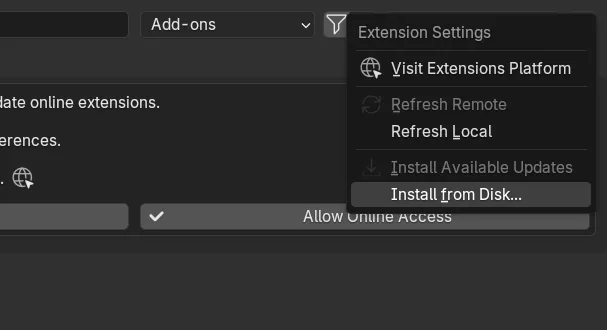
Step 1. Choose Install from Disk
WhereEdit > Preferences > Get Extensions, the small arrow menu at the top right.
Doclick the arrow menu and choose Install from Disk.
You should seeBlender’s file window.
Step 2. Pick the zip
Wherethe file window.
Dochoose cadcam_jeweller-2.18.0.zip and confirm.
You should seeCAD/CAM Jeweller in the list, installed and enabled.
If it goes wrongif Blender refuses the file, check that you picked the zip itself and not a folder you unzipped.
Step 3. Answer the Set Up window
Wherethe CAD/CAM Jeweller: Set Up window, which opens by itself.
Dochoose your navigation and click Use This Setup, as in Route 1, Step 7.
You should seethe window close. Then open the tab as in Route 1, Step 8.