

Shape holds two tools for changing a piece you have already made. Falloff gives every point a weight from 0 to 100 % and applies Move, Rotate and Scale by that weight, so a Scale tapers, a Rotate twists and a Move leans. Centre and Size stand a part where it belongs and make it the size it must be, in millimetres instead of percentages.
Where to find it
CAD/CAM tab > Shape section > Falloff panel and Centre and Size panel. Both work in Object Mode and Edit Mode. Menu: Jeweller > Falloff and Jeweller > Centre and Size. Keys: G, R and S do the weighted Move, Rotate and Scale while Falloff is on. Every figure is in millimetres, along the world axes.
Use it
Step 1. Switch the falloff on
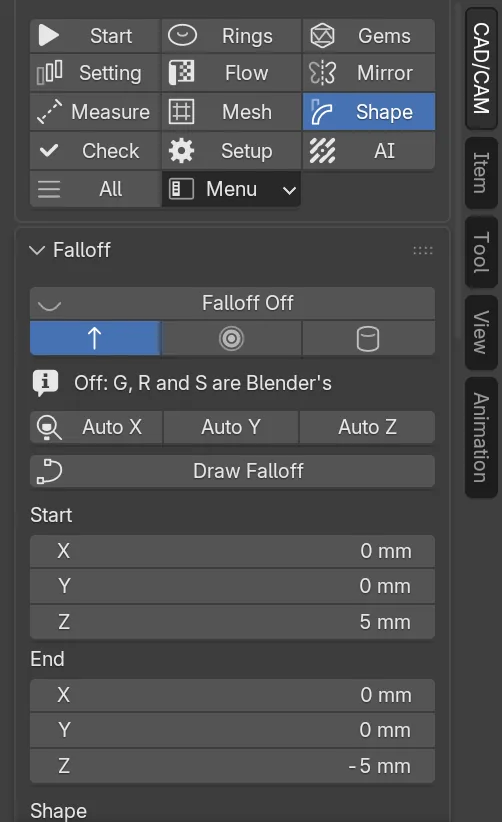
Wherethe Falloff panel, the top button.
Doin Edit Mode, select the points (select none for the whole mesh). In Object Mode, make the object active. Click Falloff Off. It reads Falloff On once it is on.
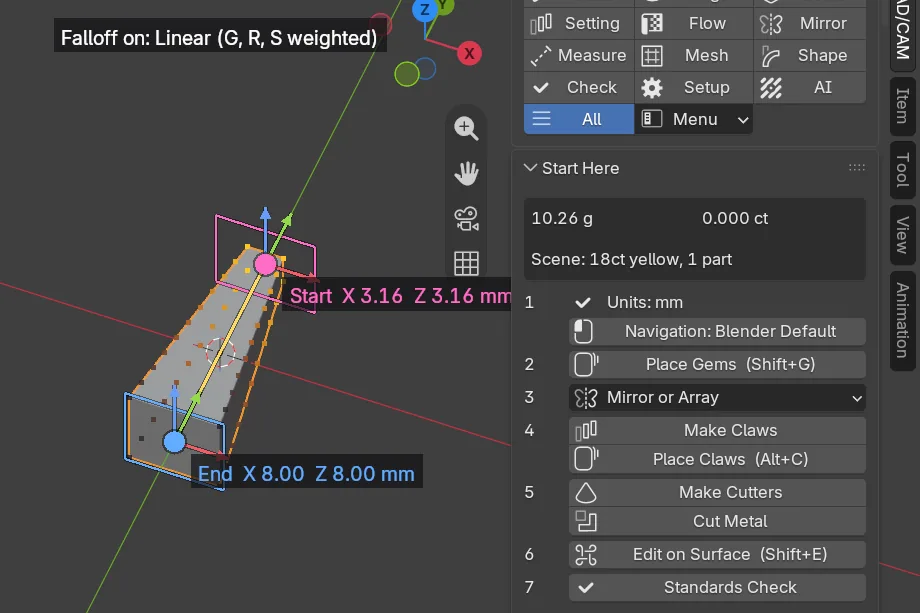
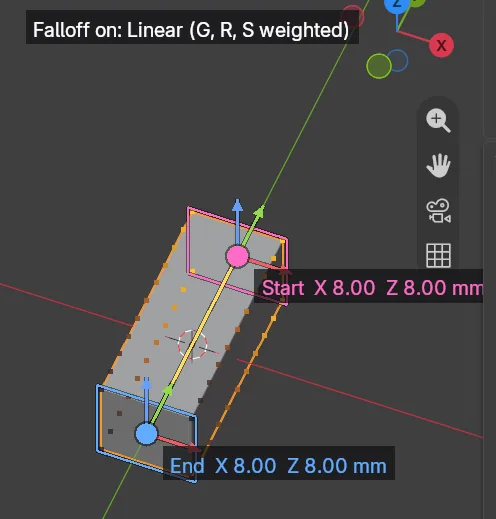
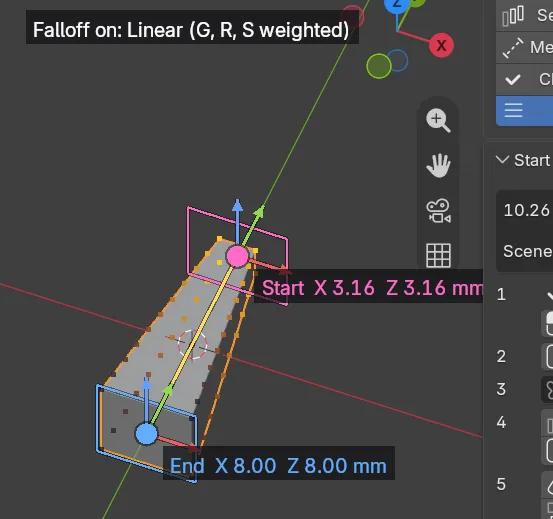
You should seea line from Start to End with a frame across each end, and every point the falloff reaches tinted by its weight: dark is none, warm is full. A line at the top reads “Falloff on: Linear (G, R, S weighted)”. The line is fitted to your selection along the axis you used last, Z the first time.
Step 2. Fit the line to the part
Wherethe Falloff panel, under the on button.
Doclick Auto X, Auto Y or Auto Z. Or click Draw Falloff, then press, drag and release across the 3D view. Three icon buttons under the on button pick the kind: Linear, Radial or Cylinder.
You should seeStart on the high side of the part and End on the low side, both on its centre line. While you draw, Ctrl snaps the line to a world axis and Esc cancels.
Step 3. Move the handles
Wherethe 3D view, at the ends of the line.
Dodrag a handle’s disc to move it freely in the plane of the view. Drag one of its arrows to move it along that axis only.
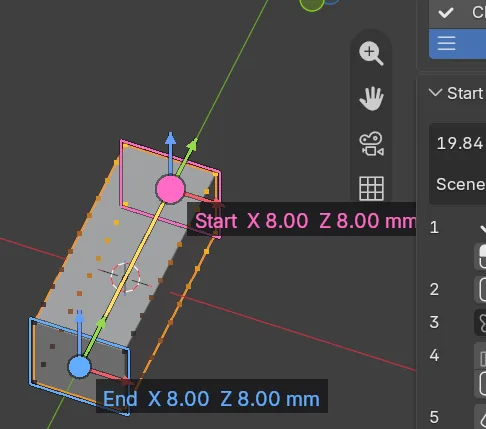
You should seea pink Start handle and a blue End handle, with arrows in Blender’s axis colours, and the width of the mesh at each end, such as Start X 8.00 Z 8.00 mm. Esc during a drag puts the handle back. You can also type Start and End in the panel.
Step 4. Choose how the weight falls
Wherethe Falloff panel, the Shape row of icon buttons. Hover over one for its name.
Dopick Linear, Ease-In, Ease-Out, Smooth or Custom. With Custom, set In and Out.
You should seethe tint change. Linear falls evenly. Ease-In falls quickly near Start. Ease-Out holds near Start and drops near End. Smooth is gentle at both ends. In and Out of 0 make Custom the same as Linear, and 33.3 % each the same as Smooth.
Step 5. Taper a part with Scale
Wherethe Falloff panel, with a box 8 mm wide, 20 mm tall and 8 mm deep selected.
Doclick Auto Y. Click Scale, press Shift+Y to leave Y alone, type the value below and press Enter.
Type39.5
You should seethe top 3.16 mm wide on X and Z, the bottom still 8.00 mm and an even slope between. The panel reads “Start width X 8.00 to 3.16, Z 8.00 to 3.16 mm” and “End width X 8.00, Z 8.00 mm (unchanged)”.
If it goes wronga negative percentage is refused. Scale cannot mirror a part.
Step 6. Twist or lean
Wherethe Move, Rotate and Scale buttons, or the keys G, R and S.
Doclick Rotate to twist: the Start end turns the whole angle and the End end does not turn. Click Move to lean or bend: the Start end moves the whole distance.
You should seethe points follow the mouse. X, Y or Z limits it to that axis, digits type a distance in mm or degrees, and Enter keeps it. Esc or a right click puts every point back.
Step 7. Type the values
Wherethe Falloff panel, Transform: Type the Values.
Doclick it, then type Move X, Y and Z (mm), Rotate X, Y and Z (degrees) and Scale X, Y and Z (percent).
You should seea panel at the foot of the 3D view. Each change is worked out again from the original points, so it stays exact however often you edit it.
Step 8. Centre a part
Wherethe Centre and Size panel, Centre box.
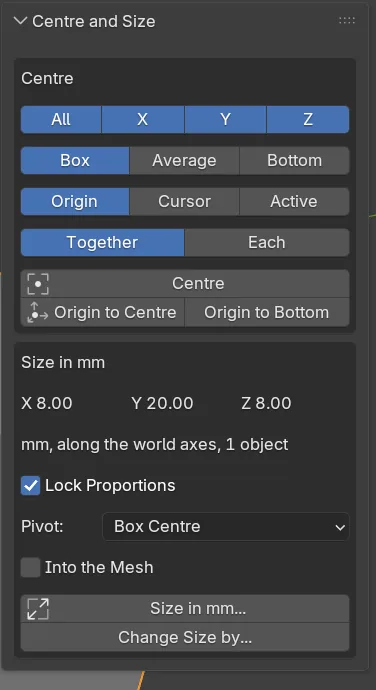
Dochoose the axes (All, X, Y, Z), the reference (Box, Average or Bottom), the target (Origin, Cursor or Active) and Together or Each. Click Centre.
You should seethe selection moved so its reference stands on the target, and a sentence saying how far, in millimetres. Nothing else changes. In Object Mode, Origin to Centre and Origin to Bottom move the object’s origin and leave its shape where it is.
If it goes wrongwith nothing selected, or no axis on, it refuses and says so.
Step 9. Set a size in millimetres
Wherethe Size in mm box of the same panel.
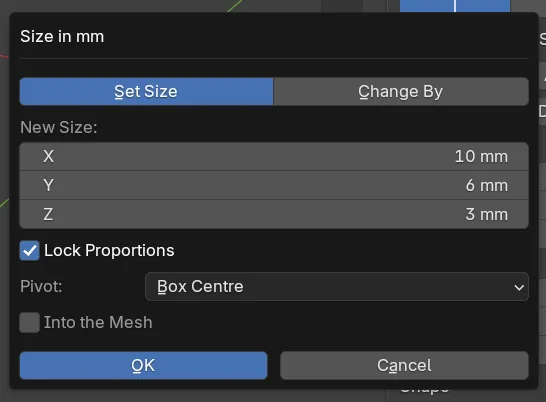
Doclick Size in mm…. Type the new size along X, Y and Z and click OK. For a change instead, click Change Size by… and type how much to add. A minus takes away.
You should seethe other two axes follow your typing while Lock Proportions is ticked, so you see the result before you press OK. A sentence gives the size before and after, such as “Size of Ring: 12.40 x 8.00 x 2.10 mm to 15.00 x 9.68 x 2.54 mm, proportions kept.”
Settings
| Setting | Default | What it changes |
|---|---|---|
| Kind | Linear | Linear is a line from Start to End. Radial is a ball round Start. Cylinder is a tube round the line through Start and End. |
| Start, End | 0, 0, 5 mm and 0, 0, -5 mm | Where the weight is full and where it is none. Start is the centre for Radial. |
| Radius | 5 mm | Radial and Cylinder: the distance at which the weight reaches none. |
| In, Out | 33.3 % each | Custom shape only. 0 to 100 %. |
| Reverse, Symmetric | Off, None | Reverse swaps Start and End. Symmetric (Linear only) makes a ridge at Start or a valley at End. |
| G, R and S weighted | On | The keys act by weight. Untick it for Blender’s own keys. The buttons still work. |
| Pivot | Falloff Start | What Scale and Rotate turn about. Also Selection Centre, World Origin and 3D Cursor. |
| Reference, To, Group | Box, Origin, Together | Average is the mean of the points. Bottom is the lowest point, so a piece sits on the ground with only Z on. Each centres every object on its own. |
| Lock Proportions | On | Typing one axis scales all three by the same share. |
| Pivot (Size in mm) | Box Centre | The point that stays put. Also Bottom, Box Min, Box Max, 3D Cursor, World Origin and Active Object. |
| Into the Mesh | Off | Object Mode: writes the size into the mesh and leaves the object’s scale as it is. |
Good to know
- Falloff is off every time a file opens. It is never saved in a file.
- In Object Mode, Falloff acts on the active object only. A mesh with shape keys is refused there: use Edit Mode.
- A Cylinder falloff runs on without end along its line. End only gives it a direction.
- Falloff does not make a mesh castable or printable. Check the piece after any edit.
- Size in mm refuses a size of nothing. It also refuses an uneven stretch of a turned object unless Into the Mesh is on.
- Centre and Size work along the world axes, not the object’s own.