

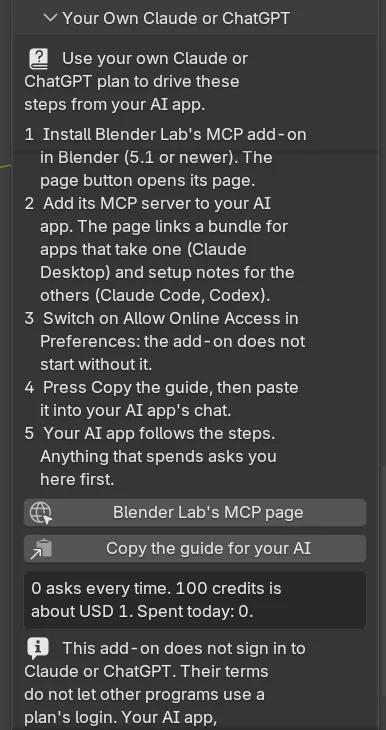
You can run all six AI Studio steps from your own AI app, on your own plan, through Blender Lab’s separate MCP add-on. MCP is the standard way an AI app reaches another program. CAD/CAM Jeweller never signs in to Claude or ChatGPT and never takes a plan’s login. Your AI app, which you sign in to yourself, calls Blender instead. A paid request waits for your click on Allow, unless it fits a daily allowance you set. The allowance starts at 0, which asks every time. The pictures and models still cost credits on your own Tripo, Google and OpenAI keys.
Where to find it
CAD/CAM tab > AI section > AI Studio panel, then the Your Own Claude or ChatGPT panel below the six numbered ones. Click its header to open it. Menu: Jeweller > AI Studio. There are no keys.
What you need
- Blender 5.1 or newer, for Blender Lab’s MCP add-on.
- Allow Online Access switched on in Blender. The MCP add-on does not start without it.
- Blender Lab’s MCP add-on, installed from Blender’s own page.
- Your AI app, signed in by you.
- Your AI Studio keys. See Keys, costs and privacy.
Use it
Step 1. Install Blender Lab’s MCP add-on
WhereCAD/CAM tab > AI section > Your Own Claude or ChatGPT panel. Click its header to open it.
Doclick Blender Lab’s MCP page, and install the add-on it describes in Blender 5.1 or newer. Switch on Allow Online Access in the Preferences.
You should seeBlender Lab’s page in your browser, at https://www.blender.org/lab/mcp-server/. Once installed, the add-on starts a small local server inside Blender.
Step 2. Add Blender Lab’s MCP server to your AI app
Whereyour AI app’s settings.
Dofollow Blender Lab’s page. It links an MCP bundle (a .mcpb file) for apps that take one, and setup notes for the others. Those steps change with the app, so CAD/CAM Jeweller does not repeat them.
Step 3. Copy the guide
Wherethe Your Own Claude or ChatGPT panel.
Doclick Copy the guide for your AI.
You should seethe status bar say “Copied the guide” and give its number of lines. The steps for your AI app are now on the clipboard. They give it the rules and the order: describe, refine, make the picture (skipped when you have photographs), make the model, place the model.
Step 4. Paste it into your AI app
Whereyour AI app’s chat.
Dopaste the guide, then say what you want to make: the piece, its size and its stones.
You should seeyour AI app run AI Studio’s steps in Blender through the MCP server and tell you in plain words what it did after each one. A picture or a model is started, then followed with a status check every 10 to 15 seconds.
If it goes wrongthe guide tells the AI to ask you for the piece, the size and the stones, and not to invent sizes. Tell it if it guesses.
Step 5. Allow or refuse a paid request
Wherethe head of the AI Studio panel, in the AI section.
Dowhen a red box says “An AI app asks to start…”, read it and click Allow or Refuse.
You should seethe job, its credits and “about USD” figure, and a line saying what it holds: the words, or the picture, and the names of your own pictures that would go to the service. Allow runs exactly what was asked. Refuse spends nothing.
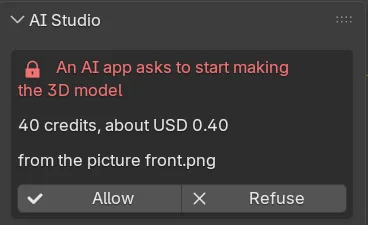
If it goes wrong“Only the person can allow this” means Allow was called from code. Press the button in the panel. “A request is already waiting” means Allow or Refuse the first one before anything else can wait.
How spending is limited
| Rule | What it means |
|---|---|
| It asks first | A picture, a model or a Refine with a model costs real money on your keys. It goes ahead only if you press its button in the panel, or it fits AI may spend a day. |
| One at a time | A second call is told one is already waiting. It does not replace the first. |
| Ten minutes | A waiting request is dropped after ten minutes, and when a file is loaded. |
| What you allow is what runs | The prompt, the views, the pictures (each with a fingerprint), the Tripo options and the price are kept as they were. The price is worked out again. A picture that changed or went missing is refused and nothing is sent. |
| Allow is a press | It works only when Blender runs it for a click on the button. From a script it does nothing and says so. The add-on has no function for an AI to allow a spend and no way to raise the allowance from code. |
| The allowance | AI may spend a day, in credits, 0 to 5,000. 100 credits is about USD 1. A picture counts as 15. Credits a job has not yet recorded still count, so two quick calls cannot both pass a limit one of them would break. |
Why there is no sign-in
Anthropic’s terms do not allow a third-party program to route requests through a Claude plan’s login, and OpenAI’s sign-in is for OpenAI’s own apps. So the add-on never runs an AI app, never reads a plan’s login and has no sign-in button. The panel says the same: “This add-on does not sign in to Claude or ChatGPT. Their terms do not let other programs use a plan’s login.”
Settings
| Setting | Default | What it changes |
|---|---|---|
| AI may spend a day | 0 credits | Credits an AI app may spend in a day without asking. The preference calls it AI May Spend. 0 asks every time. |
Good to know
- Blender Lab warns that its MCP server runs the code an AI writes in Blender without guards. Use it knowingly.
- The guide tells your AI never to ask for, print, store or guess a key. The keys are in the preferences or the environment, and the AI cannot see them.
- The guide tells your AI never to press Allow itself, and not to delete your work.
- Cancel, the X beside a progress bar or Jeweller > AI Studio > Cancel, stops what AI Studio is doing and drops any request waiting for your click.
- A generated model is a shape to copy. The guide tells your AI never to call it ready to cast or print.
- After a model is placed, the guide tells your AI to send you to Mesh Cleanup, and not to tidy the mesh itself.