

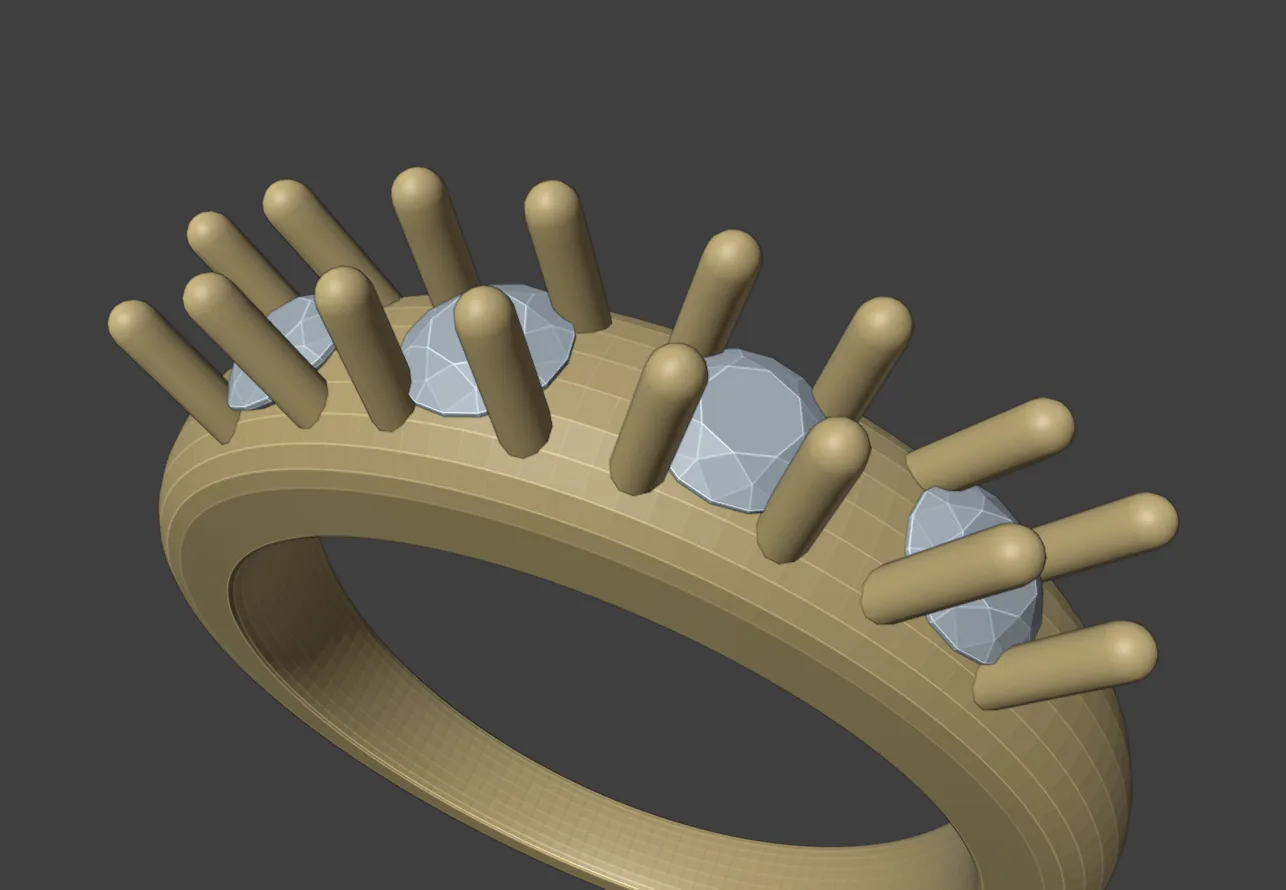
Make Claws sets every selected stone in claws, on the book’s thicknesses. You can also drop one claw at the cursor, place small pave claws in the gaps between stones, give a claw a bent leg and slide any claw round its surface afterwards. Reach for it once the stones are placed and before you cut the seats.
Where to find it
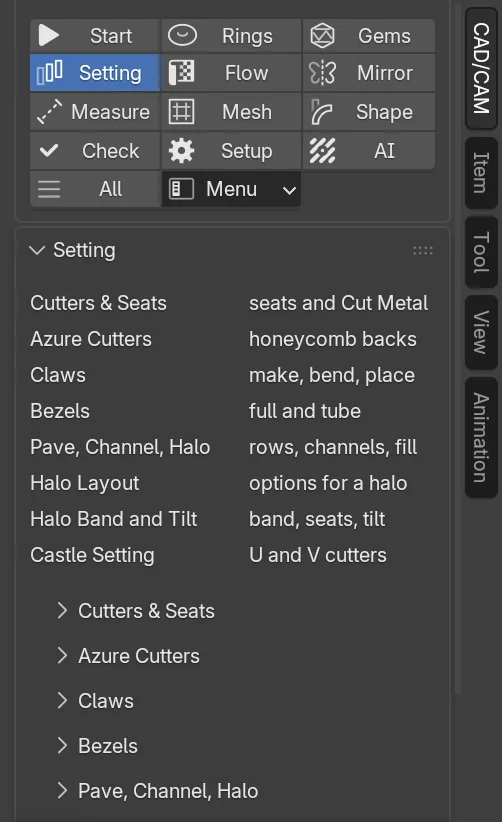
CAD/CAM tab > Setting section > Setting panel > Claws (closed until you open it). Menu: Jeweller > Setting, the Claws group. Pie: press J, then Make Claws (top), Place Claws (right) or Edit on Surface (bottom). Keys: Alt+C places claws on a surface, Shift+E edits on a surface.
Use it
Step 1. Select the stones
Wherethe 3D view, in Object Mode.
Doclick a stone, then Shift+click the others you want to set.
You should seethe stones outlined as selected.
If it goes wrongthe status bar says “Select at least one gem” when no stone made with the add-on is selected. Make the stones first with Gems.
Step 2. Open the Claws panel
WhereCAD/CAM tab > Setting section > Setting panel.
Doclick the Claws header.
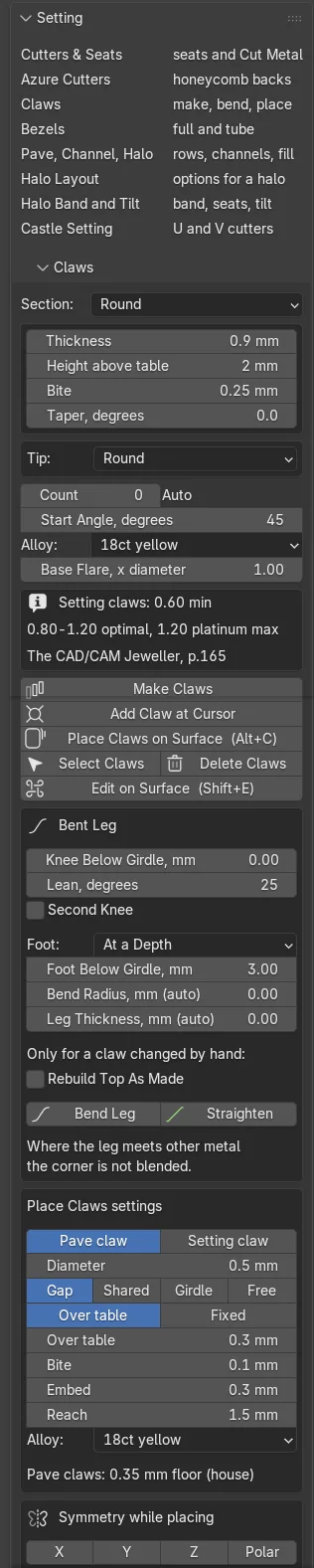
You should seeSection, a box with Thickness, Height above table, Bite and Taper, degrees, then Tip, Count, Start Angle, degrees, Alloy and Base Flare, x diameter. Under them a short note on the book’s claw figures, then the buttons.
Step 3. Make the claws
Wherethe Claws panel, Make Claws.
Doclick Make Claws. For a first try leave the defaults: a Round section, Thickness 0.90 mm, Height above table 2.00 mm.
You should seefour claws round a round stone, five round a pear. The status bar reads, for example, “4 claws on 1 gem”.
If it goes wronga warning icon in the note box means a figure is outside the book’s range. The claws are still made.
Step 4. Change them and make them again
Wherethe Claws panel.
Dochange Thickness, Tip or Count, then click Make Claws again.
You should seethe stone’s old claws replaced by new ones at the new settings.
Select Claws and Delete Claws act on the selected stones, or on every claw when none is selected.
Step 5. Place pave claws in the gaps
Wherethe 3D view, in Object Mode, with the mouse over the view.
Dopress Alt+C. Aim at the gap between stones, turn the wheel to set the diameter, click to place, then press Enter to finish.
You should seea preview outlined green when the claw bites its stones well, amber when the bite is weak, red when it reaches towards a table. The status bar leads with the diameter, the height and the hold.
If it goes wrong“No surface under the mouse” means you are aiming off the metal.
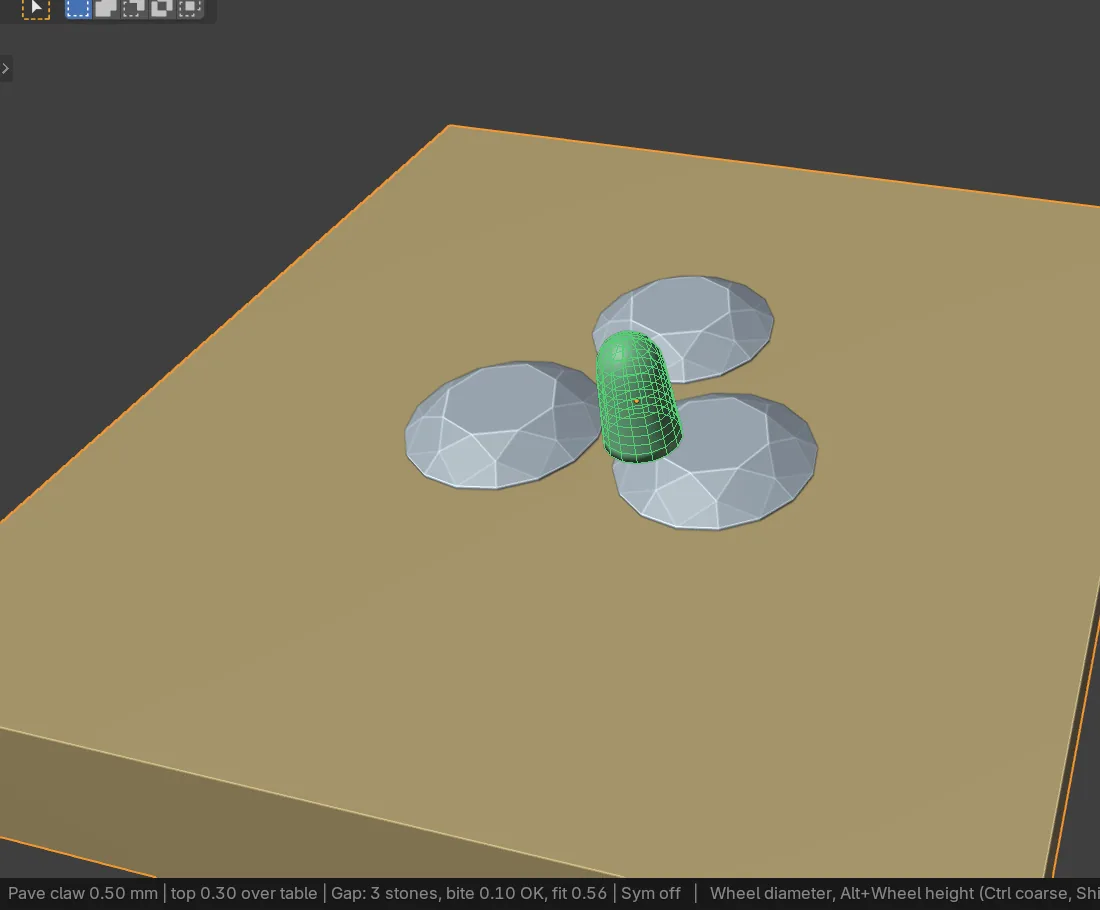
Press S while placing to change the snap: Gap, Shared, Girdle, Free. In Shared, hold Ctrl to slide the claw along its line. The Place Claws settings box at the foot of the Claws panel holds the rest.
Step 6. Add one free claw
Wherethe Claws panel, Add Claw at Cursor.
Doput the 3D cursor where the foot should stand and click Add Claw at Cursor.
You should seeone claw 2.00 mm high with the panel’s section and thickness. It belongs to no stone.
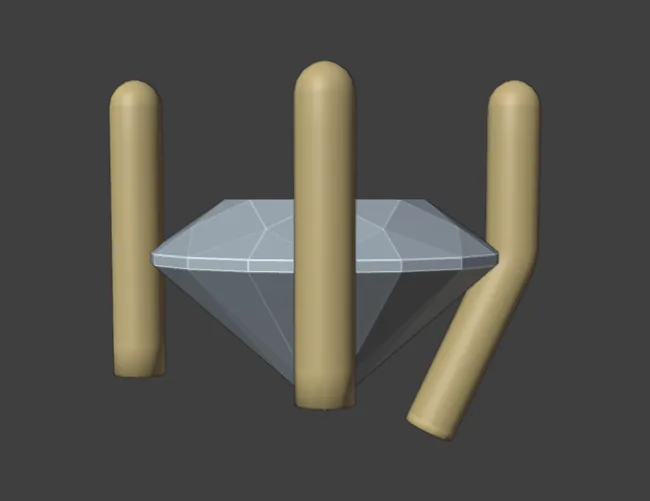
Step 7. Bend the leg
Wherethe Bent Leg box at the foot of the Claws panel.
Doselect the claws, or a stone that has claws. Set Knee Below Girdle, mm and Lean, degrees, then click Bend Leg.
You should seethe top of each claw unchanged and the leg below it one smooth bar. Three short lines under the buttons give the bend in degrees and the length to the foot.
If it goes wronga claw changed by hand since it was made is refused. Tick Rebuild Top As Made to bend it anyway. Its hand changes are lost. Straighten takes the leg off again.
Step 8. Slide or resize a claw
Wherethe 3D view, in Object Mode.
Dopress Shift+E and click a claw to pick it. Move the mouse to slide it along its surface and turn the wheel to resize it. R turns it and X deletes it. Click to keep it, then Enter to finish.
You should seethe claw follows the mouse without jumping to it, and keeps its height off the surface.
Settings
| Setting | Default | What it changes |
|---|---|---|
| Section | Round | The claw’s cross-section: Round, Square, V, Triangle, Flat or Traditional. |
| Thickness | 0.90 mm | The claw’s diameter. 0.35 to 4.00 mm. |
| Height above table | 2.00 mm | How far the claw stands above the table. 0.00 to 4.00 mm. |
| Bite | 0.25 mm | How far the claw overlaps the girdle. 0.00 to 1.00 mm. |
| Taper, degrees | 0.0 | How much the claw narrows from foot to tip. 0 to 20 degrees. |
| Tip | Round | Round, Flat, Talon or V. A talon shows Talon Lean, degrees (12 by default). |
| Count | 0 (Auto) | Claws per stone. Auto gives four on most cuts, five on a pear. 0 to 8. |
| Start Angle, degrees | 45 | Where the first claw sits on a round stone. |
| Base Flare, x diameter | 1.00 | A multiplier on the diameter. 1.00 to 2.00. |
The Bent Leg box.
| Setting | Default | What it changes |
|---|---|---|
| Knee Below Girdle, mm | 0.00 | Where the leg starts to bend, below the girdle. 0 is at the girdle. |
| Lean, degrees | 25 | How far the leg leans in towards the stone. A minus figure leans it out. |
| Second Knee | Off | A second bend lower down, with Knee 2 Below Girdle, mm (1.50) and Lower Lean, degrees (45). |
| Foot | At a Depth | The leg ends at Foot Below Girdle, mm (3.00), or At the 3D Cursor. |
| Bend Radius, mm | 0 (auto) | Auto uses the leg’s own thickness, which gives a smooth bend. |
| Leg Thickness, mm | 0 (auto) | Auto uses the claw’s own thickness. |
The Place Claws settings box.
| Setting | Default | What it changes |
|---|---|---|
| Style | Pave claw | Pave claw is a small round pin. Setting claw takes its shape from the Claws panel. |
| Diameter | 0.50 mm | Never below 0.35 mm. |
| Snap | Gap | Gap, Shared, Girdle or Free. |
| Height | Over table | Over table (0.30 mm) or Fixed (1.00 mm). |
| Bite, Embed, Reach | 0.10, 0.30, 1.50 mm | How far a pave claw covers a girdle, sinks into the metal, and searches for stones. |
Good to know
- The book asks for claws 0.60 mm thick at least, 0.80 to 1.20 mm best, and 1.20 mm at most in platinum (p.165). No claw is ever built thinner than 0.35 mm.
- A claw keeps one diameter from its foot to where its tip rounds over. A taper or a flare is a choice, and Make Claws says so, with the diameters it measured.
- 2.00 mm is the production height, so the setter has length to bend the claw over the stone and trim it. Shorter is your choice, said in a plain line and never called a fault.
- A claw is never cut where its own stone’s girdle sits. The setter makes that nudge at the bench.
- Make Claws on a mirrored or arrayed stone acts on its master, and every twin gets the same claws. See Symmetry.
- Bend Leg does not blend the corner where the leg meets other metal, or check the leg against the stone. A claw takes one leg.