

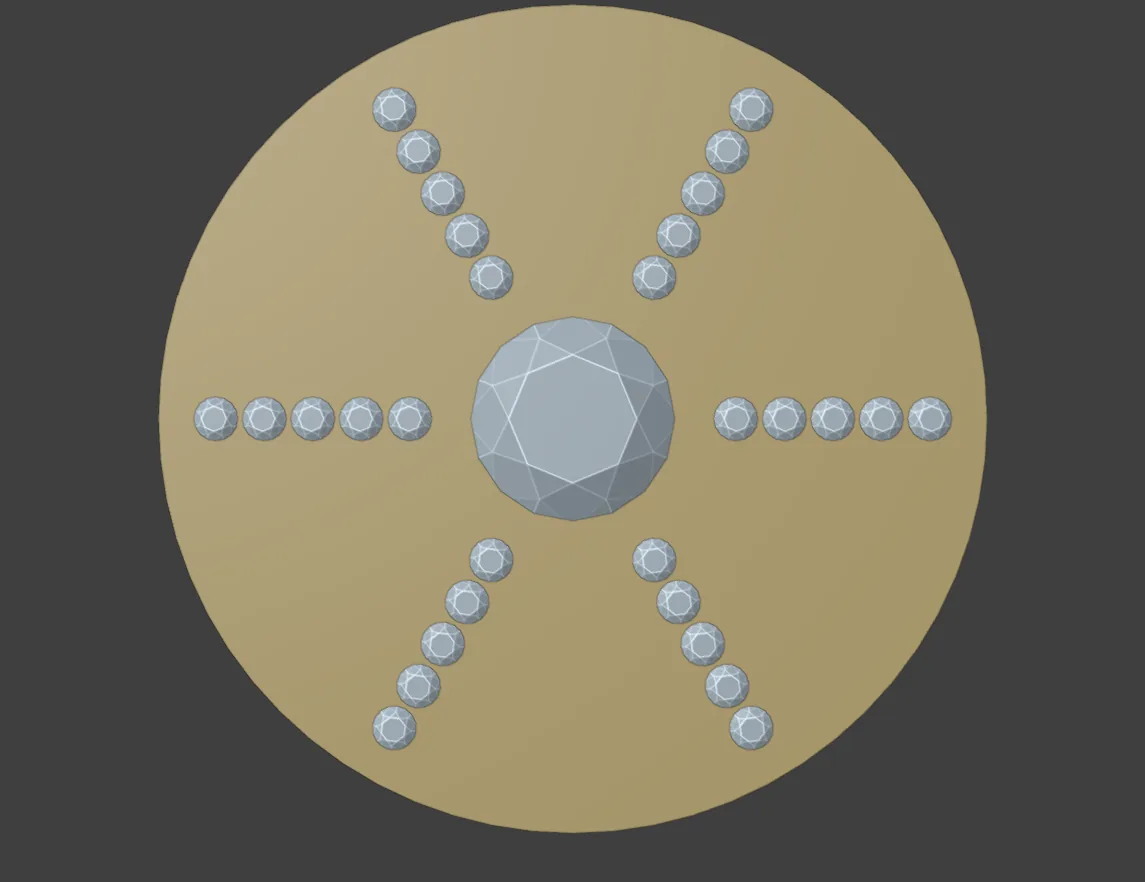
Set one side and see the other. Symmetry copies the stones, claws, beads, cutters and bezels you select as twins that follow their master. Edit any member and the rest follow. Reach for it for the other shoulder of a ring, the petals of a flower or the claws of a halo. For any other object, use Mirror and Copy.
Where to find it
CAD/CAM tab > Gems section > Gems panel > Symmetry sub-panel (closed until you open it). Menu: Jeweller > Mirror and Copy, the “Stones and claws, as twins” group. Pie: press J, then Mirror and Copy (top left). While you place stones with Shift+G or claws with Alt+C, the keys X, Y, Z, P and F make twins as you click.
Use it
Step 1. Choose the frame
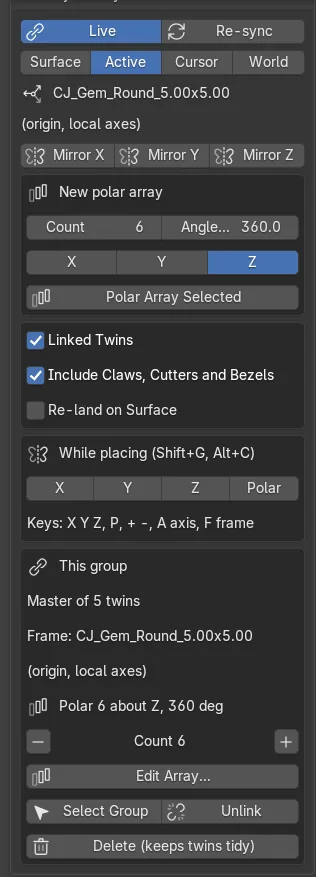
Wherethe Symmetry sub-panel, the row of four buttons under Live.
Doclick World, Surface, Active or Cursor. World is the default.
You should seea line under the row naming what the frame means for the active item.
| Frame | What it is | Use it when |
|---|---|---|
| World | The world origin and axes. | The design is built round the world origin. |
| Surface | The origin and axes of the mesh the item stands on. | The ring has been moved or turned. |
| Active | The origin and axes of the active object, which is left out of the copy. | A flower or a pivot that is an object: click the centre stone last. |
| Cursor | The 3D cursor, fixed when the twins are made. | A one-off pivot. |
On a ring built here, in that frame, Mirror X swaps the two shoulders and Mirror Y swaps the two edges of the band. A polar array about Y goes round the finger. About Z it spins a flower head centred on 12 o’clock.
Step 2. Mirror
Wherethe Symmetry sub-panel, the row of Mirror X, Mirror Y and Mirror Z.
Doselect the stones you set on one side. Click Mirror X.
You should seea twin of each stone across the plane, with its claws, cutter and bezel. The status bar counts the twins made, the items on the plane and any clashes.
If it goes wronga stone that sits on the plane gets no twin. The report counts it as “on the plane”.
Step 3. Make a polar array
Wherethe New polar array box.
Doselect the petal’s stones and claws. Shift+click the centre stone last so it is active. Choose Active as the frame. Set Count 6, Angle, degrees 360 and Axis Z, then click Polar Array Selected.
You should seefive more petals round the centre stone. Count includes the original, and an angle of 360 steps 360 divided by the count.
Step 4. Change the array afterwards
Wherethe This group box.
Doselect any member of the group. Click - or + beside Count, or click Edit Array… and change the count, angle, axis or mirrors, then press OK.
You should seea line such as “Polar 6 about Z, 360 deg”, then the twins made again, evenly spaced, in the same frame. The master and its own claws stay where they are.
If it goes wrong“Not a regular array” means Edit Array cannot rebuild this group. Click Unlink, then array again.
Step 5. Let the twins follow
Wherethe top of the Symmetry sub-panel, Live.
Doleave Live on. Move, turn or resize any member with G, R or Edit on Surface.
You should seethe master and the other twins move to match.
If it goes wrongwith Live off, or after you move the ring alone, click Re-sync to bring them back. Moving the whole design at once, every member by one move, leaves the twins where they were.
Step 6. Keep the group tidy
Wherethe This group box.
Douse Select Group to select every member. Unlink takes the selected twins out of their group and gives each its own mesh. Delete (keeps twins tidy) deletes an item and hands a deleted master’s group to a twin.
You should seea warning box that counts “twins without a master” and “stray copies” if Blender’s own X left any behind. Re-sync repairs them.
Step 7. Mirror while you place
Wherethe 3D view, with Place Gems (Shift+G) or Place Claws (Alt+C) running.
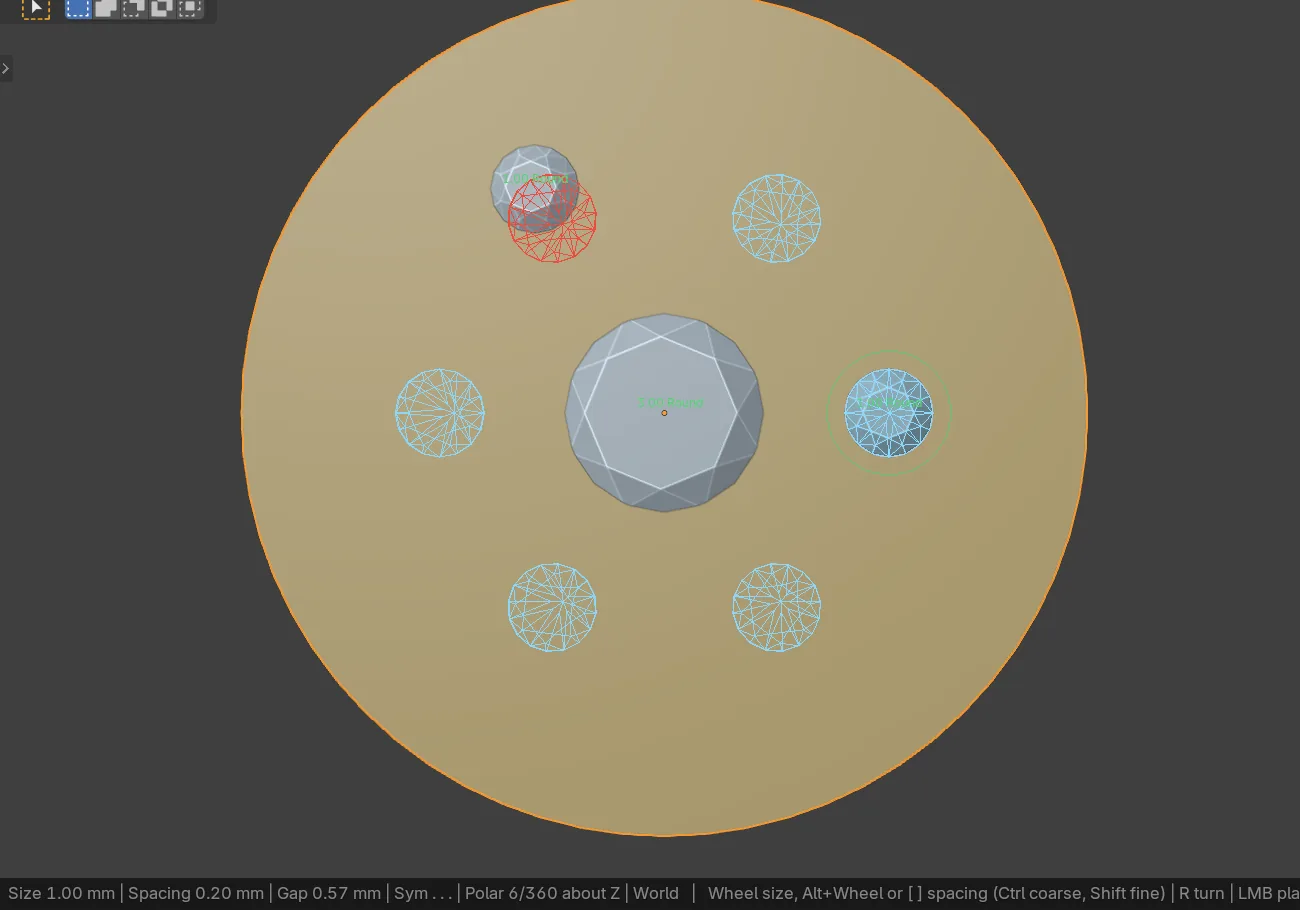
Dopress X, Y or Z for a mirror, P for polar, + and - for the count, F for the frame.
You should seeblue ghosts where the twins will land. A ghost turns red when its girdle would come within the spacing of another stone. One click makes the master and every twin.
Settings
| Setting | Default | What it changes |
|---|---|---|
| Live | On | Twins follow their master as you edit. |
| Frame | World | What the mirror planes and the polar axis are measured from. |
| Count | 6 | Items round the circle, the original included. 2 to 64. |
| Angle, degrees | 360 | The arc the array covers. 1 to 360. |
| Axis | Z | The frame axis the array turns about: X, Y or Z. |
| Linked Twins | On | Twins share the master’s mesh, so a resize reaches them all. |
| Include Claws, Cutters and Bezels | On | A stone’s claws, cutter, bezel and halo stones get twins too. |
| Re-land on Surface | Off | Casts each twin back onto its surface. Shows Tolerance (0.010 mm) and Reach (1.00 mm). |
Good to know
- A twin is a true mirror or a true rotated copy, never a negative scale. Booleans, normals and STL export treat it like any other part.
- Make Claws, Make Cutters and Make Bezel on a twin act on its master. Every twin gets the same result.
- Shanks, rails, channels and union cutters are left out of a mirror or polar copy.
- A group is tied to one frame. A second mirror in the same frame extends it. A different frame on the same master is refused.
- Shared pave claws belong to no single stone. Select the run with Select Group in the Pave panel, then mirror.
- Blender’s own
XorDeletecan leave twins pointing at nothing. Use the tidy delete, or click Re-sync. Shift+Dmakes a copy that is not a member of the group.- The groups are stored on the objects, so they survive saving, reopening and undo.