

Halo Layout reads a round centre stone and its claws, then works out every ring of small stones that fits round it, with the figures for each. It offers. You choose. Nothing is placed until you tick a row. Halo Band and Tilt then builds the metal from the row you placed, changes its tilt and measures what is there.
Where to find it
CAD/CAM tab > Setting section > Setting panel > Halo Layout, then Halo Band and Tilt below it. Both sit between Pave, Channel, Halo and Castle Setting. Menu: Jeweller > Setting, the “Bezel, pave, channel, halo” group. There is no key.
Use it
The order for a halo: the centre stone and its claws, Halo Layout Options, choose a row, Place Halo, Build Halo Band, Halo Seat Cutters and Cut Metal, then Castle setting.
Step 1. Make the centre stone active
Wherethe 3D view, in Object Mode.
Domake a round centre stone with Gems and its claws with Claws. Click the stone so it is the active object.
You should seethe first line of the Halo Layout panel reads “Centre:” and the stone’s name.
If it goes wrong“Make the centre stone active” means no stone is active. “Round centre stones only in this version” means the stone is not round.
Step 2. Choose how the halo stands
Wherethe Halo Layout panel, the drop-down at the top.
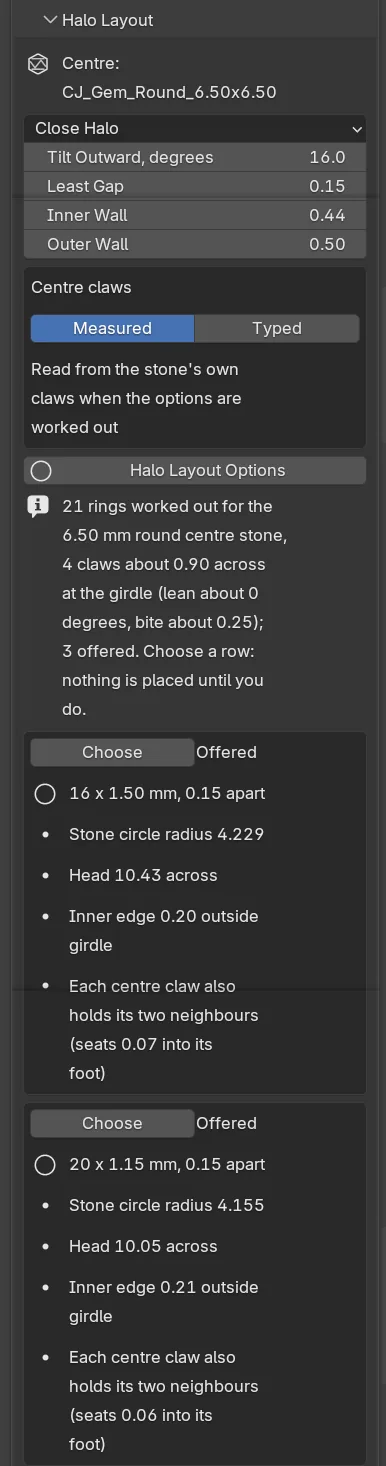
Dopick Close Halo or Halo Standing Off. Check Tilt Outward, degrees, Least Gap, Inner Wall and Outer Wall.
You should seenothing yet. These are the figures every row is worked out with.
Close Halo sits close in. Where a centre claw stands, it serves as the inner shared claw of the two small stones beside it, and their seats go a little way into its foot. That is an accepted pattern, not a fault. Halo Standing Off stands far enough out for every centre claw to pass whole.
If the centre claws are not made yet, set Centre claws to Typed and give their count, diameter, lean and bite. Measured reads the claws on the stone.
Step 3. Work out the rows
Wherethe Halo Layout panel, Halo Layout Options.
Doclick Halo Layout Options.
You should seethe rows that fit, each in its own box marked “Offered”. A row has a title such as “20 x 1.10 mm, 0.15 apart”. Under it are four short lines: the stone circle, the head across, where the halo’s inner edge sits against the centre girdle, and what the centre claws do. The sentence under the button says what was read.
If it goes wrongif you change a setting afterwards, the panel says so. Click Halo Layout Options again.
Step 4. Choose a row and place it
Wherethe row’s box, then Place Halo.
Dotick Choose on one row. If you want to compare first, click Layout Sheet: it writes the offered rings, seen from above at one scale, as an SVG file beside your .blend. Then click Place Halo.
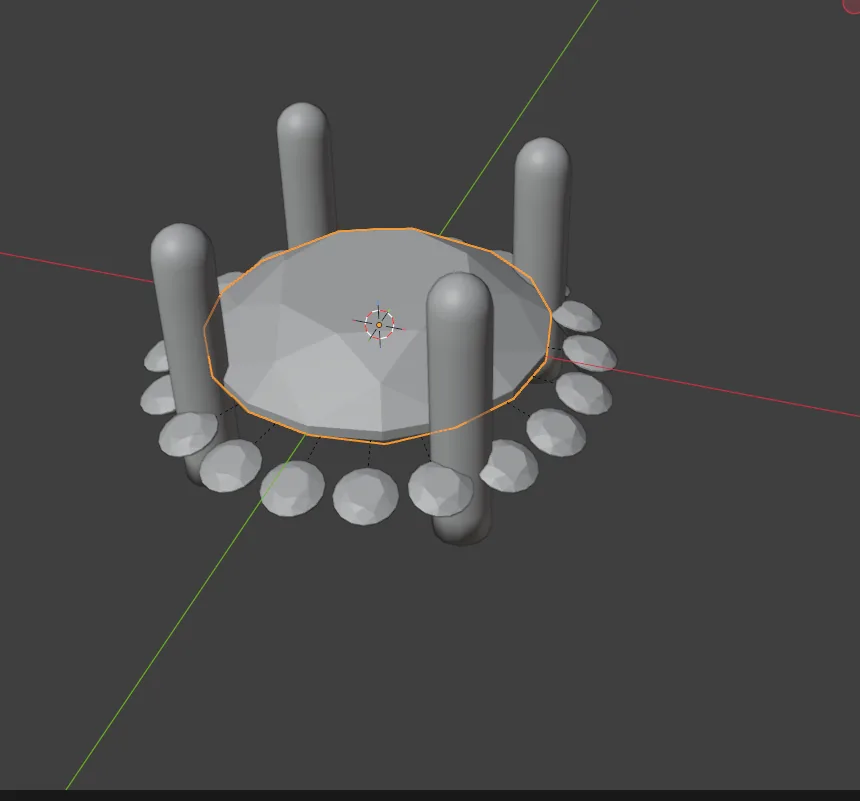
You should seethe small stones standing on the circle, tilted as the layout says, with a gap on each centre claw’s line. They are children of the centre stone.
If it goes wrong“No row is chosen” means no Choose is ticked. The tool never ticks one for you.
Step 5. Build the band
Wherethe Halo Band and Tilt panel, the The band box.
Dopick an Alloy and click Build Halo Band.
You should seeone closed body in the CJ Metal collection, made from the layout’s own tilted section turned once round the centre stone.
Step 6. Cut the seats
Wherethe The seats box, then Cut Metal in Seats.
Doclick Halo Seat Cutters. Make the band active and click Cut Metal.
You should seea seat cutter for every small stone, then the seats cut. The cutters carry the hole under each stone that the layout was worked out with.
Step 7. Read the metal
Wherethe Halo Band and Tilt panel, Read Halo Metal.
Dowith the centre stone active, click Read Halo Metal.
You should seea short list, one line a figure, each with OK or what is wrong. For example “Under the culet 0.555 (least 0.30): OK”.
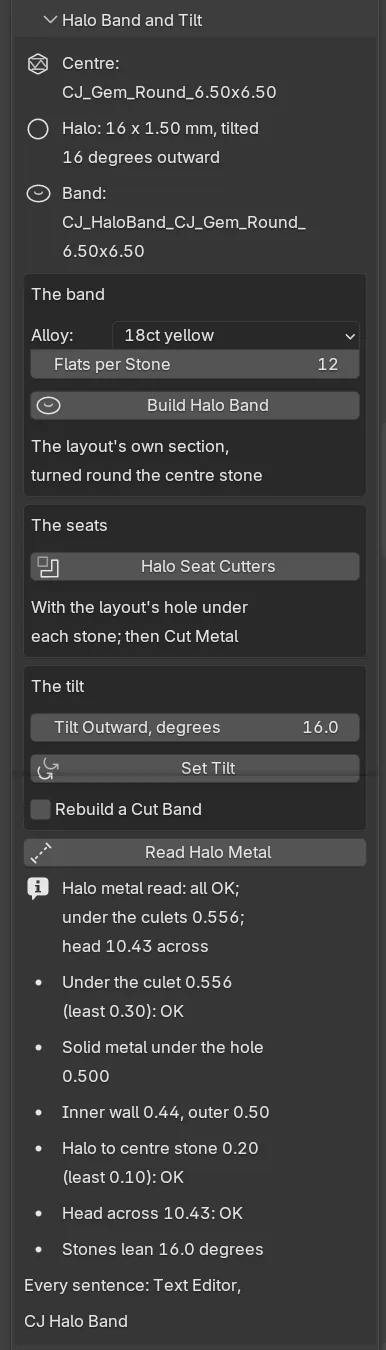
To change the tilt, type it in The tilt box and click Set Tilt, best before anything is cut. The stones and their seat cutters move with it.
Settings
Halo Layout.
| Setting | Default | What it changes |
|---|---|---|
| Halo | Close Halo | Close Halo or Halo Standing Off. |
| Tilt Outward, degrees | 16 | The stones lean outward, tables up and away from the centre. 0 to 45. The standards range is 15 to 17. |
| Least Gap | 0.15 mm | The least gap between neighbouring girdles. The book says 0.15 to 0.20 mm (p.220). |
| Inner Wall, Outer Wall | 0.44, 0.50 mm | Metal beside the seat, from the edge of the hole to the wall’s face. 0.05 to 2.00 mm. |
| Centre claws | Measured | Measured or Typed. Typed shows Claws (4), Claw Diameter (0.90 mm), Claw Lean, degrees (25) and Claw Bite (0.33 mm). |
| Own row | 1.00 mm, 20, 0.15 mm | Stone Size, Stones and Gap for Add Own Row. |
| Show Every Row | Off | Lists the rows that were not offered, with the reason. |
Halo Band and Tilt.
| Setting | Default | What it changes |
|---|---|---|
| Alloy | 18ct yellow | The band’s colour, and its weight in the report. |
| Flats per Stone | 12 | How many flats the band’s turn has for each small stone. 4 to 48. |
| Tilt Outward, degrees | 16 | The tilt Set Tilt gives. Outside 15 to 17 it is built and said, never refused. |
| Rebuild a Cut Band | Off | Lets Build Halo Band and Set Tilt replace a band that was cut. Its cuts are lost. |
Good to know
- Add Own Row works out a ring you type, with the same settings as the offered rows. The count must be a multiple of the claw count, so a gap falls on every claw’s line. A ring that cannot be laid out is refused with its numbers.
- Round centre stones only. Claws must stand evenly spaced, or the layout is refused with their angles.
- The tool never chooses. Place Halo refuses when the centre stone, its claws or the settings have changed since the rows were worked out.
- Claw verdicts are arithmetic. Within about 0.03 mm of a pass or a fail, the row says “check on the model”.
- Under the culet, the add-on wants 0.30 mm at the very least and 0.50 to 0.60 mm. The halo’s metal should stand 0.10 mm from the centre stone at the least, 0.15 mm to be safe.
- Seats beside a centre claw should run out, not end in a flat ledge. Select the small stones beside each claw, not the centre stone, and use Make Run-Out Cutters in Seats. Do it after Halo Seat Cutters, not before.
- Build Halo Band makes the band alone. Join it to the rest of the head yourself.
- Nothing here is ready to cast. A caster checks every file.