

CAD/CAM Jeweller is free and asks for very little. You need Blender, and an internet connection for the first install.
What you need
| You need | The details |
|---|---|
| Blender | Version 4.2 or newer. This release was tested on Blender 5.2. Blender is free from blender.org. |
| A computer | Tested on Windows 11. macOS and Linux should work, because the add-on is pure Python with nothing specific to Windows, but nobody has tested them yet. |
| The internet | To install from the repository, to get updates and to use AI Studio. Everything else works offline. |
| Disk space | The download is one zip of about 4.2 MB. |
| A mouse | Any. The navigation scheme called Hamed’s Bench orbits with Alt and a left drag, so no middle button is needed. |
| For AI Studio (optional) | Your own keys and credits with the services you connect. One route needs Blender 5.1 or newer. See AI Studio and Keys and costs. |
Check yours
Step 1. Check your Blender version
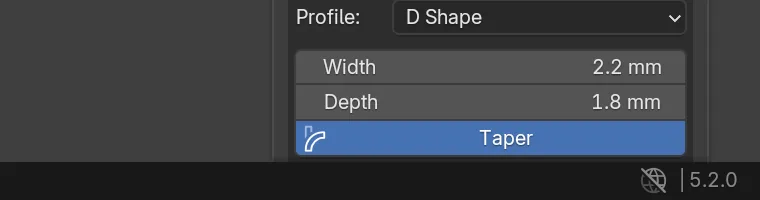
Wherethe bottom right corner of the Blender window, in the status bar.
Doread the version number there.
You should seea number such as 5.2.0. The splash screen shows it too, when Blender starts.
If it goes wronga number below 4.2 means you need a newer Blender. Download it free from blender.org and install that first.
Step 2. Look at Blender’s online switch
WhereBlender’s top menu bar, Edit > Preferences > System > Network.
Dofind Allow Online Access.
You should seea switch that is on or off. Installing from the repository needs it on. Updates and AI Studio need it too.
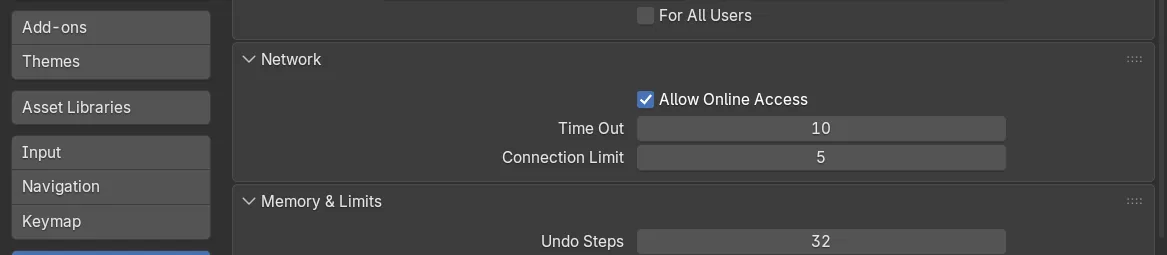
If it goes wrongif the switch is off and you want the repository route, tick it. If you would rather keep Blender offline, the zip route installs from a file you already have. Both routes are in Install the add-on.