

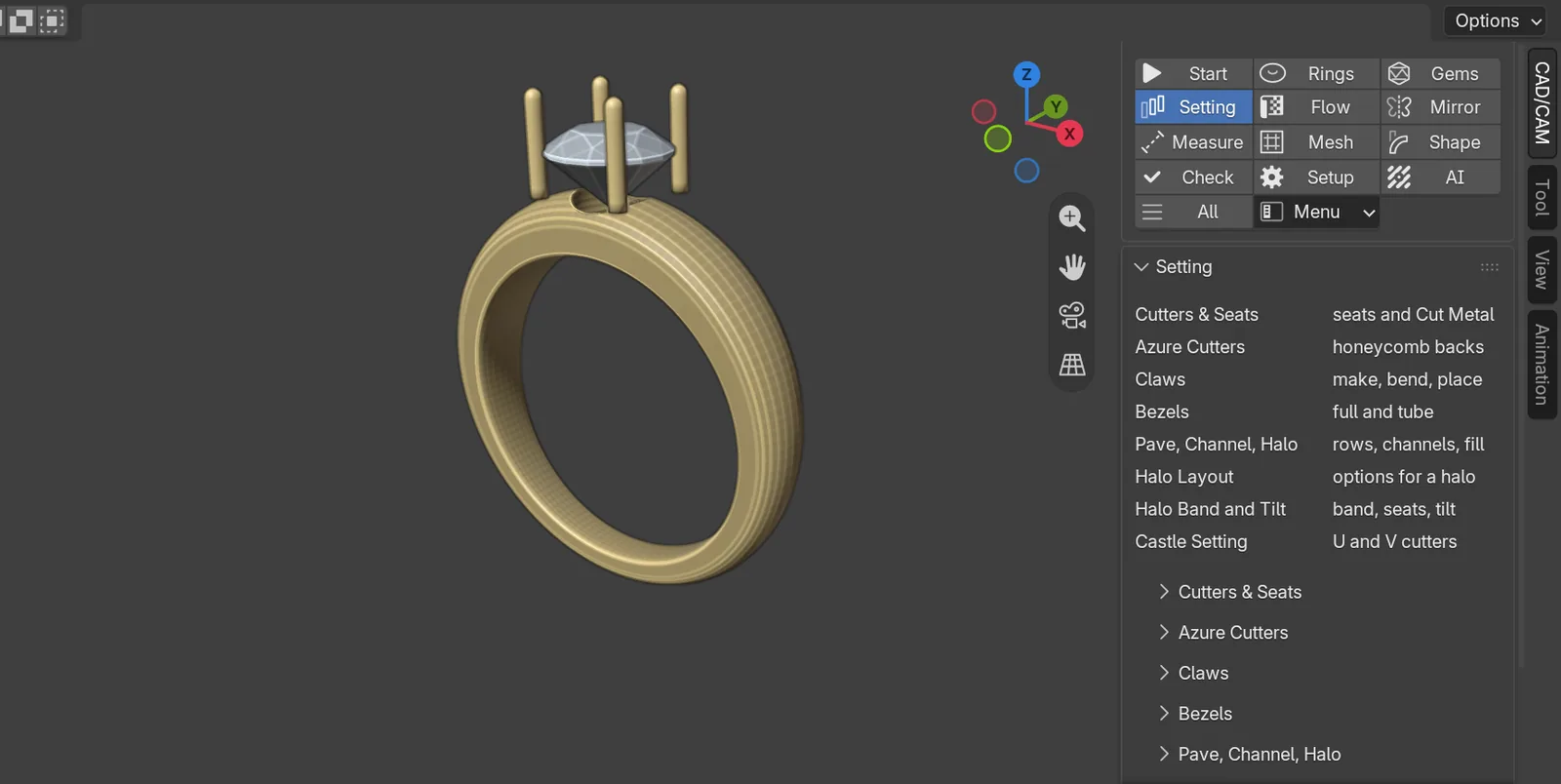
You will make a practice solitaire: a UK size M band with a thick top, a 6.5 mm round stone, four claws and a seat cut into the metal. Then you weigh it and check it. Open the CAD/CAM tab first, as in Your first look at the tab.
Make the ring
Step 1. Start from an empty scene
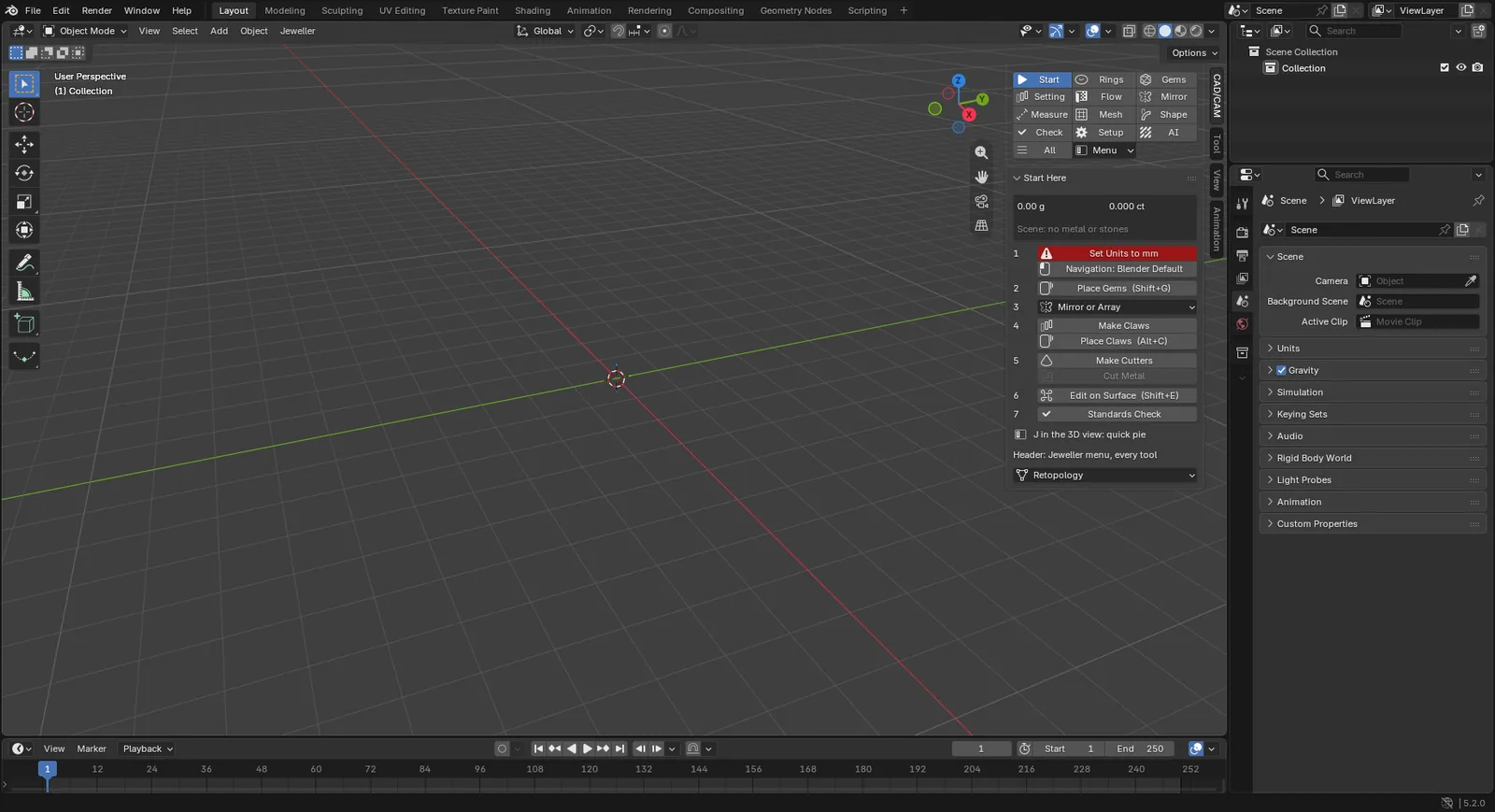
Wherethe 3D Viewport.
Domove the mouse over it, press A, then press Delete.
You should seean empty grid. The cube, camera and light are gone.
Step 2. Check the units
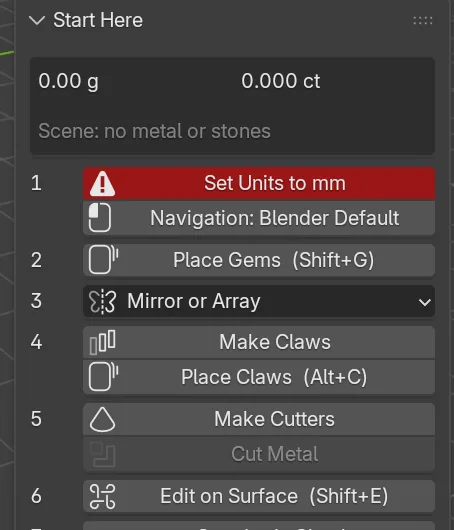
Wherethe section bar, Start, then the Start Here panel, row 1.
Doif row 1 shows a red Set Units to mm button, click it. If it reads Units: mm with a tick, go on.
You should seeUnits: mm with a tick.
Step 3. Thicken the top of the band
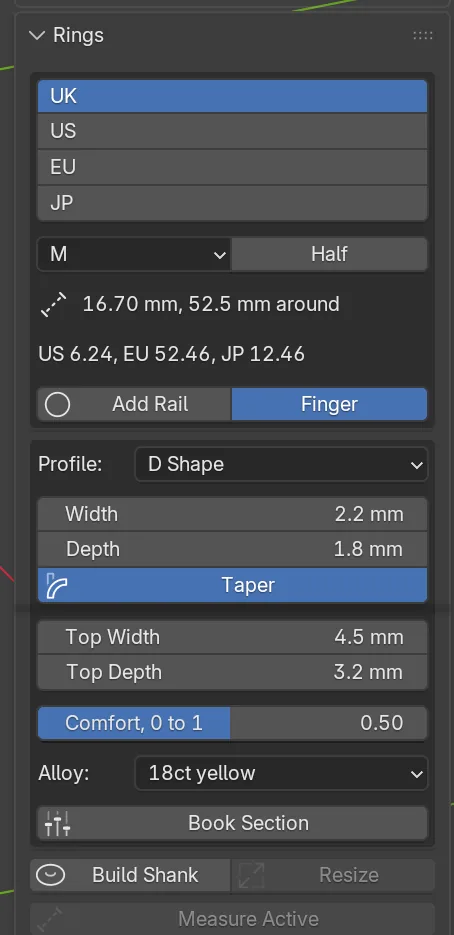
Wherethe section bar, Rings, then the Rings panel. The size is UK M, the default.
Doclick Taper so it is pressed in.
Type4.5 in Top Width, then 3.2 in Top Depth.
You should seeboth fields lit, reading 4.5 mm and 3.2 mm. The band will blend up to this thicker top at 12 o’clock, where the stone sits.
Step 4. Build the band
Wherethe Rings panel, under the fields.
Doclick Build Shank.
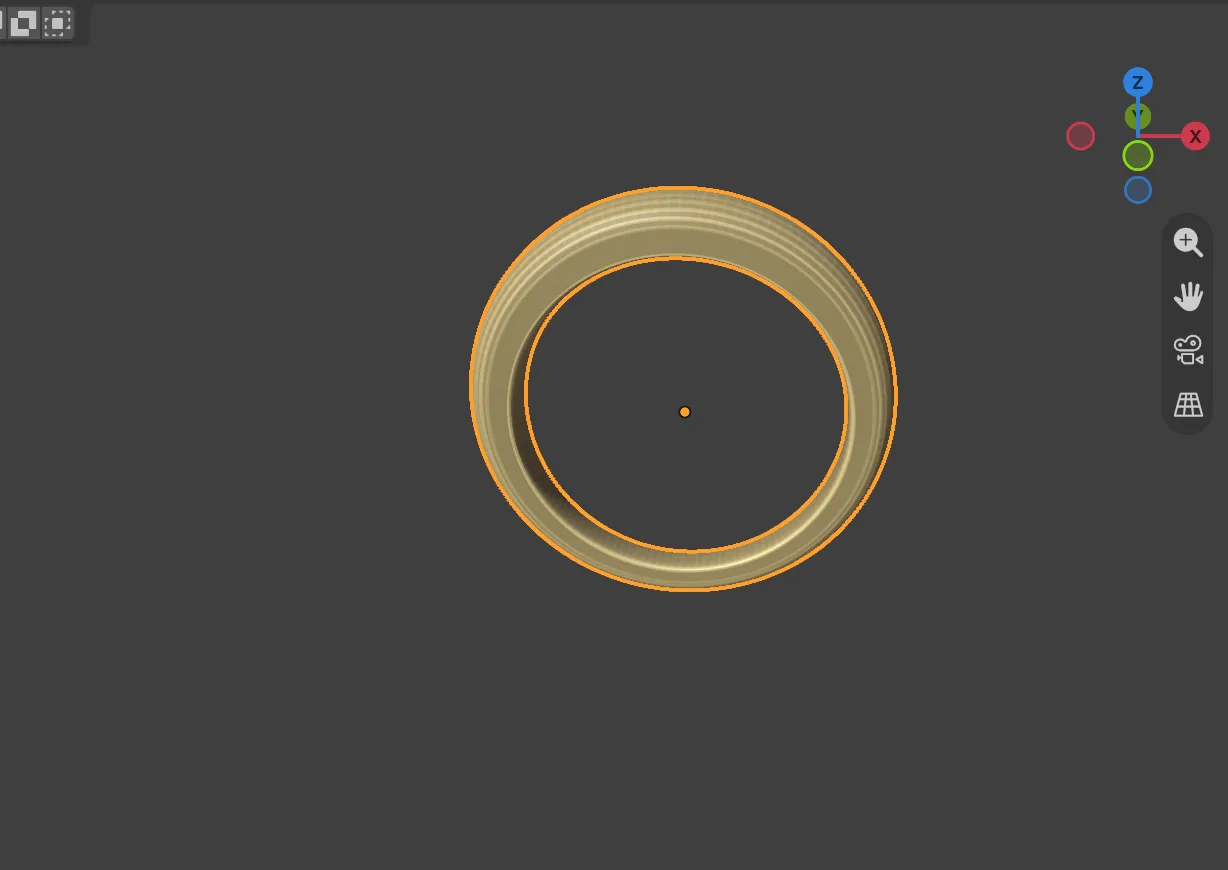
You should seea band in the view, and CJ_Shank_DShape_M, 16.70 mm, 52.5 mm around in the status bar. CJ_ names mark what the add-on made.
Step 5. Choose the stone
Wherethe section bar, Gems, then the Gems panel, the Size, mm box.
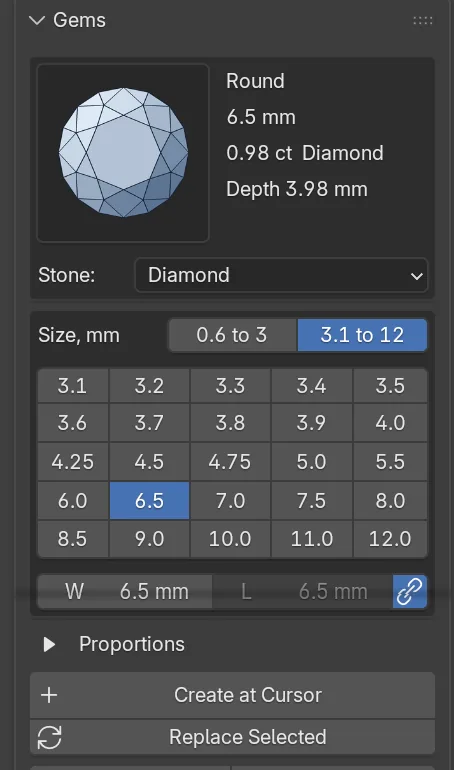
Doclick the 3.1 to 12 tab, then click the 6.5 chip.
You should seethe lines beside the picture read Round, 6.5 mm, 0.98 ct Diamond and Depth 3.98 mm.
Step 6. Lift the stone off the band
Wherethe Gems section, the Place & Guides panel.
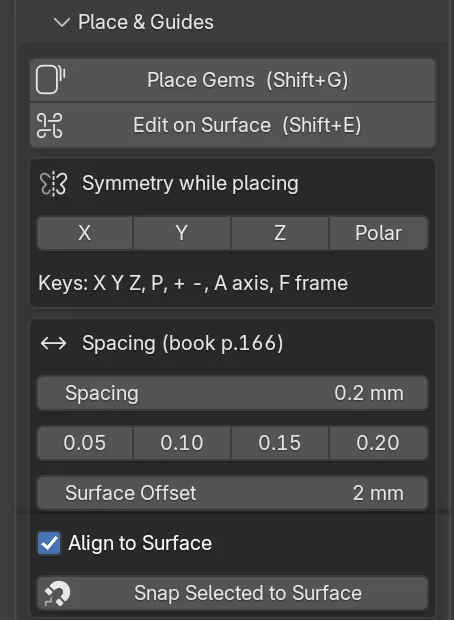
Doclick the header of Place & Guides to open it.
Type2 in Surface Offset.
You should seeSurface Offset reading 2 mm. A stone now stands 2 mm above the surface, so its lower part dips into the thick top of the band.
Step 7. Look down on the band
Wherethe 3D Viewport.
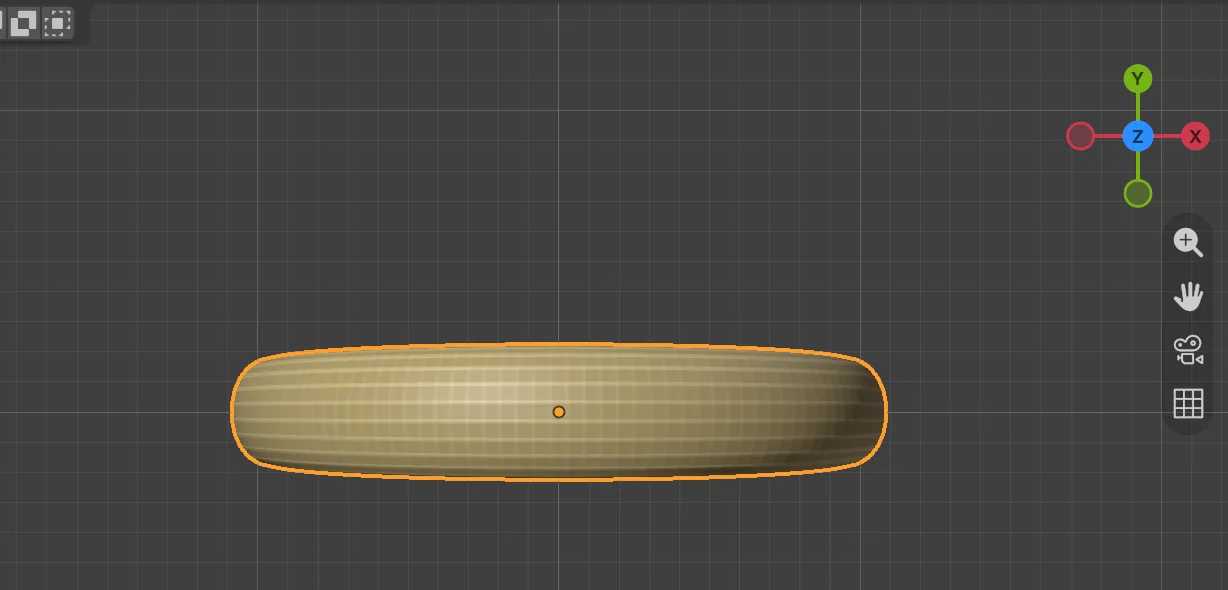
Dochoose View > Viewpoint > Top in the viewport header (or press 7 on the number pad), then press Home with the mouse over the view.
You should seethe ring as a long strip filling the view. Its middle is the top of the ring.
Step 8. Place the stone
Wherethe section bar, Start, then the Start Here panel, then the 3D Viewport.
Doclick Place Gems (Shift+G), the button numbered 2, or press Shift+G with the mouse over the view. Aim at the exact middle of the strip, click once, then press Enter.
You should seea blue preview stone following the mouse, then a real stone where you clicked. The status bar says Placed 1 gem(s). Drag the navigation gizmo at the top right to look from the side: the stone stands 2 mm above the band.
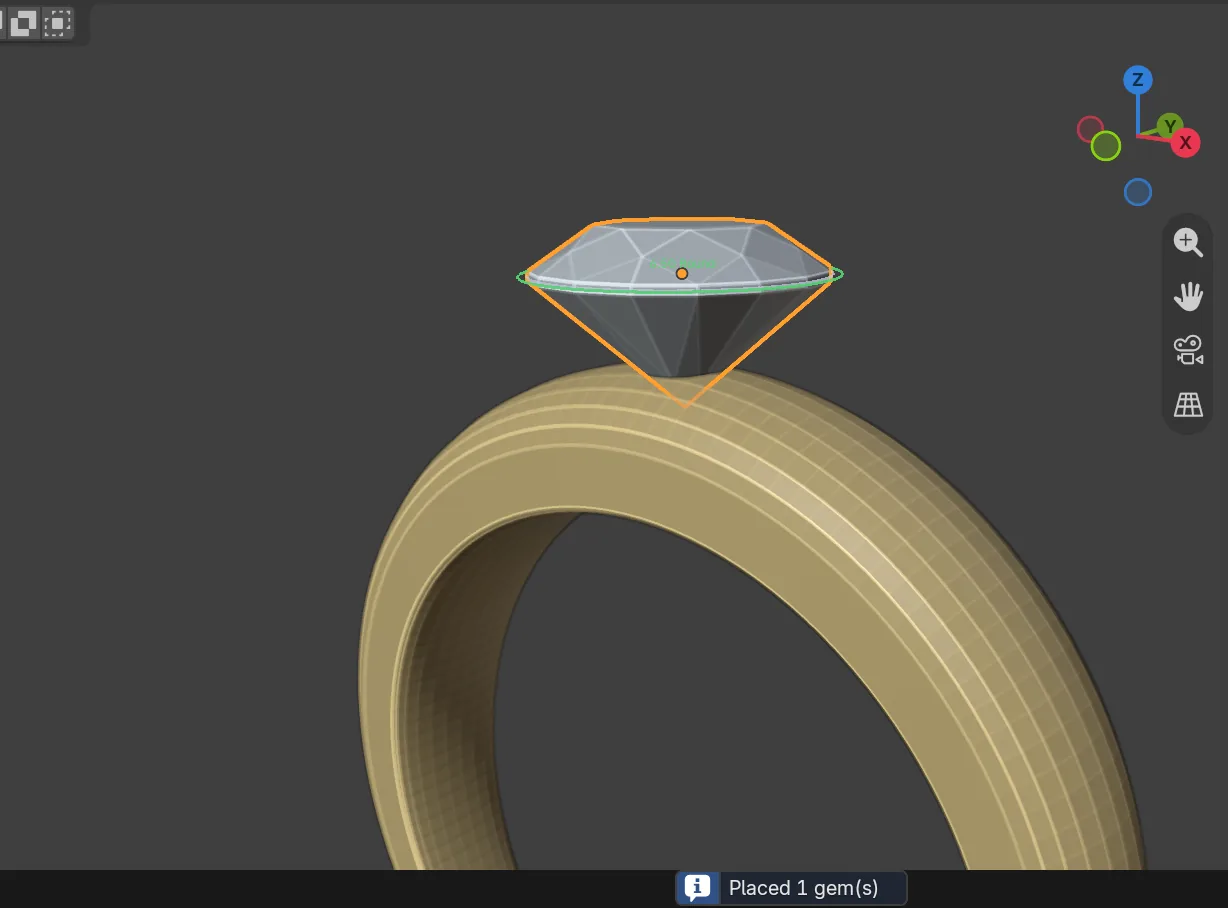
If it goes wronga click to one side leans the stone. Press Ctrl+Z and place it again.
Step 9. Make the claws
Wherethe section bar, Setting, then the Claws panel. Click its header to open it.
Dowith the stone still selected, click Make Claws.
You should seefour claws round the stone. The status bar reads 4 claws on 1 gem.
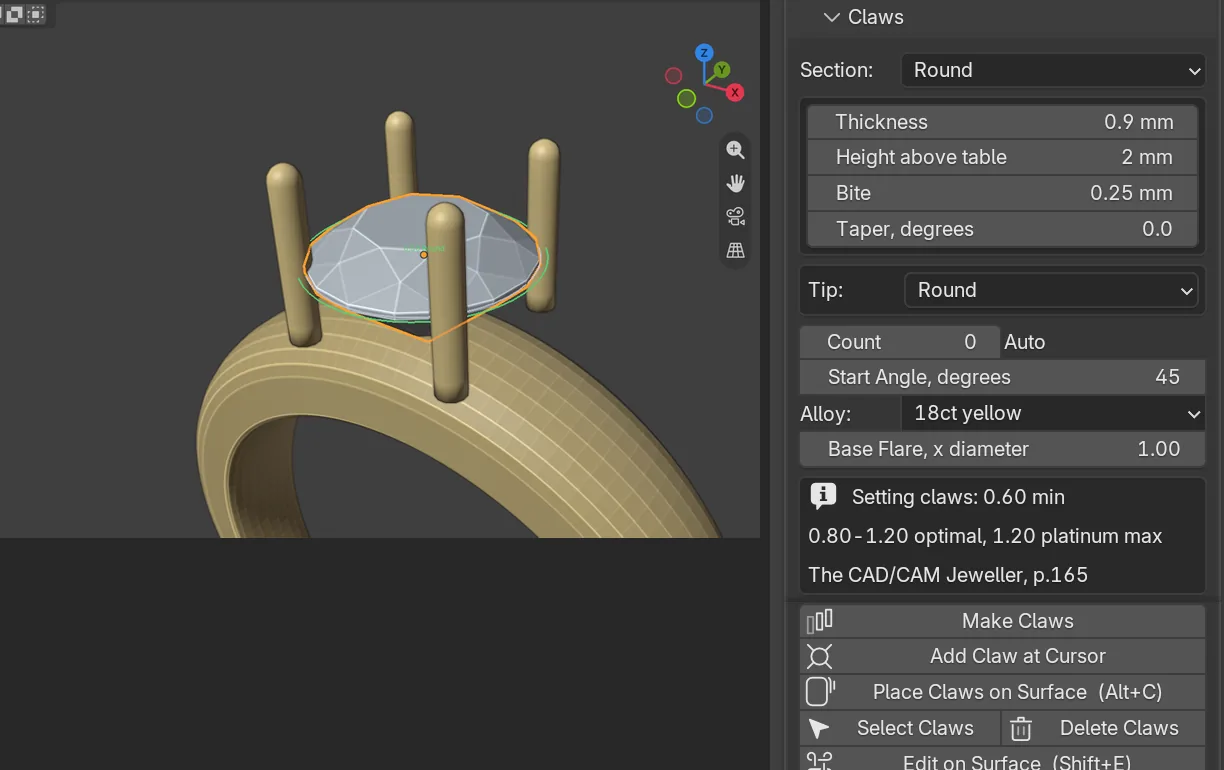
If it goes wrongSelect at least one gem means the stone is not selected. Click it and try again.
Step 10. Make the cutter
Wherethe Setting section, the Cutters & Seats panel. Click its header to open it.
Doset Hole to Divot (blind), then click Make Cutters.
You should see1 cutter made in the status bar. A blind hole ends round and never breaks through the back of the band.
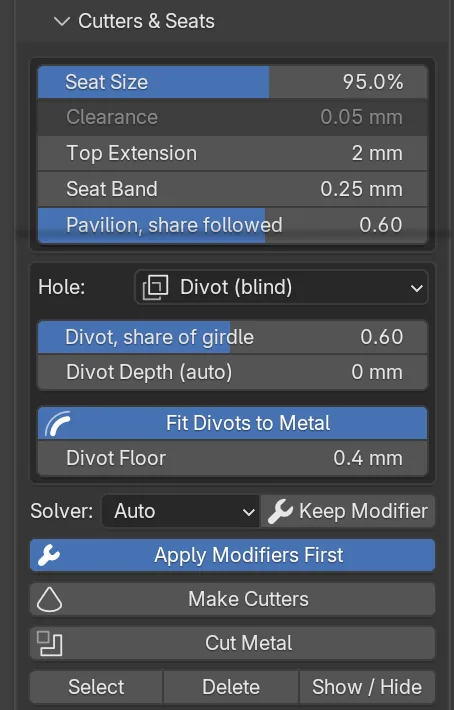
Step 11. Cut the seat
Wherethe 3D view or the Outliner at the top right, then the Cutters & Seats panel.
Doclick the band, named CJ_Shank_DShape_M, so only it is selected, then click Cut Metal.
You should seea line such as Cut 1 seats with the MANIFOLD solver in 0.1 s, result manifold. The seat is cut into the top of the band under the stone.
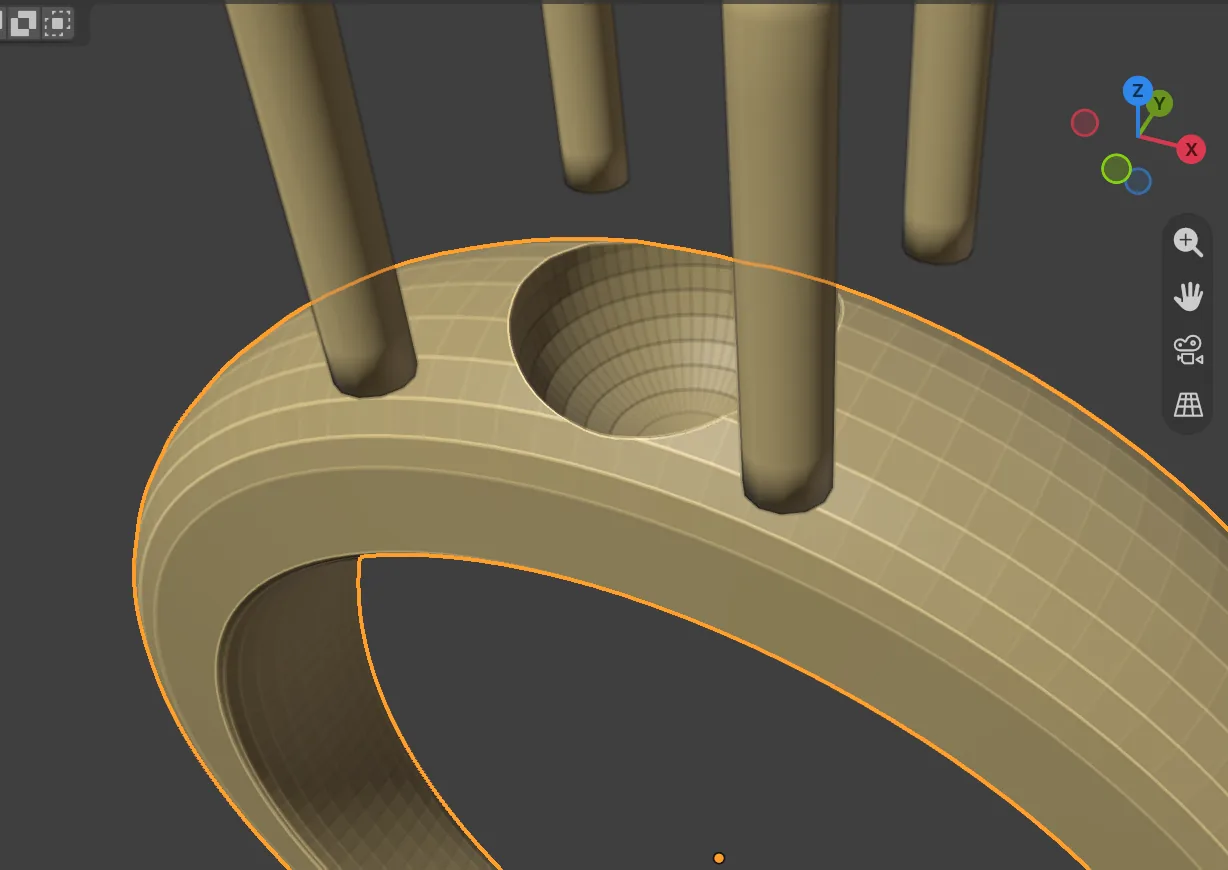
If it goes wrongThe active object is a gem, not metal means the stone is still the active object. Click the band first.
Step 12. Read the weight and run the checks
Wherethe section bar, Check, then the Reports & Checks panel.
Doclick Report Weight, then Run Standards Check, then Run Print Check.
You should seea weight box at the top, about 7 g of metal and 0.98 ct of stone. Under the buttons, a verdict such as 7 warnings, 21 notes and the findings, worst first. The print check always adds notes for each mesh, so act on the warnings and read the notes.
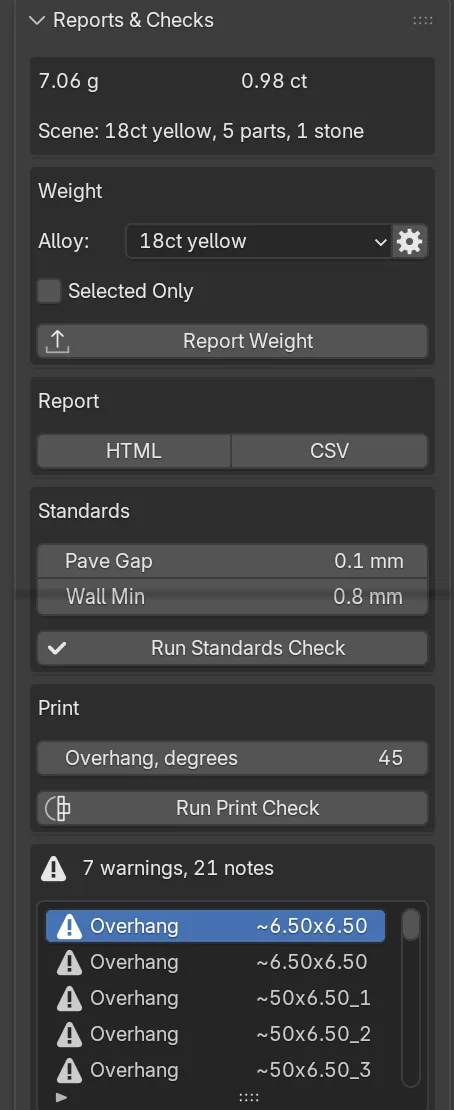
Each run replaces the list. Click a finding to read it. A warning is something to look at, not a failure.
Next
Save with Ctrl+S. Then try the longer A solitaire workflow, or read Place gems and Claws.