

Reports & Checks is the last stop before a printer. It weighs the metal and the stones, checks the piece against the book’s standards and for printing, and writes the files in millimetres. A ring with a head also has Head and Shank, which writes the ring in two forms from one model: the head, which holds the stone, and the shank, which is the band. The add-on checks geometry. It never calls a piece ready to cast: a caster checks every file.
Where to find it
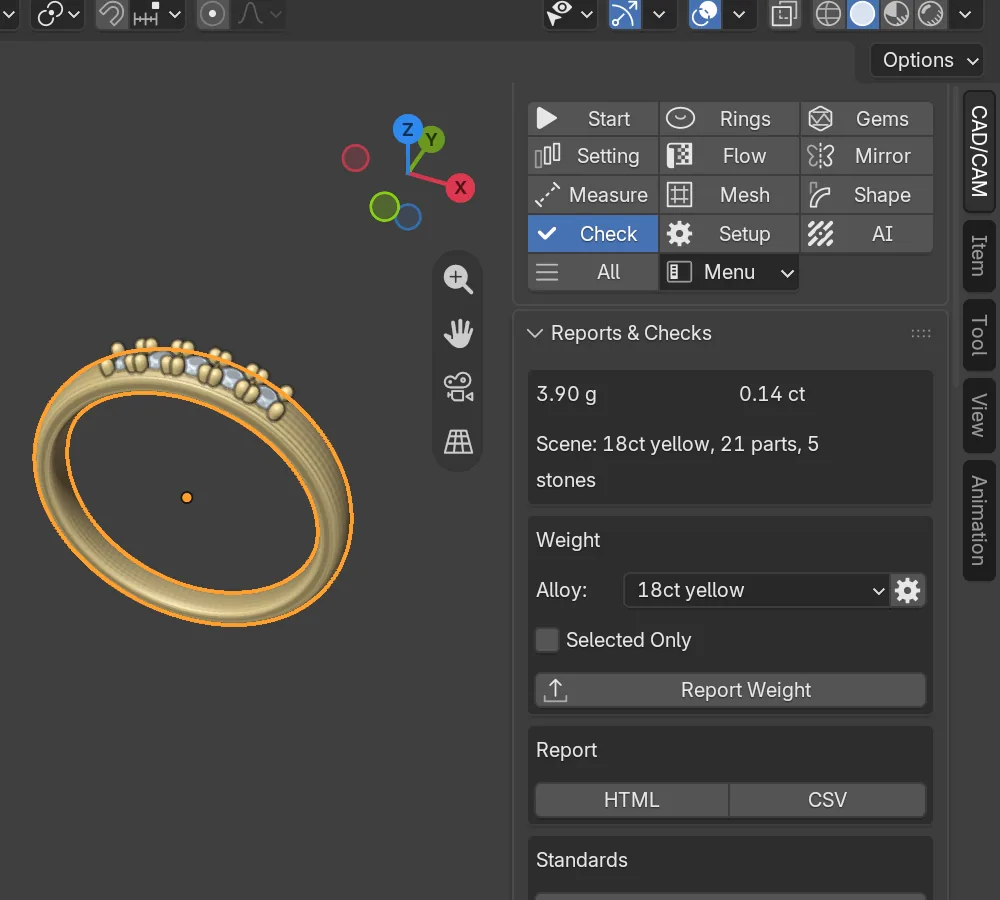
CAD/CAM tab > Check section > Reports & Checks panel. Head and Shank is a closed sub-panel at its foot. The weight card also heads Start Here. Menu: Jeweller > Check and Export. There are no keys.
Use it
Step 1. Read the weight
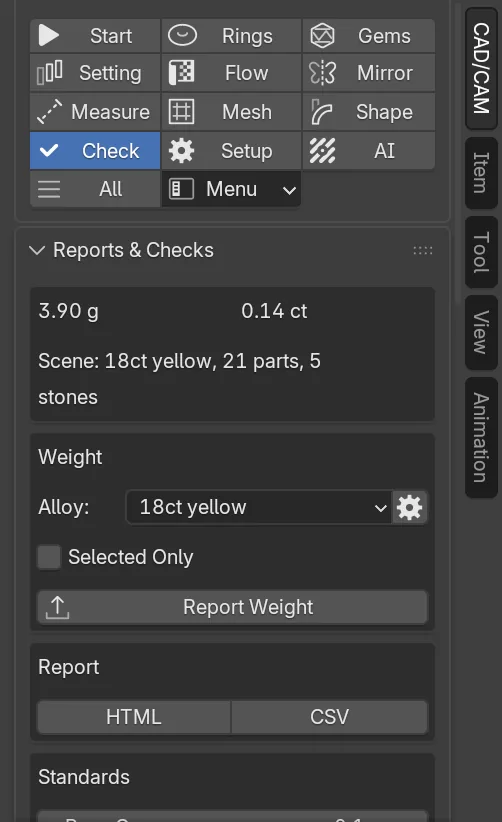
Wherethe weight card at the head of Reports & Checks, and the Weight box under it.
Doread the card. Tick Selected Only to weigh just the selected objects. Pick an Alloy for any object that has none of its own.
You should seethe metal in grams and the stones in carats, kept current as you edit, then a line such as “Scene: 18ct yellow, 4 parts, 5 stones”. With Selected Only it starts “Selection”.
Step 2. Write the weight report
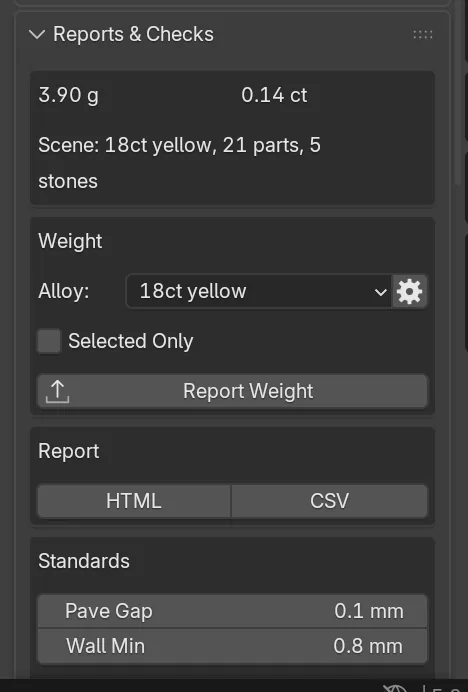
Wherethe Weight box and the Report box.
Doclick Report Weight. For a file, click HTML or CSV in the Report box and choose where to save it.
You should seea line in the status bar with the grams and carats, and a text called CJ_Report in the Text Editor. It lists each metal object with alloy, volume and grams, then the stones with carats, then the findings. A file is named after your .blend with _report added.
Step 3. Run the standards check
Wherethe Standards box.
Doset Pave Gap and Wall Min if you need other limits, then click Run Standards Check.
You should seea one-line verdict such as “1 warning, 2 notes”, or “Nothing found”, and a list under it, worst first. It looks at claw thickness and height, claws that overlap, bezel wall and gallery, the sizing area of a band, the gap between stones and between groups, and the thickness of the walls.
Step 4. Run the print check
Wherethe Print box.
Doset Overhang, degrees if you need another angle, then click Run Print Check.
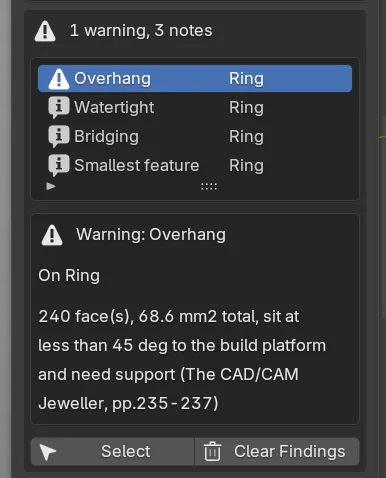
You should seethe list again. Each mesh gets a Watertight note, or Open edges and Watertight errors if it is not closed. It gets an Overhang warning where faces sit below the angle and need support, and two notes, Bridging and Smallest feature. A clean piece therefore reads as notes, not “Nothing found”.
If it goes wrongboth checks cover the whole scene, stones and cutters included. Tick Selected Only in the Weight box to check just the metal.
Step 5. Read a finding
Wherethe findings list.
Doclick a row. Click Select to select the object it names. Click Clear Findings when you are done.
You should seethe whole sentence under the list, with the object and the book page where there is one. A red cross is an error, a triangle a warning, an “i” a note.
Step 6. Write the print files
Wherethe Export box.
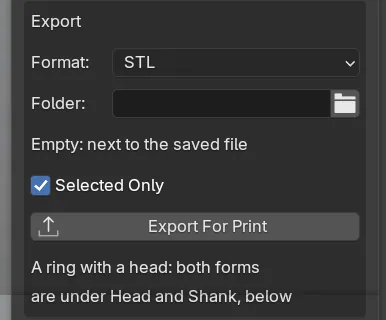
Dochoose the Format, leave Selected Only ticked and click Export For Print. In the file window, pick the folder and confirm.
You should seecj-export.stl, cj-export.obj or cj-export.3mf in the folder, in millimetres. The file window’s side panel has Include Gems and Merge Into One File. Cutters are never written.
If it goes wrong3MF appears only where your Blender has a 3MF exporter. An empty Folder means next to the saved file, so save a new file first or choose a folder.
Step 7. Rings with a head only: set the frame and the head region
Wherethe Head and Shank sub-panel. Click its header to open it.
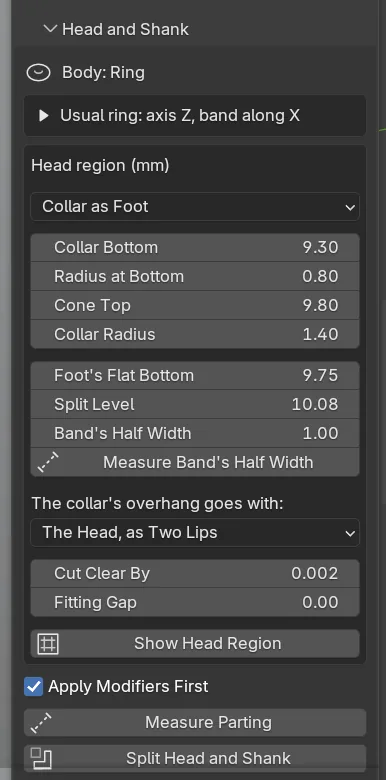
Domake the fused metal active. If the ring stands the usual way the frame line reads “Usual ring: axis Z, band along X”. If not, open its arrow and give the head’s axis and the band’s direction. Then choose a region in the Head region (mm) box and fill in its fields.
You should seefour regions. Collar as Foot keeps the collar with the head and gives the shank the matching seat. Above a Height takes everything above a height. On the Band’s Surface takes everything outside the band. My Own Region takes what lies inside a closed mesh of yours. Show Head Region draws the region as a wire mesh. Measure Band’s Half Width reads the band’s width from the piece.
Step 8. Rings with a head only: measure the parting
Wherethe Head and Shank sub-panel.
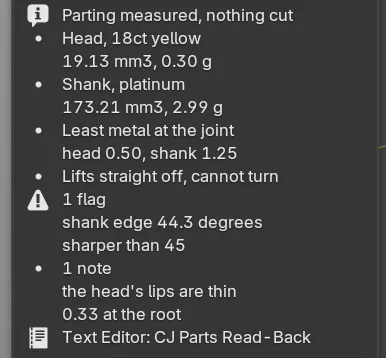
Doclick Measure Parting. The parting is the joint where the ring would be cut in two. Nothing is cut.
You should seea short list: each part’s metal, volume and weight, the least metal on each side of the joint, whether the head lifts straight off and whether it can turn, then flags and notes. The whole list is in the Text Editor under “CJ Parts Read-Back”. Flags and notes are yours to rule on.
If it goes wrongwhere the collar is wider than the band, its overhang must go with one part. Choose The Head, as Two Lips or The Shank, as Two Ears, measure each and compare. The tool does not choose.
Step 9. Rings with a head only: split the ring
Wherethe Head and Shank sub-panel.
Doclick Split Head and Shank. Pick a metal for each part in the Head and Shank lists.
You should seeHead and Shank in the CJ Metal collection, one metal each. Your whole ring is kept as the one-part form, in a collection called “One part (prototype print)” that is left out of the view. For parts built apart, select the head and the shank (head active) and click Fuse One Part, in the From parts built apart (mm) box, instead.
If it goes wronga parting that is wrong as geometry is “NOT KEPT”, and Split refuses it.
Step 10. Rings with a head only: check and write both forms
Wherethe Both forms box.
Doclick Print Check Parts, then Export Both Forms.
You should seeone_part_prototype/<name>_one_part_mm.stl, two_parts_production/<name>_head_mm.stl, two_parts_production/<name>_shank_mm.stl and <name>_parts_notes.txt. No file is written unless all three bodies pass. Name starts as ring.
Settings
| Setting | Default | What it changes |
|---|---|---|
| Alloy | 18ct yellow | The alloy for any object with no alloy of its own. The book’s table, plus your own (My alloys, in the add-on’s Preferences). |
| Selected Only (Weight) | Off | Weighs and checks only the selected objects. |
| Pave Gap | 0.10 mm | The least gap between neighbouring stones. 0 to 2 mm. |
| Wall Min | 0.80 mm | The least wall thickness. 0 to 5 mm. |
| Overhang, degrees | 45 degrees | Faces below this angle from the build platform need support. 1 to 89. |
| Format | STL | STL, 3MF or OBJ. |
| Folder | Empty | Where the files go. Empty means next to the saved file. |
| Selected Only (Export) | On | Writes only the selected objects. |
| Include Gems, Merge Into One File | Off, On | In the file window: write the stones too, and write one file instead of one per object. |
| Head region (mm) | Collar as Foot | What of the body is the head. |
| Cut Clear By | 0.002 mm | How far a built region stands outside the piece’s own surface. 0 to 0.05. |
| Fitting Gap | 0 mm | A gap taken from the shank’s side of the joint. 0 is line to line. 0 to 0.5. |
| Apply Modifiers First | On | A live modifier is applied before parting. Off, such a piece is refused. |
| Set Joint In | 0.03 mm | Fuse One Part: how far the shank’s joint faces go into the head. 0 to 0.2. |
Good to know
- Flags in Head and Shank are the tool’s own figures: a wall under 0.30 mm away from the joint line, and an edge sharper than 45 degrees.
- Head and Shank does not choose the parting, add a peg or key, or mend faces that cross. It adds no supports, sprue or shrinkage.
- Far from the origin a mesh is held in single precision and a part can lose its smallest faces. The split says so. Bring the piece to the origin before Print Check Parts and Export Both Forms.
- A print mesh made beside its cage is weighed once, as the cage.
- 3MF files for Head and Shank appear beside each STL only where your Blender has a 3MF exporter.