

The Mesh section tidies meshes that did not come from the add-on’s own builders: a scan, an AI model, a boolean that left specks. It clears out rubbish, hardens edges without adding geometry, fills holes with quads (four-sided faces) and tidies loops of points. It also starts retopology, which is drawing a clean, light mesh over a heavy one. Use it before you check or print.
Where to find it
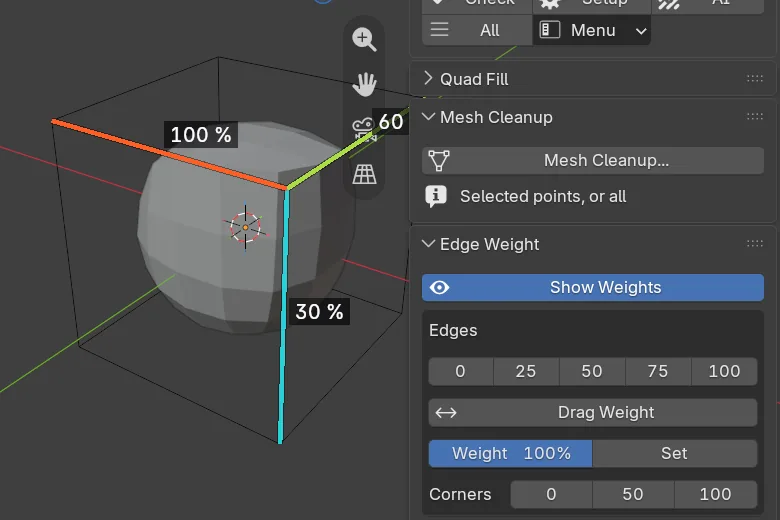
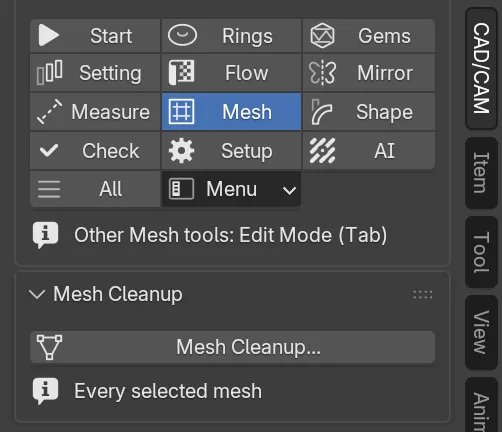
CAD/CAM tab > Mesh section. Object Mode shows Mesh Cleanup. Edit Mode (Tab) adds Quad Fill, Edge Weight and Loop Tools, which starts closed. Menu: Jeweller > Mesh, Loop Tools and Retopology. Mesh Cleanup… is also in Blender’s Object and Mesh menus, and Quad Fill in the right-click and Face (Ctrl+F) menus. Only the retopology tools have keys.
Use it
Step 1. Open Mesh Cleanup
WhereCAD/CAM tab > Mesh section > Mesh Cleanup panel.
Doselect the mesh in Object Mode, or the points in Edit Mode (select none to clean the whole mesh). Click Mesh Cleanup….
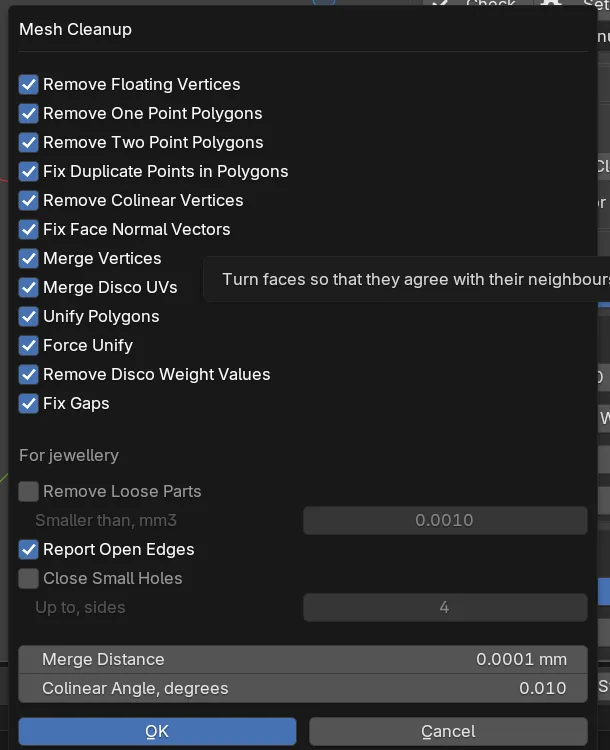
You should seea window with twelve ticked rows, a For jewellery block and two figures. Hover over a row to read what it does.
Step 2. Run it
Wherethe Mesh Cleanup window.
Dofor a scan or an AI model, tick Close Small Holes. Click OK.
You should seeone sentence in the status bar and under the button, such as “Mesh Cleanup on Ring: 12 floating points removed; 4 points merged; open edges: 0.” Only steps that did something are listed.
If it goes wronga sentence saying Merge Distance is larger than the mesh’s own edges means nothing changed. Lower the distance.
Step 3. Give edges a weight
WhereEdit Mode, Edge Weight panel, Edges box.
Doselect the edges to harden and click a chip: 0, 25, 50, 75 or 100.
You should seethe edges coloured from blue (light) to red (100), with the percentage beside each selected edge. 100 is a completely hard edge on a smoothed surface. With no Subdivision Surface modifier (Blender’s smoothing modifier) on the mesh, the tool adds one called CJ SubD.
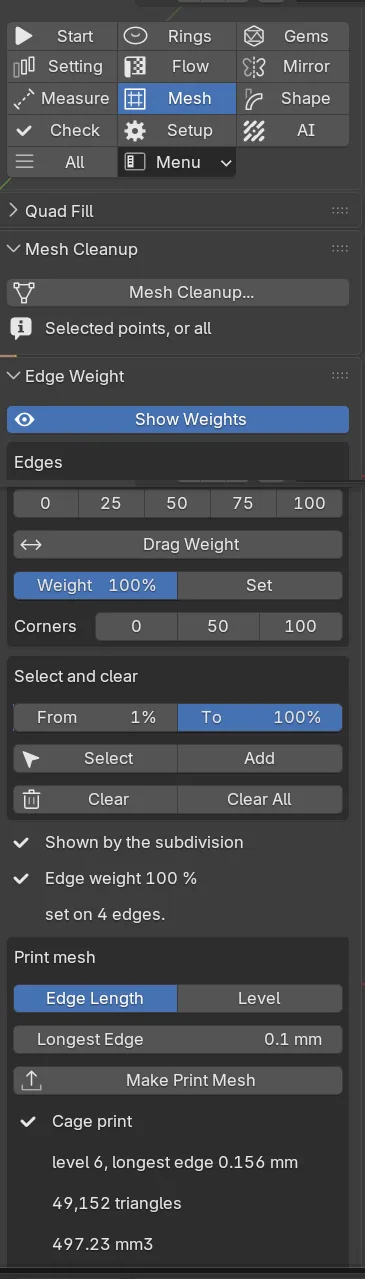
If it goes wrong“Use Creases is off on Subdivision” means your own modifier hides the weights. The tool never changes it, so switch it on yourself.
Step 4. Drag or type a weight
Wherethe Edges box.
Doclick Drag Weight, move the mouse left or right, then click to keep it. Or type a number in Weight and click Set.
You should seethe selected edges take the weight you drag to, shown in the header. Shift drags a tenth as fast, Ctrl steps by 5 %, and Esc puts every weight back.
Step 5. Weight corners, find weights, clear them
Wherethe Corners row and the Select and clear box.
Doselect points and click 100 on Corners to keep a corner sharp. To find weighted edges, set From and To, then click Select, or Add to keep your selection. Clear or Clear All removes weights.
You should seeexactly the edges between the two percentages selected.
Step 6. Make a print mesh
Wherethe Print mesh box. In Object Mode use Jeweller > Mesh > Make Print Mesh.
Doleave the choice on Edge Length (or pick Level) and click Make Print Mesh.
You should seea new object <name> print beside your original, which is kept as it was. One sentence gives the level, longest edge, triangles, volume and weight. It ends “Ready to print: closed, one body, no pair of faces crosses”, or says what stops it.
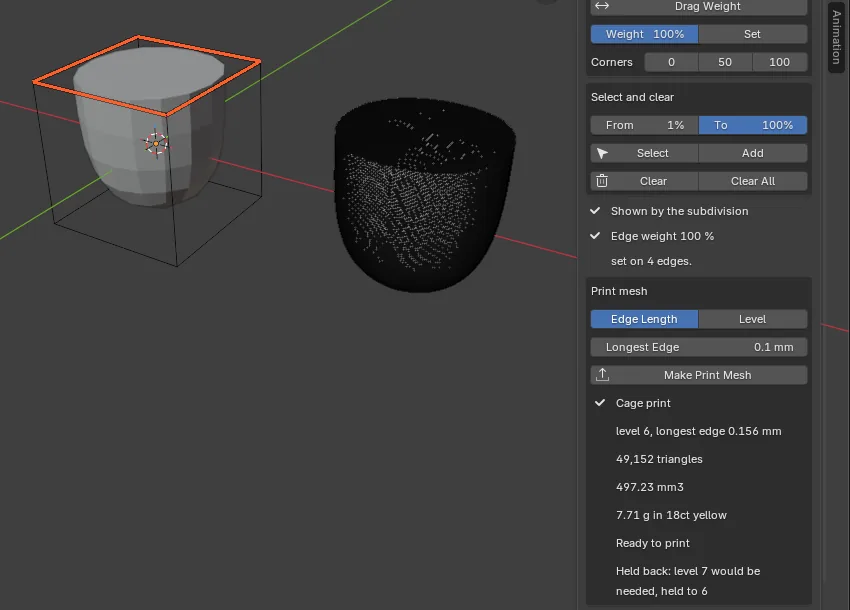
If it goes wrong“Held back” means it stopped at level 6 or 1,500,000 triangles.
Step 7. Fill a hole with quads
WhereEdit Mode, Quad Fill panel.
Doselect the n-gon (a face with many sides), or the whole open border, and click Quad Fill.
You should seerings of four-sided faces following the border, then a grid. Border points never move. To try again, change a setting in the panel or in Blender’s Adjust Last Operation panel.
If it goes wrong“Select an n-gon face or an open border, or tick Whole Mesh” means nothing is selected. A border that cannot be filled cleanly, such as a C shape, is left as it was and the report says why.
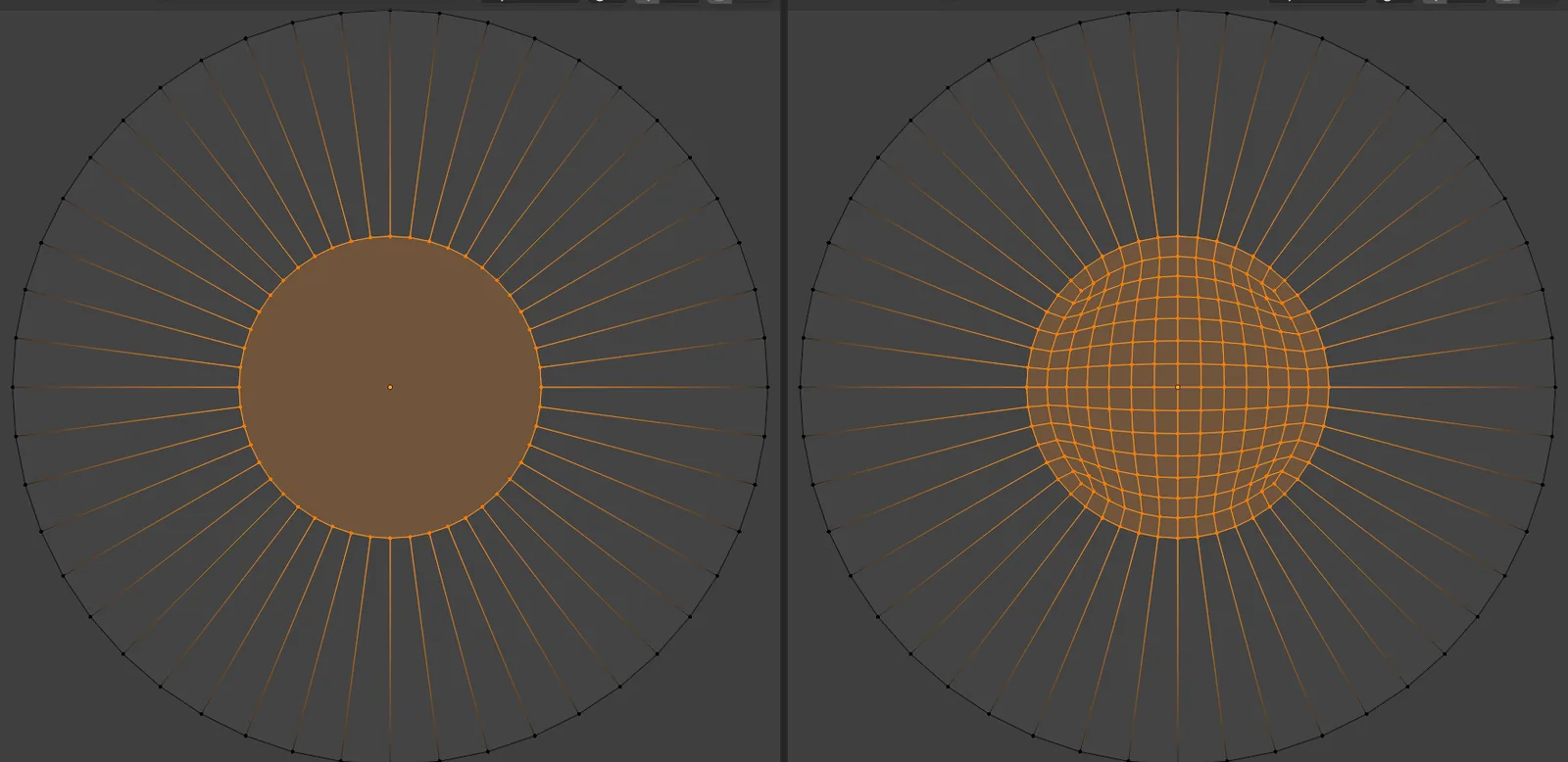
Step 8. Tidy a loop of points
WhereEdit Mode, Loop Tools panel. Click its header to open it. Each button has an arrow beside it that opens that tool’s settings.
Doselect a loop of points and click Circle.
You should seethe points pulled into a true circle. Ctrl+Z undoes it.
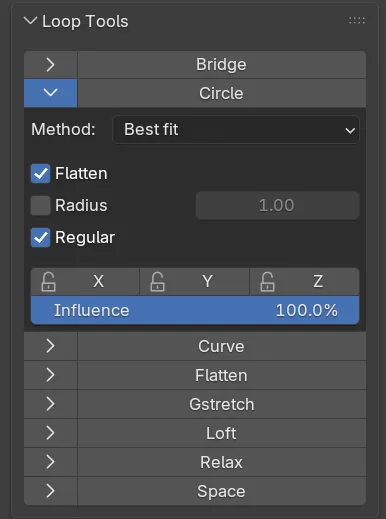
| Button | What it does |
|---|---|
| Bridge | Joins two loops with a strip of faces. |
| Loft | Lofts a surface through several loops. |
| Circle | Pulls points into a true circle. |
| Curve | Turns a loop into a smooth curve. |
| Flatten | Lays points flat on their best-fitting plane. |
| Gstretch | Stretches points along a stroke you draw. |
| Relax | Evens out a loop so it is smoother. |
| Space | Spaces the points of a loop evenly. |
Step 9. Start a retopology mesh
Wherethe Retopology menu at the foot of Start Here, or Jeweller > Retopology in Object Mode.
Doselect the heavy object and choose New from Active Object. New at 3D Cursor starts from nothing.
You should seea new mesh open in Edit Mode, with six tools in the toolbar (T) and in the Retopology menu.
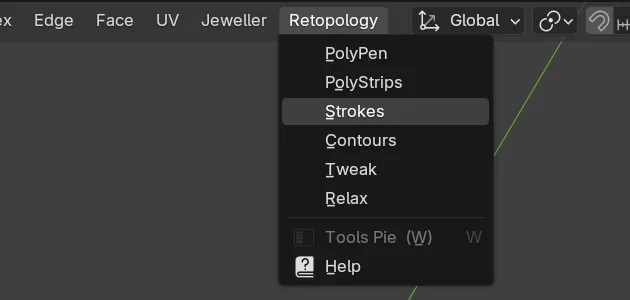
| Tool | What it does |
|---|---|
| PolyPen | Click to add points, edges and faces one at a time. |
| PolyStrips | Draw a stroke and get a strip of quads. |
| Strokes | Draw strokes to bridge and fill between edges. |
| Contours | Draw across a tube-like part to make a ring. |
| Tweak | Drag points while they stay on the surface. |
| Relax | Brush over points to even out the spacing. |
Inside a tool, W opens the tools pie, Shift+P pins the selected points, Alt+P unpins them and F1 shows the help. The tool header has a Clean Up button (Selected or All) and a mirror button. Add Mirror Modifier lets you work on one side. Apply Mirror makes the mesh whole.
Settings
| Setting | Default | What it changes |
|---|---|---|
| Merge Distance | 0.0001 mm | Points closer than this become one. |
| Colinear Angle, degrees | 0.01 degrees | How far from straight a point may be and still be removed. |
| Remove Loose Parts | Off | Deletes closed specks under Smaller than, mm3, which starts at 0.001 mm3. The biggest piece stays. |
| Report Open Edges | On | Counts edges no face closes. It only reads. |
| Close Small Holes | Off | Fills holes of Up to, sides edges or fewer. Starts at 4. |
| Longest Edge | 0.10 mm | The longest edge the print mesh may have. 0.005 to 5 mm. With Level instead, the start is level 3, from 0 to 6. |
| Rings | 1 | Quad Fill loops of quads along the border. 0 to 8. 0 is a plain grid. |
| Ring Width | 0 (auto) | Width of each ring. Auto keeps the quads near square. |
| Relax | 2 | Quad Fill smoothing passes on the new inner points. 0 to 20. |
Quad Fill also has Corner Offset (0), Whole Mesh (off), Odd Border (Add a Vertex, or One Triangle) and Shape (Auto, Flat or Follow for a curved border).
Good to know
- Mesh Cleanup names open edges but does not make a mesh watertight. A big hole is yours to close, for example with Quad Fill.
- Weights show only through a Subdivision Surface modifier with Use Creases on. Multires does not read them.
- A weight under 100 % eases an edge less as the subdivision level rises. Use 100 for a hard edge.
- Show Weights draws only in Edit Mode, and gives up above 150,000 edges.
- Make Print Mesh says whether a mesh is closed and sound. It never calls it castable: see Check and print.
- Gstretch follows a stroke drawn with Blender’s Annotate tool or a Grease Pencil object, as Use guides says. With None it straightens the loops. Delete Annotation Strokes and Delete GPencil Strokes remove the strokes afterwards.
- Loop Tools and the retopology tools are bundled open-source parts, credited on Credits and licence. Apply Retopology Settings changes some scene settings while a retopology tool runs, and Restore Retopology Settings puts them back.