

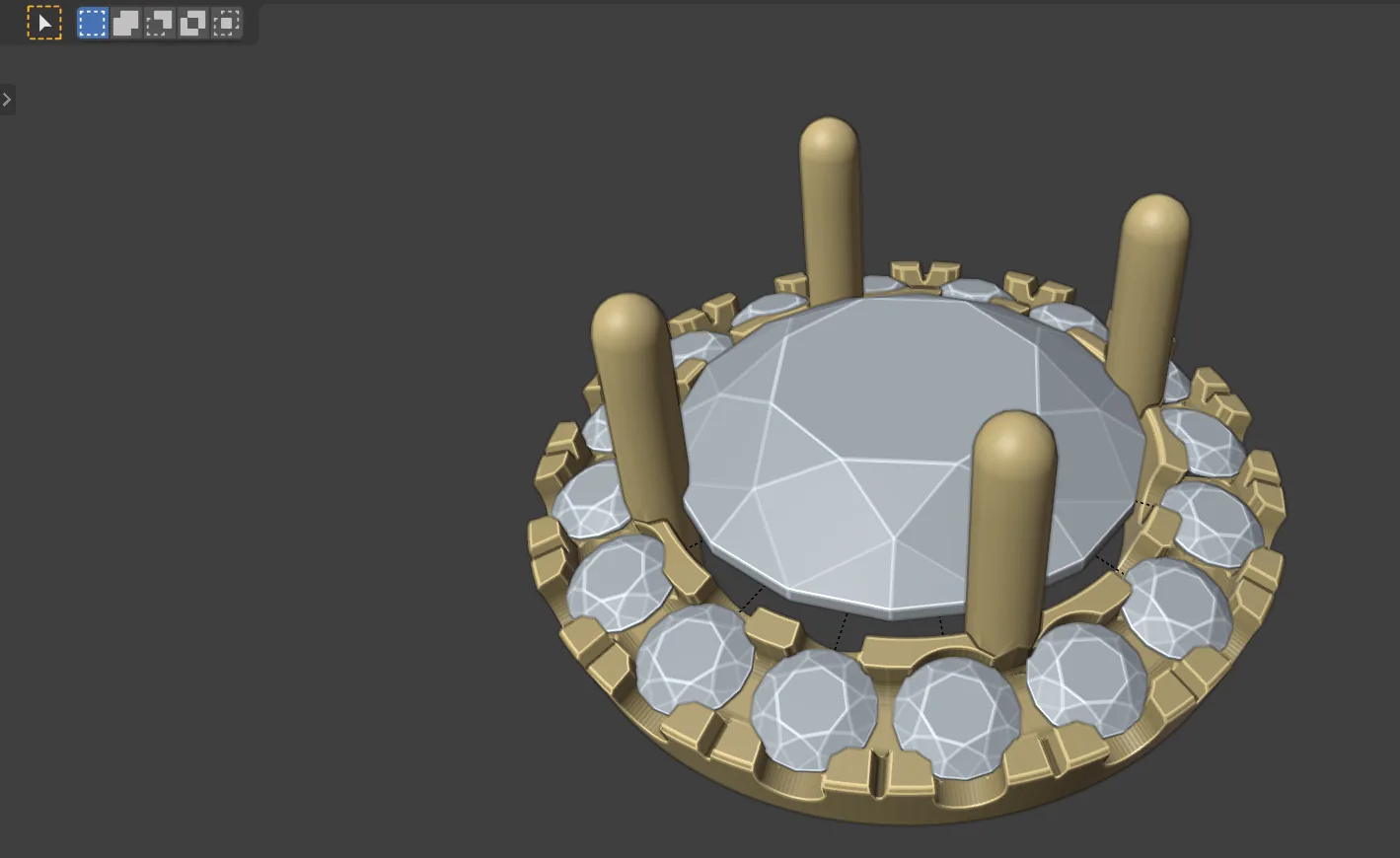
You will make the head of a halo ring: a round centre stone in four claws, a ring of small stones tilted round it, and the metal that holds them, cut with seats and with castle cuts between the stones. The halo is laid out in figures before any metal exists. You choose the ring. The tool never chooses for you.
What you need
- A new Blender file with the units set to millimetres and an empty scene. A solitaire shows how, under What you need and in Step 1.
- A round centre stone with evenly spaced claws. Halo Layout works with a round stone only.
Build it
Step 1. Make the centre stone
WhereCAD/CAM tab > Gems section > Gems panel. See Gems.
Doleave the cut on Round, click the W field and type the width, then click Create at Cursor.
Type6.5
You should seea round stone at the 3D cursor, selected and active.
Step 2. Set it in claws
WhereCAD/CAM tab > Setting section > Claws. Click the header to open it. See Claws.
Dowith the stone selected, leave the settings as they are and click Make Claws.
You should seefour claws round the stone. The status bar begins “4 claws on 1 gem”.
Step 3. Ask for the rows
WhereCAD/CAM tab > Setting section > Halo Layout. Click the header to open it. See Halo.
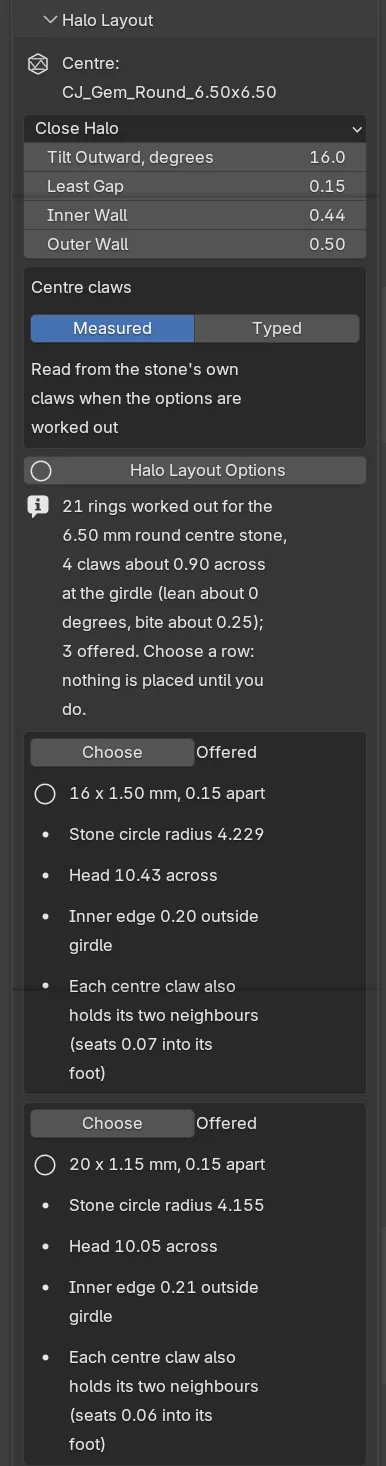
Doclick the centre stone so it is the active object. Leave the first drop-down on Close Halo, then click Halo Layout Options.
You should seea box for each ring that fits the stone and its claws. Each has a Choose button, the word Offered, a title with the stone count, the stone size and the gap, and four short lines. They give the stone circle, the head across, where the halo’s inner edge sits against the centre girdle, and what the centre claws do.
If it goes wrong“Make the centre stone active” at the top of the panel means the stone is not active. Click it.
Step 4. Choose a row and place it
Wherethe row’s box, then Place Halo lower in the panel.
Doclick Choose on the ring you want, then click Place Halo.
You should seethe button reads Chosen, and the small stones stand round the centre stone, tilted outward, with a gap on each claw’s line. They are children of the centre stone.
If it goes wrong“No row is chosen: tick Choose on one” means none is chosen. If the panel says a setting changed since the rows were worked out, click Halo Layout Options again.
Step 5. Build the halo band
WhereCAD/CAM tab > Setting section > Halo Band and Tilt. Click the header to open it.
Dokeep the centre stone active, pick the Alloy and click Build Halo Band.
You should seea ring of metal turned round the centre stone, in the CJ Metal collection. The panel names it under “Band:”.
Step 6. Make the seats and cut them
Wherethe The seats box in Halo Band and Tilt, then Cutters & Seats. See Seats.
Doclick Halo Seat Cutters. Then click the band so it is the only object selected, open Cutters & Seats and click Cut Metal.
You should seethe status bar begins “Cut” and a count of seats, and says “result manifold” when the cut body is sound.
Step 7. Join the centre claws to the band
Wherethe 3D view.
Dojoin the four claws to the band the way you join any parts in Blender, with each claw’s foot run into the band’s metal. For example, select the claws, click the band last and use Object > Join.
You should seethe claws and the band as one piece of metal. From now on Castle Setting treats the claws as metal. The add-on has no button for this step.
Step 8. Select the halo stones
WhereCAD/CAM tab > Setting section > Pave, Channel, Halo. Click the header to open it.
Doclick one small stone to make it active, then click Select Group. Hold Shift and click the band so the band is the active object.
You should seeevery halo stone selected, with the band active.
If it goes wrong“Make a pave stone, bead or its curve active first” means the active object is not a small stone.
Step 9. Cut the castle work
WhereCAD/CAM tab > Setting section > Castle Setting. Click the header to open it. See Castle.
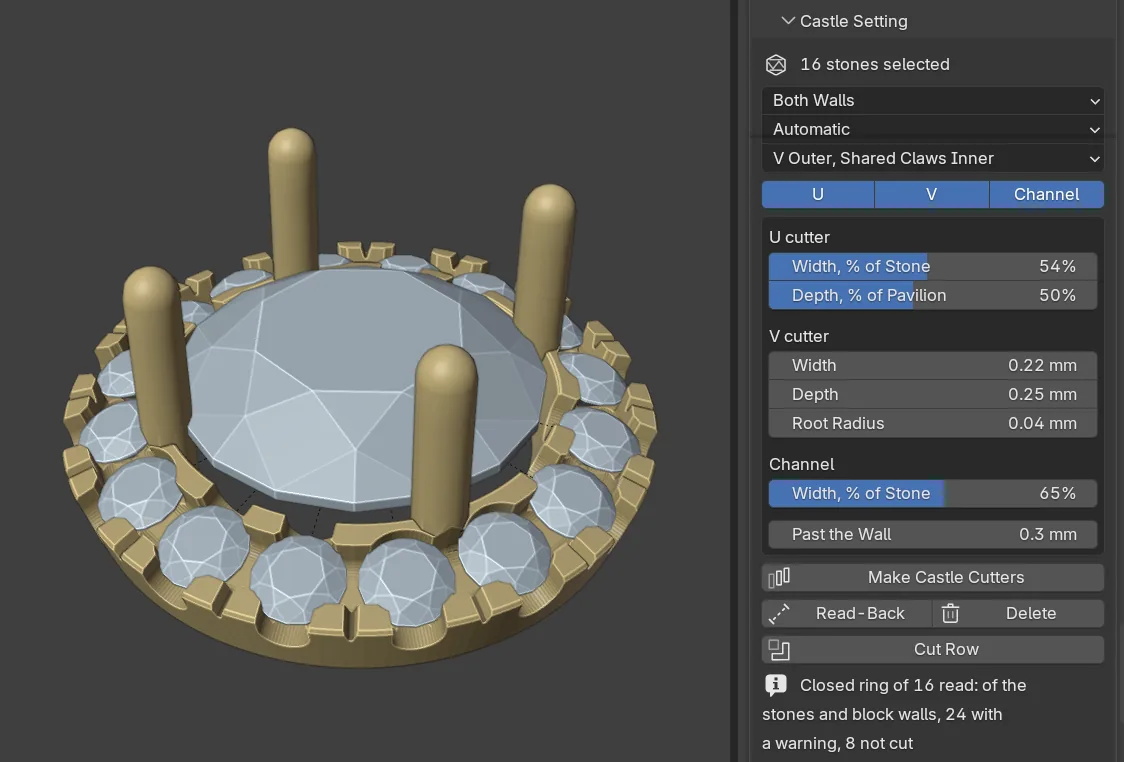
Doopen the third drop-down, which reads “V on Both Walls”, and choose “V Outer, Shared Claws Inner”. Click Make Castle Cutters, then click Cut Row.
You should seea count of castle cutters in CJ Cutters, then under Cut Row a result line and a verdict for every stone and every block. A line such as Closed ring of 16 read: of the stones and block walls, 24 with a warning, 8 not cut, as in the picture, is a warning for you to rule on, not a clean pass. A seat in a centre claw’s foot is the accepted pattern of a close halo, and the read-back does not count that one as a warning.
Step 10. Read the metal back
WhereHalo Band and Tilt, Read Halo Metal, at the foot of the panel.
Doclick the centre stone so it is active, then click Read Halo Metal.
You should seea short list. Each line gives a figure, what it is, and OK or what is wrong: the metal under the culets, the walls beside the seats, the halo’s metal to the centre stone, the head across and the tilt. Every figure is measured on the metal as it stands, so the list is true after the cuts.
Next
- Prepare a piece for printing cleans, checks and exports a piece, and writes both forms of a ring with a head.
- Halo and Castle explain every setting you left alone.
- A solitaire is the same centre stone without the halo.