

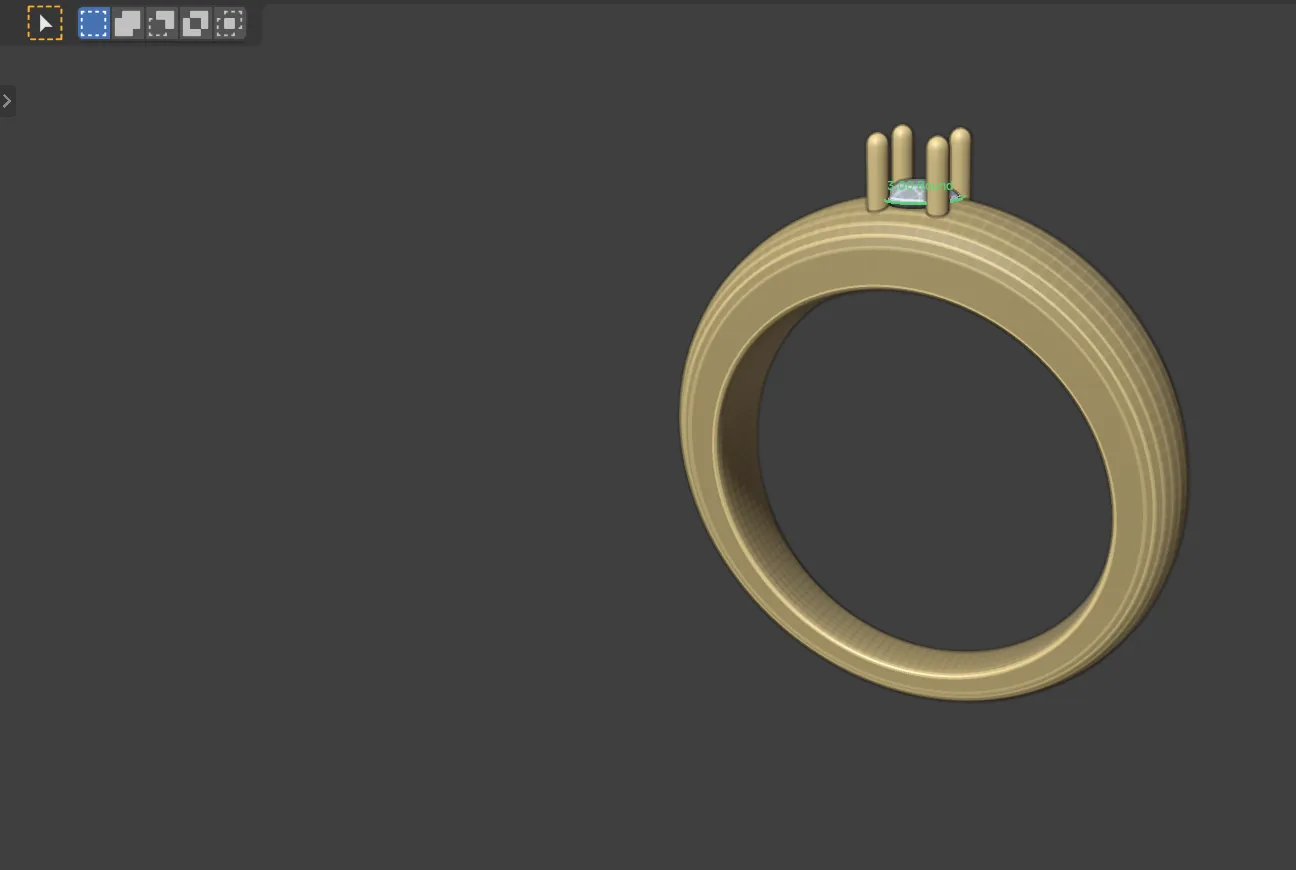
You will make a solitaire. It is a gold band that swells towards the top, one round stone held in four claws, and a seat cut in the metal to take the stone. Then you read its weight and run the book’s checks. Every step uses one tool and links to its page.
What you need
- Blender with the add-on installed, and a new file. See Install the add-on.
- An empty scene. Hover over the 3D view, press
Ato select everything, then pressDelete. - The sizes below are suggestions. Change any of them.
Build it
Step 1. Set the units to millimetres
WhereCAD/CAM tab > Start section > Start Here, row 1.
Doif the row shows a button called Set Units to mm, click it.
You should seethe row reads “Units: mm” with a tick.
Step 2. Build the band
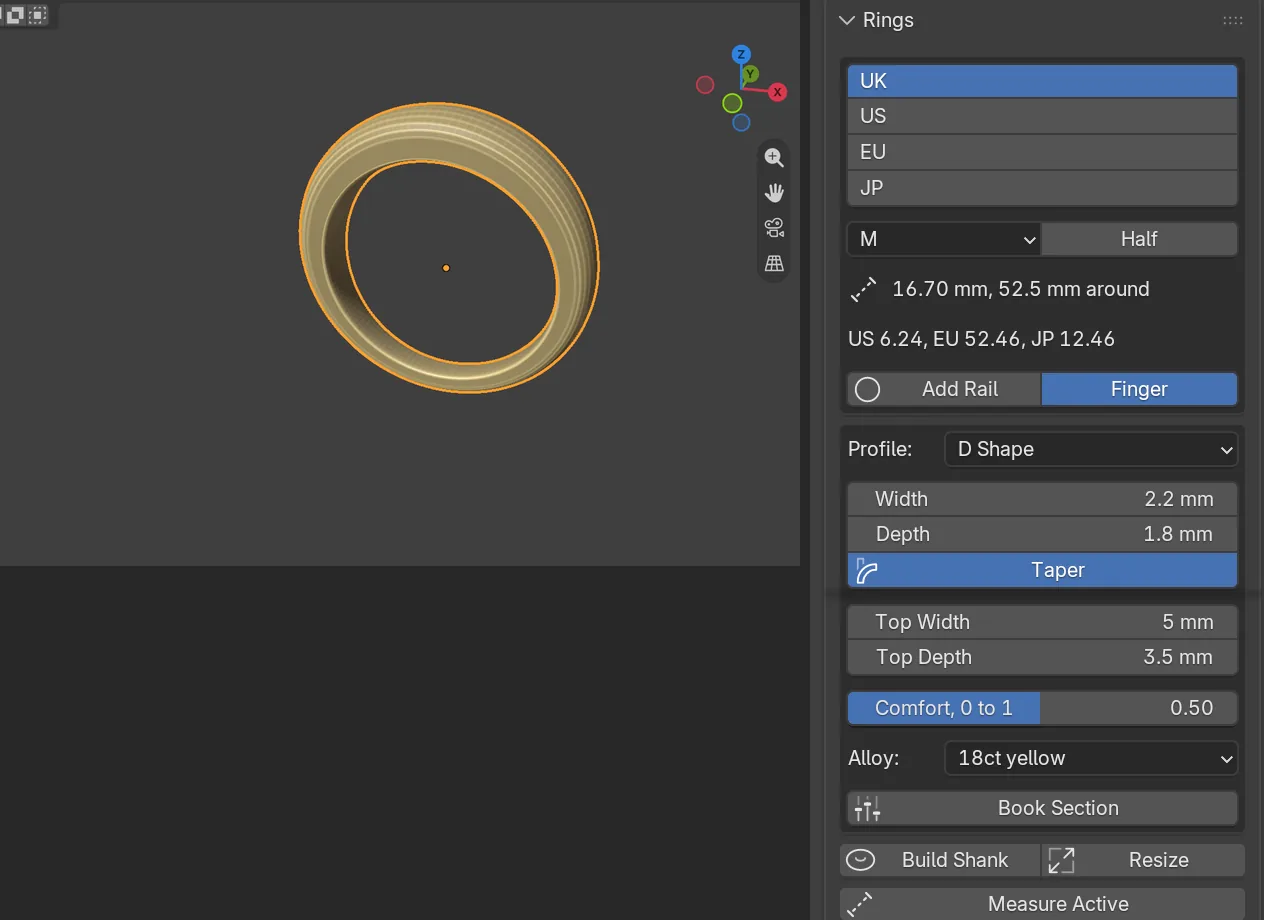
WhereCAD/CAM tab > Rings section > Rings panel. See Rings.
Doleave the size on UK M and the profile on D Shape. Tick Taper, set Top Width to 5 and Top Depth to 3.5, then click Build Shank.
You should seethe fields reading 5 mm and 3.5 mm, and a band named CJ_Shank_DShape_M. It is slim at 6 o’clock and thick at 12 o’clock, which is straight up. The stone will sit on that thick top, where a seat has metal all round it.
Step 3. Choose the stone
WhereCAD/CAM tab > Gems section > Gems panel. See Gems.
Doleave the cut on Round and the stone on Diamond. Click the W field and type the width.
Type3
You should seethe readout beside the cut’s picture shows a round of 3 mm, with its weight in carats and its depth.
Step 4. Look down on the band
Wherethe 3D view, mouse over it.
Dopress Numpad 7 for the top view, then press Home.
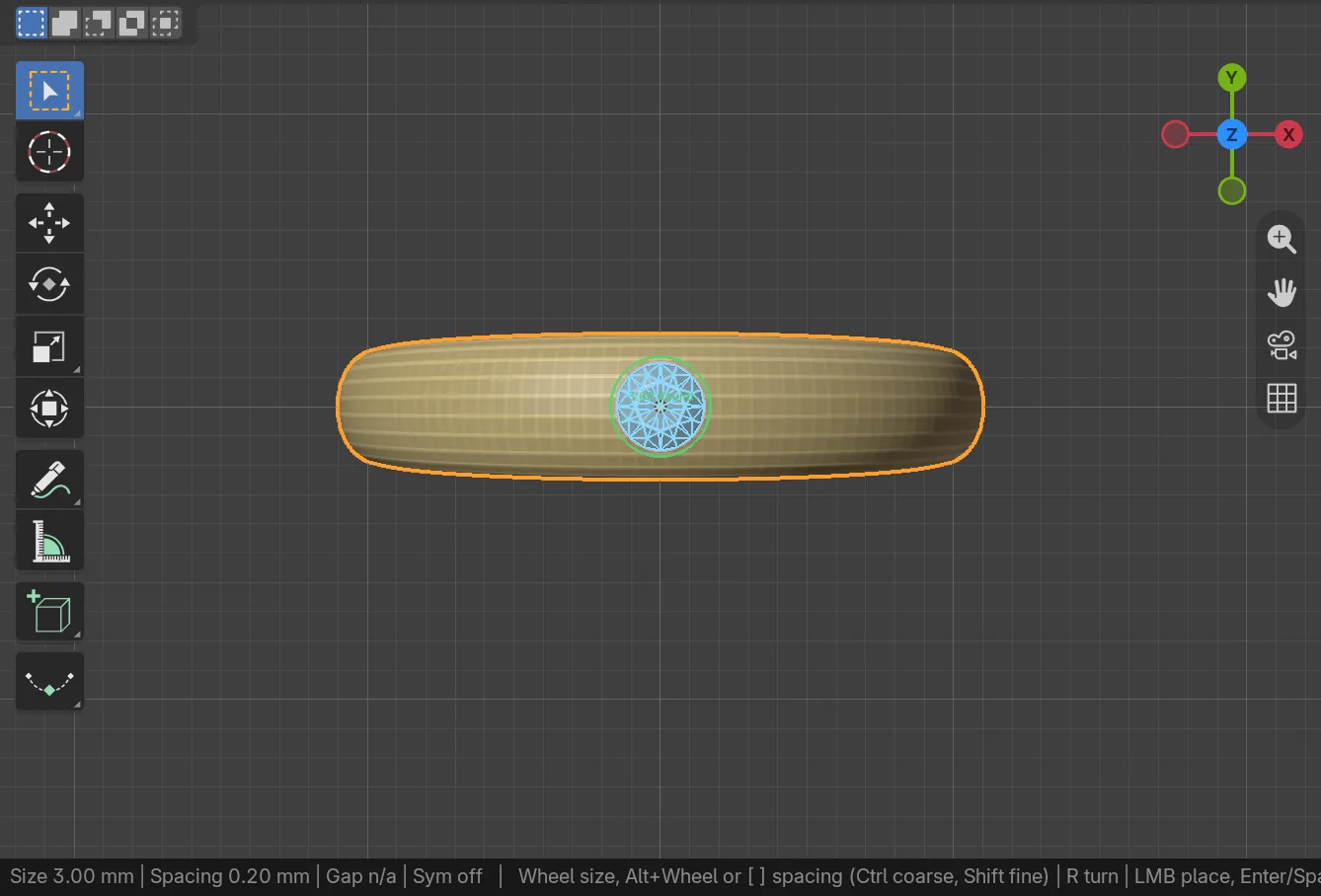
You should seethe band as a long strip across the middle of the view. Its top is directly under you.
Step 5. Drop the stone on the band
Wherethe 3D view. See Place gems.
Doclick the band so it is the active object, press Shift+G, click the middle of the band’s top, then press Enter.
You should seeone stone standing on the top of the band, selected. The status bar says “Placed 1 gem(s)”.
If it goes wrongto centre the stone, press Shift+E, click it and slide it. Click to keep the move, then press Enter.
Step 6. Set it in claws
WhereCAD/CAM tab > Setting section > Claws. Click the header to open it. See Claws.
Dowith the stone selected, leave the settings as they are and click Make Claws.
You should seefour claws round the stone, each 0.90 mm thick and standing 2.00 mm above the table. The status bar begins “4 claws on 1 gem”.
If it goes wrong“Select at least one gem” means the stone is not selected. Click it first.
Step 7. Make the seat cutter
WhereCAD/CAM tab > Setting section > Cutters & Seats. Click the header to open it. See Seats.
Dokeep the stone selected. Hold Shift and click the band, away from the stone, so the band is the active object. Click Make Cutters.
You should seea cutter under the stone, in the CJ Cutters collection. The status bar begins “1 cutter made”.
Step 8. Cut the seat
Wherethe Cutters & Seats panel, Cut Metal.
Dowith the band active and the stone still selected, click Cut Metal.
You should seethe seat opened in the band. The status bar begins “Cut 1 seats” and says “result manifold” when the cut body is sound.
Step 9. Read the weight
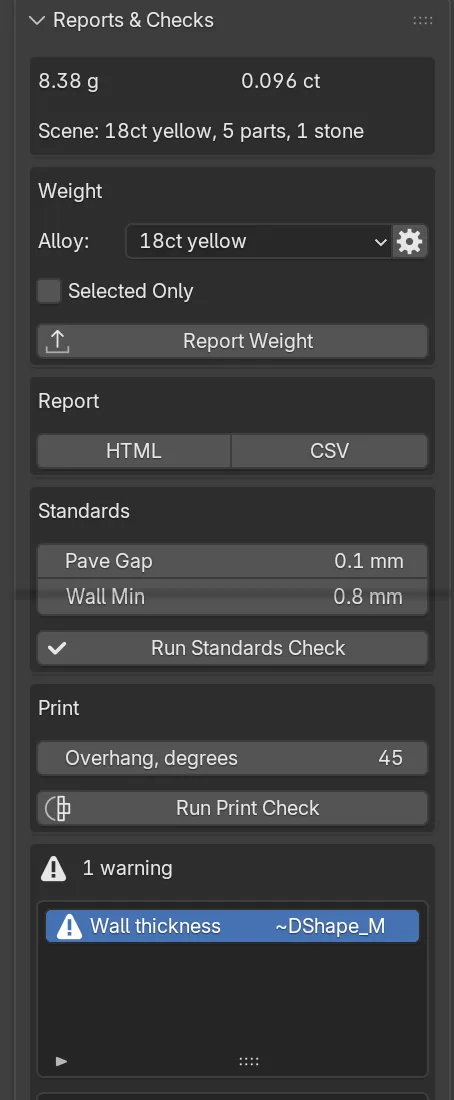
WhereCAD/CAM tab > Check section > Reports & Checks, the weight card at the top. See Check and print.
Doread the card, then click Report Weight for the full list.
You should seethe metal in grams and the stone in carats, with a line that says what they cover, such as the alloy and the number of parts and stones.
Step 10. Run the standards check
Wherethe Reports & Checks panel, the Standards box.
Doclick Run Standards Check.
You should seea one-line verdict, and under it a list of findings, worst first. In the picture the verdict reads 1 warning, and the warning is Wall thickness. Click a row to read its whole sentence. “Nothing found” would mean the book has no complaint.
If it goes wronga finding names the rule and the object. Click Select to find the object, change what it complains about, and run the check again.
Next
- A halo adds a ring of small stones round a centre stone like this one.
- Prepare a piece for printing cleans, checks and exports the piece.
- Claws and Seats explain every setting you left alone.