

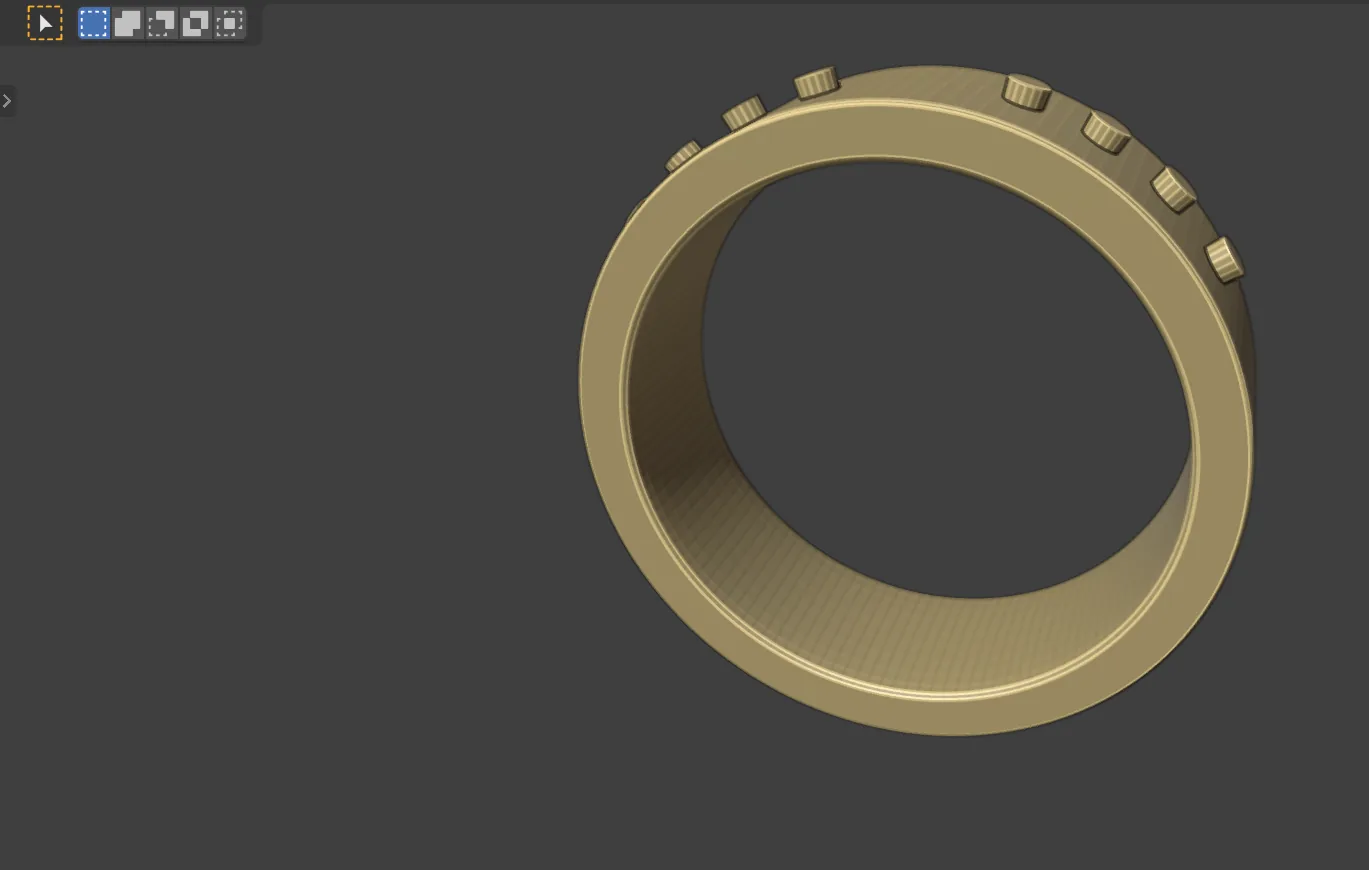
You will decorate a wide band with two rows of small studs, one on each shoulder. You draw flat, at true size, on a guide laid out beside the band. The add-on carries the drawing onto the curved band as you work, and it follows every change you make. Then you bake the studs into the metal.
What you need
- A new Blender file with the units set to millimetres and an empty scene. A solitaire shows how, under What you need and in Step 1.
- Nothing else. The studs are plain Blender shapes.
Build it
Step 1. Build a wide flat band
WhereCAD/CAM tab > Rings section > Rings panel. See Rings.
Doleave the size on UK M. Set Profile to Flat and Width to 6.00. Leave Taper off and click Build Shank.
You should seea flat-topped band named CJ_Shank_Flat_M, 6 mm wide, with room for a row of studs on each shoulder.
Step 2. Make the guide
WhereCAD/CAM tab > Flow section > Flow on Surface panel, the 1 Guide box. See Flow on Surface.
Dowith the band active in Object Mode, click Make Guide.
You should seea flat sheet with a one-millimetre grid and the 12, 3, 6 and 9 o’clock marks, laid out in front of the band. Under the button, two lines give its size and say how true it is to the band.
Step 3. Look down on the guide
Wherethe 1 Guide box, View Guide.
Doclick View Guide.
You should seethe view turned to look straight down on the guide. The middle of the guide is 12 o’clock. Six o’clock is at both ends. Home shows everything again.
Step 4. Draw a stud
Wherethe 3D view header, Add menu > Mesh > Cylinder. This is Blender’s own menu.
Dochoose Cylinder. In Adjust Last Operation, at the bottom left of the 3D view, set Vertices to 16, Radius to 0.6 and Depth to 0.6.
You should seea stud on the guide at 12 o’clock, and the same stud on the band at once. Anything made after Make Guide lands on the guide, because Make Guide moves the 3D cursor there and makes the guide’s collection the active one. Half of the stud sinks below the guide, so it grows out of the metal.
If it goes wrongif the stud does not show on the band, the cursor or the active collection changed after Make Guide. Undo back to the guide, or make the guide again.
Step 5. Move it to one shoulder
Wherethe 3D view, mouse over it.
Dowith the stud selected, press G, then X, type the distance and press Enter.
Type3
You should seethe stud 3 mm along the guide from the 12 o’clock line, and 3 mm round the ring on the band.
Step 6. Make it a row
Wherethe Properties editor > Modifiers tab > Add Modifier > Generate > Array. This is Blender’s own modifier.
Doset Count to 4, then under Relative Offset set Factor X to 2.
You should seefour studs on the guide with a gap of one stud’s width between them, and the same row on the band. Modifiers on a drawing are carried onto the piece too.
Step 7. Start the mirror
Wherethe 2 Draw box in Flow on Surface.
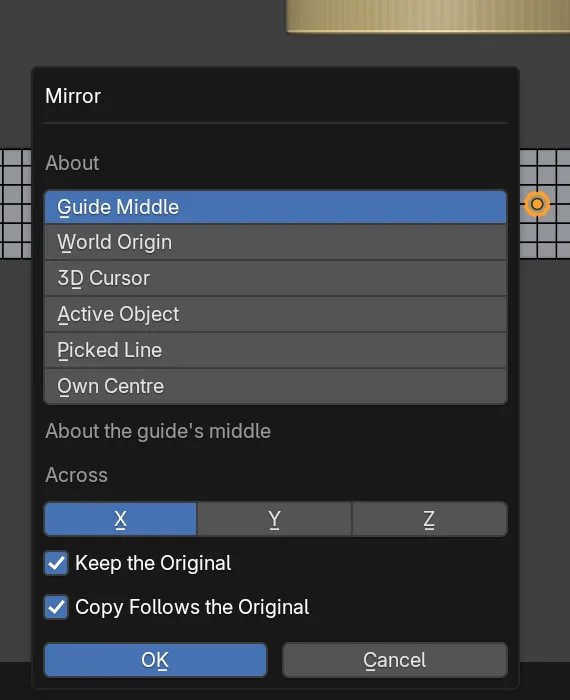
Doclick the row of studs to select it, then click Mirror on the Guide….
You should seea small window. About is already on Guide Middle, the middle of the guide, 12 o’clock on a band.
Step 8. Set the other shoulder
Wherethe Mirror window.
Doleave Across on X, leave Keep the Original ticked, tick Copy Follows the Original and click OK.
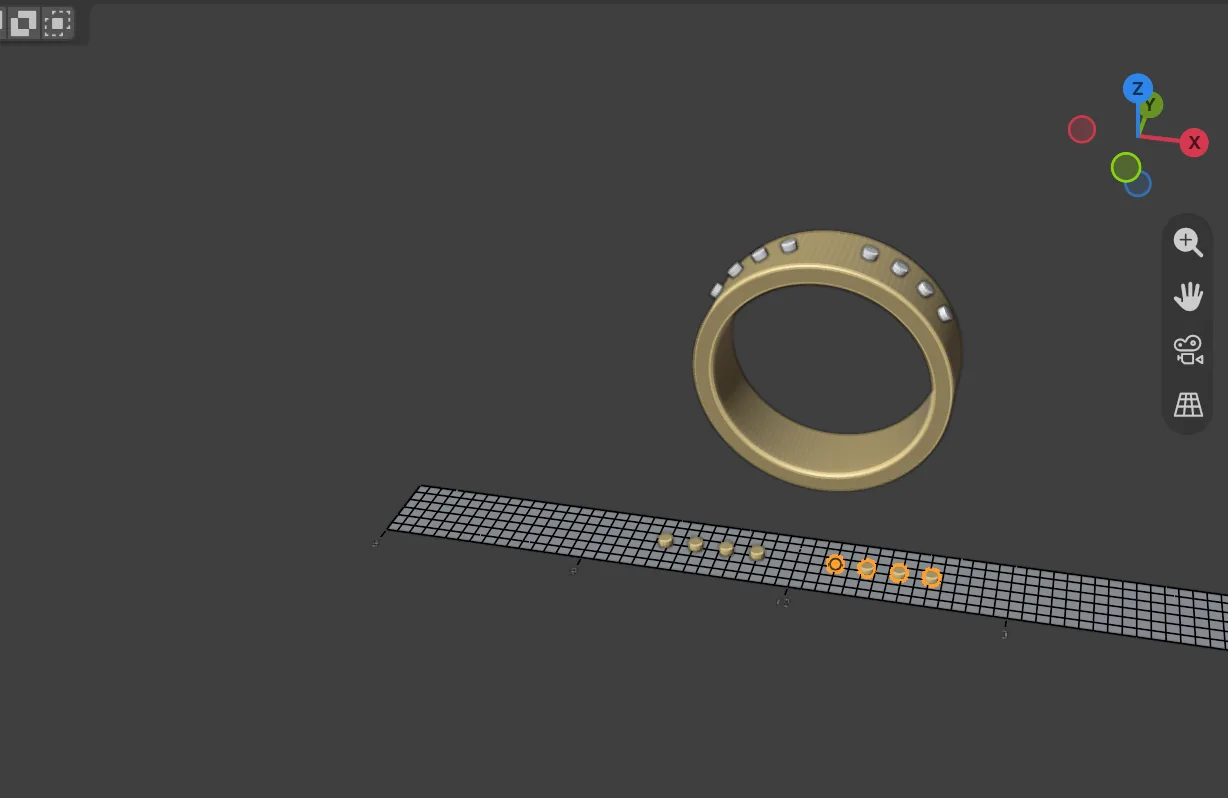
You should seea second row across 12 o’clock on the guide, and on the band. X swaps the two shoulders. Because the copy follows, a change to the first row changes the second.
Step 9. Bake the studs into the band
Wherethe 3 Finish box.
Dotick Join to Piece, then click Make Real.
You should seethe studs united into the band as metal. The line under the buttons reads “Joined to” and the band’s name, then “one closed body” and the metal added in mm3. The drawing and the guide stay, so you can change the pattern and make it real again.
If it goes wrong“Not joined” and a reason means the band is as it was and the pattern stands as its own object. “Parts of the pattern do not touch the piece” means the drawing floats above the guide. “The pattern is not made of closed solids” means an open sheet or a curve without caps.
Step 10. Clear the guide
Wherebelow the three boxes, Remove Guide.
Doclick Remove Guide.
You should seethe guide, its grid and its live copy on the band gone. The flat drawing stays in the scene, and the metal you made real is not touched.
Next
- Flow on Surface explains the guide’s methods, its truth lines and Keep Shape.
- Mirror covers Mirror and Copy, Live Mirror and Live Turn.
- Prepare a piece for printing cleans, checks and exports the band.