

The add-on adds a few keys, one pie and one menu. Every command also has a button in the CAD/CAM tab, so you never have to remember a key. You can move or remove any key in Edit > Preferences > Keymap.
The keys the add-on adds
| Key | Where | What it does |
|---|---|---|
J | Object Mode | Opens the quick pie |
Shift+G | Object Mode | Place Gems on Surface |
Alt+C | Object Mode | Place Claws on Surface |
Shift+E | Object Mode | Edit on Surface |
Ctrl+Shift+G | Object Mode and the 3D View | Shows or hides the spacing guides |
Alt+M | Object Mode | Mirror any object about a reference you choose |
Alt+T | Object Mode and mesh Edit Mode | Ruler |
G, R, S | Object Mode and mesh Edit Mode, only while Falloff is on | Weighted Move, Rotate and Scale |
W | 3D View, inside a Retopology tool | The Retopology tools pie |
Shift+P, Alt+P | 3D View, inside a Retopology tool | Pin and unpin the selected points |
F1 | 3D View, inside a Retopology tool | Retopology help |
The J pie
Press J over the 3D view in Object Mode.
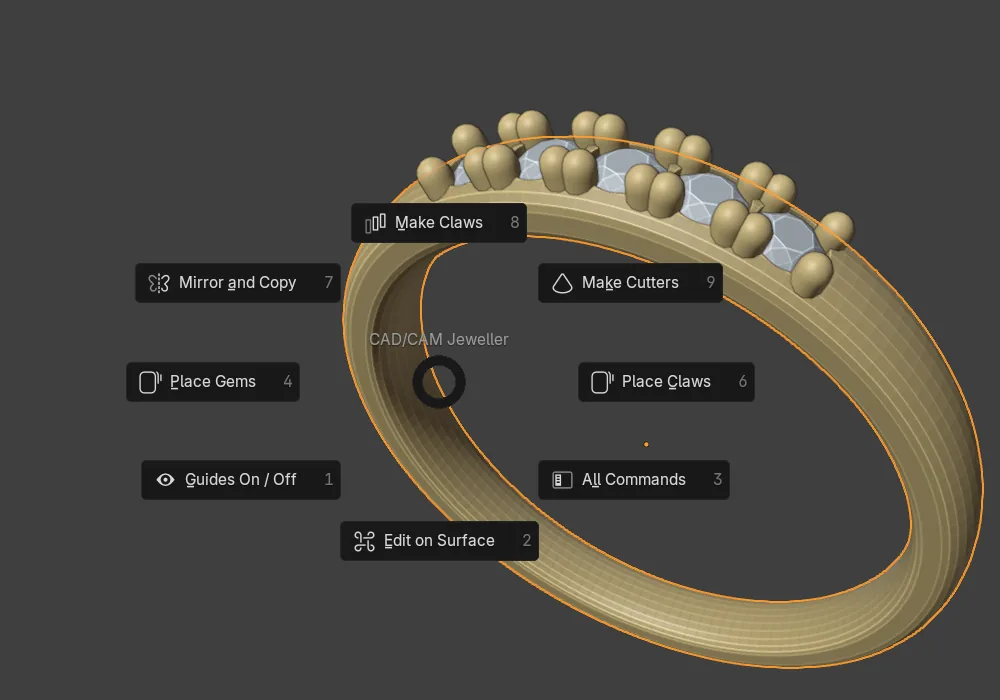
| Position | Entry |
|---|---|
| Left | Place Gems |
| Right | Place Claws |
| Bottom | Edit on Surface |
| Top | Make Claws |
| Top left | Mirror and Copy, which opens a menu |
| Top right | Make Cutters |
| Bottom left | Guides On / Off |
| Bottom right | All Commands, which opens the Jeweller menu |
The Jeweller menu
It sits in the 3D view header, after Object. Blender prints each command’s key beside it.
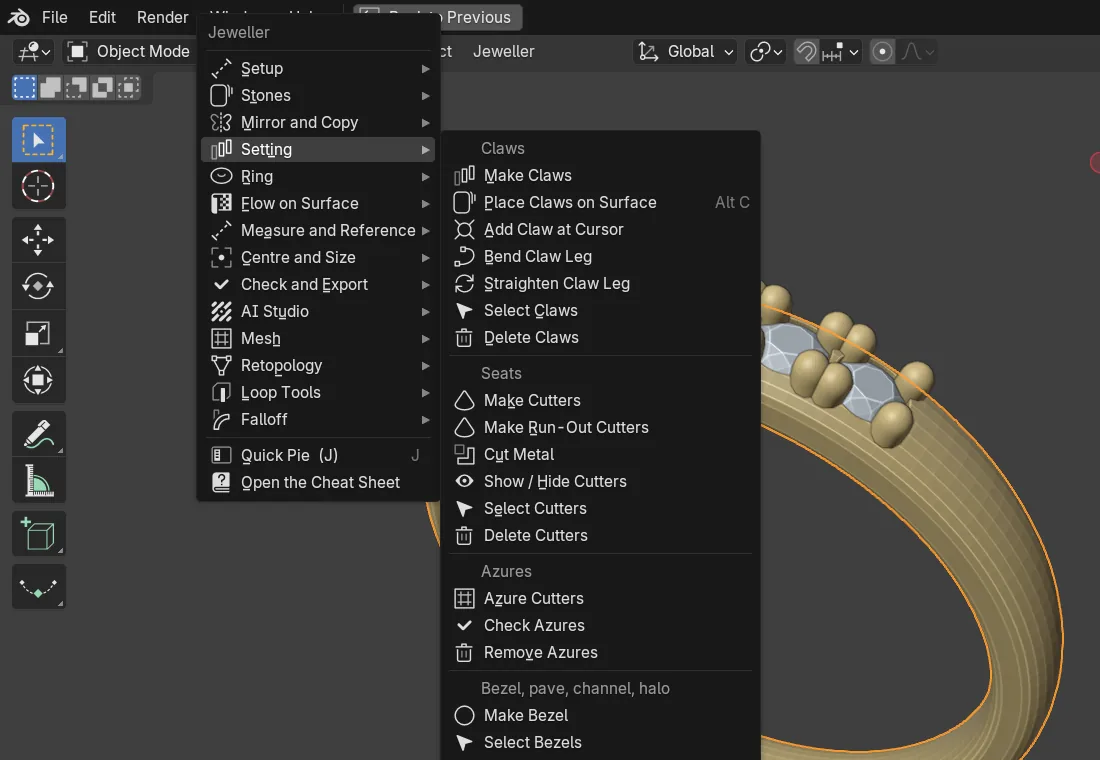
In Object Mode it holds these submenus, then Quick Pie (J) and Open the Cheat Sheet.
| Submenu | Holds |
|---|---|
| Setup | Units, navigation, presets, guides and the start object |
| Stones | Place, edit, create, select, show, hide and group stones; the gem map |
| Mirror and Copy | Live Mirror, Live Turn, turned copies, and twins for stones and claws |
| Setting | Claws, seats, azure cutters, bezels, pave, channel, halo and castle setting |
| Ring | Rail, shank, resize, measure, eternity and the Signet commands |
| Flow on Surface | Guide, add to the flow, keep shape, mirror on the guide, make real, remove |
| Measure and Reference | Ruler, Wall Thickness, Between Selected, Live Sizes, reference pictures |
| Centre and Size | Centre, the origin commands and Size in mm |
| Check and Export | Standards and print checks, weight, reports, export, Head and Shank |
| AI Studio | The AI steps, key tests, Cancel and Copy the Guide for Your AI |
| Mesh | Quad Fill, Mesh Cleanup, the Edge Weight commands and Make Print Mesh |
| Retopology | New from Active Object and New at 3D Cursor |
| Loop Tools | Bridge, Circle, Curve, Flatten, Gstretch, Loft, Relax and Space |
| Falloff | On or off, Auto Size, Draw, Move, Rotate, Scale and Transform |
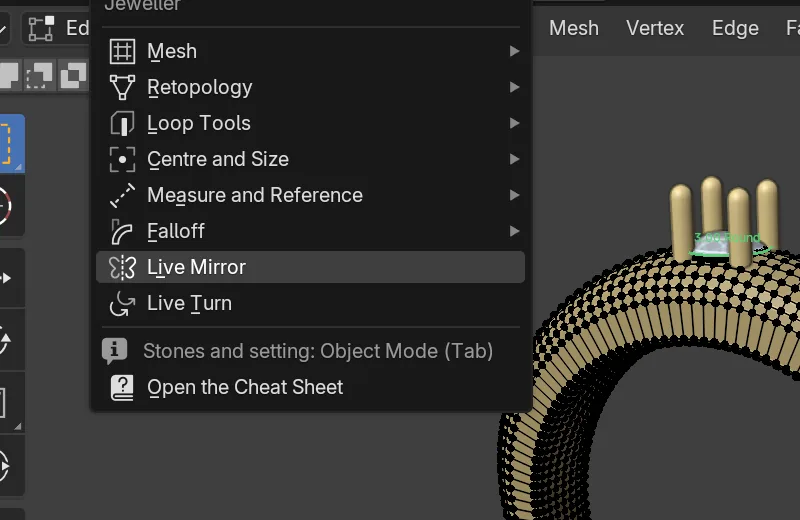
In mesh Edit Mode it holds only what works there: Mesh, Retopology, Loop Tools, Centre and Size, Measure and Reference, Falloff, Live Mirror and Live Turn. A Retopology menu also sits beside it.
Keys inside the tools
These tools take the mouse while they run. Middle mouse and trackpad pan and zoom always reach the view. Ctrl takes a bigger step and Shift a finer one.

Place Gems (Shift+G)
| Key | What it does |
|---|---|
| Move the mouse | Aim the preview stone |
| Wheel | Size, 0.10 mm a step (Ctrl 0.50, Shift 0.01) |
Alt+Wheel, [ and ] | Spacing, 0.05 mm a step (Ctrl 0.10, Shift 0.01) |
R | Turn 15 degrees (Ctrl 5). Shift+R turns the other way |
X, Y, Z, P, +, -, A, F | Symmetry: mirror axes, polar, polar count, polar axis, frame |
G | Guides on or off |
| Left click | Place a stone and carry on |
Enter, Space | Finish |
Right click, Esc | End. The undo step is kept if you placed anything |
The preview is clear blue, amber when it is within 0.05 mm of the spacing, and red when it overlaps.
Place Claws (Alt+C)
| Key | What it does |
|---|---|
| Wheel | Diameter, 0.05 mm a step (Ctrl 0.10, Shift 0.01), never below 0.35 mm |
Alt+Wheel | Height, in the same steps |
S | Cycle the snap: Gap, Shared, Girdle, Free |
Ctrl, held | With the Shared snap, slide the claw along its line |
H | Height: Table or Fixed |
D | Fit the diameter to the gap |
C | Pave claw or Setting claw |
R | Turn 15 degrees (Ctrl 5). Shift+R turns the other way |
X, Y, Z, P, +, -, A, F, G | As in Place Gems |
| Left click | Place |
Enter, Space | Finish |
Right click, Esc | End |
The hold colours are green for OK, amber for weak (it bites under half the cap) and red when it bites over the cap. A clear blue claw holds no stone.
Edit on Surface (Shift+E)
| Key | What it does |
|---|---|
| Move the mouse | Pick: shows what is under the mouse. While dragging, the item follows its surface |
| Wheel | Gem width 0.10 mm a step (least 0.30 mm), or claw diameter 0.05 mm a step (least 0.35 mm) |
Alt+Wheel | Lift a gem, or raise a claw’s top, 0.05 mm a step |
R | Turn 15 degrees (Ctrl 5). Shift+R turns the other way |
G | Guides on or off |
| Left click | Pick, or commit the drag |
Tab | Commit and drag the nearest item of that kind not yet visited |
X, Delete | Delete the item and what hangs off it |
Enter, Space | Commit and finish |
Right click, Esc | While dragging, put the item back. While picking, finish |
Ruler (Alt+T)
| Key | What it does |
|---|---|
| Click, click | Start point, end point. Or press, drag, release |
Enter | Keep the reading on show |
Backspace | Remove the last kept ruler |
P | Project on or off |
X, Y, Z | Lock to that world axis. Press again to let go |
Shift, held | Keep the measure level or upright in the view |
Ctrl, held | Snapping off |
T | Wall thickness on or off |
Esc, right click | End the tool |
Falloff: Move, Rotate and Scale
Use the buttons in the Falloff panel, or G, R and S while Falloff is on and G, R and S weighted is ticked.
| Key | What it does |
|---|---|
| Mouse | Follows the mouse, like Blender’s own |
X, Y, Z | Along or about that axis. Shift with the key chooses the other two |
| Digits | Type a distance in mm, degrees, or a percentage |
M, in Scale | Type a width in mm at the Start end |
Enter, Space, left click | Keep it |
Esc, right click | Put every point back where it was |
Drag Weight
| Key | What it does |
|---|---|
| Mouse left or right | The selected edges take the weight you drag to, 0 to 100 % |
| Digits | Type the weight instead. Backspace takes one back |
Shift, held | Drag a tenth as fast |
Ctrl, held | Move in steps of 5 % |
Click, Enter | Keep it |
Right click, Esc | Put every weight back |
Navigation
The Set Up window offers two schemes. Install the add-on explains how to choose.
| Hamed’s Bench | Blender Default | |
|---|---|---|
| Orbit | Alt + left drag | Middle drag |
| Pan | Alt + Shift + left drag | Shift + middle drag |
| Zoom | Alt + Ctrl + left drag | Ctrl + middle drag, or the wheel |
| Edge loop in Edit Mode | Double-click | Alt + click |
| The view turns about | The selection | The view’s centre |
| Space | The tool menu (Shift+Space plays) | Plays the animation |
Move a key
- Open Edit > Preferences > Keymap.
- Choose 3D View > Object Mode.
- Search for the tool’s name, such as
Place Gems,Place ClawsorEdit on Surface, and change the key. Blender lists the matching entries, each with its key.