

Setup holds the choices that outlive a file: the units, the default alloy, presets, what a new Blender file opens with and how the 3D view moves. Most of it you set once, when you install the add-on.
Where to find it
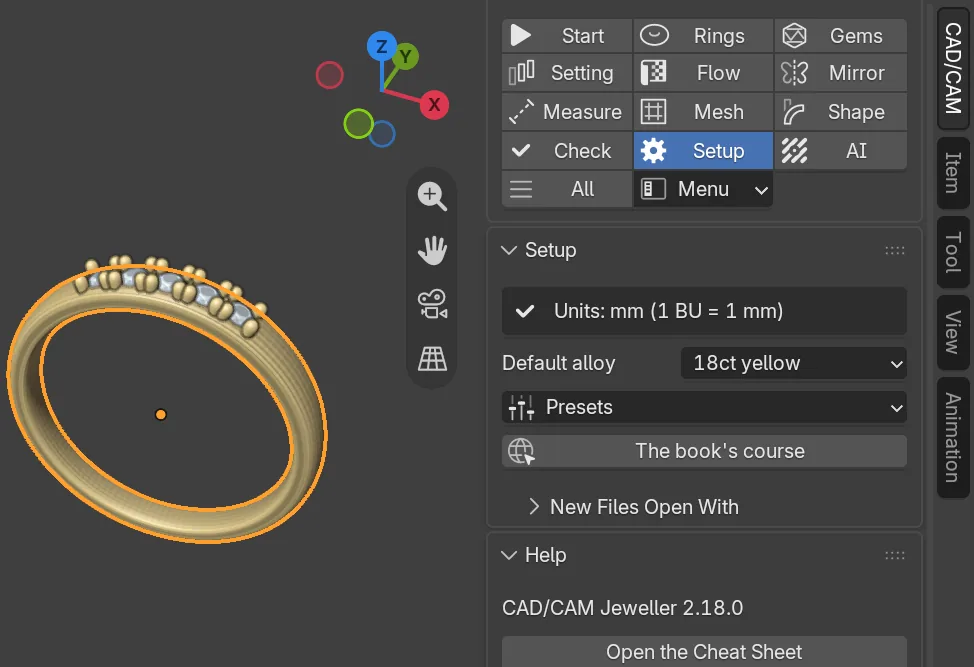
CAD/CAM tab > Setup section. It holds the Setup panel, with New Files Open With inside it (closed), and the Help panel. Menu: Jeweller > Setup. The first two rows of Start Here show the units and the navigation. The add-on’s own settings are under Edit > Preferences > Add-ons > CAD/CAM Jeweller.
Use it
Step 1. Check the units
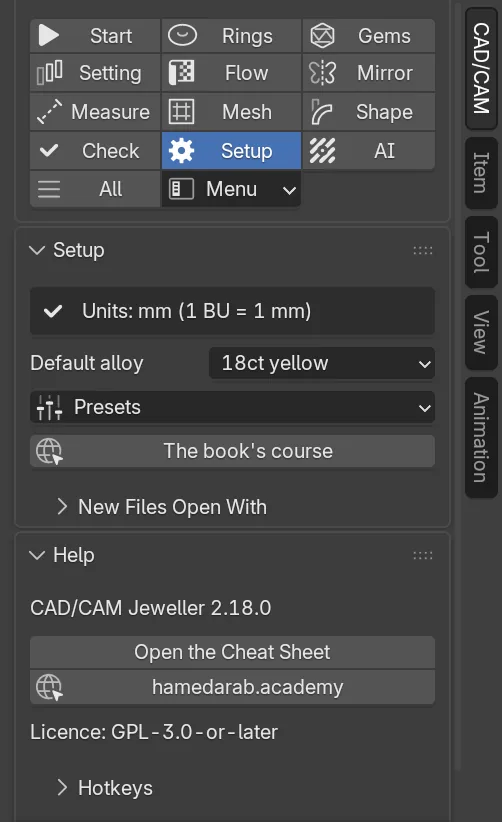
Wherethe Setup panel, the box at its top.
Doread the line. If it is red, click Set Units to mm.
You should see“Units: mm (1 BU = 1 mm)” with a tick. Every tool works at 1 Blender unit = 1 mm, so what you model is what you print and cast. The status bar says what the units were before.
Step 2. Choose the default alloy
Wherethe Setup panel, the Default alloy list.
Dopick an alloy. It starts at 18ct yellow.
You should seeweights in that alloy for any object with no alloy of its own. Claws, bezels, rings and pave each keep their own alloy list, so this one does not retune them.
To add an alloy of your own, open Edit > Preferences > Add-ons > CAD/CAM Jeweller, find the My alloys box and click Add Alloy. Type a name and a density in g/cm3. It joins the Alloy lists. A name the book’s table already has is refused, with the reason shown under the row.

Step 3. Apply a preset
Wherethe Setup panel, the Presets menu.
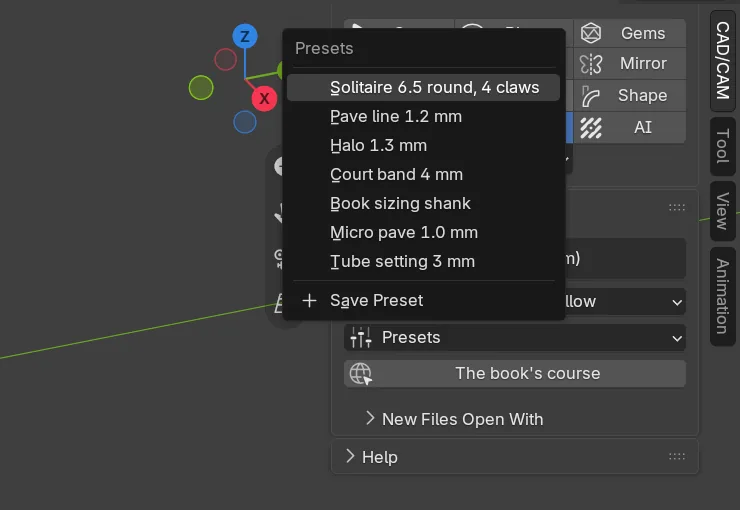
Doopen it and choose one of the seven: Solitaire 6.5 round, 4 claws, Pave line 1.2 mm, Halo 1.3 mm, Court band 4 mm, Book sizing shank, Micro pave 1.0 mm or Tube setting 3 mm.
You should seethe matching panels change, and the status bar says how many fields were set. A preset overwrites those fields at once, so Ctrl+Z is your way back.
Step 4. Choose what a new file opens with
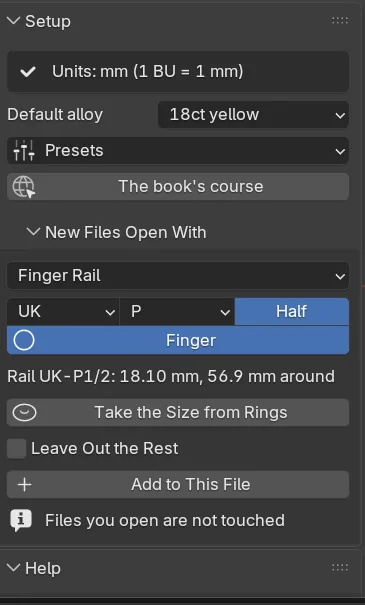
Wherethe Setup panel, New Files Open With. Click its header to open it.
Doopen the list and choose Blender’s Start File, Finger Rail, Box or My Object.
You should seefields for your choice. Finger Rail gives a size system (UK, US, EU or JP), a size and a Finger switch. Take the Size from Rings copies the size from the Rings panel. Box gives Width, Length and Height. My Object is the selection you saved with Use the Selection. Add to This File puts it in the open file now.
Step 5. Choose how the 3D view moves
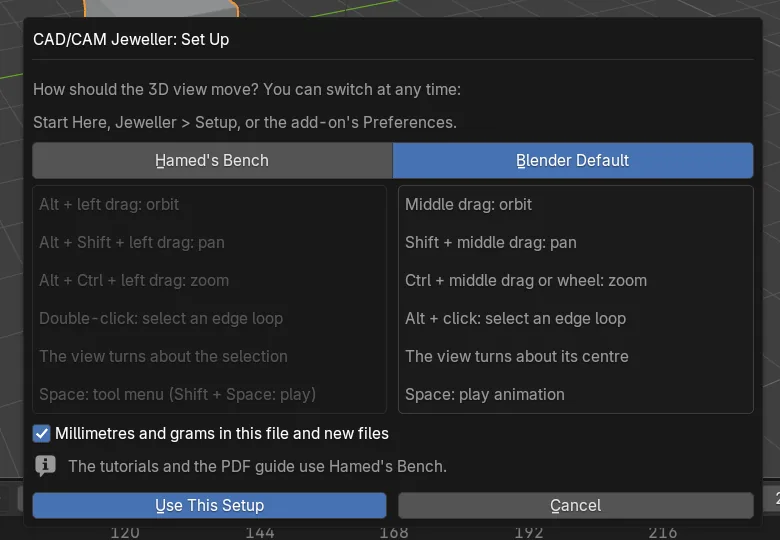
Wherethe second row of Start Here, a button that reads “Navigation:” and your current setup, or Jeweller > Setup > Navigation and Units….
Doin the window CAD/CAM Jeweller: Set Up, click Hamed’s Bench or Blender Default. Leave Millimetres and grams in this file and new files ticked. Click Use This Setup.
You should seethe status bar say which you chose. Hamed’s Bench orbits with Alt and a left drag, and turns the view about your selection. Blender Default uses the middle mouse button. Keys and menus compares the two.
If it goes wrongto change it later, or to go back, open Edit > Preferences > Add-ons > CAD/CAM Jeweller. The Bench setup box has both buttons and Put Back My Previous Settings. If Blender does not save preferences when it closes, the status bar adds “Save Preferences to keep it”.
Step 6. Find the Help panel
Wherethe Help panel, below Setup.
Doread the version line. Click hamedarab.academy to open the site in your browser.
You should see“CAD/CAM Jeweller 2.18.0”, the buttons Open the Cheat Sheet and hamedarab.academy, the line “Licence: GPL-3.0-or-later”, and two closed sub-panels. Hotkeys lists the keys the add-on adds. Standards Used names the book and the page each section of standards cites. The Setup panel also has The book’s course, which opens the book’s page.
If it goes wrongin an installed copy Open the Cheat Sheet opens nothing. It shows a warning, because the cheat sheet does not ship inside the add-on. Read Keys and menus instead.
Settings
| Setting | Default | What it changes |
|---|---|---|
| Default alloy | 18ct yellow | The alloy for any object with no alloy tag. |
| A New File Opens With | Blender’s Start File | Nothing is added. Finger Rail, Box and My Object add one thing. |
| Start rail | UK M, Finger on | UK letter, with a Half switch. US starts at 6.25, EU at 52, JP at 12. |
| Start box | 20 by 20 by 20 mm | Width (X), Length (Y) and Height (Z). 0.1 to 1,000 mm. |
| Leave Out the Rest | Off | In a new file, takes out the start file’s own meshes and curves. Cameras, lights and pictures stay. |
| Millimetres and grams | Ticked in the Set Up window | This file, and new files, open in millimetres and grams. Files you open keep their own units. |
| Guides on when placing | On | Place Gems switches the guides on when it starts. |
| Follow the Tool | On | Starting a tool by key or menu shows its section. Never while All is chosen. |
Good to know
- The add-on does not write Blender’s start file. To change that instead, set the scene up and use File > Defaults > Save Startup File. File > Defaults > Load Factory Settings goes back to Blender’s cube, camera and light.
- Hamed’s Bench is Blender’s own Emulate 3 Button Mouse, Orbit Around Selection and Spacebar Action set to Tools. Nothing else changes, and Put Back My Previous Settings restores what you had.
- The choice of start file and your saved start object survive an update of the add-on.