

FreeFlow: free dictation for Windows 11
Hold a key, speak, and clean text appears wherever you were typing, in about two seconds, for anyone on Windows who writes emails, listings, quotes and AI prompts all day.
Free. MIT licence. About 45 MB. Needs a free Groq API key, no card required.
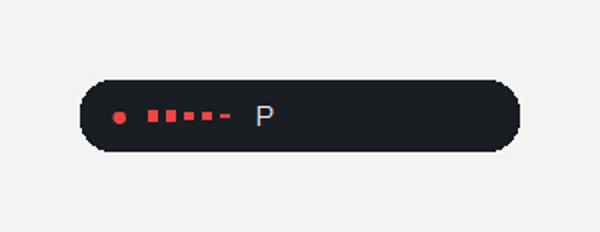
The Ghost pill while you speak
What it does
Hold Alt+1 in any app and speak. Release the key and the cleaned text appears where your cursor was, in about two seconds. No separate window to open, no copying and pasting.
Five cleanup modes pick themselves depending on the app in front: polished for email and documents, brand voice for LinkedIn and Notion, prompt for a terminal talking to an AI tool, note for chat apps, raw for code editors. Each one decides how much to tidy your words without changing what you meant.
Speak in English or Persian and FreeFlow detects which one automatically. Turn on translate and it hands you clean British English from Persian speech, useful for drafting something in your first language and publishing it in your second.
Ghost
Recording
A small dark pill appears beside your cursor (or at the bottom of the window, in apps with no visible caret) with a live audio equaliser while you speak.

Cleaning
The label turns into a live elapsed clock, "0.8 s", so a slower reply never looks like it has frozen.

Done
A green tick, then the pill fades away.

RAW or stuck
Amber for two seconds if the text pasted unedited, or held on screen until you click it if cleanup keeps failing.
Prefer the old floating gadget? It's one click away in the tray's Indicator menu.
I needed something like this on Windows 11. The dictation tools I could find were Mac-only, and the ones that worked here piped every transcript through Claude or GPT-4 for cleanup, adding three to eight seconds of lag that broke my typing rhythm. Groq's inference is fast enough that the round trip feels instant instead. I use FreeFlow myself, about forty times a day: 2,847 dictations in the last 57 days, 90% of them typed straight into Claude Desktop, landing in about a second and a half. The five-mode router exists because a terminal, an editor, LinkedIn and a chat window all need a different kind of tidying, so now each one gets it. If you're a member of the Maker's AI Lab on Skool, that's where I take questions and bug reports on it directly.
Install in three steps
Download and run
Download FreeFlow-Setup.exe from the GitHub releases page and run it.
Allow it through
Windows will likely show a "Windows protected your PC" warning, because the installer is not code-signed yet. Click More info, then Run anyway.
Add your Groq key
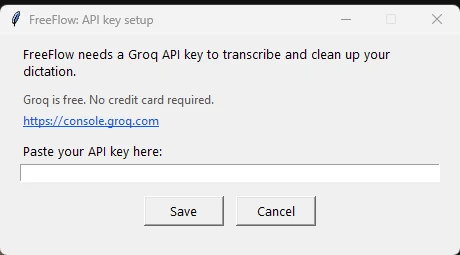
On first launch, paste in a free Groq API key (get one at console.groq.com, no card needed) and click Save.
No administrator rights needed.
Make it yours
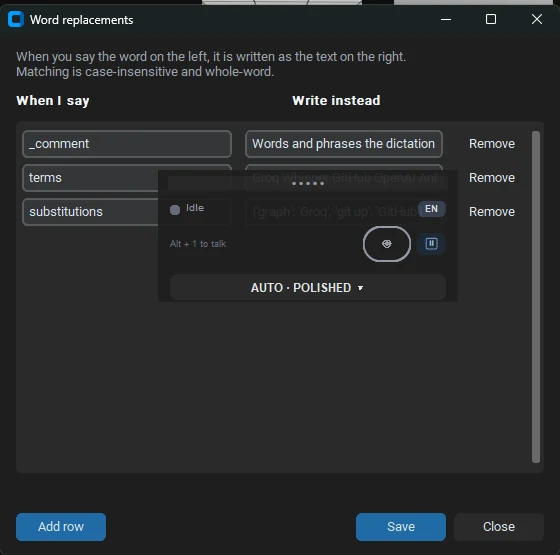
Dictionary: Teach FreeFlow your brand names and the words it keeps mishearing.
Snippets: Dictate a cue and paste a ready-made block instantly, an email sign-off, a booking link.
Start with Windows: Tick one box in the tray and FreeFlow starts itself at login.
Translate: Dictate in Persian, get clean British English out.
Session mode: Double-tap Alt+1 for hands-free, continuous dictation across pauses.
Meeting notes: Record a call in chunks and get a summary plus the full transcript when it ends.
Voice editing: Select any text, hold Alt+1, say "edit this: make it more formal", done.
Your data
Only the audio clip and the resulting transcript leave your machine, sent to Groq for transcription and cleanup. Everything else, your dictionary, snippets and settings, stays local. Dictation logs live at %APPDATA%\FreeFlow\logs and are pruned automatically after 90 days; delete them any time from the tray's "Delete my dictation logs" item. Your Groq API key is stored locally at %APPDATA%\FreeFlow\config.json and goes nowhere except straight to Groq when you dictate.
Questions
Does it work on a Mac?
No. FreeFlow is built for Windows 11 only; there's no Mac or mobile version.
What does it cost?
FreeFlow itself is free. You'll need a Groq API key; Groq's free tier covers ordinary daily use, and heavy use runs to a few pence a day.
Do I need administrator rights?
No. It installs and runs entirely under your own Windows account. The only exception is dictating into a window that is itself running elevated, such as an admin terminal.
Why does Windows show a warning when I install it?
The installer isn't code-signed yet, so SmartScreen flags it as unrecognised. Click More info, then Run anyway; the source is open on GitHub if you'd rather check it first.
Which languages does it understand?
English and Persian, detected automatically. Turn on translate to get clean British English out of Persian speech.
Where do I report a bug?
Open an issue on the GitHub repository; that's also where feature requests and pull requests go.
Want to know when new tools launch?
FreeFlow itself is free to download, no email needed. Leave your email below if you would also like a short note when the next free tool goes live.
Get new free tools as they launch
A short note whenever a new free tool lands at hamedarab.academy/tools. Nothing else.
- ·One email the day a new tool goes live
- ·No other content mixed in
- ·The same free tools already live at hamedarab.academy/tools