

How you update depends on how you installed. With the repository, Blender tells you when a new version is out. With the zip, you install the new zip yourself.
If you installed from the repository
Step 1. Switch on update checks
WhereEdit > Preferences > Get Extensions, in the list of repositories.
Dofind the CAD/CAM Jeweller repository and tick Check for Updates on Startup.
You should seethe tick in place. Blender now looks for updates each time it starts.
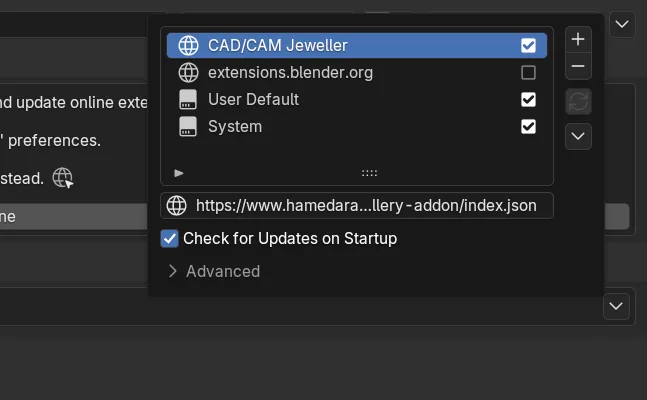
If it goes wrongif the repository is not in the list, add it as in Install the add-on.
Step 2. Look for the notice
Wherethe status bar at the bottom of the Blender window.
Dostart Blender with online access allowed.
You should seea notice in the status bar that an extension update is available.
If it goes wrongno notice can mean there is no new version, or that online access is off, or that the tick in Step 1 is off. You can also check by hand, as described below.
Step 3. Install the update
WhereEdit > Preferences > Get Extensions.
Doclick the update button at the top of the list, which Blender’s manual calls Update All. Or open the arrow menu at the top right and choose Install Available Updates.
You should seeCAD/CAM Jeweller listed as outdated, with the update buttons at the top of the list. After you click, it changes to installed at the new version.
If it goes wrongif the tab still shows the old version, close Blender and open it again.
Step 4. Check the version
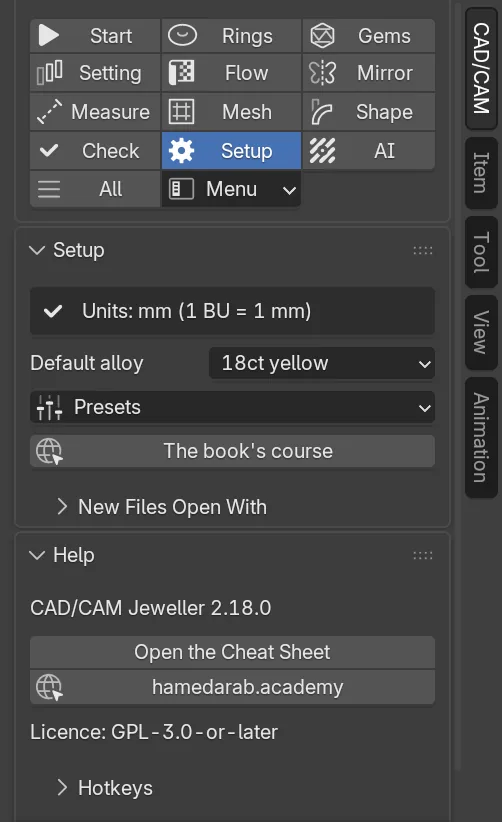
Wherethe CAD/CAM tab, section bar, Setup, then the Help panel.
Doread the first line.
You should seeCAD/CAM Jeweller followed by the version number you have.
Check by hand
If you left the tick off, open the arrow menu at the top right of Get Extensions. Refresh the remote repository (Blender’s manual calls the entry Refresh Remote), then choose Install Available Updates.
If you installed from the zip
A copy installed from a zip never updates itself. When a new version is out, install its zip the same way.
Step 1. Choose Install from Disk
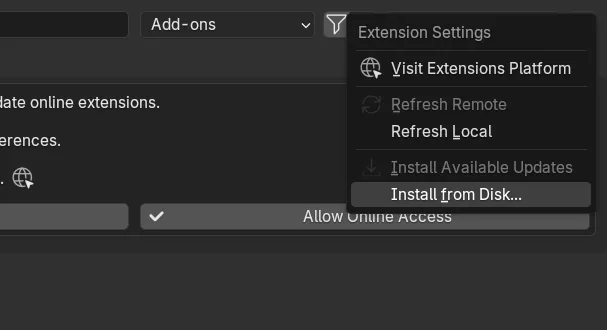
WhereEdit > Preferences > Get Extensions, the small arrow menu at the top right.
Doclick the arrow menu and choose Install from Disk.
You should seeBlender’s file window.
Step 2. Pick the new zip
Wherethe file window.
Dochoose the new zip and confirm.
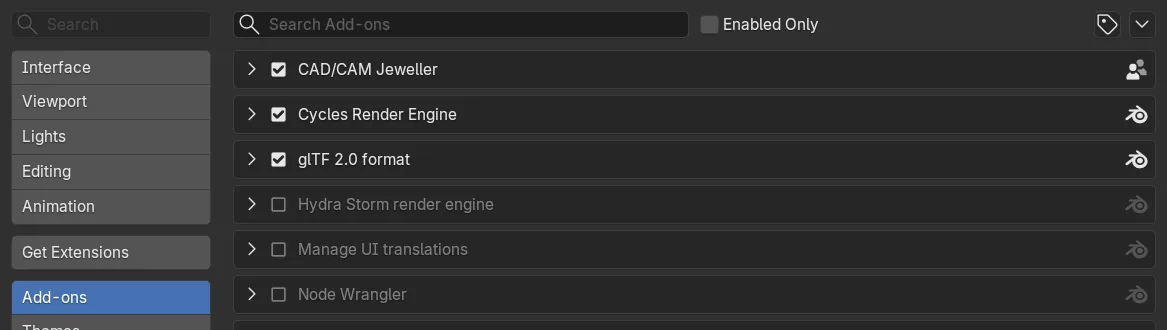
You should seeCAD/CAM Jeweller listed at the new version. Blender reports it as reinstalled.
If it goes wrongyou do not need to remove the old copy first. The new zip replaces it.
What an update keeps
- The add-on’s own preferences, including your navigation choice, so the Set Up window does not open again.
- The presets you saved.
- The start object you saved with New Files Open With.
Your .blend files are never touched.
What changed in a version
Every version, with what is new, improved and fixed, is on the updates page, which also has an RSS feed. Subscribers to The Bench Journal hear of each update by email as well.