

You will take a finished piece and make it ready for a printer. You clean the mesh, read the weight, run the book’s standards check and the print check, and write the files in millimetres. A ring with a head goes out in two forms from one model. The add-on checks the geometry. It never calls a piece ready to cast: a caster checks every file.
What you need
- A finished piece. Any piece made in this manual will do, such as A solitaire, A pave band or the band from An ornament flowed onto a band.
- Steps 5, 6 and 11 to 13 are only for some pieces. Their headings say so. Skip them otherwise.
Prepare it
Step 1. Save the file
WhereBlender’s top menu bar, File > Save.
Dosave the file under any name.
You should seethe name in Blender’s title bar. Files you export with the folder left empty go next to this one.
If it goes wrongin a file that was never saved, the Head and Shank panel says “Save the file first, or choose a folder”.
Step 2. Join the parts into one body
Wherethe 3D view.
Dojoin the parts that must print as one, such as a band and its claws, the way you join any parts in Blender. For example, select them, click the band last and use Object > Join, or use a Boolean modifier set to Union and apply it. Each foot should run into the metal it stands on.
You should seeone metal object. The add-on has no button for this step.
Step 3. Select the metal only
Wherethe 3D view or the Outliner.
Doselect the metal. Leave out the stones, the cutters, the rail and the finger.
You should seeonly the metal highlighted. Export never writes cutters and writes stones only when you ask. The rail and the finger are wire objects in the CJ Metal collection and would be written if selected.
Step 4. Clean the mesh
WhereCAD/CAM tab > Mesh section > Mesh Cleanup. See Mesh.
Doclick Mesh Cleanup…, leave the rows as they are and click OK.
You should seeone sentence in the status bar and under the button. It lists what was removed or merged, or says “nothing to clean”. It ends with the number of open edges.
If it goes wrongopen edges are named, not mended. A big hole is yours to close. A mesh with shape keys is skipped, and the sentence says so.
Step 5. Smooth cages only: harden the edges
WhereEdit Mode (Tab), CAD/CAM tab > Mesh section > Edge Weight panel, the Edges row.
Doselect the edges that must stay sharp and click 100.
You should seethe weighted edges coloured, red at 100. If the piece has no Subdivision Surface modifier, one called CJ SubD is added. An existing modifier is never changed.
Step 6. Smooth cages only: make the print mesh
Wherethe Edge Weight panel, the Print mesh box.
Doleave the choice on Edge Length and click Make Print Mesh.
You should seea new object called <name> print beside the original, which is kept as it was. One sentence gives the level, the longest edge, the triangles, the volume and the weight, and ends “Ready to print: closed, one body, no pair of faces crosses”. If it cannot be ready, it says what stops it. Select the print mesh for the steps that follow.
Step 7. Read the weight
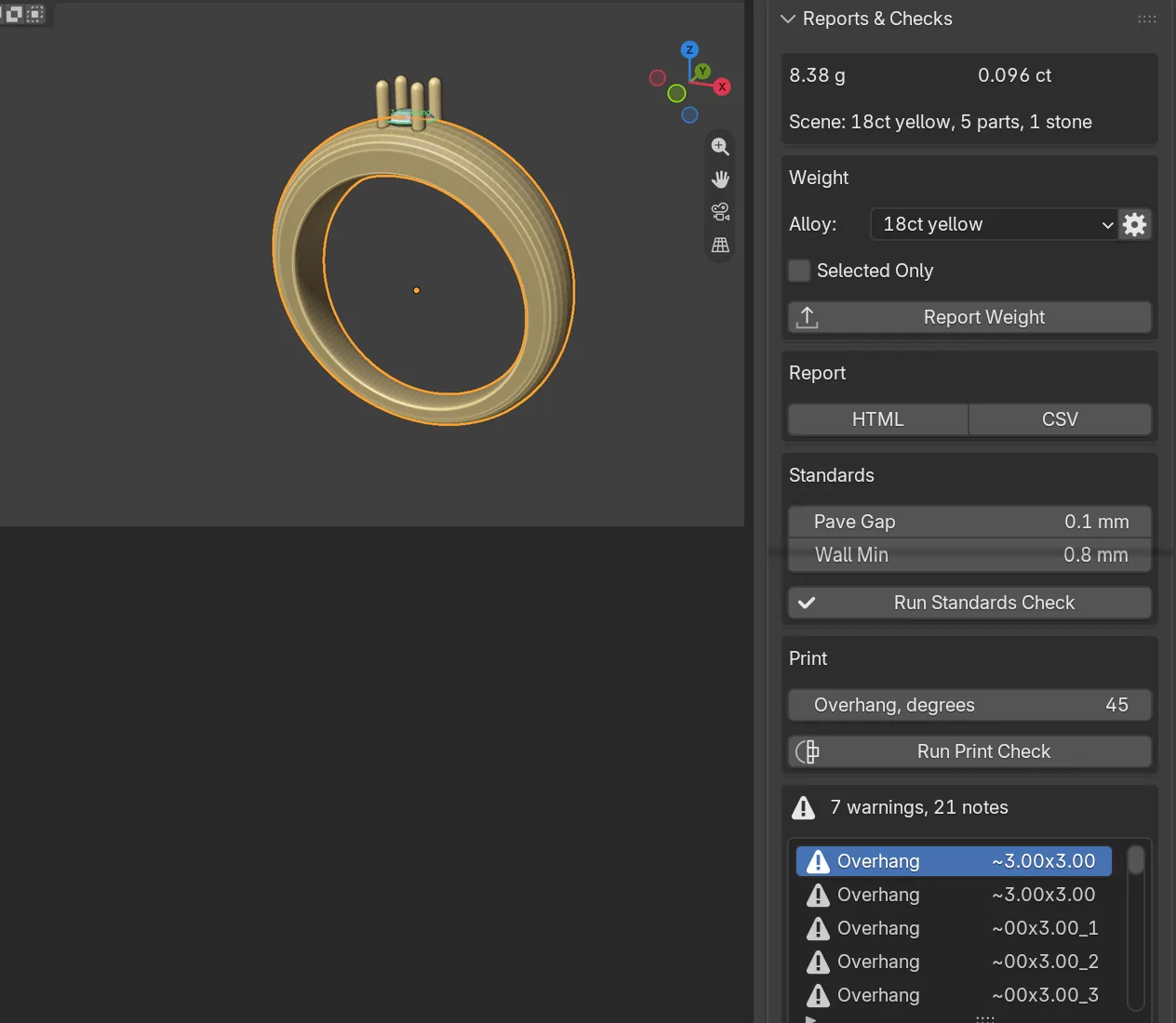
WhereCAD/CAM tab > Check section > Reports & Checks, the weight card at the top. See Check and print.
Doread the card, then click Report Weight for the full list.
You should seethe metal in grams and the stones in carats. A print mesh is not counted twice: the same metal is weighed once, as its cage.
Step 8. Run the standards check
Wherethe Standards box.
Doclick Run Standards Check.
You should seea list of findings, worst first, under a one-line verdict. Click a row to read its whole sentence. Pave Gap and Wall Min are the limits it uses, 0.10 mm and 0.80 mm to start with.
If it goes wrongtick Selected Only in the Weight box if you want only the selected objects checked.
Step 9. Run the print check
Wherethe Print box.
Doclick Run Print Check.
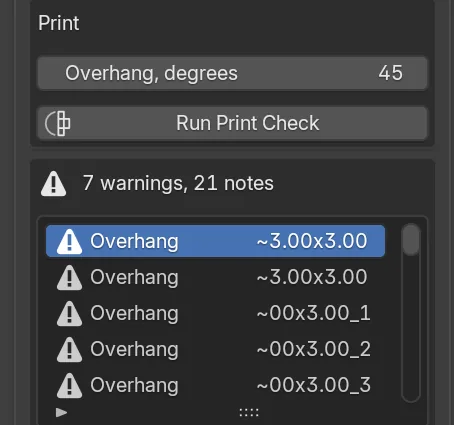
You should seethe findings list again, under a verdict such as 7 warnings, 21 notes. The check looks at non-manifold geometry, watertightness and overhangs. A closed mesh always gets notes (Watertight, Bridging and Smallest feature), so a clean piece reads as notes only. Act on the warnings and read the notes. Overhang, degrees is 45 to start with: a face below that angle from the build platform needs support.
If it goes wrongchange what a finding names, click Run Print Check again, and click Clear Findings when the list is done.
Step 10. Write the files
Wherethe Export box, lower in Reports & Checks.
Dopick the Format, leave Selected Only ticked and click Export For Print. In the file browser that opens, choose the folder and confirm.
You should seeone file in the folder, cj-export.stl for STL, written at 1 unit = 1 mm. The side panel of the file browser offers Include Gems and Merge Into One File. The status bar names what was written.
If it goes wrongthe Format list offers 3MF only when this Blender has a 3MF exporter. The folder box says “Empty: next to the saved file” when you leave it empty.
Step 11. Rings with a head only: measure the parting
Wherethe Head and Shank sub-panel of Reports & Checks. Click its header to open it.
Domake the fused metal the active object, choose the Head region, fill in its fields and click Measure Parting. Nothing is cut.
You should seea short list under the buttons: each part’s metal, volume and weight, the least metal on each side of the joint, and whether the head lifts straight off or can turn. Flags and notes follow. They are yours to rule on.
Step 12. Rings with a head only: split the ring
Wherethe Head and Shank sub-panel.
Doclick Split Head and Shank.
You should seeHead and Shank in the CJ Metal collection, one metal each. Your whole ring is kept as the one-part form, in a collection called “One part (prototype print)” that is left out of the view.
Step 13. Rings with a head only: write both forms
Wherethe Both forms box of the Head and Shank sub-panel.
Doclick Print Check Parts, then click Export Both Forms.
You should seefiles named by use: one_part_prototype/<name>_one_part_mm.stl, two_parts_production/<name>_head_mm.stl and two_parts_production/<name>_shank_mm.stl, with a notes file beside them. No file is written unless all three bodies pass.
Next
- Check and print explains the head region, the joint and every check.
- Mesh explains Mesh Cleanup, Edge Weight and Make Print Mesh.
- Signet builds a ring that is already checked and exports its own two forms.