

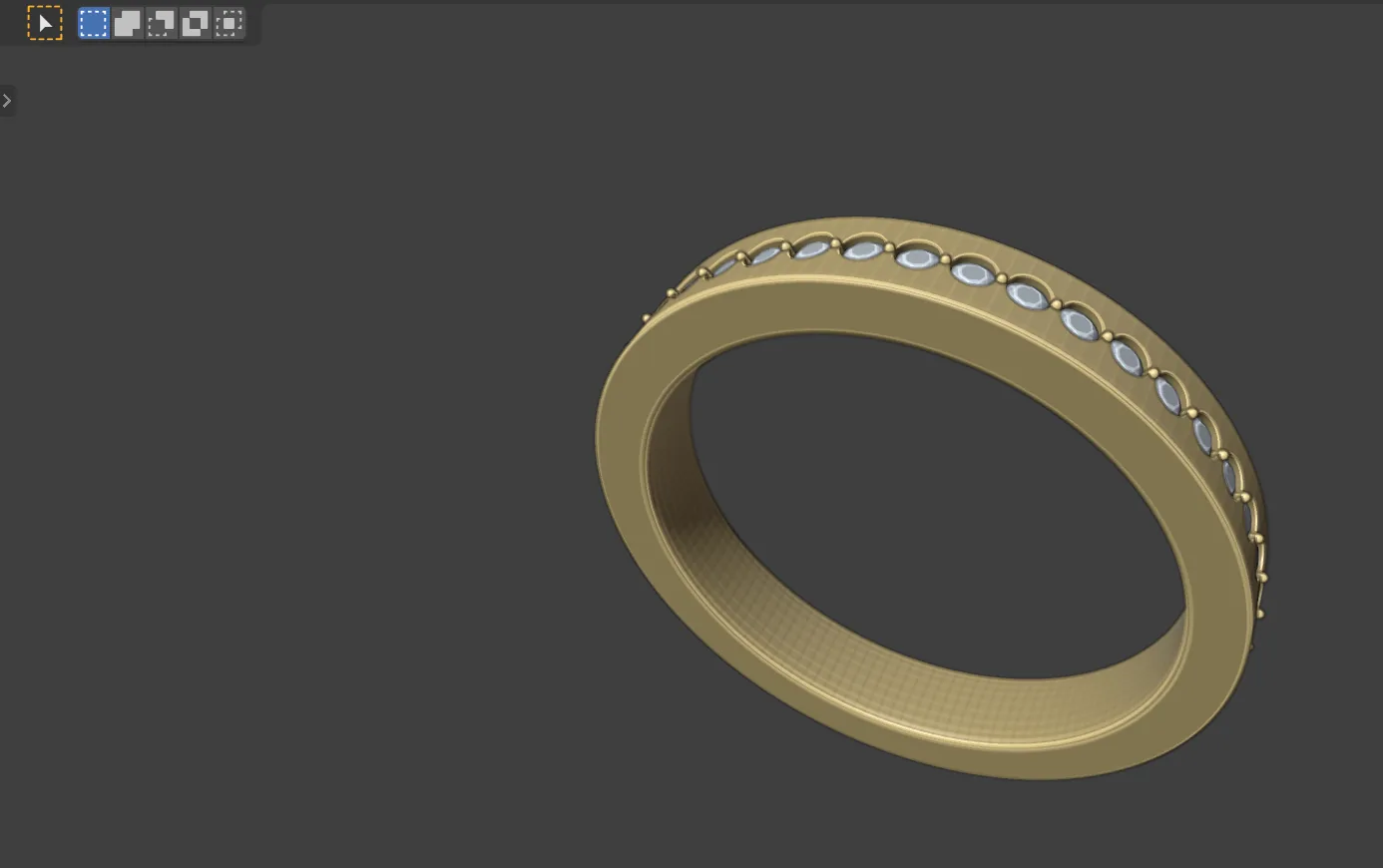
You will make a pave band: a flat band set all the way round with one row of small round stones, with a small claw standing in every gap. Pave means small stones set close together and held by tiny claws or grains raised from the metal between them. You place one stone and the polar array places the rest.
What you need
- A new Blender file with the units set to millimetres and an empty scene. A solitaire shows how, under What you need and in Step 1.
- The band stays where Build Shank puts it, centred on the origin.
Build it
Step 1. Build a flat band
WhereCAD/CAM tab > Rings section > Rings panel. See Rings.
Doleave the size on UK M. Set Profile to Flat, Width to 3.00 and Depth to 2.00. Leave Taper off and click Build Shank.
You should seea flat-topped band named CJ_Shank_Flat_M, 3 mm wide. A flat top gives every stone a level seat, with 0.85 mm of metal either side of a 1.3 mm stone.
Step 2. Choose the stone
WhereCAD/CAM tab > Gems section > Gems panel. See Gems.
Doleave the cut on Round and the stone on Diamond. Click the W field and type the width.
Type1.3
You should seethe readout beside the cut’s picture shows a round of 1.3 mm.
Step 3. Set the spacing and the seat depth
Wherethe Gems panel > Place & Guides sub-panel > the Spacing box. See Place gems.
Doclick the 0.15 preset. Then set Surface Offset to -0.30.
You should seeSpacing reads 0.15 mm. The negative offset sinks each girdle 0.30 mm under the surface, the house seat depth for pave.
Step 4. Switch on polar placing
WherePlace & Guides, the Symmetry while placing box.
Doclick Polar, then click Y beside the word About.
You should seea Count field and the row About with the buttons X, Y and Z, and Y chosen. Y is the ring’s own axis, so the stones will go round the finger.
Step 5. Look down on the band
Wherethe 3D view, mouse over it.
Dopress Numpad 7 for the top view, then press Home.
You should seethe band as a long strip across the view.
Step 6. Start Place Gems and aim
Wherethe 3D view.
Doclick the band so it is the active object, press Shift+G, then aim at the middle of the band’s top.
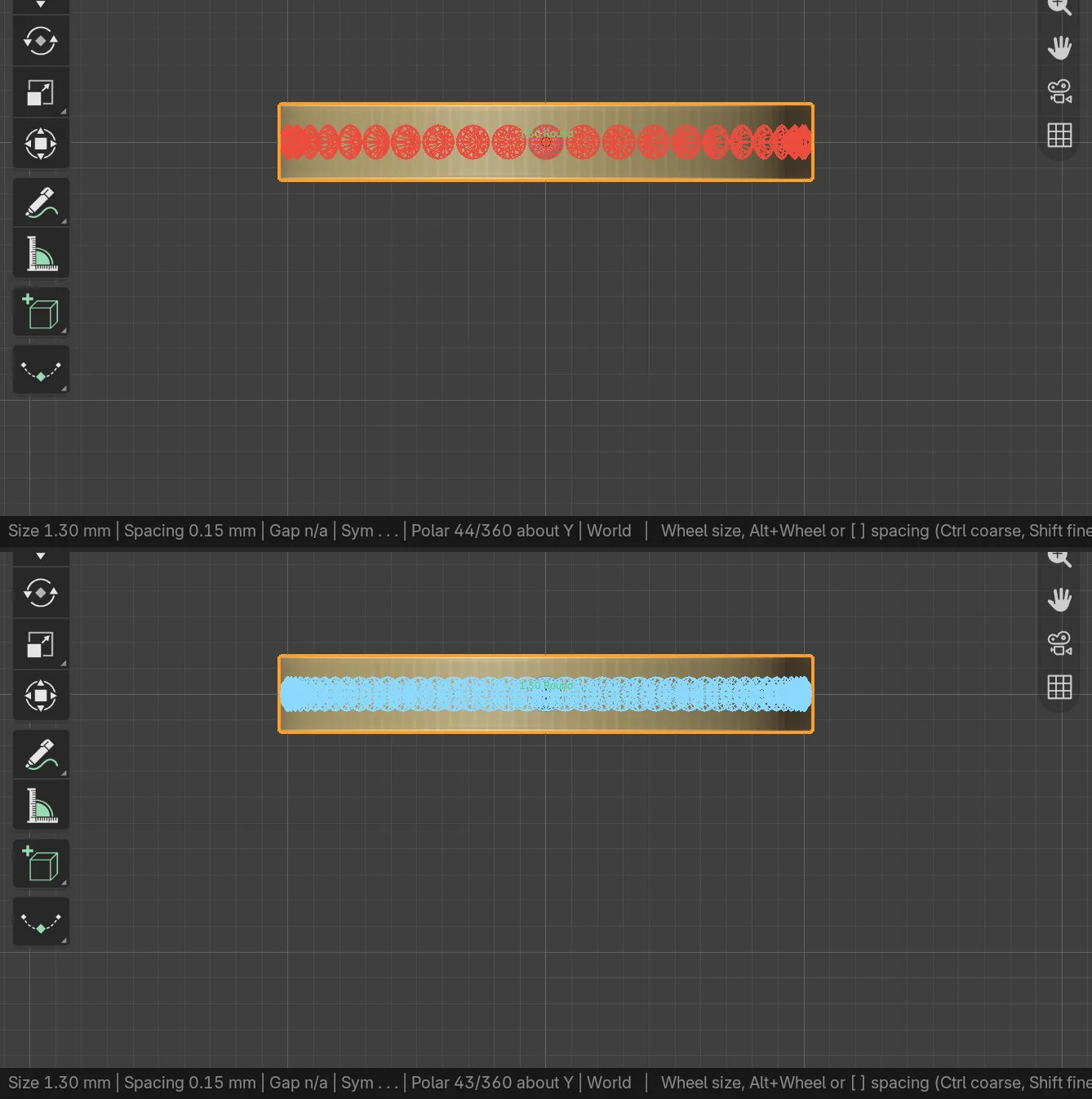
You should seea pale blue stone under the mouse and blue ghost stones round the whole ring. The read-out in the status bar includes “Polar 6/360 about Y”.
Step 7. Fit the count
Wherethe 3D view, whilst placing.
Dopress + (or =) to add stones until the ghosts turn red, then press - once.
You should seeevery ghost blue. At a count one too high every ghost turns red together, because the stones would come within the spacing of their neighbours. The count in the status bar is then the most stones that fit.
Step 8. Click once
Wherethe 3D view.
Doleft-click, then press Enter.
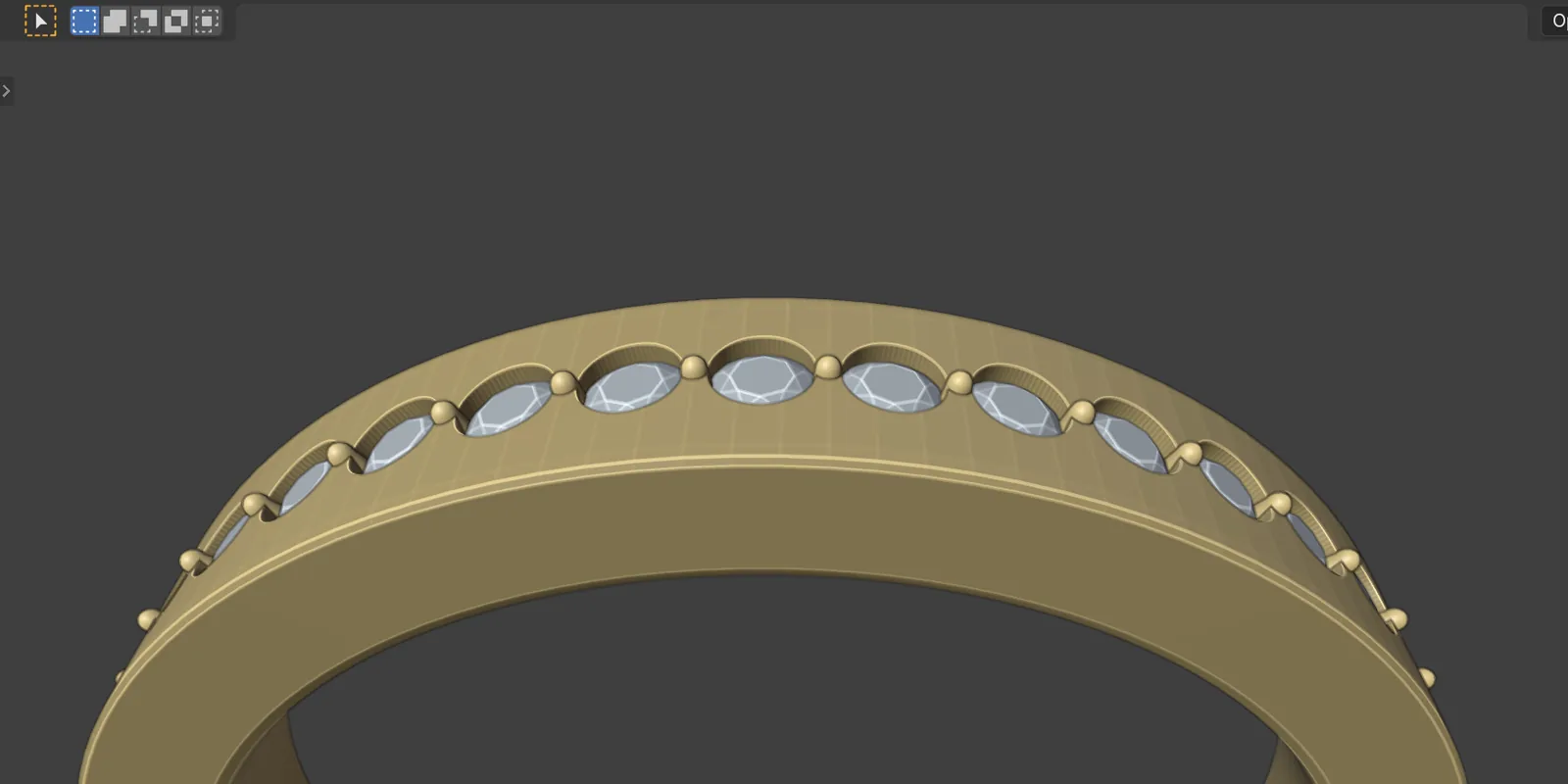
You should seea full ring of stones, all the same size and standing square on the surface. The status bar says “Placed 1 gem(s)”, then the number of twins.
If it goes wrongCtrl+Z undoes the whole run in one step. Start again from Step 6.
Step 9. Start Place Claws and aim
WhereCAD/CAM tab > Setting section > Claws. See Claws.
Dofind the Place Claws settings box at the foot of the panel and leave Style on Pave claw and Snap on Gap. With the mouse over the 3D view, press Alt+C and aim at the gap between two neighbouring stones.
You should seea small claw standing in the gap and blue ghost claws all round the ring. The polar settings are the same ones you used for the stones.
Step 10. Fit the claw and click
Wherethe 3D view, whilst placing.
Dopress D so the claw’s diameter fits the gap. When the claw is green and the status bar says “OK”, left-click once, then press Enter.
You should seea claw in every gap. The preview is green when the claw bites each stone by the right amount. Amber means it bites too little and red means it bites too far.
Step 11. Select the stones and the band
WherePlace & Guides, the Select box, then the Outliner.
Doclick By Trait to select every stone. In the Outliner, hold Ctrl and click the band’s name so the band is the active object.
You should seeevery stone selected and the band active.
Step 12. Make the cutters
WhereCAD/CAM tab > Setting section > Cutters & Seats. See Seats.
Doclick Make Cutters.
You should seea cutter under every stone, in the CJ Cutters collection.
Step 13. Cut the seats
Wherethe Cutters & Seats panel, Cut Metal.
Dowith the stones selected and the band active, click Cut Metal.
You should seethe seats opened in the band. The status bar begins “Cut” and a count, and says “result manifold” when the cut body is sound.
Step 14. Check the gaps and the standards
WherePlace & Guides, the Gem Map box, then CAD/CAM tab > Check section > Reports & Checks.
Doclick Stats. Then click Run Standards Check in the Standards box.
You should seeStats gives the count, the total weight in carats and the tightest gap, which should be no less than the 0.15 mm you set. The check lists any finding, worst first. Pave Gap, 0.10 mm by default, is the least gap it accepts.
Next
- Bezel and pave covers Pave Fill, which fills a region of a surface with graduated stones, and Gems Along Curve.
- Symmetry explains twins, polar arrays and Re-sync.
- Prepare a piece for printing cleans, checks and exports the band.