

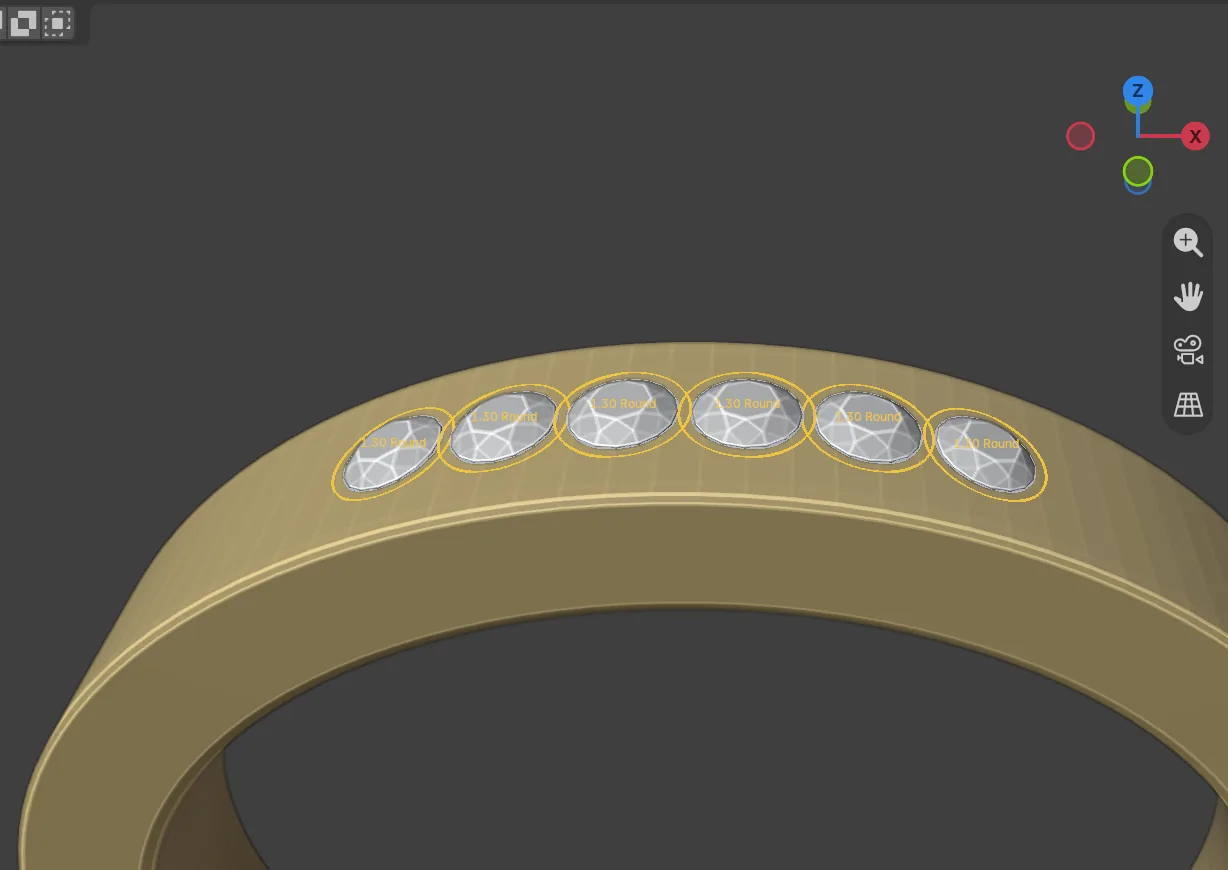
Place Gems puts stones on a surface by hand. You aim, turn the wheel to size the stone and click to drop it. Guides show the gap to the nearest stone as you go, so a pave line stays tight and even. Reach for it whenever stones go on metal that is not a plain ring: a band, a plate, a petal.
Where to find it
CAD/CAM tab > Gems section > Gems panel > Place & Guides sub-panel. Click its header to open it. Menu: Jeweller > Stones, with the guides switch under Jeweller > Setup. Keys, with the mouse over the 3D view in Object Mode: Shift+G starts Place Gems, Shift+E starts Edit on Surface and Ctrl+Shift+G switches the guides on or off. The J pie holds all three.
Use it
Step 1. Set the stone, the spacing and the offset
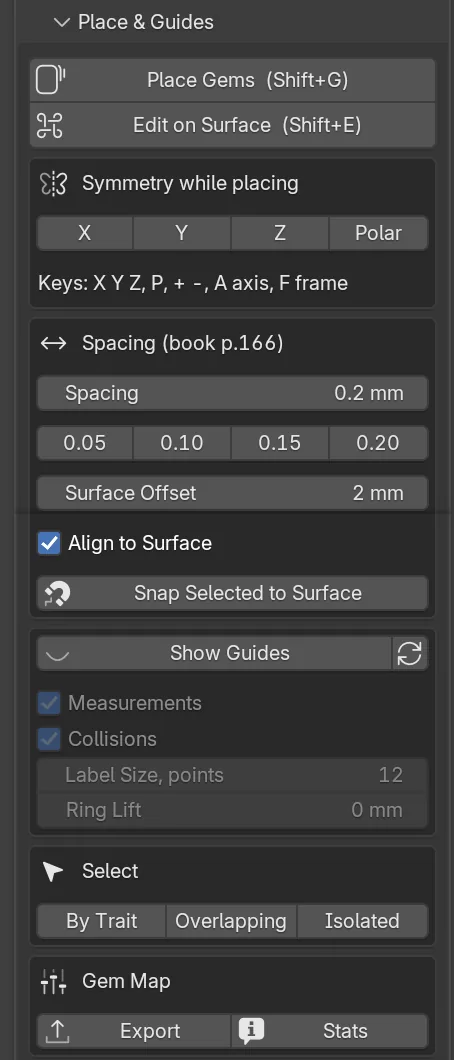
Wherethe Gems panel for the stone, then Place & Guides, the Spacing box.
Doset the cut, size and stone as on Gems. Click a spacing preset (0.05, 0.10, 0.15 or 0.20) or type a Spacing. Set Surface Offset to lift or sink each girdle. Keep Align to Surface ticked.
You should seethe numbers in the fields. A Surface Offset of 0.00 puts the girdle’s centre on the surface. A negative figure sinks the stone.
Step 2. Start Place Gems
Wherethe 3D view, Object Mode.
Doclick the metal so it is the active object. With the mouse over the 3D view, press Shift+G.
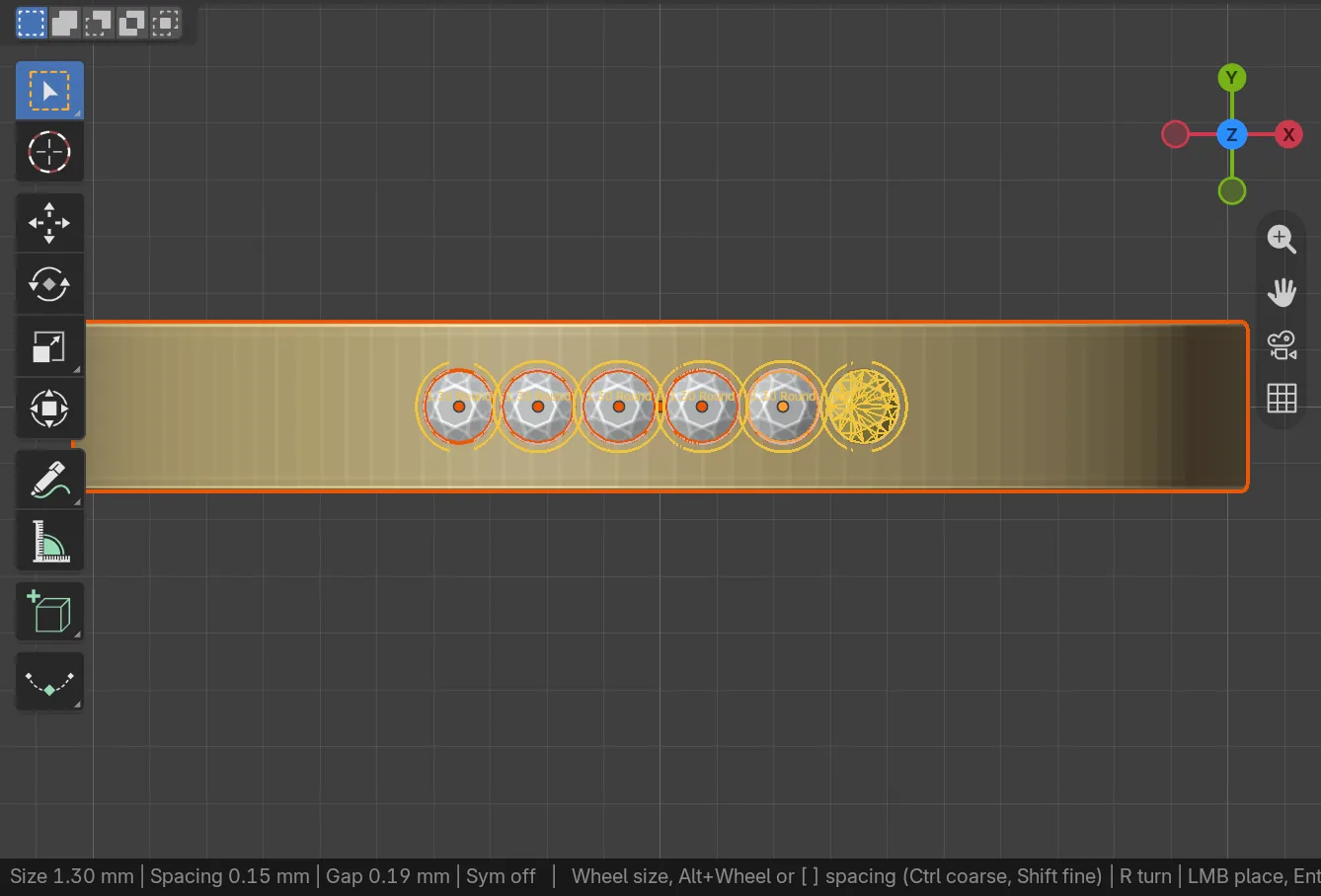
You should seea pale blue stone follows the mouse over the metal. The status bar begins with a read-out such as Size 1.00 mm | Spacing 0.20 mm | Gap 0.94 mm | Sym off, then the keys.
If it goes wrong“No surface under the mouse” means the mouse is off every surface. Aim at the metal.
Step 3. Aim and size
Wherethe 3D view, with the status bar at the foot of the window.
Domove the mouse. Turn the wheel to resize the stone. Hold Alt with the wheel, or press [ and ], to change the spacing. Press R to turn the stone about its axis.
You should seethe stone changes colour with the gap to its nearest neighbour. Pale blue is clear. Amber is close, within 0.05 mm of the spacing. Red is an overlap, inside the spacing. The outline wears the same colour.
Step 4. Click and finish
Wherethe 3D view.
Doleft-click to drop a stone. Carry on aiming and clicking. Press G to switch the guides on or off. Press Enter or Space to finish. Right-click or press Esc to stop.
You should seea real stone at each click, standing square to the surface. The tool stays open for the next one. At the end the status bar says how many were placed.
If it goes wrongthe colour is a warning, not a block. A click drops the stone even on red. If you placed anything, the whole run is one undo step.
Step 5. Slide or resize a stone you have placed
Wherethe 3D view, in Object Mode, or the Start Here panel, the button numbered 6, Edit on Surface (Shift+E).
Dopress Shift+E and click a stone. Move the mouse and it slides along its surface. Turn the wheel to resize it. Left-click to keep the move. Right-click to put the stone back as it was.
You should seethe stone never jumps to the cursor. It follows your hand from where you picked it. Its claws and its twins go with it.
Step 6. Snap stones onto a surface
Wherethe Spacing box, Snap Selected to Surface.
Doselect the stones, click the metal last so it is the active object, then click Snap Selected to Surface.
You should seeeach stone dropped onto the surface below it. The status bar counts those snapped and those that found no surface.
Step 7. Select stones by what they are
WherePlace & Guides, the Select box.
Doclick By Trait, Overlapping or Isolated. Open Adjust Last Operation, at the bottom left of the 3D view, to change the test.
You should seeBy Trait selects every stone until you pick Shape, Size Range or Material. Overlapping selects stones whose girdles touch, or, set to Under Spacing, stones closer than the spacing. Isolated selects stones with no neighbour within 2.00 mm.
Step 8. Count and map the stones
WherePlace & Guides, the Gem Map box.
Doclick Stats for one line. Click Export and choose where to save.
You should seeStats gives the count by cut, the total weight in carats and the tightest gap. Export writes a map of every stone: sizes, materials, positions and spacing. The file browser’s side panel offers HTML, CSV or JSON, and Selected Only.
Keys whilst placing
Middle mouse and trackpad pan and zoom pass through. Ctrl makes a step coarser and Shift makes it finer.
| Key | Place Gems |
|---|---|
| Wheel | Size, 0.10 mm a step (Ctrl 0.50, Shift 0.01) |
Alt + wheel, [ and ] | Spacing, 0.05 mm a step (Ctrl 0.10, Shift 0.01) |
R | Turn 15 degrees (Ctrl 5) |
G | Guides on or off |
X Y Z, P, + -, A, F | Symmetry: mirror axes, polar, polar count, polar axis, frame |
| Left click | Place |
Enter, Space | Finish |
Right click, Esc | Stop |
Settings
| Setting | Default | What it changes |
|---|---|---|
| Spacing | 0.20 mm | The least gap you want between neighbours. It sets the amber and red colours. |
| Surface Offset | 0.00 mm | Lifts each stone along the surface normal. -5.00 to 5.00 mm. |
| Align to Surface | On | Stands each table square to the surface. |
| Show Guides | Off | Draws a girdle outline and a spacing ring round each stone. Place Gems starts them on unless your last run ended with them off. |
| Measurements | On | Labels each stone with its size in millimetres. |
| Collisions | On | Colours a ring amber when the gap is close and red when two stones overlap. |
| Label Size, points | 12 | The size of the guide labels. 8 to 32. |
| Ring Lift | 0.00 mm | Lifts the drawn rings above the stone so they read against the metal. -5.00 to 5.00 mm. |
Good to know
- Place Gems drops stones on the active object when it is metal, and on the whole scene when it is not. Make the metal active first.
- The house default for pave is a gap of 0.10 to 0.20 mm. The book asks 0.50 mm between separate components (p.166).
Shift+Gtakes the place of Blender’s Select Grouped in Object Mode (it is still in the Select menu), andCtrl+Shift+Gtakes the place of Add to Active Object’s Collection. To move a key, search for “Place Gems” in Edit > Preferences > Keymap.- The Symmetry while placing box (X, Y, Z, Polar) drops twins as you click. See Symmetry.
- In Edit on Surface a stone is never resized below 0.30 mm. A stone dragged on the far side of a ring comes round to the face nearest you, so turn the view first.
- The same tool places claws. See Claws.