
What you will do
You will find the add-on’s tab and learn to move round it: the section bar that shows one set of panels, a panel that folds, the Jeweller menu, and the J pie. About 200 tools live here, and every later page starts by finding one of them.
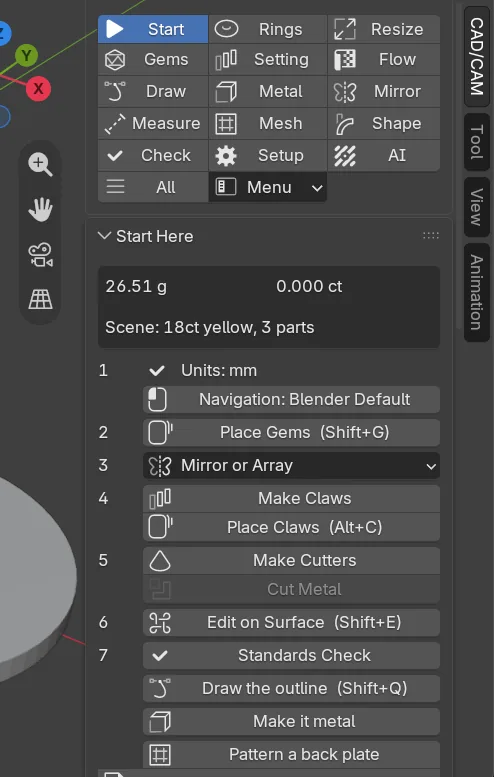
About 10 minutes.
Files
- p0-19-start.blend (102 KB): open this one to begin.
- p0-19-finished.blend (107 KB): the result, to compare with yours.
Both were made in Blender 5.2.0.
Before you start
- You can open the sidebar and click its tabs: Send a key to the right place (P0-03).
- You can type into a field: Type an exact number into a field (P0-13).
- The pictures show Blender’s words at 1.5 times their usual size. On a laptop your words are smaller and more of the tab fits.
Build it
Step 1. Open the start file and save your copy
WhereThe top bar: the row of words that begins File, Edit.
DoDownload p0-19-start.blend from Files above and open it. Then choose File > Save As and save it under the name below, in a folder of yours. Open an exercise file and keep the start file safe (P0-07) shows how.
Typemy-tab.blend
You should seeA box, a bar and a disc stand apart in the 3D view. Nothing is selected. Your copy is open, and the start file is left as it came.
It worked whenThe Outliner, at the top right of the window, lists Bar, Box and Disc.
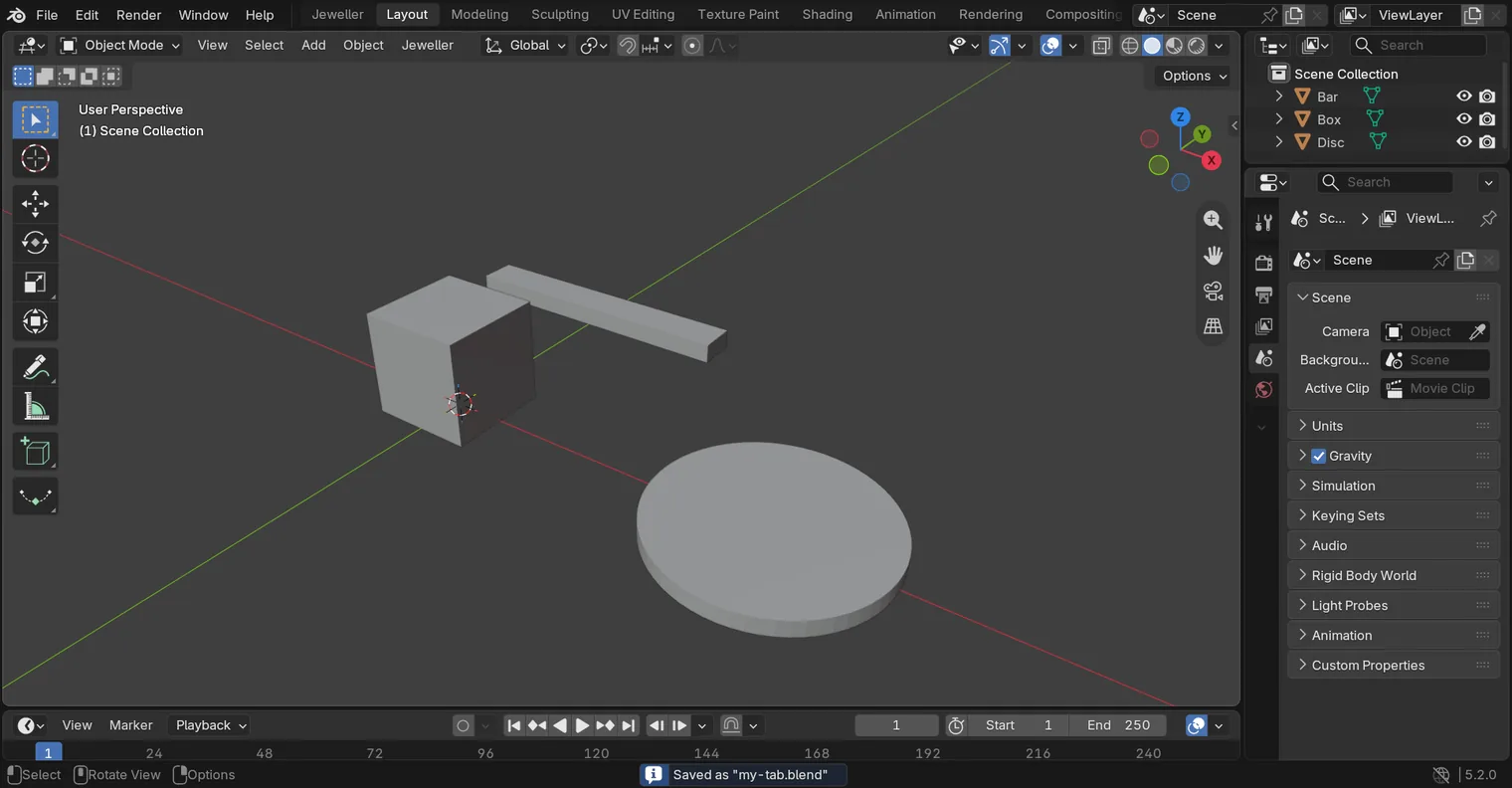
Step 2. Open the CAD/CAM tab
WhereThe sidebar: press N with the pointer over the 3D view if it is shut.
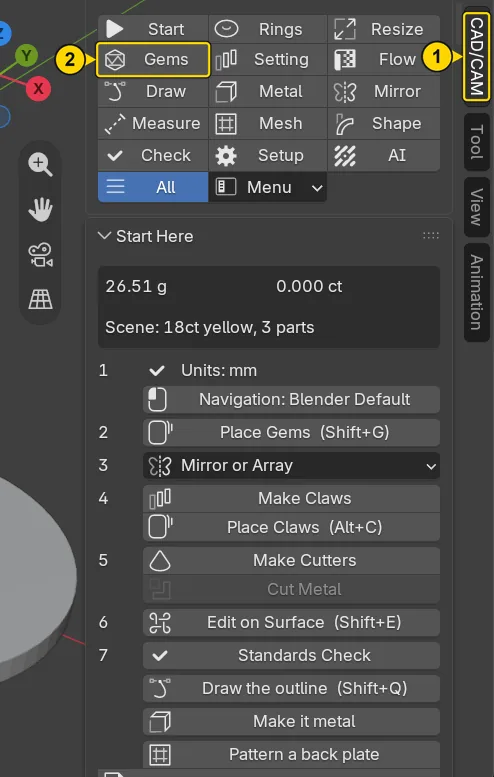
DoClick the CAD/CAM tab on the sidebar’s edge (marked 1).
You should seeThe add-on’s panels fill the sidebar. At their top stands the section bar (marked 2): small word buttons, three to a row, that choose which panels show.
It worked whenThe sidebar shows the section bar at the top of its panels, and CAD/CAM is lit on its edge.
Step 3. Shut the sidebar by its own tab, and open it again
WhereThe sidebar’s edge.
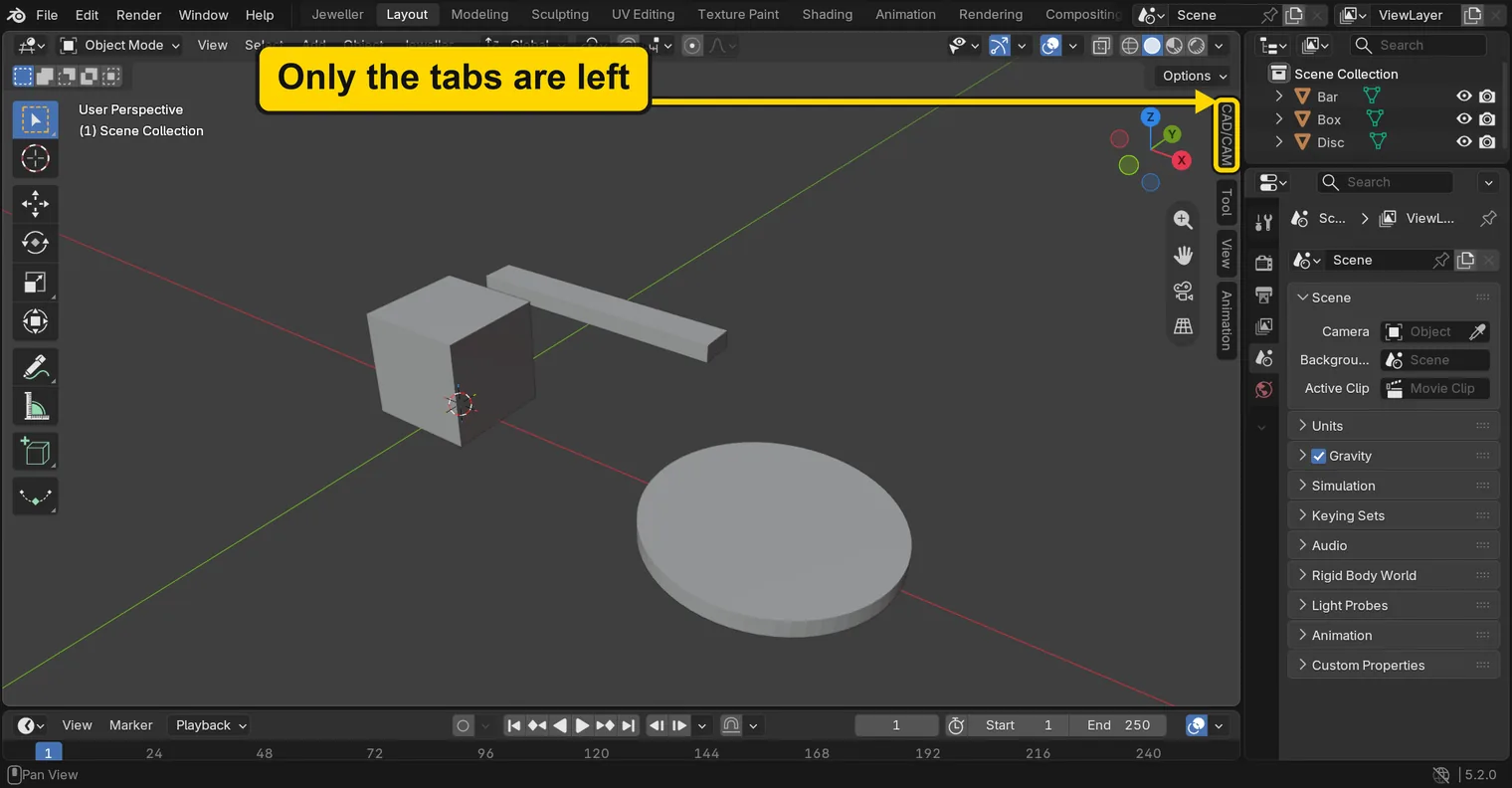
DoClick the CAD/CAM tab again, while it is lit. Then click it once more.
You should seeThe first click shuts the panels down to the strip of tabs. The second brings them back.
It worked whenThe panels stand in the sidebar again, with the section bar at their top.
Step 4. Choose a section
WhereThe section bar, at the top of the CAD/CAM tab.
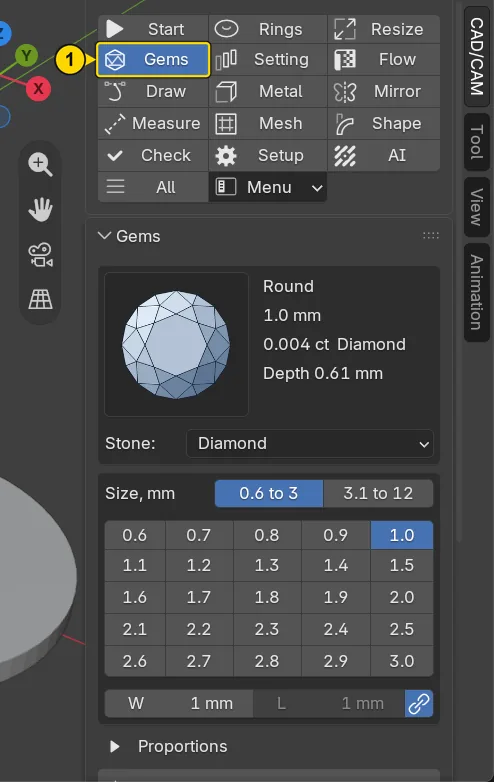
DoClick Gems (marked 1).
You should seeGems lights up, and only the panels for stones stand under the bar. The others are still there: they are hidden until you choose their section.
It worked whenGems is lit in the section bar.
Step 5. Fold a panel
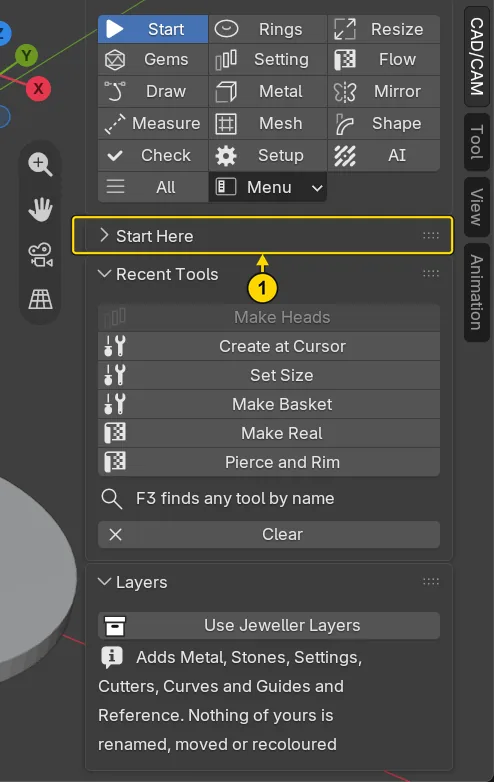
WhereThe sidebar: the section bar, then the panel Start Here under it.
DoClick Start in the section bar. Then click the title Start Here once.
You should seeThe panel shuts up to its title and everything under it moves up. Click the title again and it opens. The little arrow beside a title shows which way it is.
It worked whenThe panel Start Here is open again, with its rows under its title.
Step 6. Scroll the sidebar
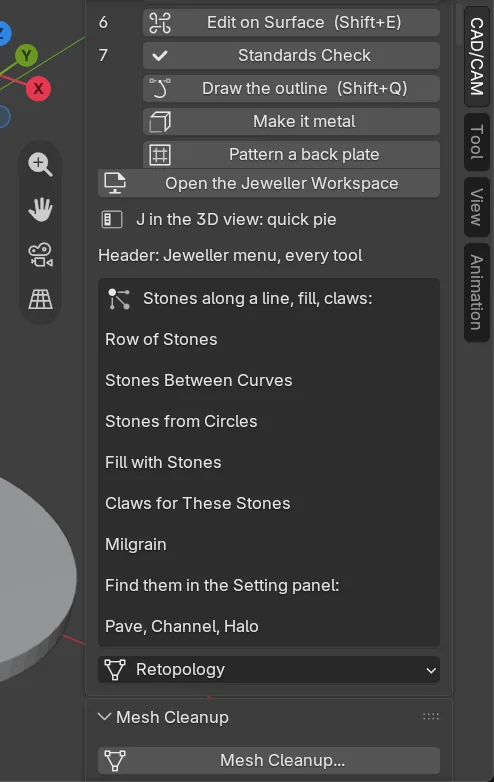
WhereThe section bar: click All. Then the sidebar itself.
DoTurn the mouse wheel over the sidebar, towards you, about ten notches, or slide two fingers on the touchpad.
You should seeAll puts every panel in one long list, so the sidebar is taller than the window and the wheel scrolls it. A bar down its right edge shows how far you are.
It worked whenPanels from further down the list stand where the section bar was.
Step 7. Open the Jeweller menu
WhereThe header, along the top of the 3D view.
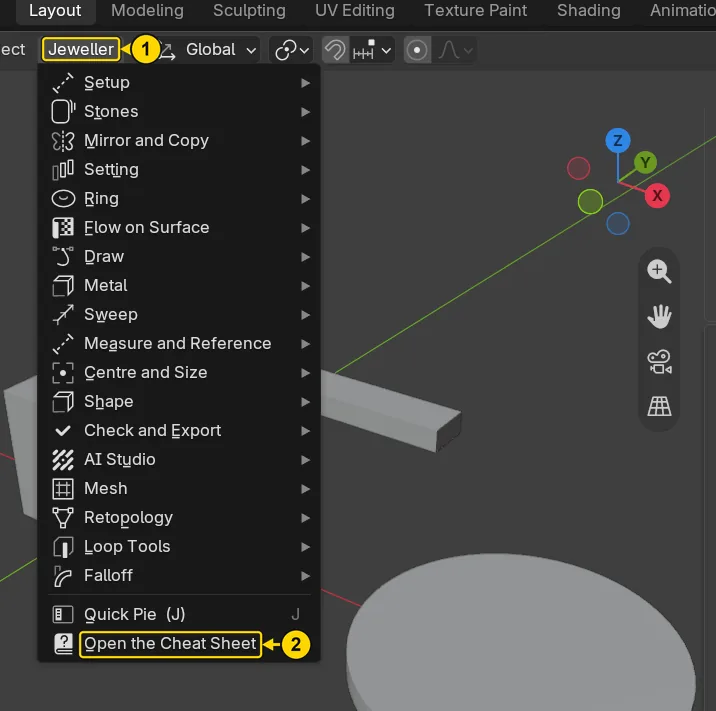
DoClick Jeweller (marked 1), then Open the Cheat Sheet (marked 2).
You should seeThe menu lists every tool, by job. Open the Cheat Sheet hands a page of the add-on’s keys and tools to your web browser, which opens it.
It worked whenYour web browser has opened a page called the Cheat Sheet. Come back to Blender when you have read it.
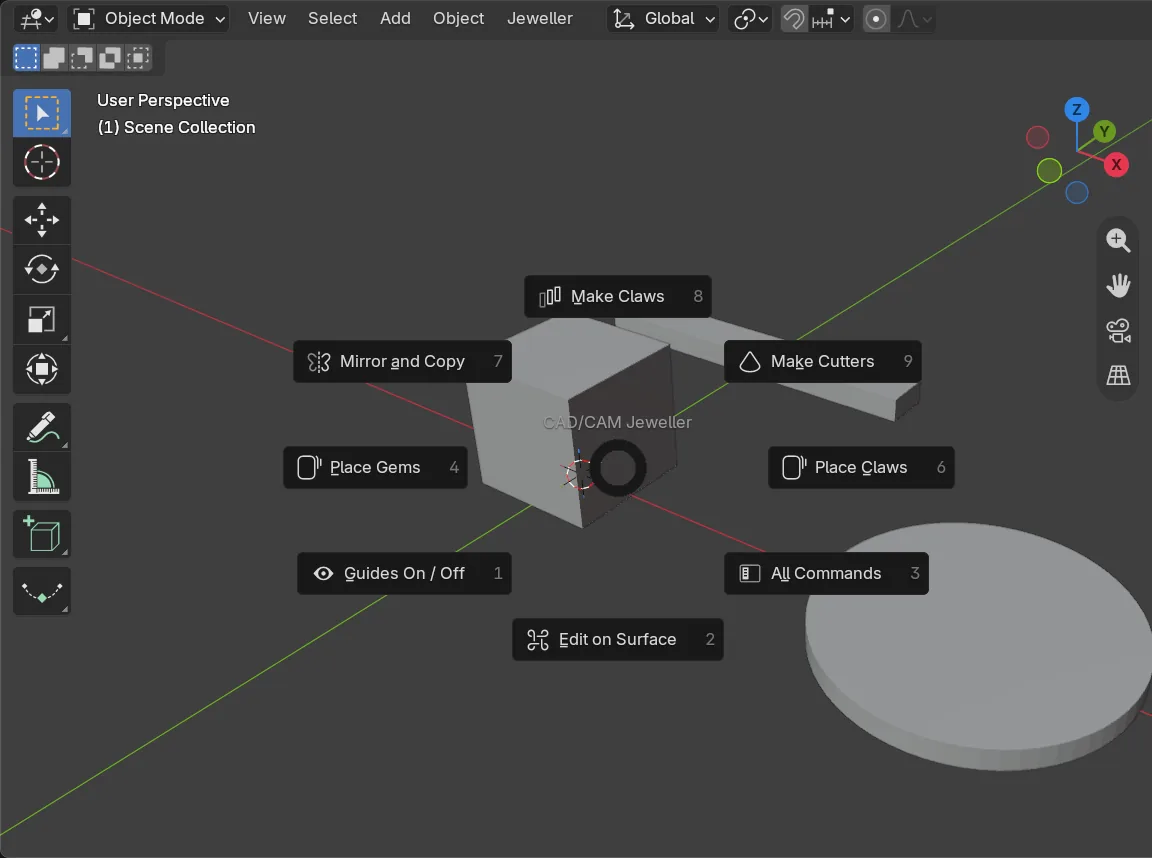
Step 8. Open the J pie
WhereThe 3D view.
DoMove the pointer over the 3D view and press J. Press Esc to shut the pie.
You should seeA ring of buttons opens round the pointer: the usual tools, a click away.
It worked whenAfter Esc the pie has gone and nothing has changed.
Step 9. Save your work
WhereThe 3D view: move the pointer over it.
DoPress Ctrl+S.
You should seeBlender saves your copy over itself, with no question, and the start file is untouched. This page changed nothing in the file, so nothing looks different.
It worked whenThe title bar, the strip above File and Edit, still begins with the name of your copy.

Check your result
| What to read | Where | What it should say |
|---|---|---|
| The tab | The sidebar’s edge, at the right of the 3D view | CAD/CAM is lit, and the section bar stands at the top of its panels |
| The section | The section bar | Start is lit, with the panels Start Here and Recent Tools under it |
| Your copy | The title bar, the strip above File and Edit | It begins my-tab |
Try it yourself
Click Gems in the section bar, then All, then Start, and watch the panels under the bar change each time. Nothing is lost: every panel is still there, and All shows them together.
What you learned
- The CAD/CAM tab holds every tool. The section bar at its top shows one set of panels at a time; All shows every panel.
- A panel folds when you click its title, and the sidebar scrolls with the mouse wheel.
- The Jeweller menu in the header holds every tool and the Cheat Sheet.
Jover the 3D view opens a pie of the usual ones.
Next: Work in millimetres