
What you will make
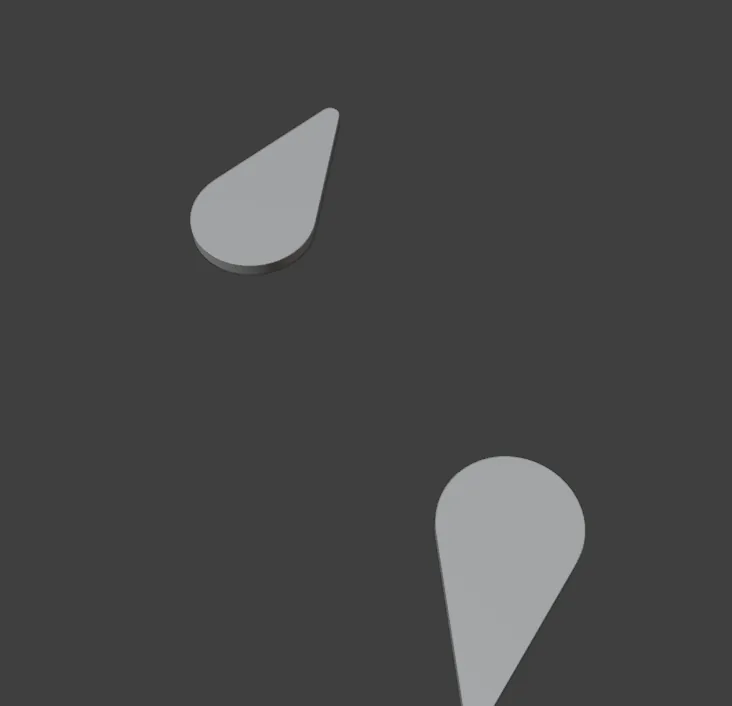
A drop plate 10 mm wide and 18 mm long, mirrored about the world origin, where the red and green lines cross, to a copy 14 mm from the middle on the other side of the green line. A mirror gives the other hand, not a second copy of the same hand: a pair of earring drops is a left and a right. Mirror works on any object, a plate, a wire or a ring, and it never changes your pivot point (the point a rotation turns about) or the 3D cursor. The copy can follow its original, so that a change to one drop shows on the other. The steps then take the pair apart three ways: the copy follows, is set free, and is left when its original is deleted. The file ends with two drops left over from that practice, not a pair: a freed copy turned at the left and a kept copy mirrored across Y at the lower right. Stone twins have their own tool, Mirror X, in Copy stones that follow: mirror and round a centre (P3-10). A plate with no stone on it needs this one.
About 15 minutes.
Files
- p3-12-start.blend (100 KB): open this one to begin.
- p3-12-finished.blend (107 KB): the result, to compare with yours.
Both were made in Blender 5.2.0.
Before you start
- You have done Part 0, and you know how to make a plate from a closed outline (Turn a closed outline into a plate, P2-08). The start file holds one drop plate and nothing else, in millimetres.
- CAD/CAM Jeweller 2.22.0 or later is installed (Preferences > Add-ons shows the version), and its CAD/CAM tab is in the sidebar.
Build it
Step 1. Open the start file and save your copy
WhereThe top bar: the row of words that begins File, Edit.
DoDownload p3-12-start.blend from Files above and open it. Then choose File > Save As and save it under the name below, in a folder of yours. Open an exercise file and keep the start file safe (P0-07) shows how.
Typemy-drops.blend
You should seeThe 3D view looks straight down at one drop-shaped plate, to the right of the green line that runs up the middle of the view. It is round at the bottom and runs out to a small round tip at the top, a little to the right. The Outliner, the list at the top right of the window, holds one object, Drop. To look straight down at any time, click the blue Z ball of the gizmo, the small ball of coloured letters at the top right of the 3D view.
It worked whenThe title bar, the strip above File and Edit, begins my-drops.
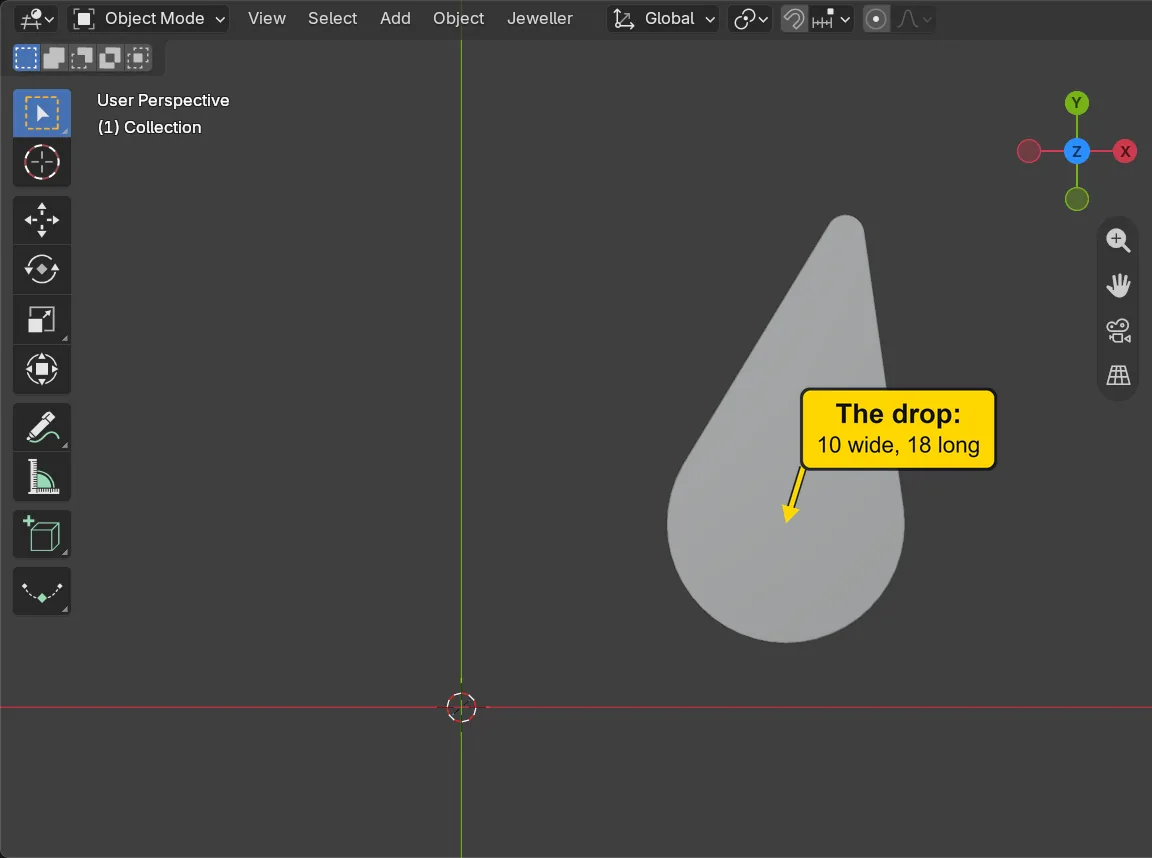
Step 2. Open the Mirror window
WhereThe 3D view. Move the pointer over the dark area.
DoClick the drop, then press Alt+M.
TypeAlt+M
You should seeA window headed Mirror opens at the pointer. About is a list of six places to mirror about (the table says what each is), and World Origin is lit. Across is the way the mirror goes, and X is lit: it swaps right and left. Keep the Original is ticked: the object stays and a mirrored copy is made. Copy Follows the Original is not ticked yet.
It worked whenA window headed Mirror stands open over the 3D view.
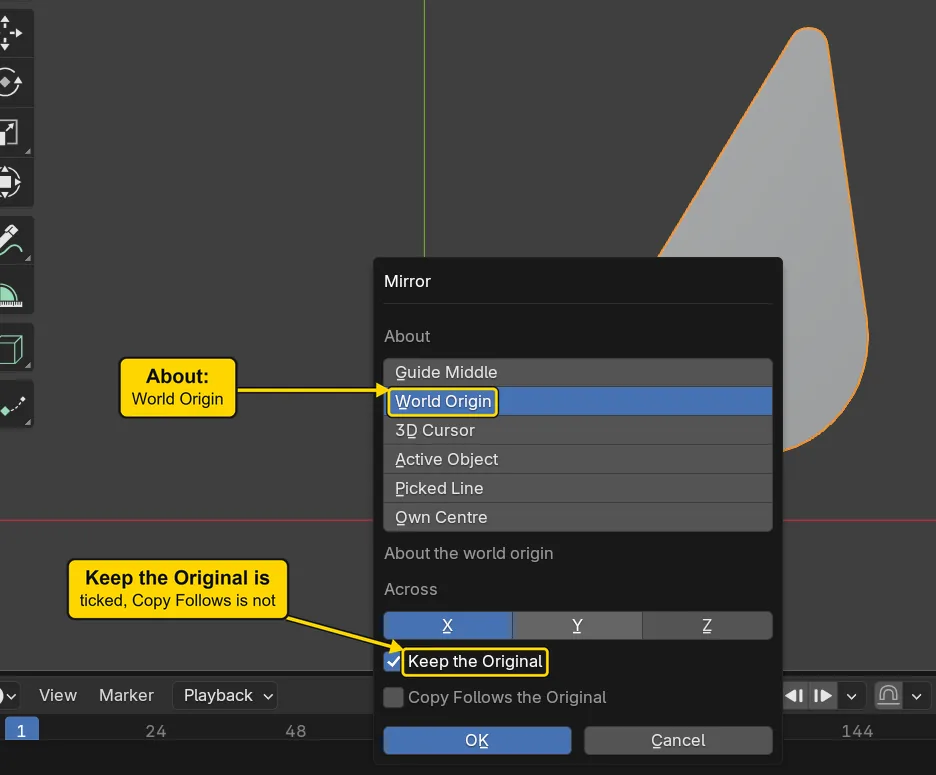
| About | What the mirror is measured from |
|---|---|
| Guide Middle | the middle of the Flow guide on a band, 12 o’clock |
| World Origin | the world origin and the world axes |
| 3D Cursor | where the 3D cursor stands now: it is not moved |
| Active Object | the centre and axes of the object clicked last: it is the reference and is not copied |
| Picked Line | a mirror line set from an edge in Edit Mode |
| Own Centre | the middle of what is selected: it is flipped where it stands |
If it goes wrongThe window does not open: The pointer is over the sidebar, or nothing is selected. Click the drop, keep the pointer over the 3D view and press Alt+M again.
Step 3. Tick Copy Follows the Original
WhereThe Mirror window: the box Copy Follows the Original.
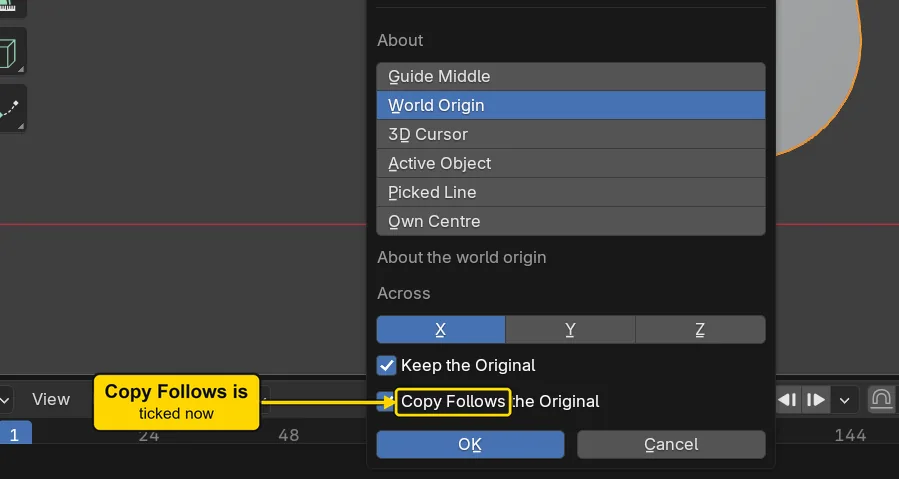
DoClick Copy Follows the Original so that its tick shows.
You should seeThe box ticked. A copy that follows has no shape of its own: it draws itself from its original, and a change to the original shows on it.
It worked whenThe box Copy Follows the Original shows a tick.
Step 4. Press OK
WhereThe Mirror window: the button OK at its foot.
DoPress OK.
You should seeA second drop at the left, the mirror image of the first. The window shut and the original is still selected. The pivot point and the 3D cursor were not touched. The status bar, the line along the very bottom of the window, says for a moment “1 mirrored copy about World Origin, across X: it follows its original”.
It worked whenTwo drops stand either side of the green line.
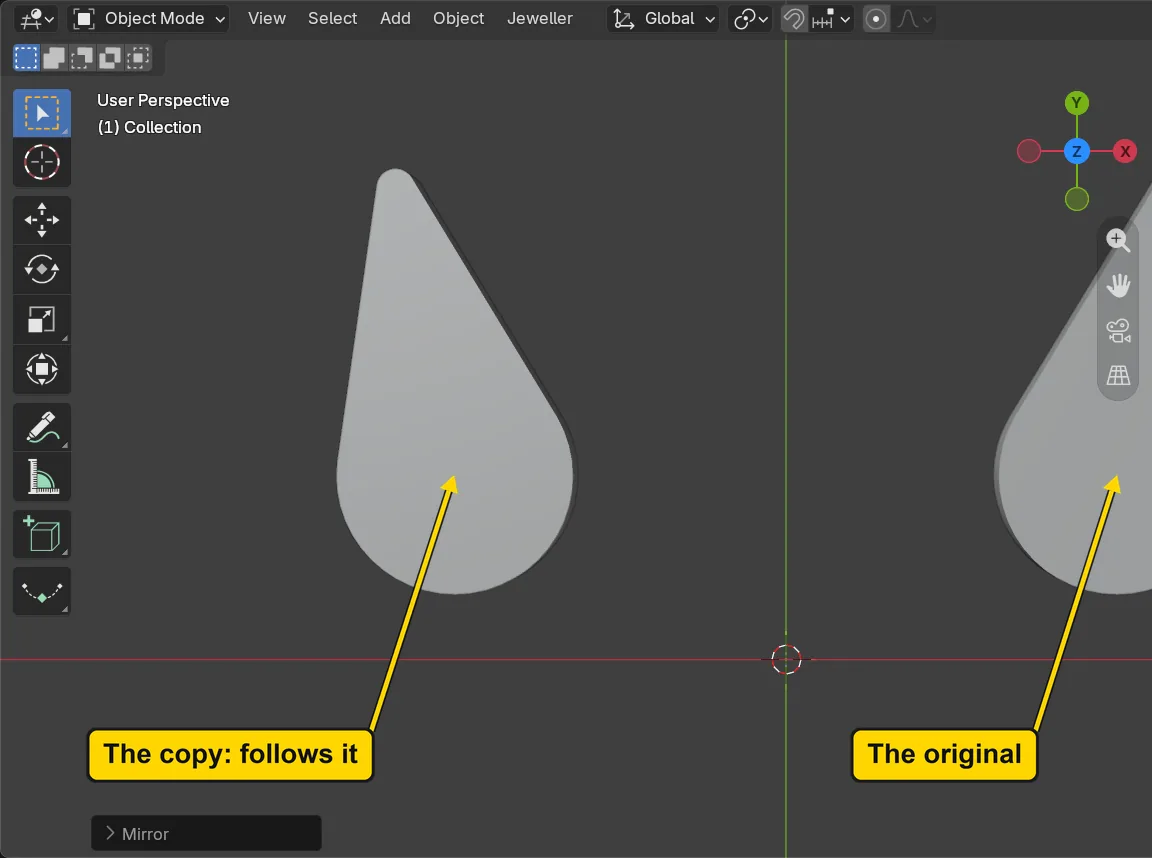
Step 5. Turn the original and watch the copy
WhereThe 3D view. Move the pointer off the sidebar and into the dark area.
DoClick the drop at the right, then press R, Z, type 15 and press Enter.
TypeR, Z, 15, Enter
You should seeThe right drop turns 15 degrees one way and the left drop turns 15 degrees the other way, as a mirror image does. R turns the object and Z is the axis it turns about. The copy changed because it follows: it has no turn of its own.
It worked whenThe two drops lean away from each other.
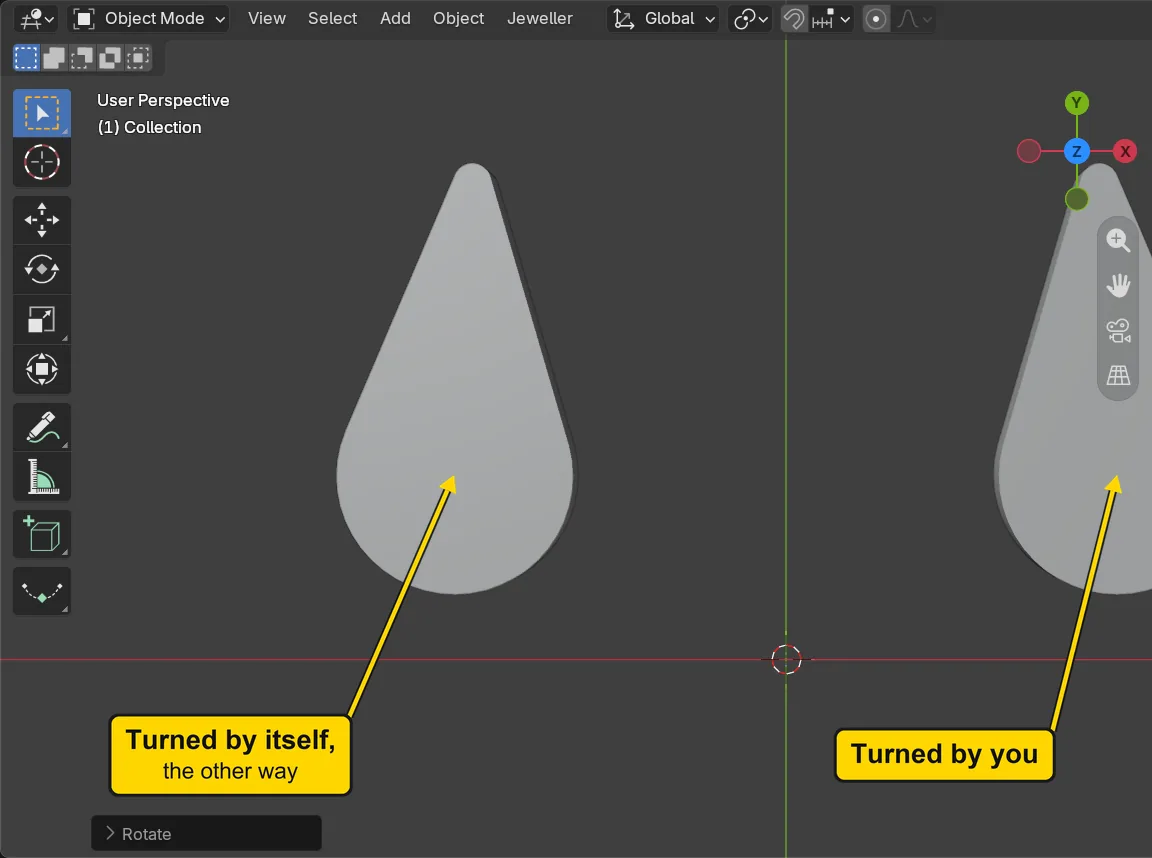
If it goes wrongNothing turns: The pointer is still over the sidebar. Move it over the 3D view and press the key again.
Step 6. Press Stop Following
WhereThe Mirror and Copy panel: click Mirror in the section bar, the small word buttons at the top of the CAD/CAM tab, and find the box under Turn Copies….
DoClick the drop at the left, then press Stop Following.
You should seeThe box under the buttons first read “A copy that follows” and “Follows Drop”, and now reads “No copy follows this”. The copy is an ordinary object where it stands, with its own shape and a turn of -15 degrees. The status bar says “1 copy stands on its own now” for a moment. The Mirror… button in the same panel opens the same window as Alt+M.
It worked whenThe box reads “No copy follows this”.
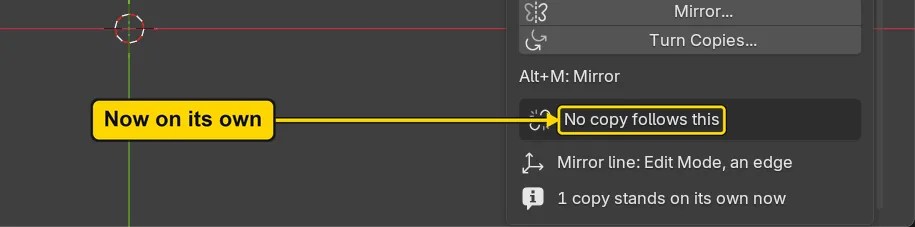
Step 7. Turn the original back
WhereThe 3D view. Move the pointer off the sidebar and into the dark area.
DoClick the drop at the right, then press R, Z, type -15 and press Enter.
TypeR, Z, -15, Enter
You should seeThe right drop stands upright again and the left drop stays turned: it no longer follows.
It worked whenThe right drop is upright and the left drop leans.
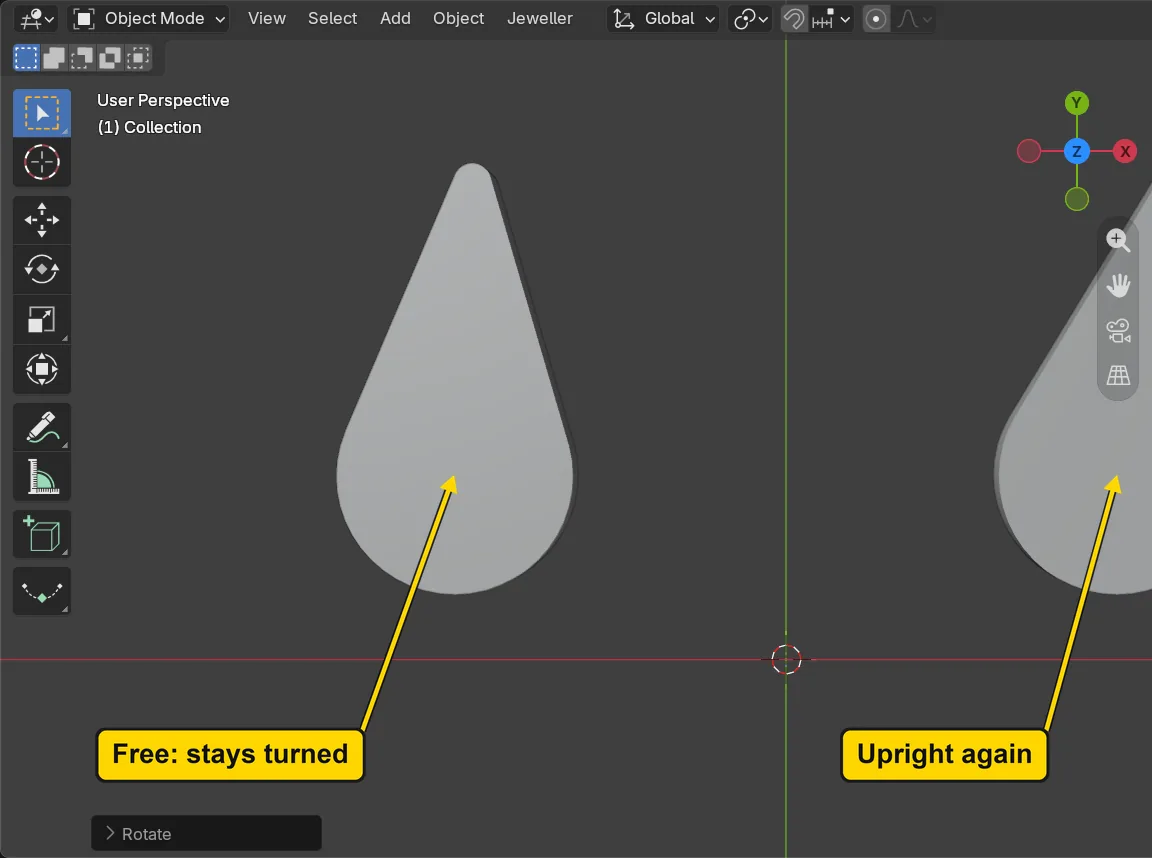
If it goes wrongNothing turns: The pointer is still over the sidebar. Move it over the 3D view and press the key again.
Step 8. Mirror again: choose Y
WhereThe 3D view, then the Mirror window. Move the pointer over the dark area.
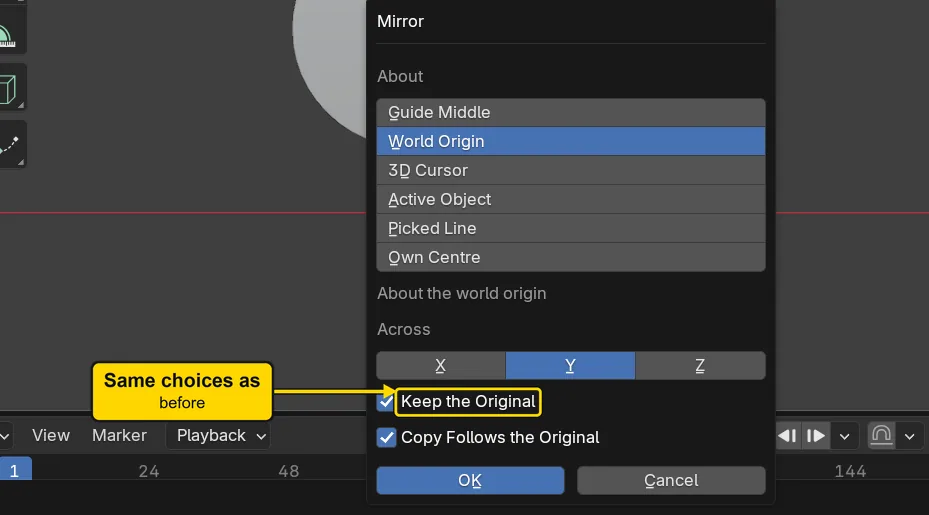
DoClick the drop at the right, press Alt+M, then click Y under Across.
You should seeThe Y button lit and X not. Y swaps front and back about the red line: from above, the top and bottom of the screen. The window kept the choices you made: World Origin, Keep the Original and Copy Follows the Original ticked.
It worked whenThe window shows Y lit under Across.
Step 9. Press OK for the second copy
WhereThe Mirror window: the button OK at its foot.
DoPress OK.
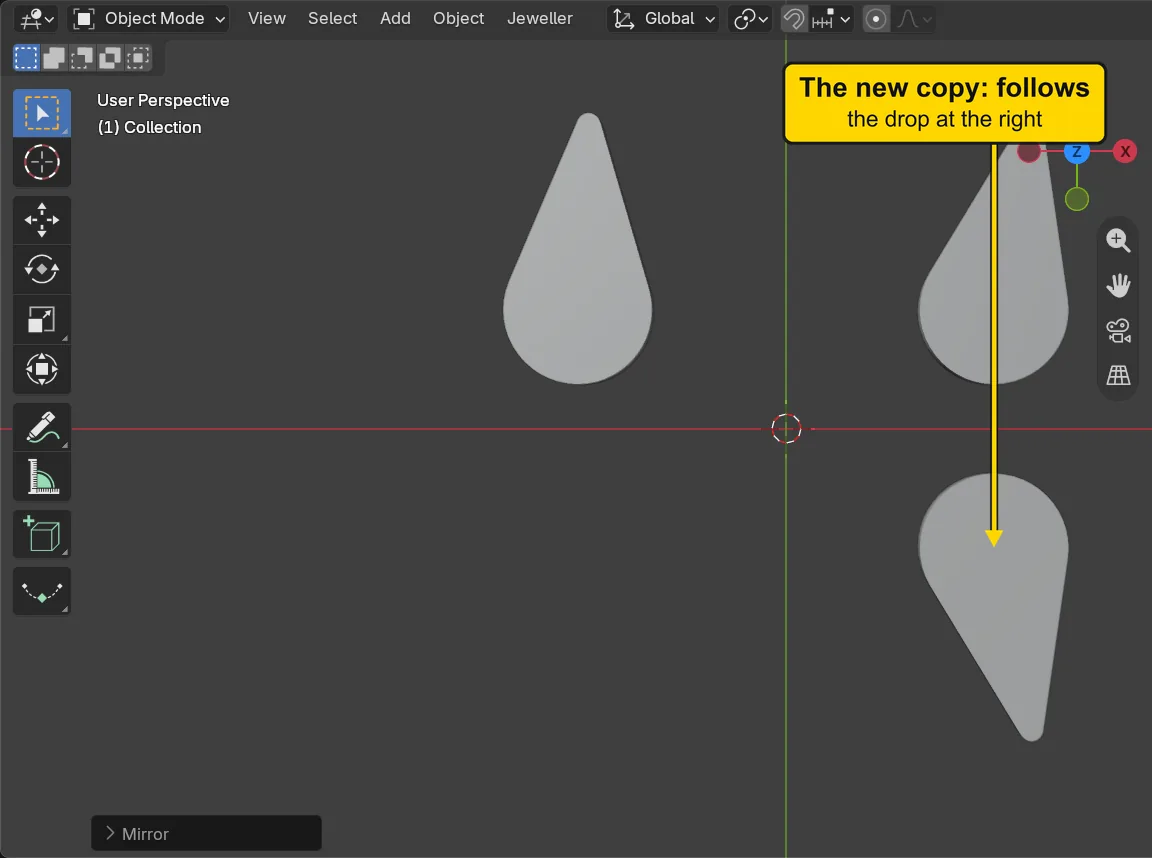
You should seeA drop below the first, upside down, mirrored across Y about the red line. This copy follows the drop at the right.
It worked whenA third drop stands at the lower right, pointing down.
Step 10. Delete the original
WhereThe 3D view. Move the pointer over the dark area.
DoClick the drop at the upper right, press X, then click Delete in the small menu.
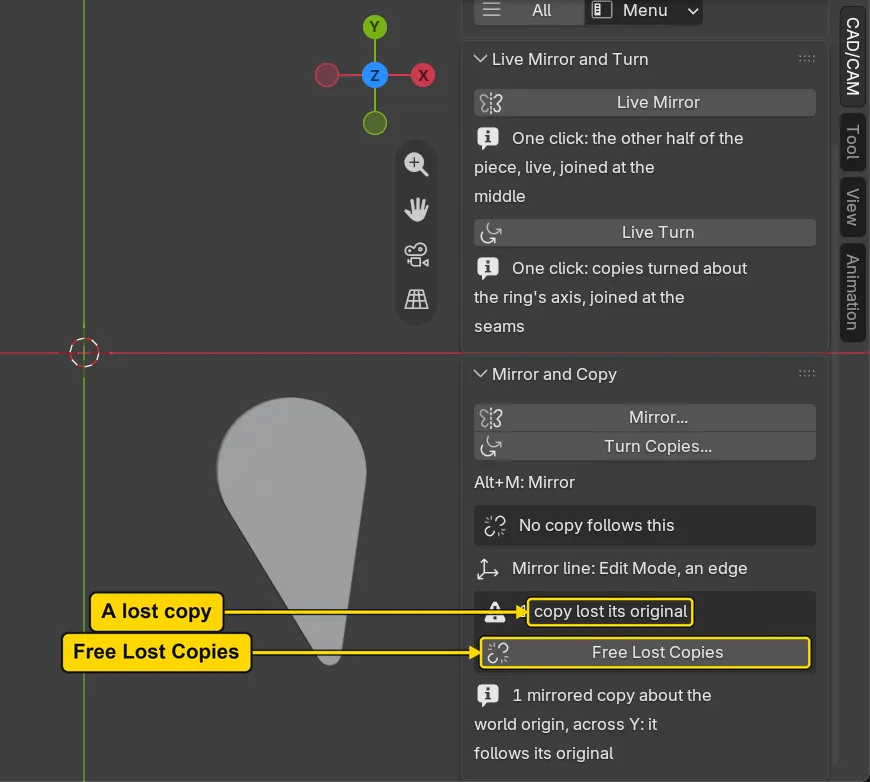
You should seeThe original gone, and the drop at the lower right still standing: this is what happens when an original is deleted, and a copy that followed it keeps the shape it had. The Mirror and Copy panel now shows a box that reads “1 copy lost its original”, with a button Free Lost Copies. The drop at the left was set free before, so it is not counted.
It worked whenThe panel reads “1 copy lost its original”.
Step 11. Press Free Lost Copies
WhereThe Mirror and Copy panel: the button Free Lost Copies under the warning.
DoPress Free Lost Copies.
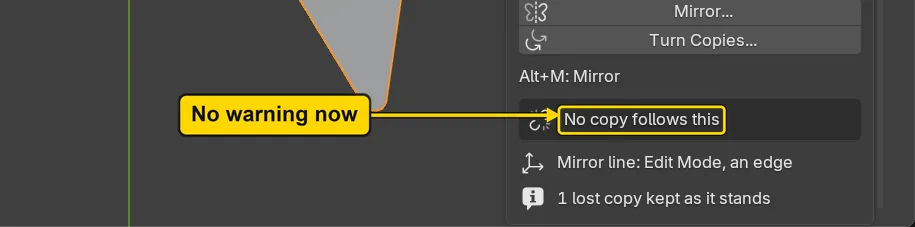
You should seeThe warning gone. The drop at the lower right is an ordinary object, with its shape as it stood. The status bar says “1 lost copy kept as it stands” for a moment.
It worked whenThe warning box is gone from the panel.
Step 12. Check the 3D cursor
WhereThe strip of tabs at the right edge of the sidebar: click View.
DoClick the tab View, and look at the box 3D Cursor.
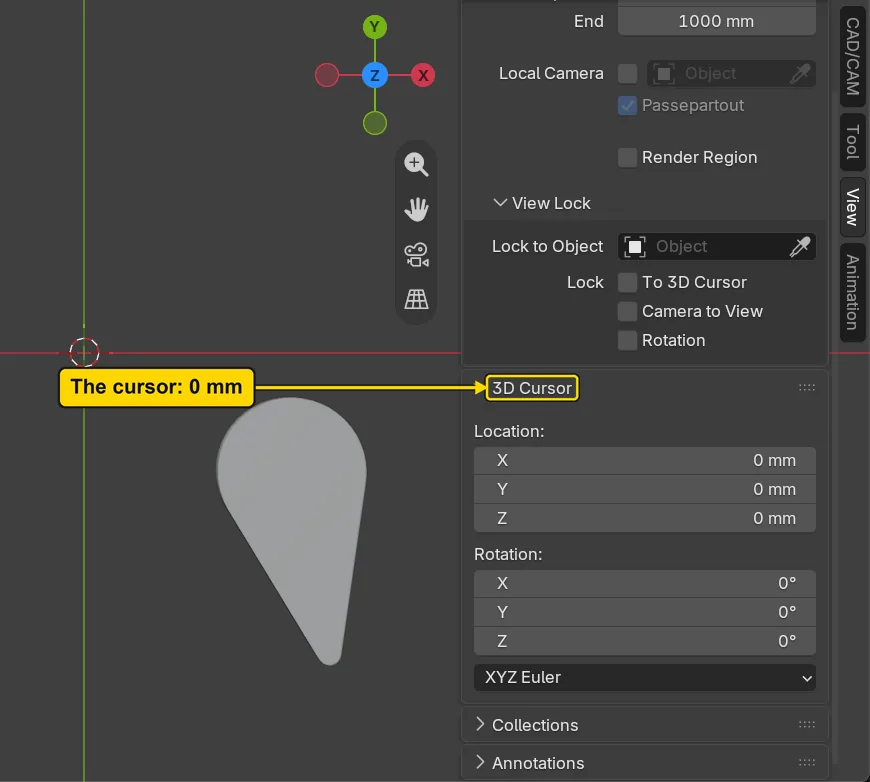
You should seeLocation reads 0 mm on X, Y and Z: the 3D cursor is where it was. If the rows are out of sight, scroll the sidebar down. Mirror measured from the world origin and never moved the cursor or your pivot point. Click the CAD/CAM tab to come back.
It worked whenLocation in the box 3D Cursor reads 0 mm.
Step 13. Save your work
WhereThe 3D view: move the pointer over it.
DoPress Ctrl+S.
You should seeBlender writes your copy at once, with no question, because the file already has a name. An asterisk, *, in the title bar marks changes that are not saved, and it goes now. Save your work and get it back (P0-12) says more about saving.
It worked whenThe title bar begins my-drops and carries no asterisk.
No picture: the only change is a message on the status bar, and it fades.
Check your result
| What to read | Where | What it should say |
|---|---|---|
| The freed copy | The Item tab of the sidebar, Rotation:, with the drop at the left selected | Z reads -15 degrees |
| A copy that has stopped following | The Mirror and Copy panel, with the drop at the left selected | “No copy follows this” |
| The original and its copy | The Item tab of the sidebar, Location and Dimensions, at step 4: click one drop, read, then click the other | On the original Location X reads 14 mm, and the mirror is about the world origin, so the copy stands as far to the other side. Dimensions read X 10 and Y 18 on both. The copy’s own Location reads 0 mm: it is drawn from its original, so its own origin stays at the world origin |
| The 3D cursor | The View tab of the sidebar, the box 3D Cursor, Location, step 12 | X, Y and Z read 0 mm |
| The objects | The Outliner, the list at the top right of the window | It lists Drop mirror and Drop mirror.001 |
Try it yourself
Open your copy. Click the drop at the lower right, press Alt+M, choose Own Centre under About, untick Keep the Original and press OK: the drop mirrors itself in place, and no copy is made.
What you learned
Alt+Mmirrors any object about the reference you choose in the window: the world origin, the 3D cursor, another object or a line. The pivot point and the cursor are not touched.- Copy Follows the Original makes the copy redraw itself when its original moves, turns or changes. Stop Following sets it free as it stands.
- A copy whose original is deleted still shows its shape: Free Lost Copies makes it an ordinary object.