
What you will do
You will move the Box, save, close the file and open it again to find the Box where you left it. Then you will lose a move on purpose and get it back from the copy Blender saves by itself. Lost work is the commonest loss a beginner has, and this page makes it a small one.
About 8 minutes.
Files
- p0-12-start.blend (102 KB): open this one to begin.
- p0-12-finished.blend (106 KB): the result, to compare with yours.
Both were made in Blender 5.2.0.
Before you start
- You can open a file and save a copy of it: Open an exercise file and keep the start file safe (P0-07).
- You can move a form by a typed number: Move, turn and scale by a typed number (P0-10).
- The file is in millimetres, so every number you type here is millimetres.
Build it
Step 1. Open the start file and save your own copy
WhereThe top bar: the row of words that begins File, Edit.
DoDownload p0-12-start.blend from Files above and open it. Then choose File > Save As and save it under the name below, in a folder of yours. Open an exercise file and keep the start file safe (P0-07) shows how.
Typemy-saved.blend
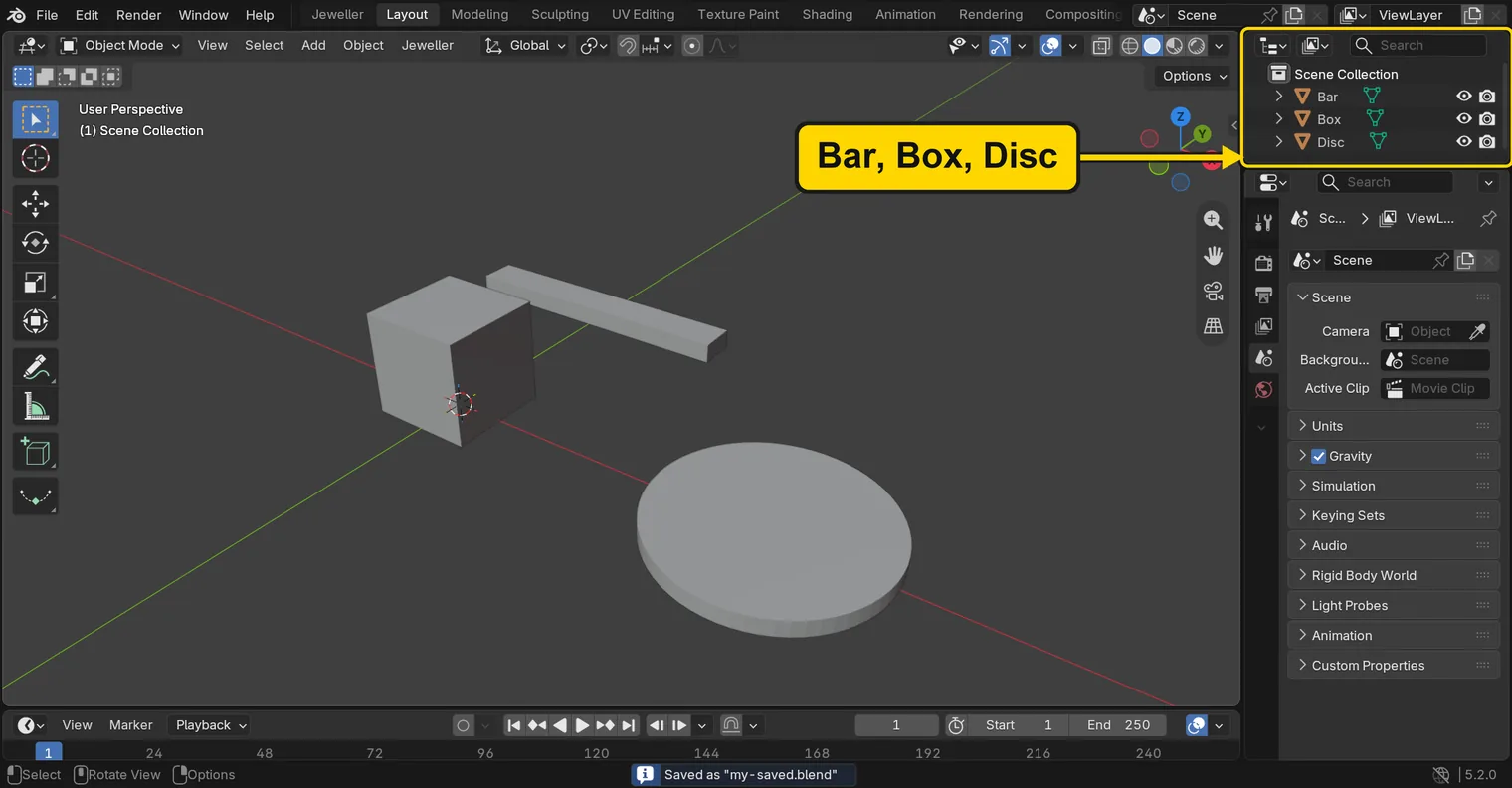
You should seeThe 3D view shows a box, a bar and a disc. The Outliner, the list at the top right of the window, lists Bar, Box and Disc, and the title bar, the strip above File and Edit, begins my-saved.
It worked whenThe title bar begins my-saved.
Step 2. Move the Box
WhereThe 3D view: the box in the middle of it.
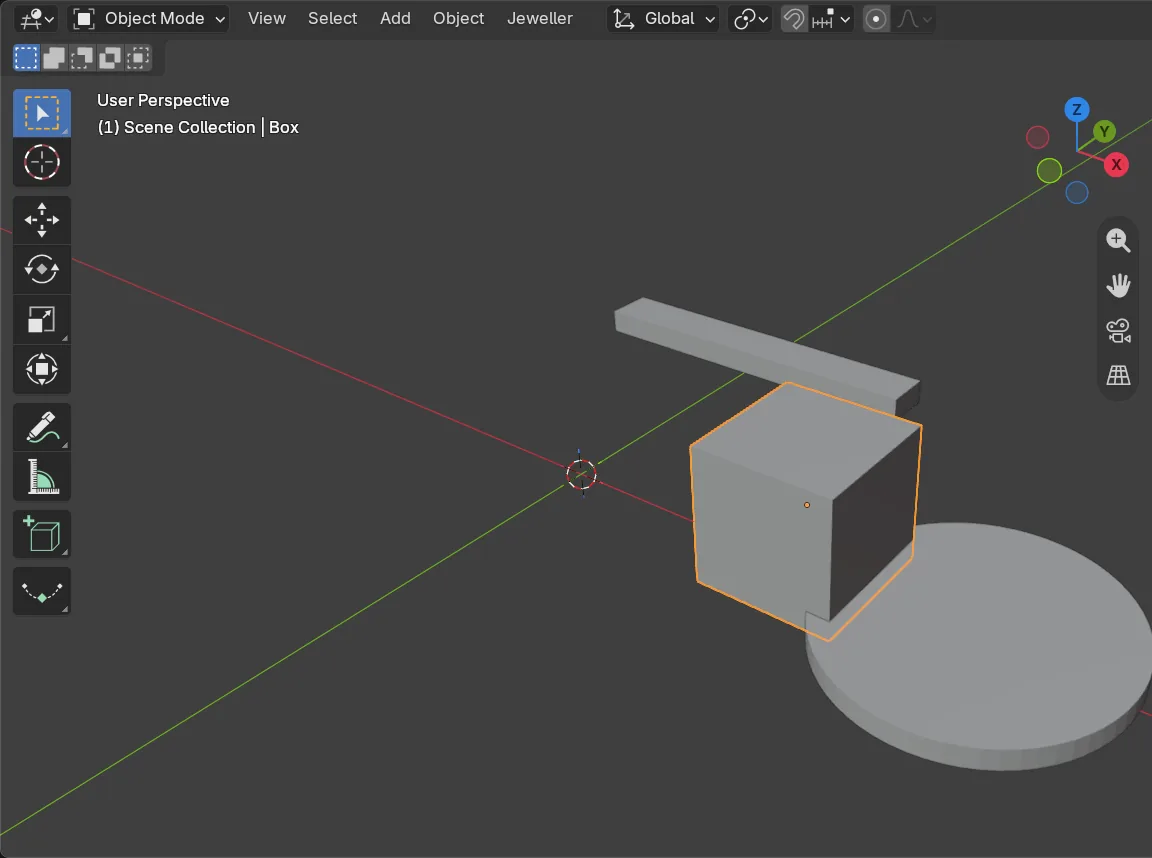
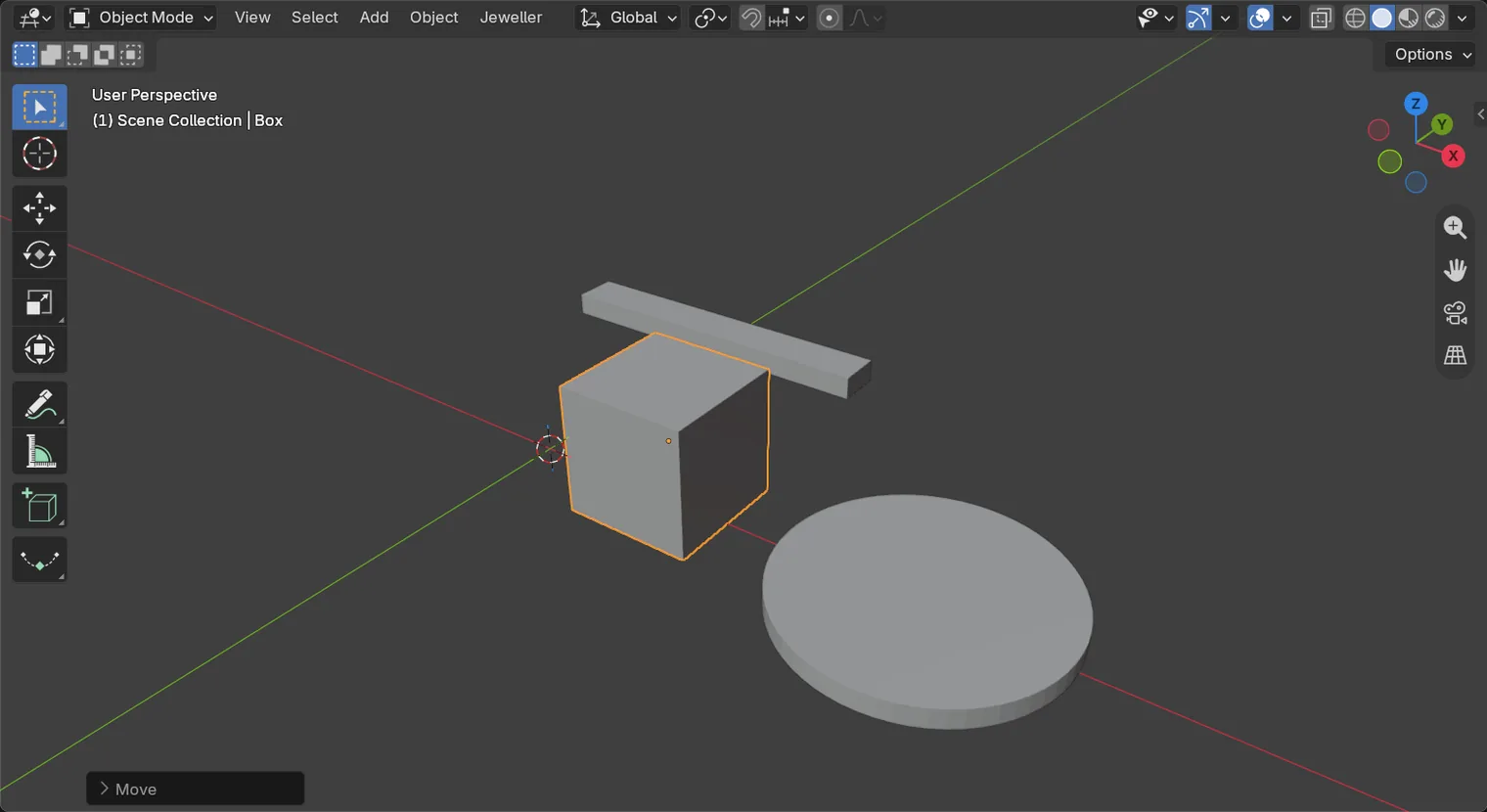
DoClick the box, then press G, X, 1 and 2 on the number row, and Enter.
You should seeThe box slides 12 mm to the right. An asterisk, *, appears in the title bar, the strip above File and Edit: it means this file has changes that are not saved.
It worked whenThe title bar shows an asterisk, *.
Step 3. Save with Ctrl+S
WhereThe 3D view: move the pointer over it.
DoPress Ctrl+S.
You should seeBlender writes the file at once, with no question: it already has a name and a folder, so it goes back where it came from, the folder you chose in step 1. The status bar begins “Saved”.
It worked whenThe asterisk has gone from the title bar.

Ctrl+S: the status bar says the file is savedStep 4. Close your file
WhereThe top bar: the row of words that begins File, Edit.
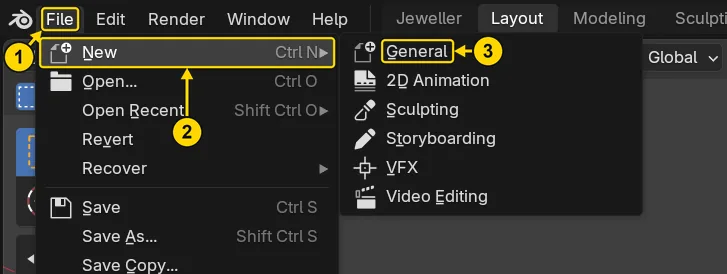
DoClick File, rest the pointer on New, then click General.
You should seeA new file opens: Blender’s own cube, camera and light. Your copy is closed and safe on disk. Blender asked nothing, because nothing was unsaved.
It worked whenThe Outliner lists Camera, Cube and Light.
Step 5. Open it again from Open Recent
WhereThe top bar: the same File menu.
DoClick File, rest the pointer on Open Recent, and click my-saved.blend at the top of the list.
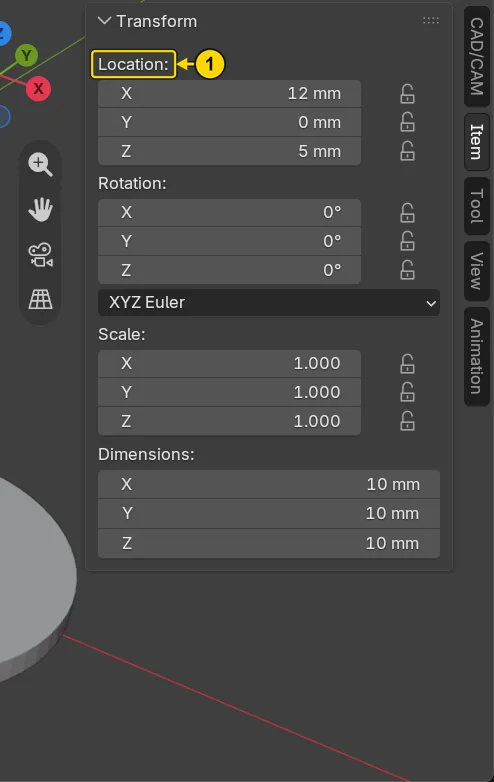
You should seeYour file opens again. The Box stands 12 mm to the right, where you left it. Open the Item tab as in Move, turn and scale by a typed number (P0-10) to read it.
It worked whenLocation X in the sidebar reads 12 mm.
Step 6. Make a change and do not save it
WhereThe 3D view. Move the pointer off the sidebar and into the dark area. The box is still selected.
DoPress G, X, 8 on the number row, and Enter. Then leave Blender alone for 3 minutes.
You should seeThe box moves 8 mm more, to 20 mm. You do not save. While you wait, Blender writes a copy of its own, in the background, on a timer: every 2 minutes (a setting you can change). It writes the copy only while the file has changes you have not saved.
It worked whenLocation X in the sidebar reads 20 mm.
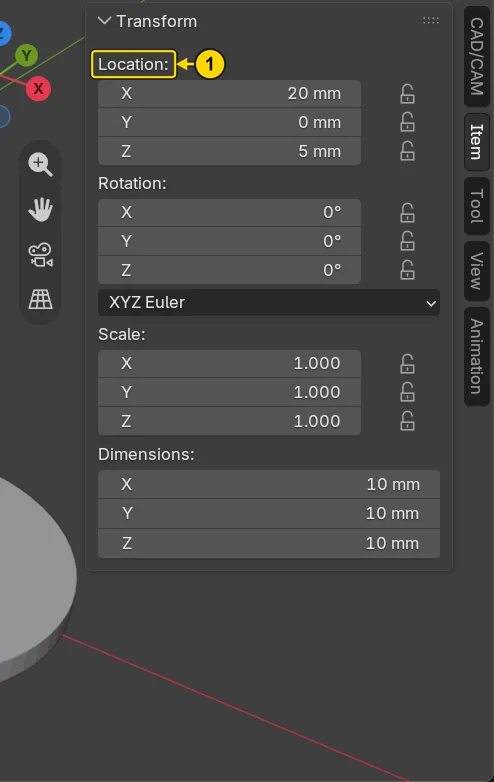
If it goes wrongNothing moves: the pointer is still over the sidebar. Move it over the 3D view and press G, X, 8 and Enter again.
Step 7. Lose the move on purpose
WhereThe top bar: the File menu again.
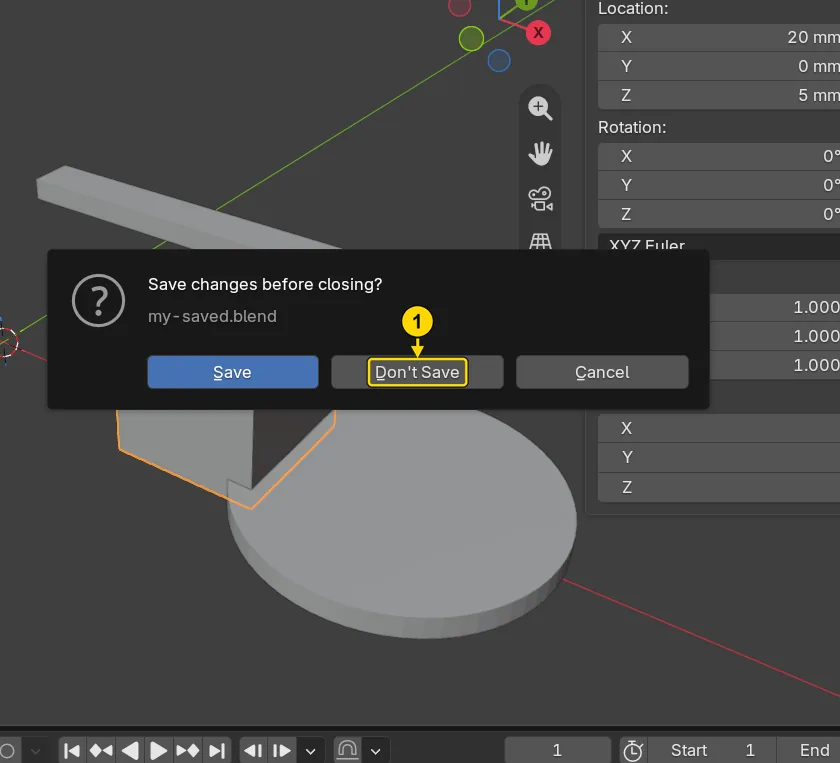
DoClick File, rest the pointer on New, click General. When Blender asks, press Don’t Save.
You should seeBlender asks “Save changes before closing?” This is the question that loses a beginner’s work. You press Don’t Save on purpose, so that the move to 20 mm is lost. Your saved file is unharmed: it still has the Box at 12 mm.
It worked whenThe Outliner lists Camera, Cube and Light.
Step 8. Get the move back from the auto save
WhereThe top bar: File, then Recover.
DoClick File, rest the pointer on Recover, click Auto Save…. Click the file that begins my-saved, then press Recover Auto Save.
You should seeBlender lists the files it saved by itself, each ending in _autosave.blend. Yours begins my-saved, and its Date Modified is the time of its last copy. Leave the others: quit.blend is the copy Blender keeps when it closes. The file you pick opens with the Box at 20 mm: the move you lost is back.
It worked whenLocation X in the sidebar reads 20 mm.
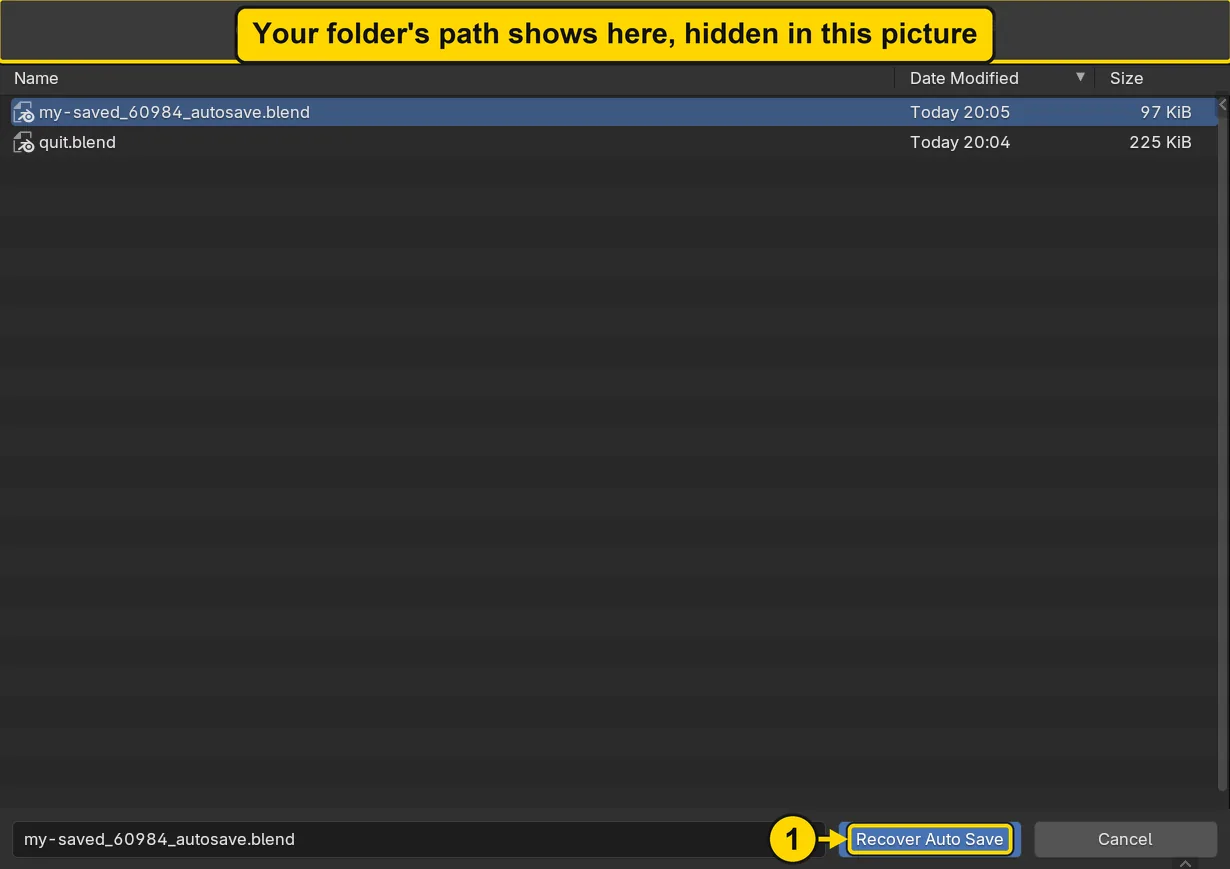
If it goes wrongThe list says No items, or no file in it begins my-saved: Blender had not yet written its copy after your move. Press Cancel. Do steps 5 and 6 again and wait a little longer.
Step 9. Save your work
WhereThe 3D view: move the pointer over it.
DoPress Ctrl+S.
You should seeThe recovered file kept the name my-saved, so Blender writes it back into the same file, at once, with no question. The work you rescued is now saved.
It worked whenThe title bar begins my-saved, and no asterisk stands in it.
No picture: the only change is a message on the status bar, and it fades.
Check your result
| What to read | Where | What it should say |
|---|---|---|
| Where the Box stands | The Item tab of the sidebar, under Location: | X reads 20 mm |
| The file you are in | The title bar, the strip above File and Edit | It begins my-saved, and carries no asterisk, * |
Try it yourself
Open your copy again and click File. Save stands in the menu with Ctrl S beside it: the menu and the key are the same save. Then open File > Recover and look at what else it offers.
What you learned
Ctrl+Ssaves into the file you have open. It does not ask for a name, because the file already has one.- File > New closes your file and keeps it safe on disk. File > Open Recent brings it back.
- Blender also saves a copy by itself every few minutes. File > Recover > Auto Save brings back what a save of your own would have kept.