
What you will do
You will delete the wrong thing on purpose, then get it back three ways. Everyone does this in their first hour, so it is better to meet it once on three plain forms than for the first time on a piece you care about.
About 5 minutes.
Files
- p0-15-start.blend (102 KB): open this one to begin.
- p0-15-finished.blend (103 KB): the result, to compare with yours.
Both were made in Blender 5.2.0.
Before you start
- You can select a thing and delete it: Copy a thing and delete a thing (P0-11).
- You know the Outliner, the list at the top right of the window: Name every part of Blender’s screen (P0-02).
Build it
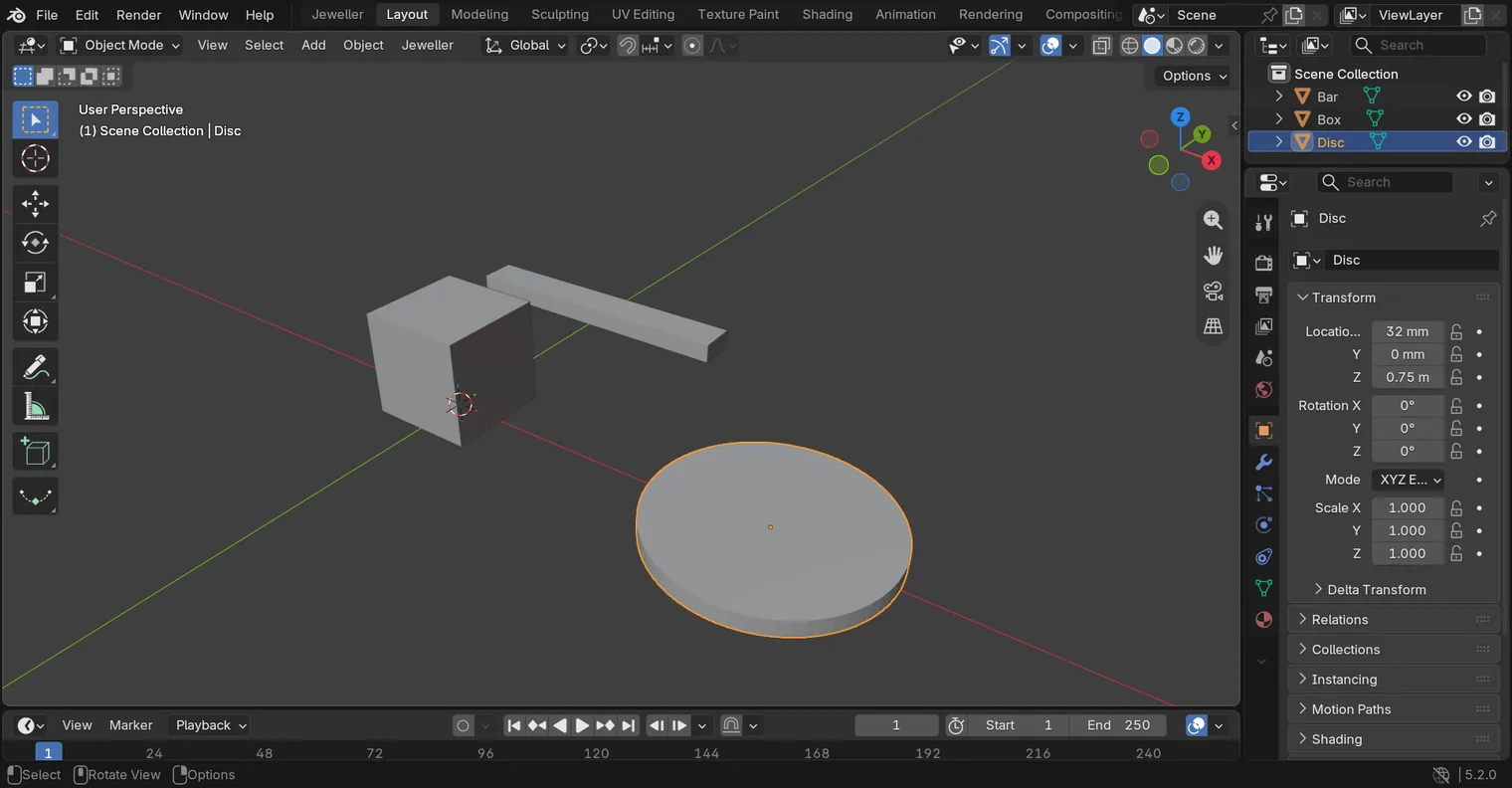
Step 1. Open the start file and save your copy
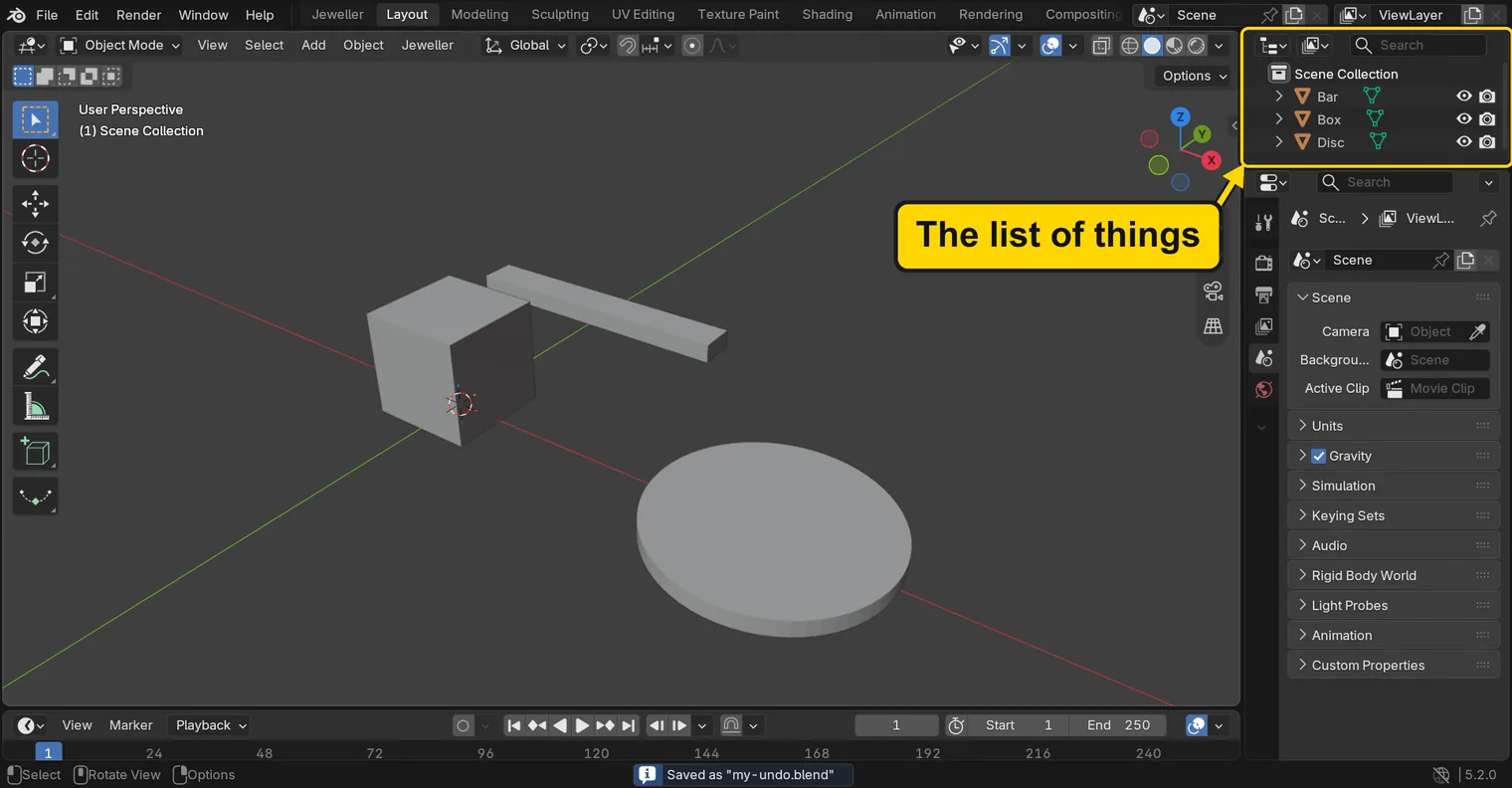
WhereThe top bar: the row of words that begins File, Edit.
DoDownload p0-15-start.blend from Files above and open it. Then choose File > Save As and save it under the name below, in a folder of yours. Open an exercise file and keep the start file safe (P0-07) shows how.
Typemy-undo.blend
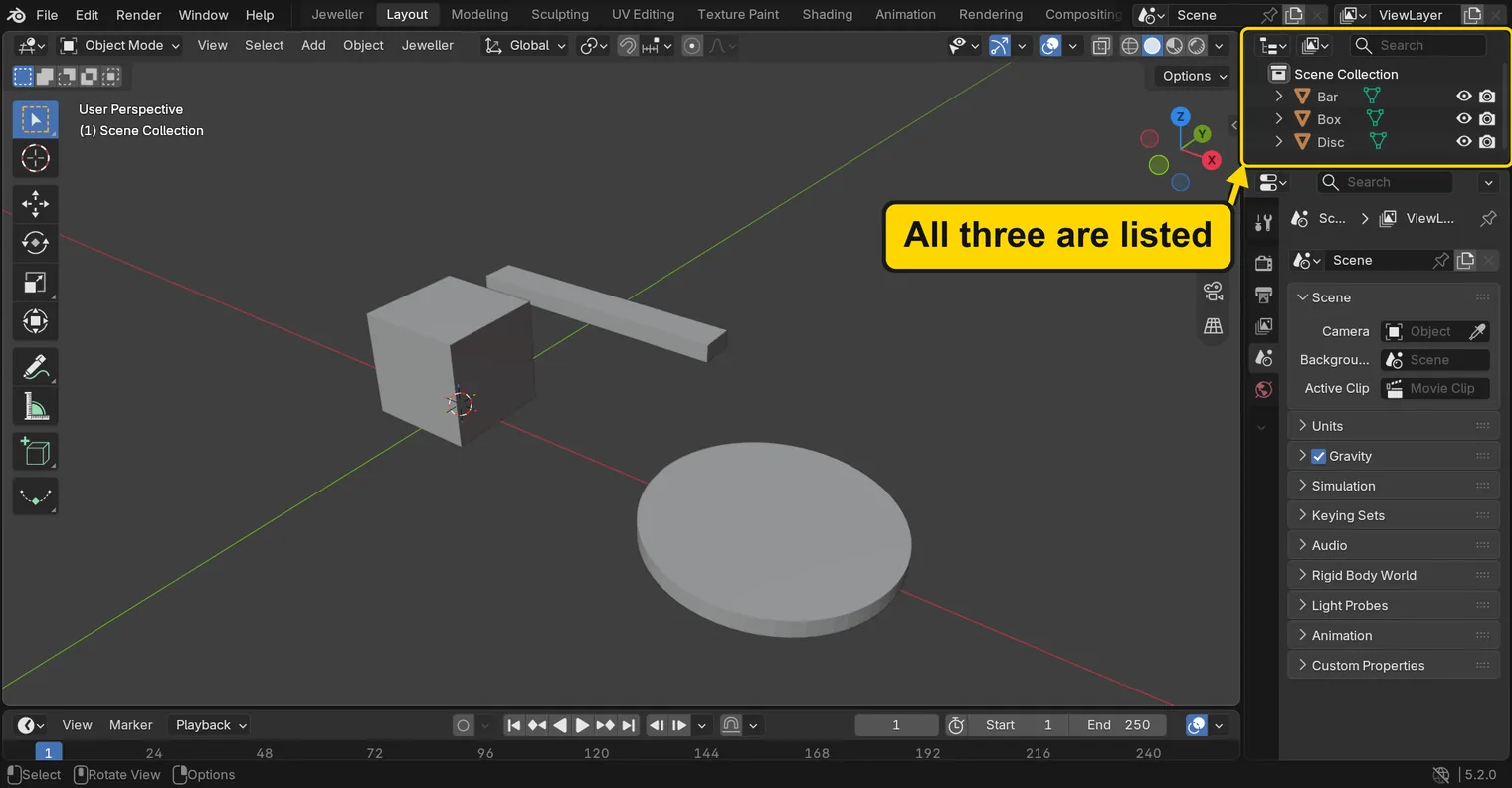
You should seeA box, a bar and a disc stand apart in the 3D view. Nothing is selected. Your copy is open, and the start file is left as it came.
It worked whenThe Outliner, at the top right of the window, lists Bar, Box and Disc.
Step 2. Delete the wrong object
WhereThe 3D view: the large dark area in the middle of the window.
DoYou meant to delete the disc. Click the bar by mistake, press X with the pointer over the 3D view, then click Delete in the small menu.
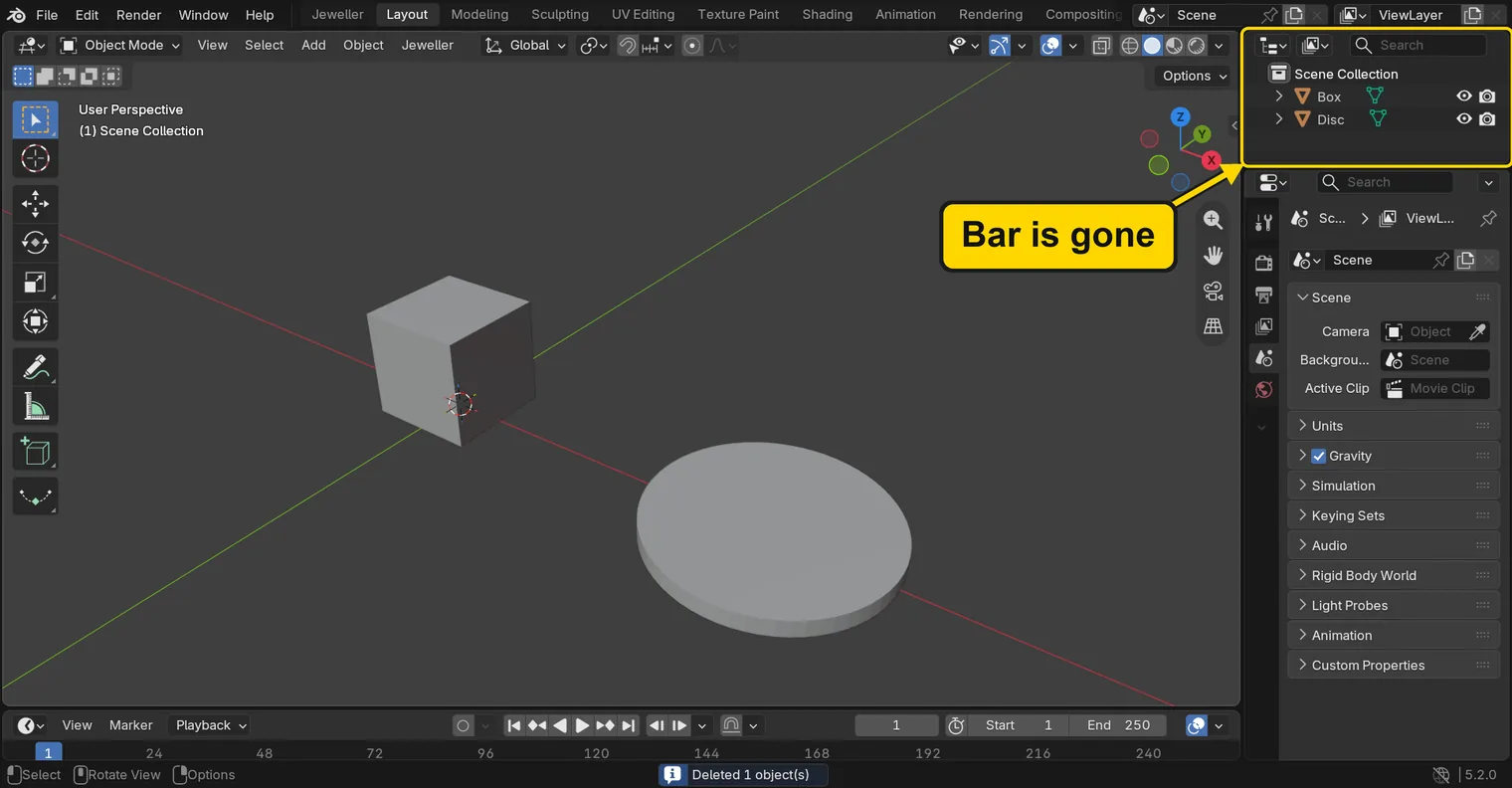
You should seeThe bar goes. The mistake is made, and the next three steps undo it.
It worked whenThe Outliner lists Box and Disc, and Bar is gone.
Step 3. Take it back with Ctrl+Z
WhereThe 3D view: leave the pointer over it.
DoPress Ctrl+Z.
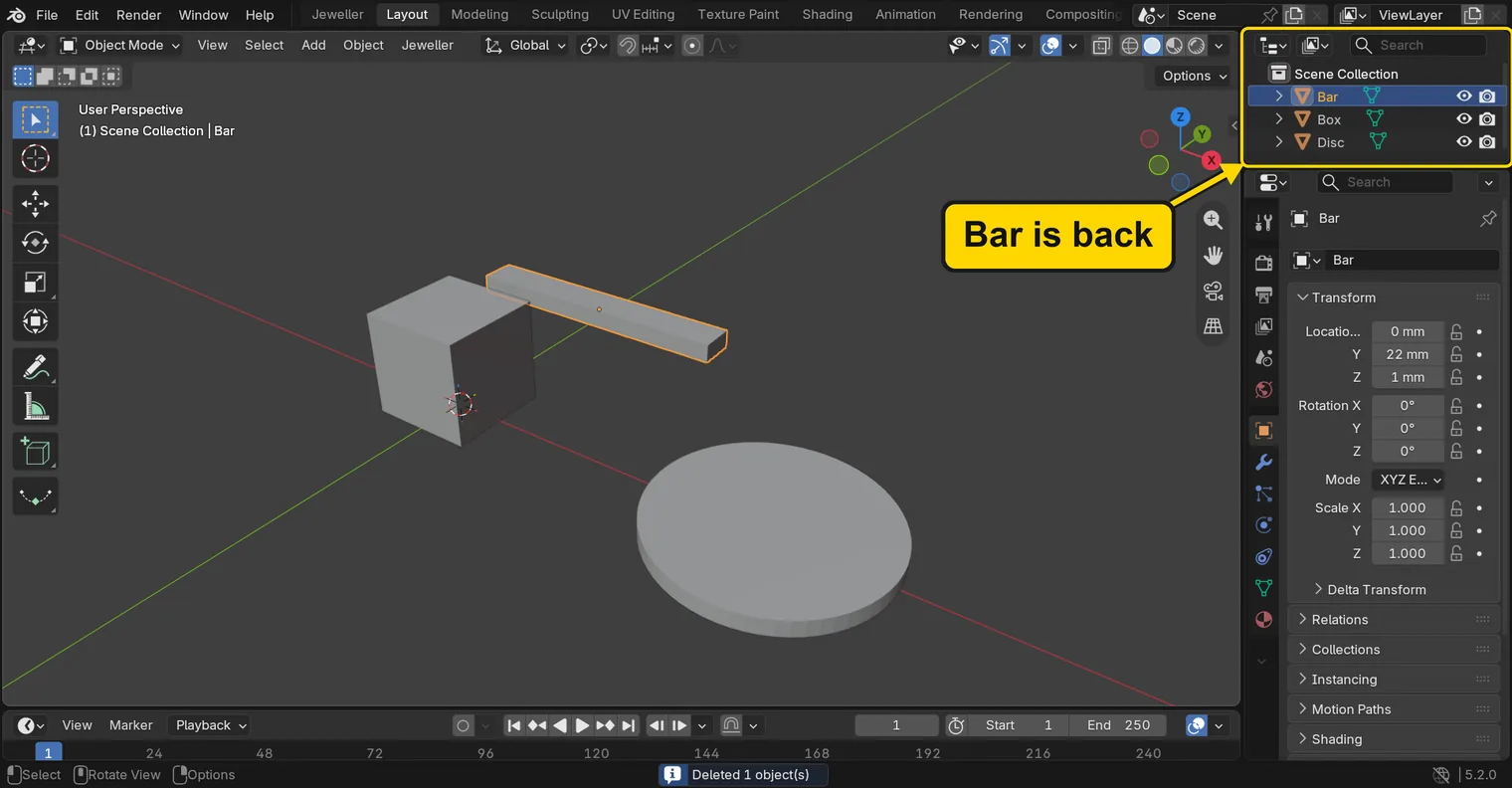
You should seeThe bar comes back. Ctrl+Z takes back your last step, whatever it was.
It worked whenThe Outliner lists Bar, Box and Disc again.
Step 4. Put it back the other way with Ctrl+Shift+Z
WhereThe 3D view.
DoPress Ctrl+Shift+Z.
You should seeThe bar goes again. Ctrl+Shift+Z is redo: it puts back the step that Ctrl+Z took back. Use it when you undo one step too many.
It worked whenThe Outliner lists Box and Disc, and Bar is gone.
No picture: the window looks as it did after the delete.
Step 5. Open the Undo History
WhereThe top bar: the row of words that begins File, Edit.
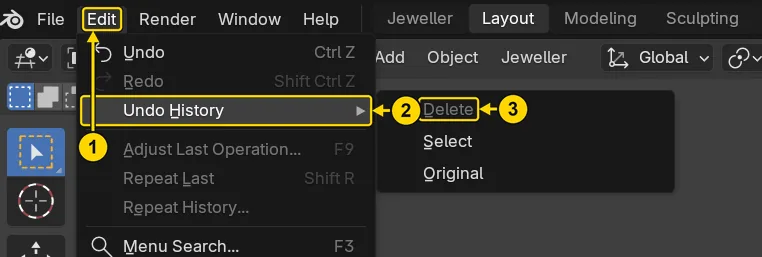
DoClick Edit, then rest the pointer on Undo History.
You should seeA list of your steps opens, the newest at the top: Delete, Select, Original. The step you are at, Delete, stands in grey. Original is the file as you opened it.
It worked whenA list opens beside the Edit menu, with Delete in it.
Step 6. Go back by a row of the list
WhereThe list of steps you opened.
DoClick the row Original, the oldest.
You should seeThe list shuts and the file is as it was when you saved your copy: the bar is back, and nothing is selected.
It worked whenThe Outliner lists Bar, Box and Disc.
Step 7. Save your work
WhereThe 3D view: move the pointer over it.
DoPress Ctrl+S.
You should seeBlender saves your copy over itself, with no question, and the start file is untouched. An asterisk, *, in the title bar marks changes that are not saved, and it goes now.
It worked whenThe title bar, the strip above File and Edit, begins with the name of your copy, and no asterisk stands by it.

Check your result
| What to read | Where | What it should say |
|---|---|---|
| The list of things | The Outliner, at the top right of the window | Bar, Box and Disc |
| The steps you took | Edit, then Undo History | A list of your steps, with Delete in it |
| Your copy | The title bar, the strip above File and Edit | It begins my-undo |
Try it yourself
Click the disc and delete it with X, then click the box and delete it too. Press Ctrl+Z: the box comes back. The disc needs two more presses, because clicking the box was a step too. Open Edit, then Undo History, to see every step in the list.
What you learned
Ctrl+Ztakes back your last step.Ctrl+Shift+Zputs back what you took back.- Edit > Undo History lists your steps. Click one to go straight to it.
- After a press that worked,
Ctrl+Zis safe. File > Revert goes back to your last save.