
What you will make
A flower whose twins you have handled: a Round 3.00 in the middle and Round 2.50 petals round it, with one petal set free, the first master deleted and the rest still following. A group is a master and its twins. The six petals of this flower are one group: the master and five twins. The count includes the original. A jeweller needs the tidy ways to change a layout: take one stone out of a ring of six, keep one apart, or delete the stone that all the others copy, without the others being lost. The add-on’s own delete button hands a deleted master’s group to a twin. Blender’s own delete does not hand the group on, and Re-sync does not mend it here: use the add-on’s own delete button. This file is a drill: the flower it ends with is not one to cast.
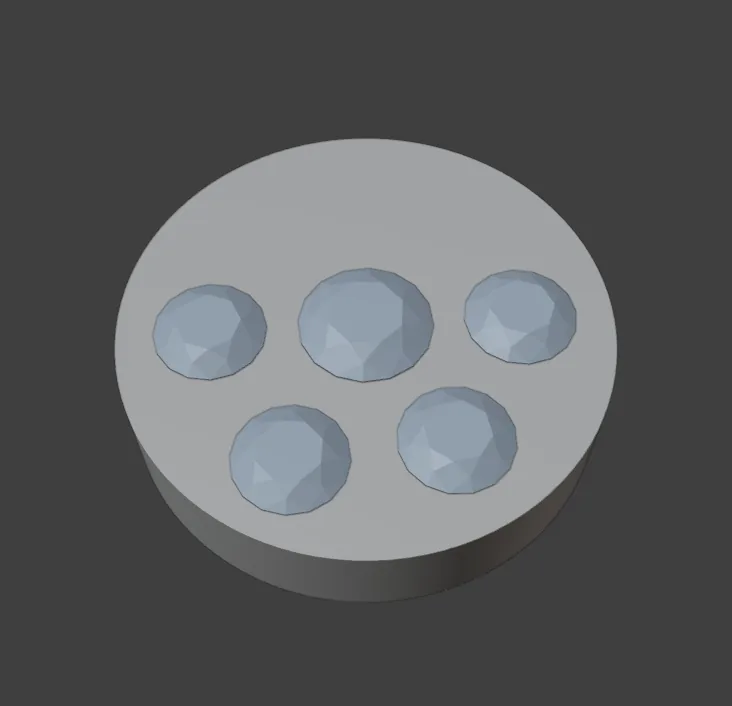
About 10 minutes.
Files
- p3-11-start.blend (111 KB): open this one to begin.
- p3-11-finished.blend (115 KB): the result, to compare with yours.
Both were made in Blender 5.2.0.
Before you start
- You have done Part 0, and you know how to make twins of a stone with Polar Array Selected (Copy stones that follow: mirror and round a centre, P3-10). The start file is that flower: a plate, a centre stone and six petals, in millimetres.
- CAD/CAM Jeweller 2.22.0 or later is installed (Preferences > Add-ons shows the version), and its CAD/CAM tab is in the sidebar.
Build it
Step 1. Open the start file and save your copy
WhereThe top bar: the row of words that begins File, Edit.
DoDownload p3-11-start.blend from Files above and open it. Then choose File > Save As and save it under the name below, in a folder of yours. Open an exercise file and keep the start file safe (P0-07) shows how.
Typemy-twins.blend
You should seeThe 3D view looks straight down at a round plate with a large stone in the middle and six smaller stones evenly round it. The Outliner, the list at the top right of the window, holds the plate and seven stones.
It worked whenThe title bar, the strip above File and Edit, begins my-twins.
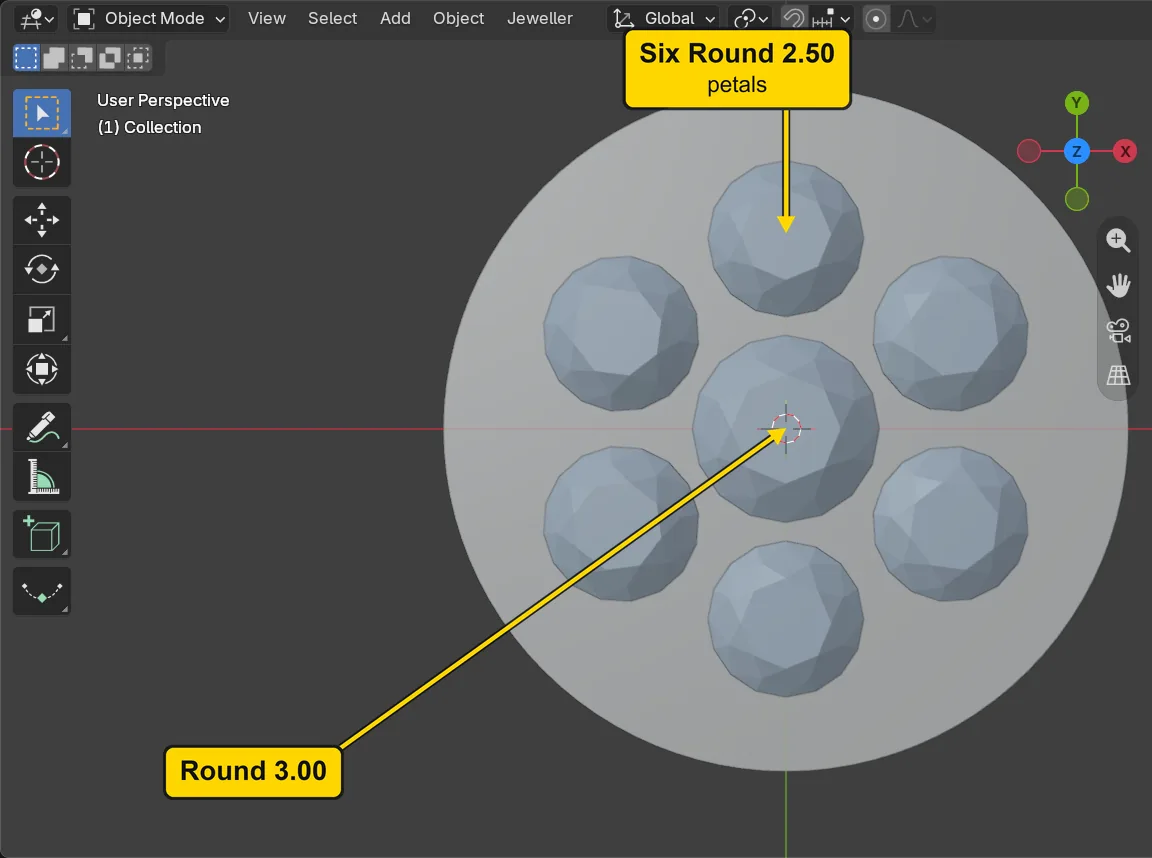
Step 2. Meet the refusal: Select Group on the centre stone
WhereThe sidebar, the CAD/CAM tab. Click Gems in the section bar, then in the Gems panel click the title of the sub-panel Symmetry to open it, and scroll down (turn the mouse wheel, or slide two fingers on the touchpad) to the box This group.
DoClick the Round 3.00 in the middle of the plate, then press Select Group.
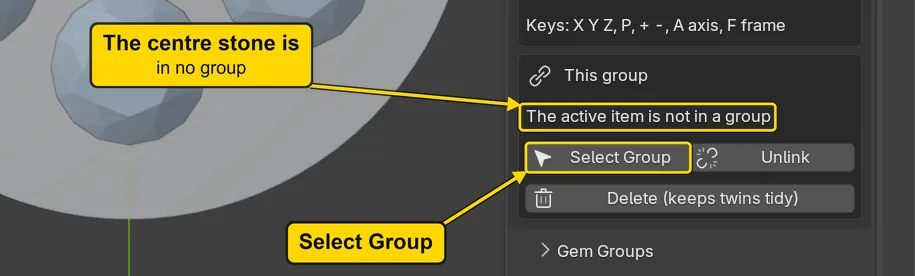
You should seeNothing changes, and that is right: this press is meant to be refused, and nothing is harmed. The centre stone is not copied, so it is in no group. The box This group says “The active item is not in a group”, and the status bar, the line along the very bottom of the window, says “The active item is not in a symmetry group” for a moment before it fades.
It worked whenThe box This group says “The active item is not in a group”.
Step 3. Select the whole group
WhereThe 3D view, then the box This group.
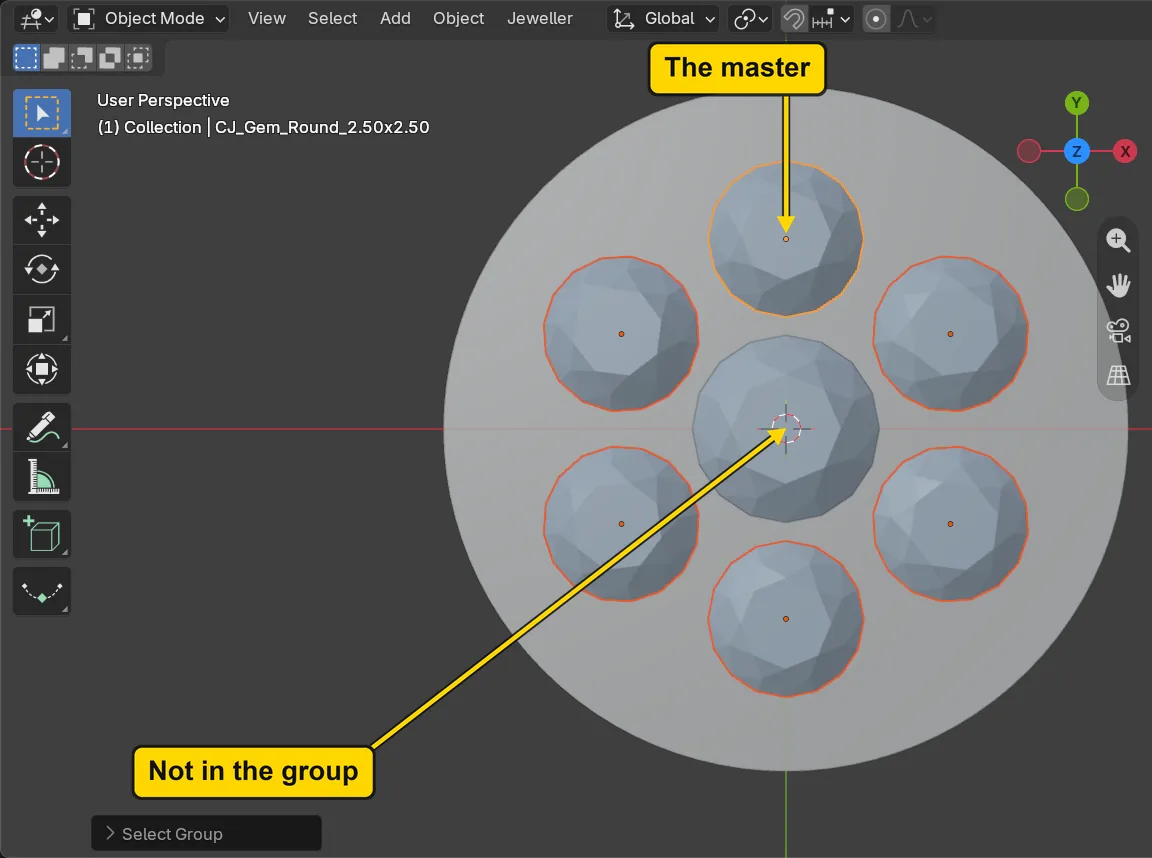
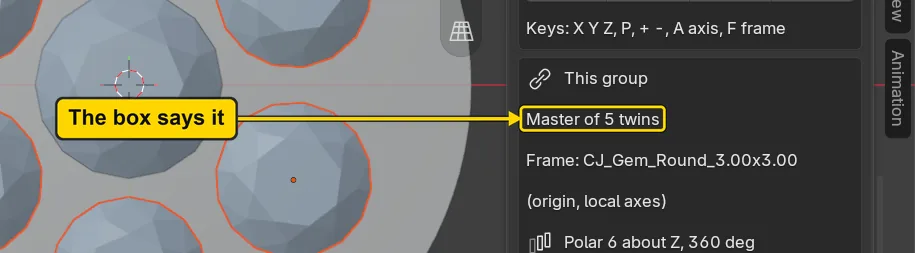
DoClick the petal at the top of the flower, then press Select Group.
You should seeAll six petals orange, the petal you clicked a lighter orange: it is the master, the stone the others copy. The centre stone is not orange. The box now reads “Master of 5 twins”. A group is the master and its twins, and the count includes the original.
It worked whenThe box This group reads “Master of 5 twins”.
Step 4. Unlink one twin
WhereThe 3D view, then the box This group.
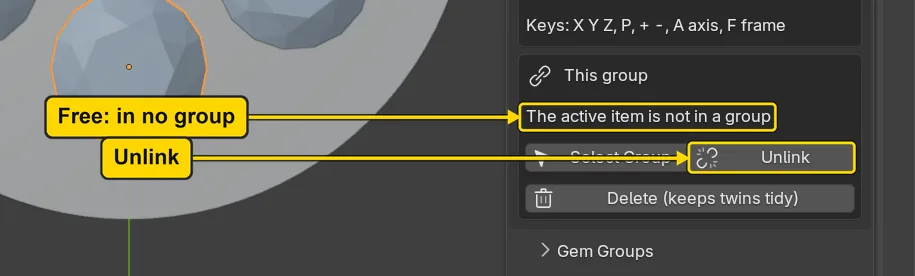
DoClick the petal at the bottom of the flower, then press Unlink.
You should seeThe petal stays selected and the box This group now says “The active item is not in a group”: it is a stone of its own. The status bar says “1 object made independent” for a moment. Unlink makes a twin independent, with its own copy of the stone’s mesh, so that it no longer follows.
It worked whenThe box This group says “The active item is not in a group”.
Step 5. Move the freed petal alone
WhereThe 3D view. Move the pointer off the sidebar and into the dark area.
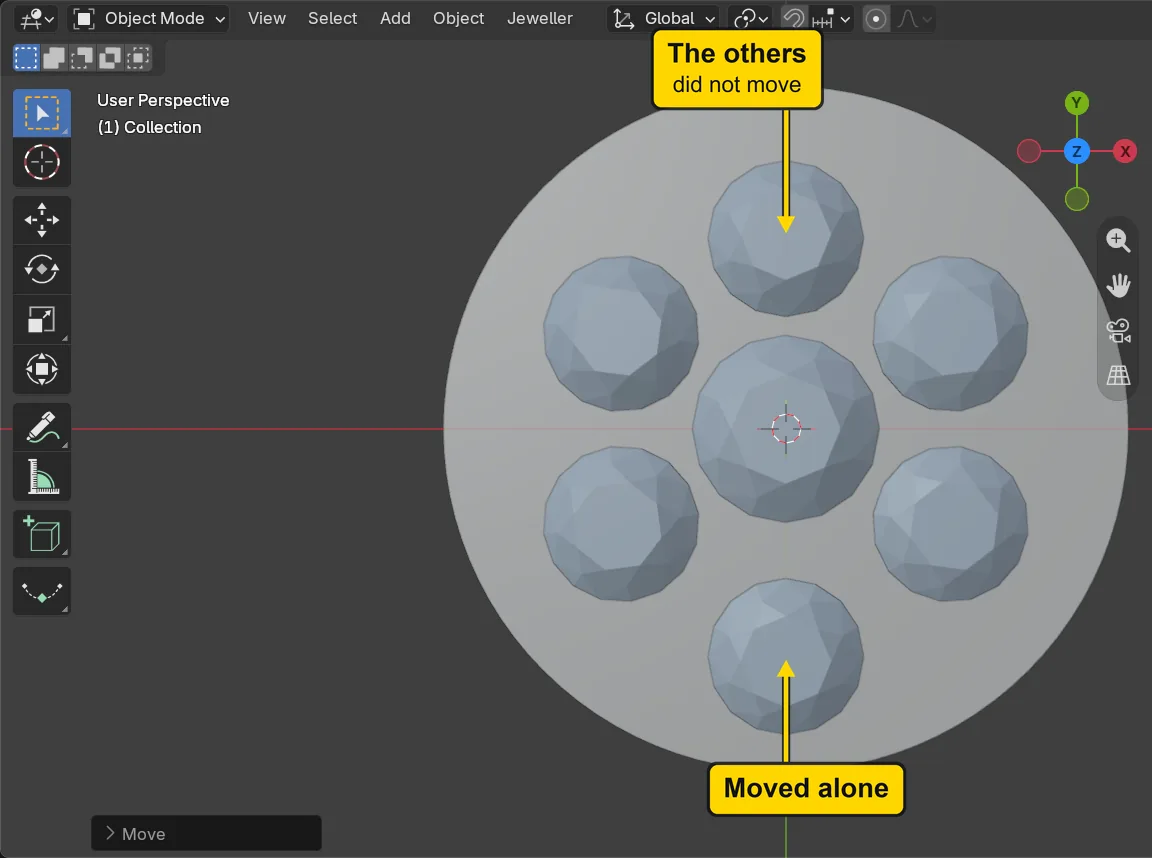
DoPress G, Y, type -0.6 and press Enter.
TypeG, Y, -0.6, Enter
You should seeThe freed petal at the bottom moves 0.6 mm down and the other five stay where they are. Before Unlink, a move of one petal moved all six.
It worked whenThe petal at the bottom stands farther out than the rest.
If it goes wrongNothing moves: The pointer is still over the sidebar. Move it over the 3D view and press the key again.
Step 6. Move the master and watch the others
WhereThe 3D view. Move the pointer off the sidebar and into the dark area.
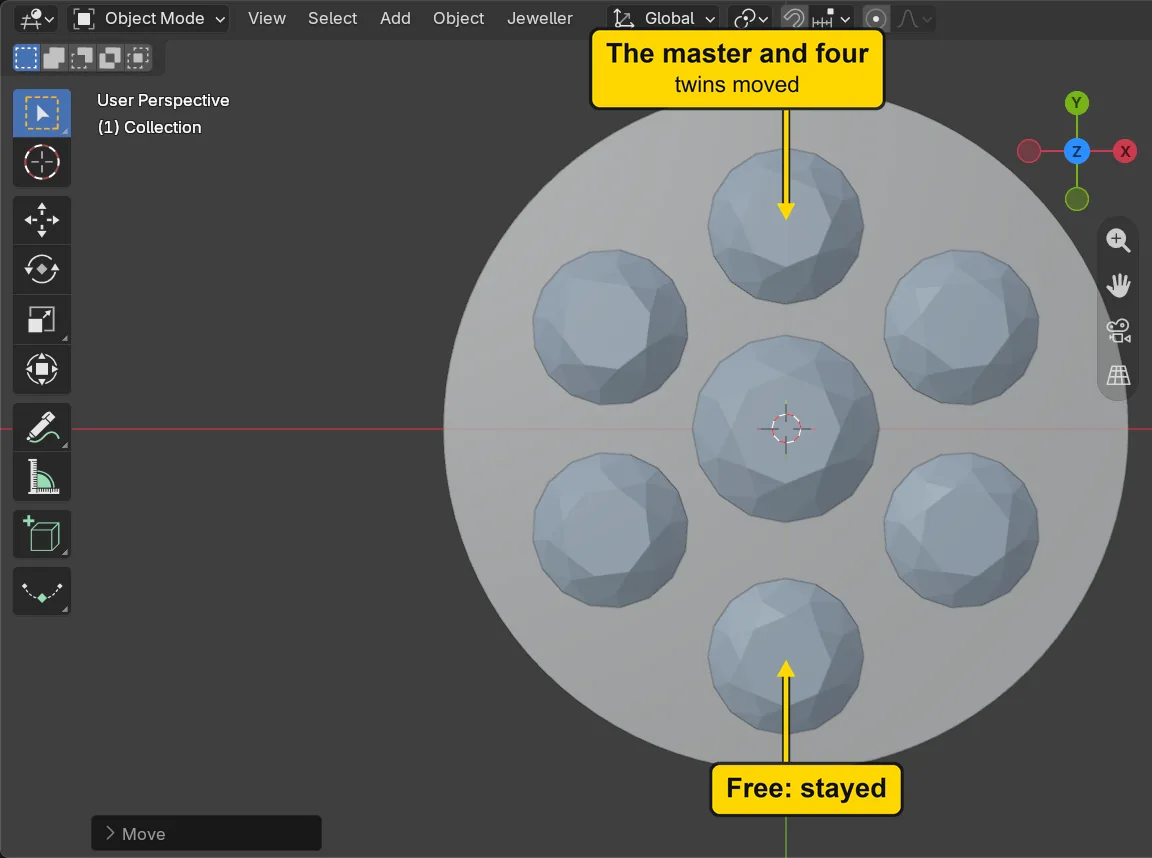
DoClick the petal at the top, then press G, Y, type 0.2 and press Enter.
TypeG, Y, 0.2, Enter
You should seeThe petal at the top and the four twins that are still in its group move 0.2 mm out, to 3.25 mm from the middle. The freed petal stays at 3.65 mm: it is not in the group, so a move of the master does not reach it.
It worked whenFive petals stand 3.25 mm from the middle and one stands 3.65 mm.
If it goes wrongNothing moves: The pointer is still over the sidebar. Move it over the 3D view and press the key again.
Step 7. Delete the master the tidy way
WhereThe 3D view, then the box This group: the button Delete (keeps twins tidy), the wide button at the foot of the box.
DoClick the petal at the top, then press Delete (keeps twins tidy).
You should seeThe master gone from the top and five petals left: four in the group and the freed one. The group is not lost: the add-on hands it to one of the twins, which becomes the new master, the petal at the upper left. Click it and the box reads “Master of 3 twins”. Click another petal of the group and the box reads “Twin of” and the new master’s name.
It worked whenThe petal at the top is gone and five petals stand round the centre stone.
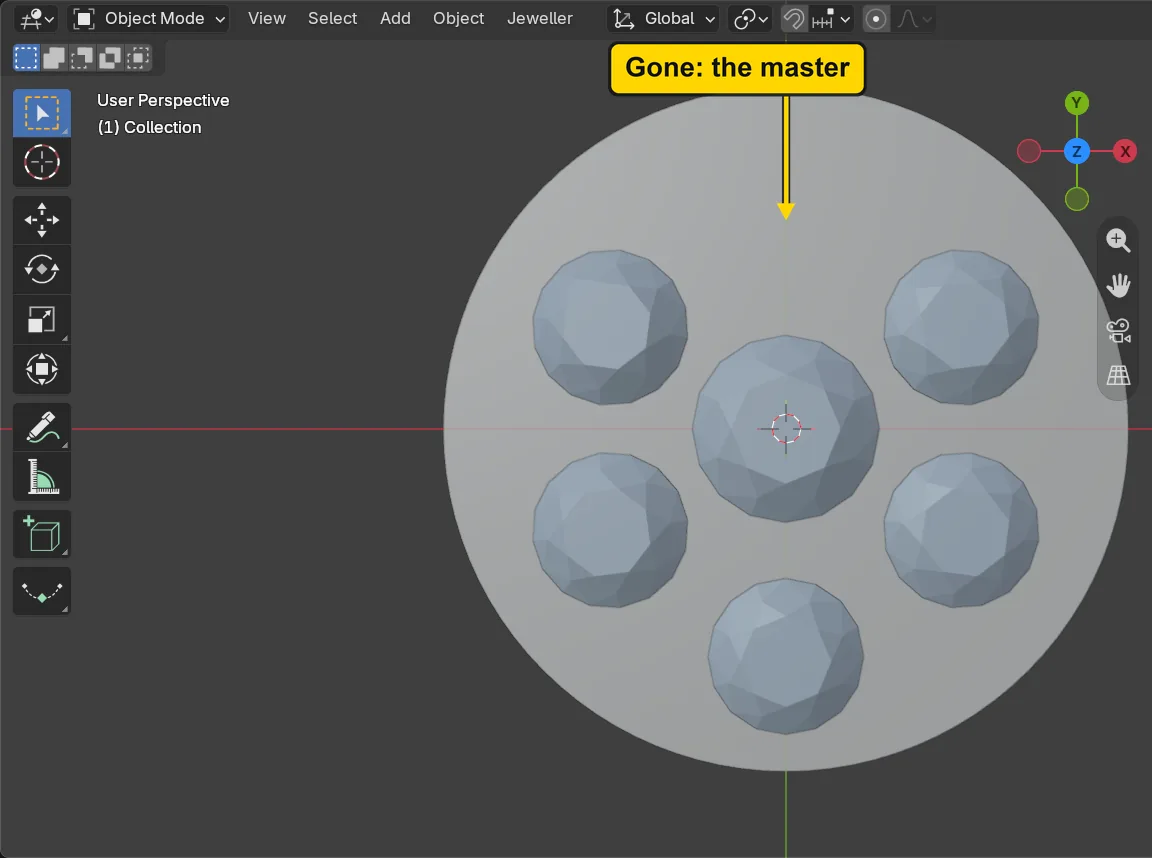
Step 8. Move a petal of the group: the rest still follow
WhereThe 3D view. Move the pointer off the sidebar and into the dark area.
DoClick the petal at the upper right, then press G, X, type 0.2 and press Enter.
TypeG, X, 0.2, Enter
You should seeThe petal moves 0.2 mm to the right and the other three petals of the group move to match, each turned the same way round the middle. The group is four petals now: the new master at the upper left and three twins. It still follows although its first master is gone.
It worked whenThe four petals of the group are the same distance from the middle.
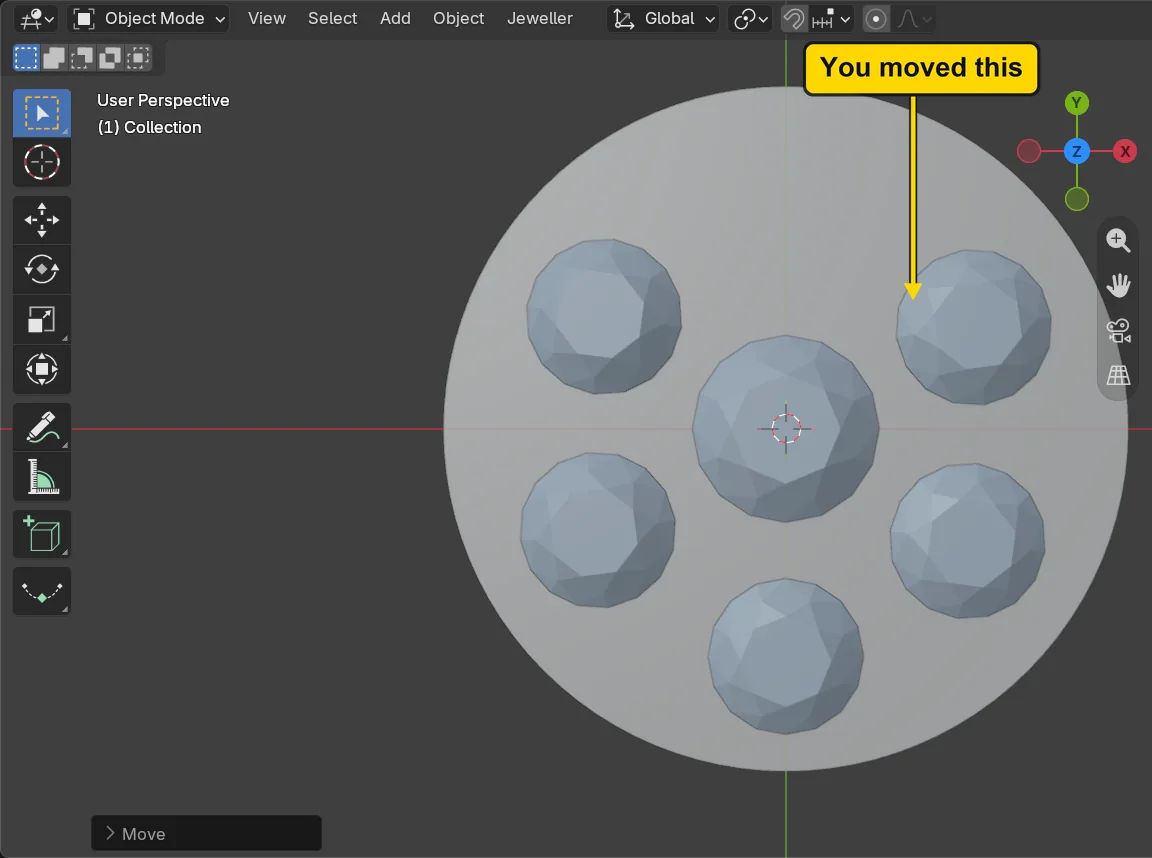
If it goes wrongNothing moves: The pointer is still over the sidebar. Move it over the 3D view and press the key again.
Step 9. Delete a master with Blender’s own key
WhereThe 3D view. Move the pointer over the dark area.
DoClick the petal at the upper left, which is the new master, press X, then click Delete in the small menu.
You should seeThe petal gone from the upper left, three petals of the group left and the freed petal at the bottom. Blender’s own delete removes the stone and nothing more: it does not hand the group to a twin as Delete (keeps twins tidy) does, and the Symmetry sub-panel shows no warning. The status bar says “Deleted 1 object(s)” for a moment. Delete a master with the add-on’s button instead.
It worked whenFour petals stand round the centre stone.
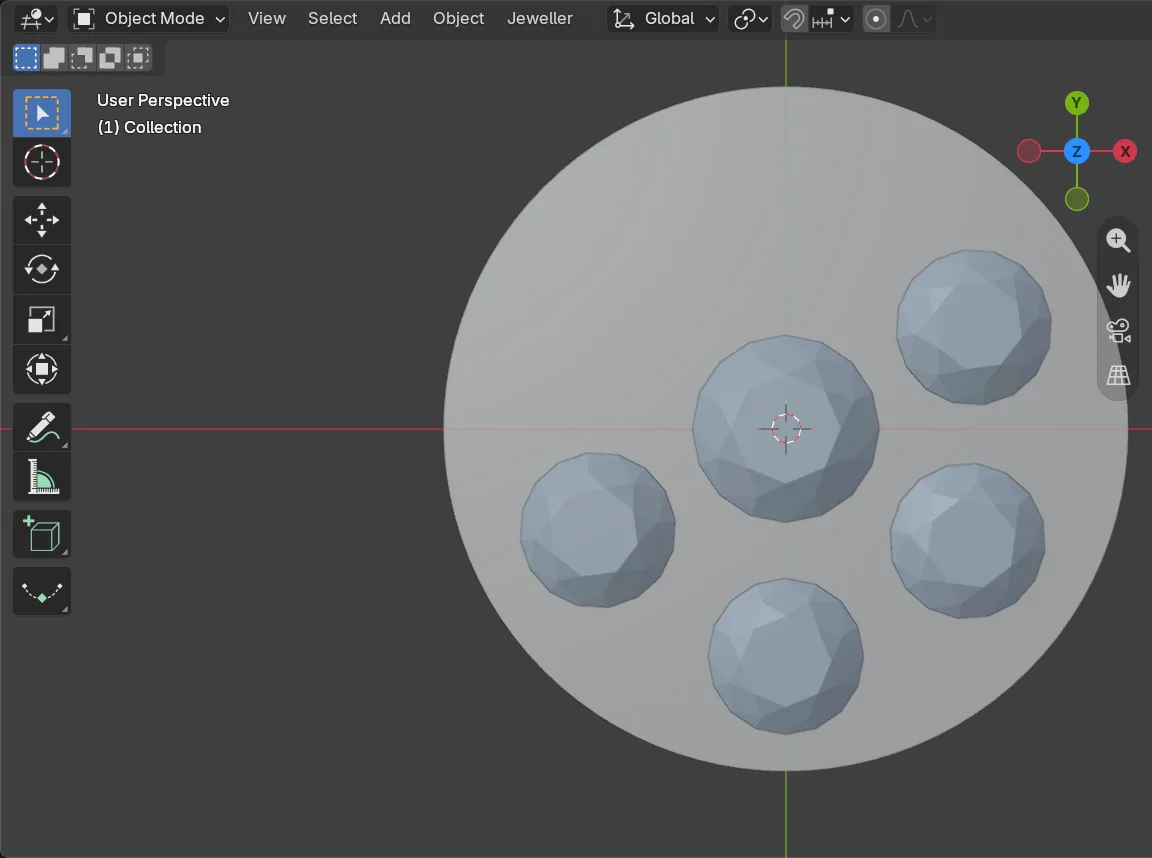
Step 10. Press Re-sync
WhereThe Symmetry sub-panel: the button Re-sync, at the top beside Live. Scroll the sidebar up to it.
DoPress Re-sync, then click the petal at the lower left.
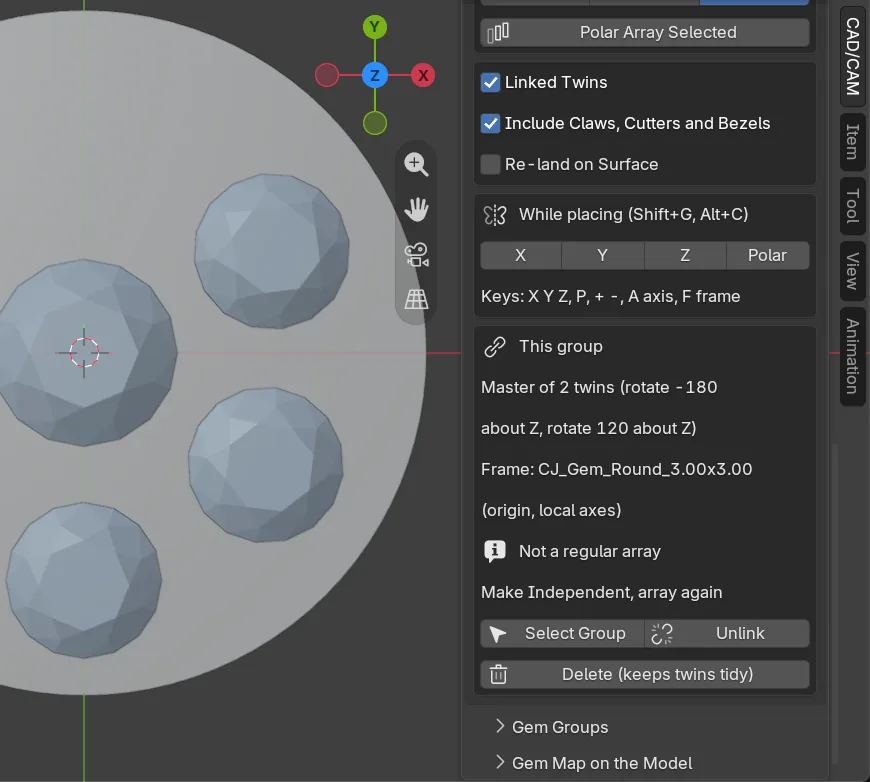
You should seeThe status bar says for a moment what it did: “Re-sync: 0 stray cleared, 0 groups repaired, 0 twins rebuilt, 0 removed, 0 moved”. Nothing was repaired. Scroll the sidebar down to the box This group: for the petal at the lower left it reads “Twin of CJ_Gem_Round_2.50x2.002”, the name of the petal you deleted in step 9, and “Not a regular array”. The three petals still name a master that has gone, and Re-sync does not mend that here. Delete a master with Delete (keeps twins tidy), as in step 7.
It worked whenThe box This group reads “Twin of CJ_Gem_Round_2.50x2.002”.
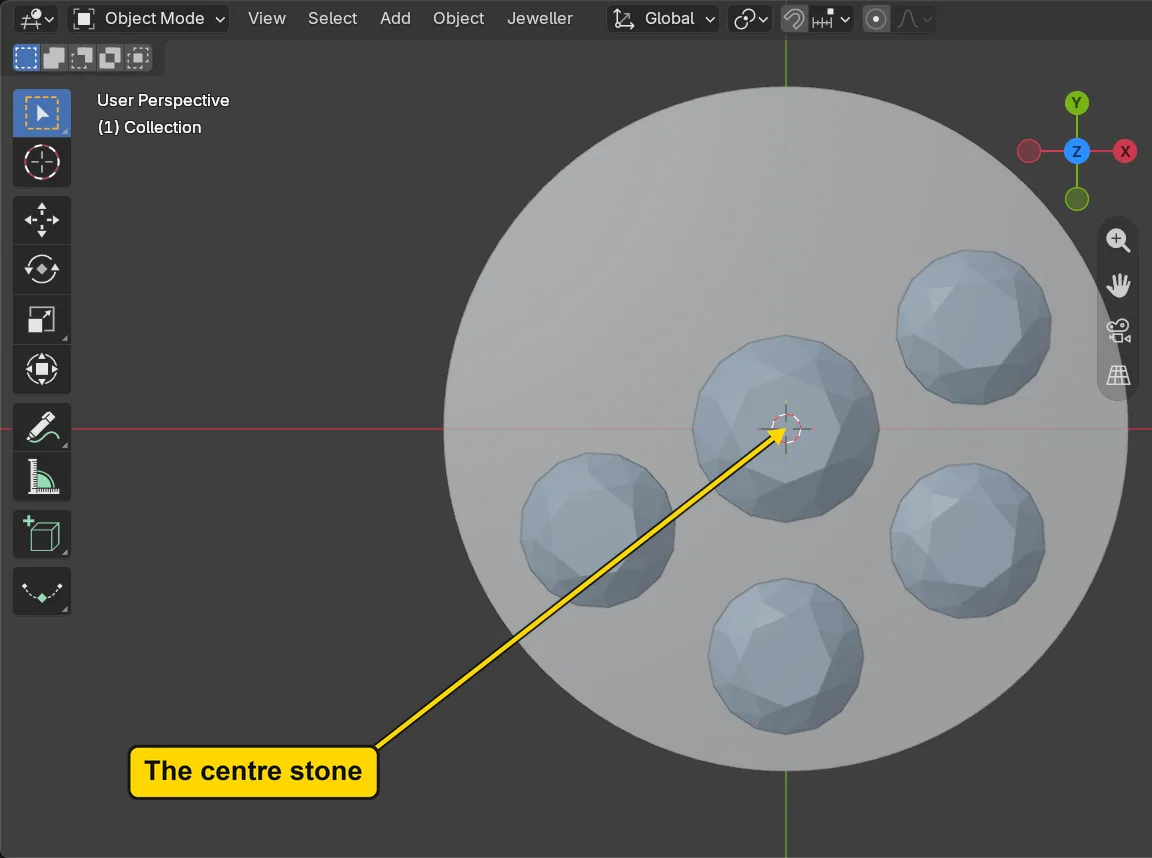
Step 11. Save your work
WhereThe 3D view: move the pointer over it.
DoPress Ctrl+S.
You should seeBlender writes your copy at once, with no question, because the file already has a name. An asterisk, *, in the title bar marks changes that are not saved, and it goes now. Save your work and get it back (P0-12) says more about saving.
It worked whenThe title bar begins my-twins and carries no asterisk.
No picture: the only change is a message on the status bar, and it fades.
Check your result
| What to read | Where | What it should say |
|---|---|---|
| The twins that follow | The Symmetry sub-panel, the box This group, with the petal at the upper left selected, at step 7 | “Master of 3 twins” |
| The petal that was set free | The box This group, with the freed petal at the bottom selected | “The active item is not in a group” |
| The petals’ distance from the middle | The 3D view, from above, taken at step 6 | 3.25 mm for the petals that follow and 3.65 mm for the freed one |
| The petals that remain | The 3D view, from above, after step 10 | Four petals stand round the centre stone: three in the group and the freed one |
| The group after Blender’s own delete | The box This group, with a petal of the group selected, at step 10 | “Twin of CJ_Gem_Round_2.50x2.002”, the petal you deleted in step 9, and “Not a regular array” |
Try it yourself
Open your copy. Click the freed petal and press Delete (keeps twins tidy): the petal goes and the others stay. Then click a petal that is still in the group and press Unlink, and read what the box This group says for it.
What you learned
- Select Group selects every member of a group, and it refuses a stone that has none: the centre stone is not copied, so it is in no group.
- Unlink sets a twin free, to be moved alone. Delete (keeps twins tidy) hands a deleted master’s group to a twin, so the rest still follow.
- Blender’s own delete of a master leaves its twins naming a master that has gone, and Re-sync does not mend that here: delete a master with Delete (keeps twins tidy).