
What you will make
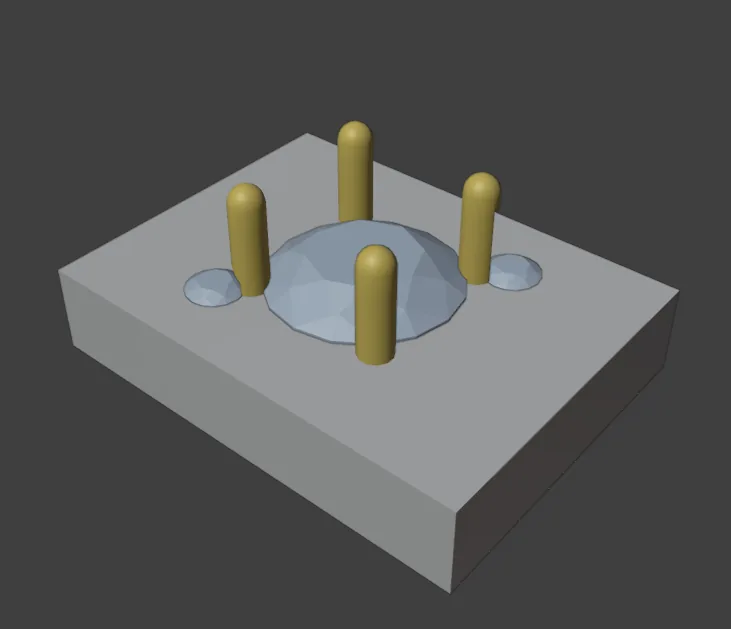
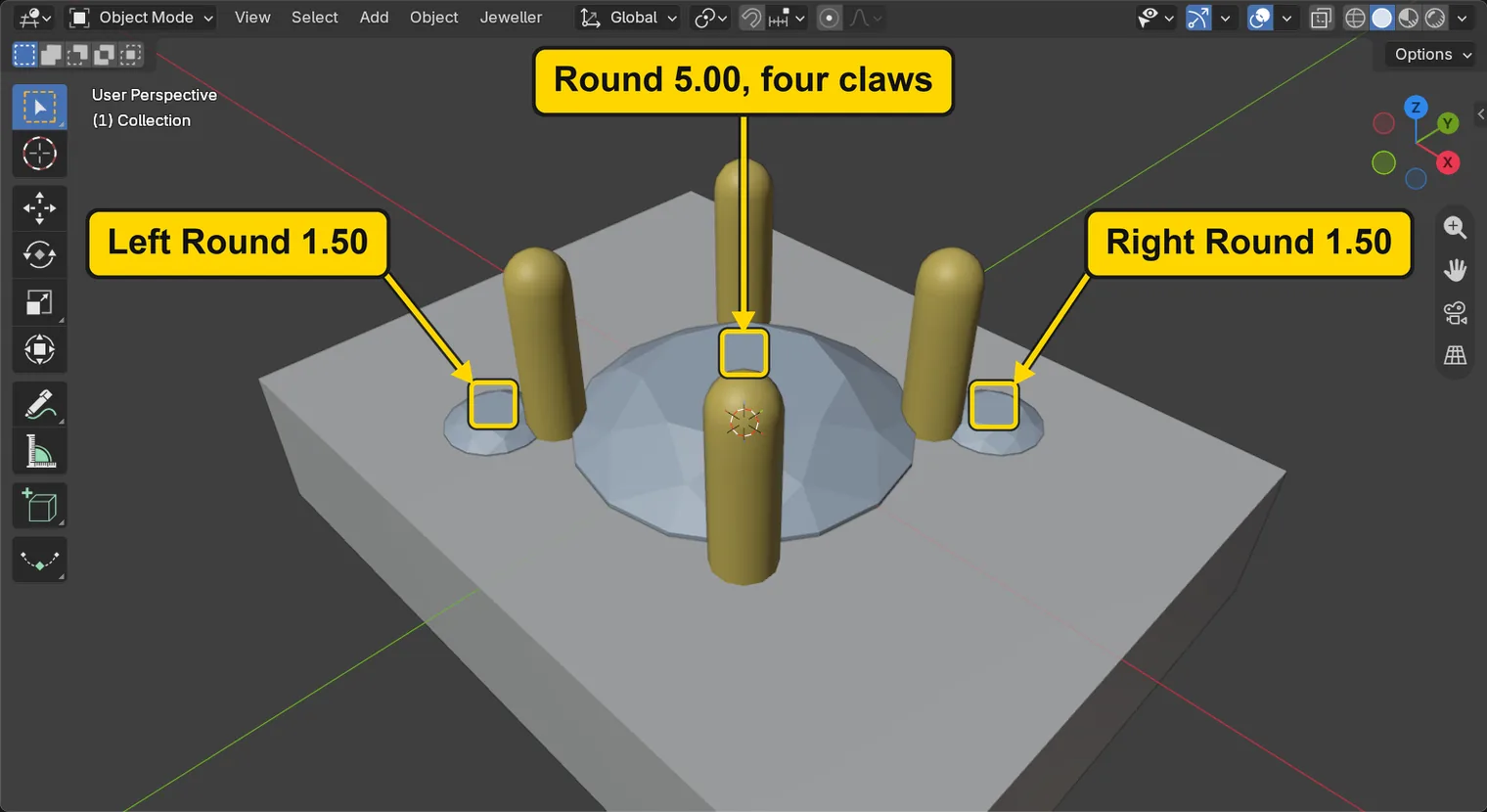
A seat run-out is a way to cut a small stone’s seat so that it does not cut deeper into a neighbour’s claw than it needs to. You will cut the seats of two Round 1.50 stones, each beside the foot of a claw of a Round 5.00 (a round stone 5.00 mm across), in a plate 2.4 mm thick: the right one plain, the left one with a run-out. A section through each claw shows the difference, a flat ledge or none. These small stones are held by nothing here: this page cuts their seats only, and grains or claws would come with a head. A run-out is never used for a stone’s own claws; step 2 gives the rule.
About 15 minutes.
Files
- p5-07-start.blend (139 KB): open this one to begin.
- p5-07-finished.blend (215 KB): the result, to compare with yours.
Both were made in Blender 5.2.0.
Before you start
- You have done Part 0, Blender from nothing, and Choose what lies under a seat: a divot or a hole through (P5-06): Make Cutters and Cut Metal. The start file holds a plate, a Round 5.00 in four claws and two Round 1.50 stones, in millimetres. The claws are joined to the plate, as a halo’s claws are, so that Cut Metal can cut them, and the Round 5.00’s own seat is already cut.
- CAD/CAM Jeweller 2.22.0 or later (Preferences > Add-ons shows the version).
Build it
Step 1. Open the start file and save your copy
WhereThe top bar: the row of words that begins File, Edit.
DoDownload p5-07-start.blend from Files above and open it. Then choose File > Save As and save it under the name below, in a folder of yours. Open an exercise file and keep the start file safe (P0-07) shows how.
Typemy-run-out.blend
You should seeThe 3D view shows a grey plate seen from above and to one side, with a pale round stone held by four gold claws in the middle and a small pale stone beside the foot of one claw at each end of a line across the plate. Nothing is selected. The title bar, the strip above File and Edit, begins my-run-out.
It worked whenThe title bar, the strip above File and Edit, begins my-run-out.
Step 2. Open Cutters & Seats and find the Seat Run-Out box
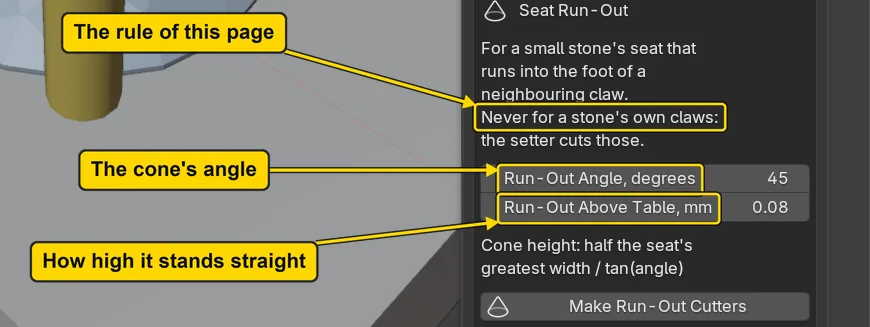
WhereThe sidebar. If it is shut, press N with the pointer over the 3D view. In the section bar, click Setting, fold Stone Settings by clicking its title once, then click the title of Cutters & Seats and scroll down to the box Seat Run-Out.
DoOpen Cutters & Seats and scroll to the box Seat Run-Out.
You should seeA box with two sentences, “For a small stone’s seat that runs into the foot of a neighbouring claw” and “Never for a stone’s own claws: the setter cuts those”. Under them stand two fields, Run-Out Angle, degrees and Run-Out Above Table, mm, and the button Make Run-Out Cutters. Read the second sentence twice: it is the rule of this page. A claw is the small pin that holds a stone. Leave the two numbers as they are.
It worked whenYou can read Run-Out Angle, degrees and Make Run-Out Cutters.
Step 3. Make a plain seat for the right small stone
WhereThe 3D view: click the right small stone. Then the panel Cutters & Seats: the button Make Cutters. Scroll the sidebar (the wheel, or two fingers up or down on the touchpad) up to it.
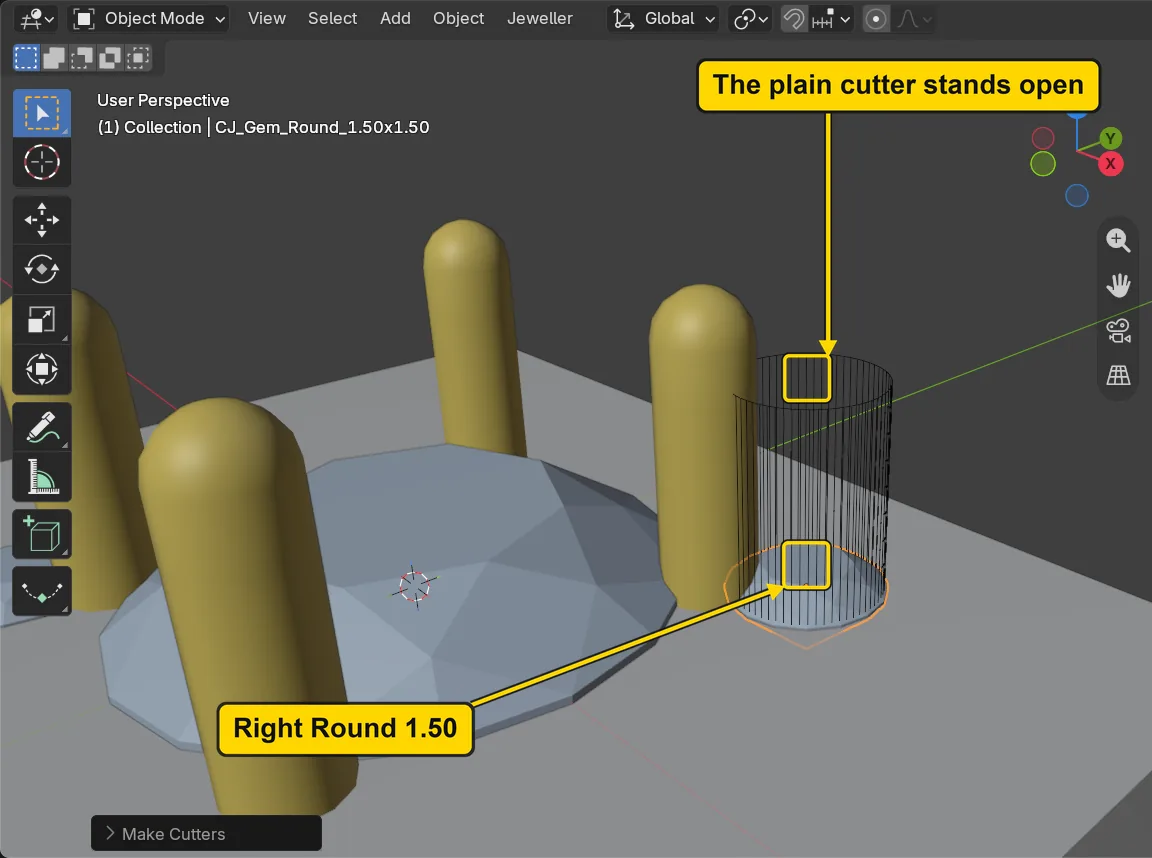
DoClick the right small stone, press Make Cutters, then orbit, that is turn the view round the plate, to see the cage as the second picture shows it.
You should seeA line at the foot of the panel, “1 cutter in CJ Cutters” (Turn, slide and zoom with no middle button, P0-05, shows how to orbit on a touchpad, and View > Frame All brings the whole plate back), and a wire cage standing up from the stone: the plain seat cutter. It stands open above the stone to 2.00 mm over the top of the plate, so it takes away whatever metal stands inside it, the foot and the shaft of the neighbour’s claw included. Nothing is cut yet. This plain seat is the trial the run-out improves on. The button just under the one you pressed, Make Run-Out Cutters, is the next step’s: the first picture marks both.
It worked whenThe line “1 cutter in CJ Cutters” stands at the foot of the panel.
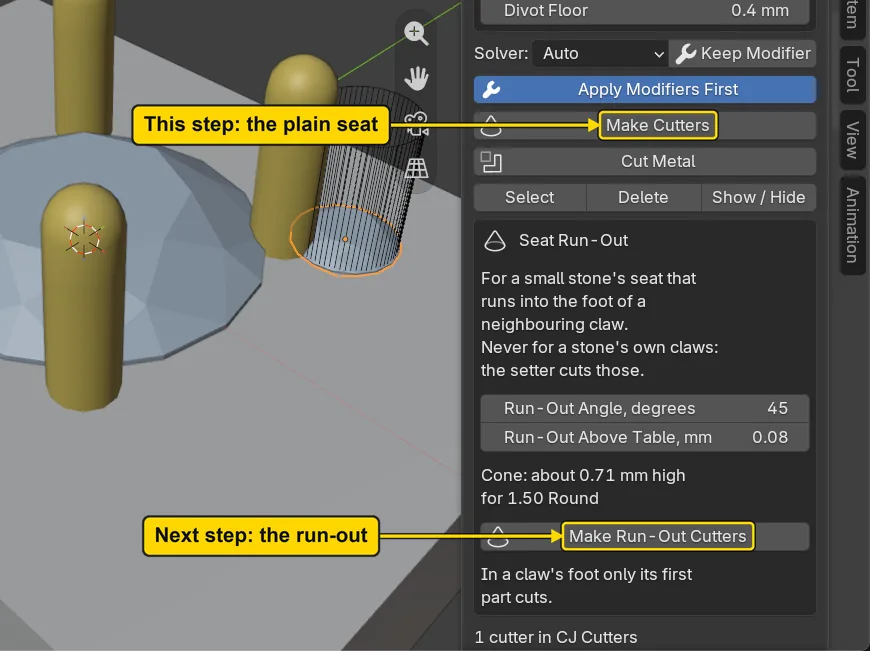
If it goes wrongThe status bar says “Select one or more gems first”: no stone is selected. Click the right small stone, then press Make Cutters again.
If it goes wrongThe orange outline is round the plate or the Round 5.00: you clicked the wrong thing. Click the small stone at the upper right of the plate, then press Make Cutters again.
Step 4. Make a run-out seat for the left small stone
WhereThe 3D view: click the left small stone. Then the panel Cutters & Seats: the button Make Run-Out Cutters, in the box Seat Run-Out.
DoClick the left small stone, then press Make Run-Out Cutters.
You should seeThe box reads “1 run-out cutter made”, “The cone stands 0.71 mm high” and “Then Cut Metal”. The foot of the panel reads “2 cutters in CJ Cutters”. The new cutter is a cage that stands straight to a little above the stone, 0.08 mm over its table, and then closes as a cone at 45 degrees: its top is 1.04 mm over the plate, where the plain cutter’s is 2.00. Press it on a small stone only, never on the Round 5.00.
It worked whenThe box Seat Run-Out reads “1 run-out cutter made”.

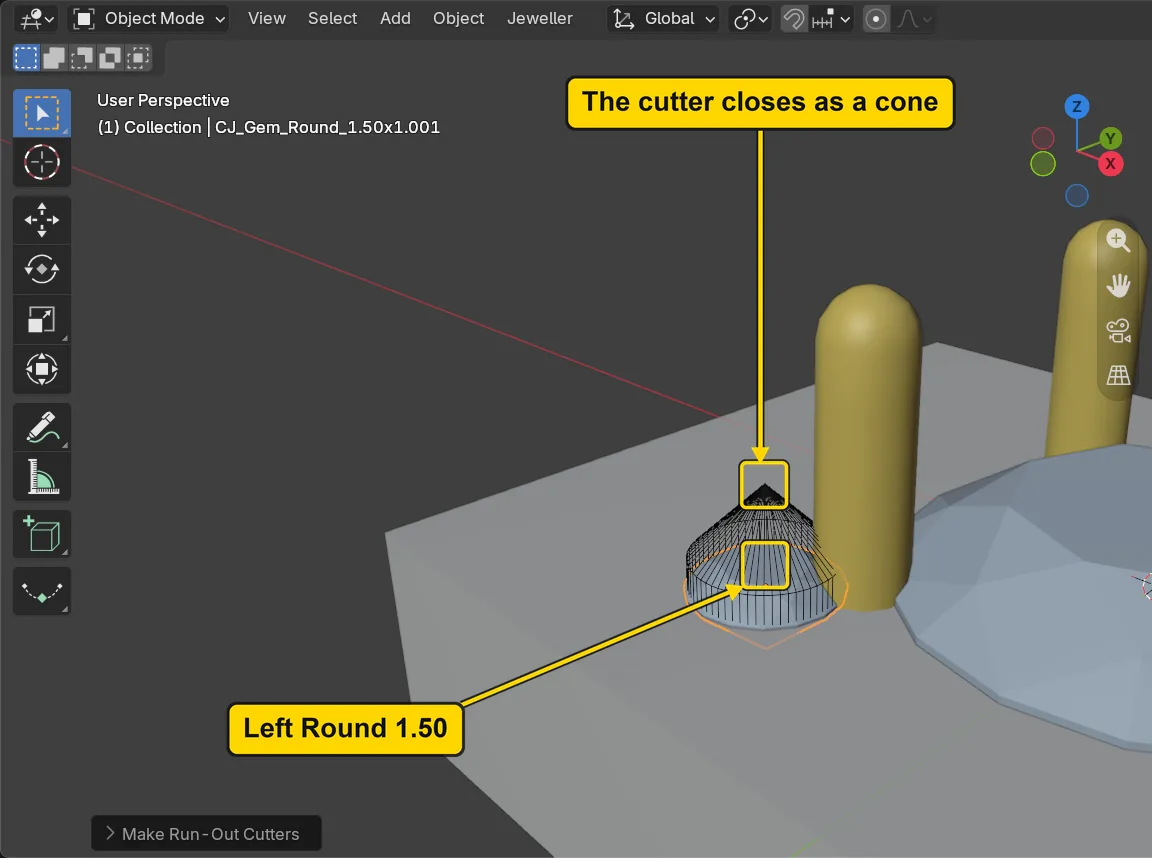
If it goes wrongThe status bar says “Select one or more gems first”: no stone is selected. Click the left small stone, then press Make Run-Out Cutters again.
If it goes wrongThe orange outline is round the Round 5.00 and not the small stone: you clicked the big stone. Press Make Run-Out Cutters only on the small stone at the lower left of the plate: click that one, then press the button again.
Step 5. Click the plate and press Cut Metal
WhereThe 3D view: click the plate, away from the stones. Then the panel Cutters & Seats: the button Cut Metal.
DoClick the plate near a corner, then press Cut Metal.
You should seeThe plate has an orange outline, and the status bar says “Cut 2 seats” and ends “result manifold”. Cut Metal cuts the active object, so the plate must be the one you clicked last. It cuts both seats in one go, the plain one and the run-out. The claws are part of the plate, so the seats cut into them where they meet. The Round 5.00’s own seat was cut for you before the file was saved, and its cutter was deleted (the Delete button of P5-06 step 7). Had its cutter stayed in the file, Cut Metal would have cut that seat a second time. The next step looks at the cut.
It worked whenThe plate is outlined in orange, and the foot of the panel still reads “2 cutters in CJ Cutters”.
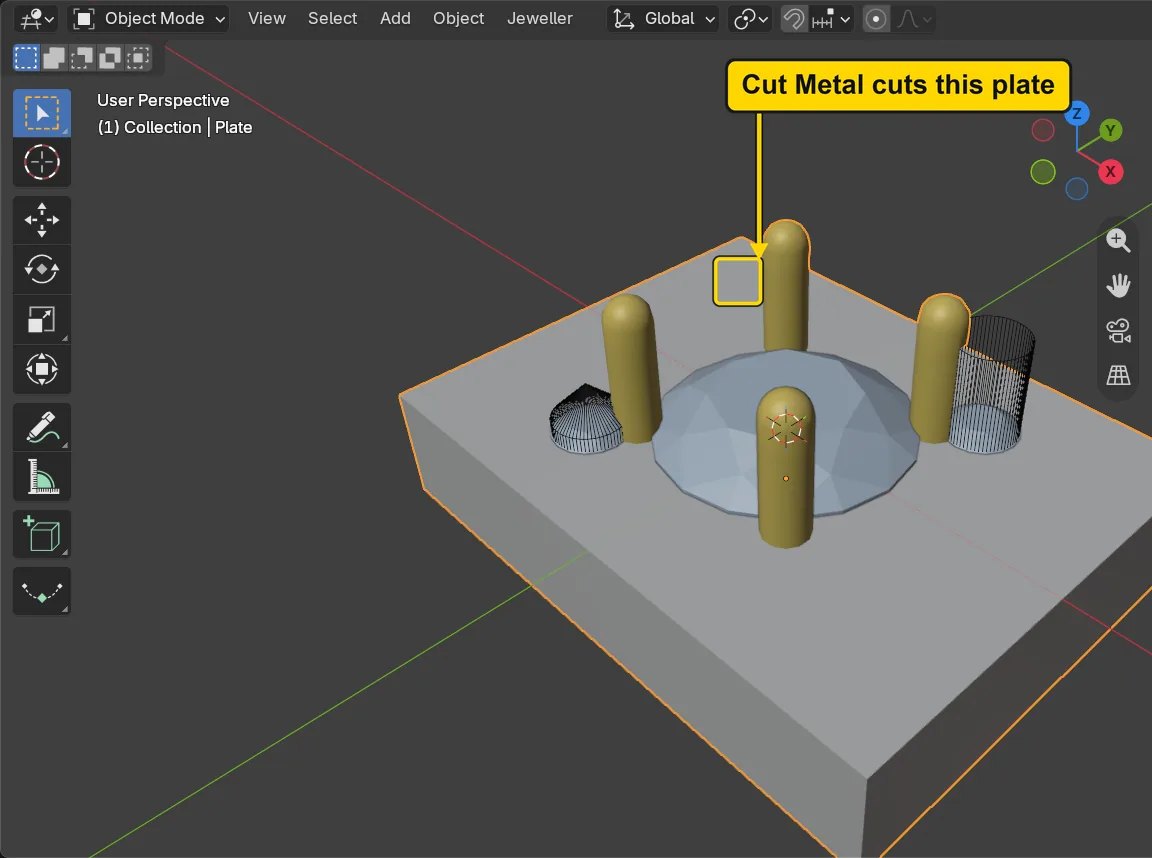
If it goes wrongThe status bar says “Make the metal object active first”: the plate is not the active object. Click it in the 3D view, then press Cut Metal again.
Step 6. Look at both seats cut through their claws
WhereThe 3D view.
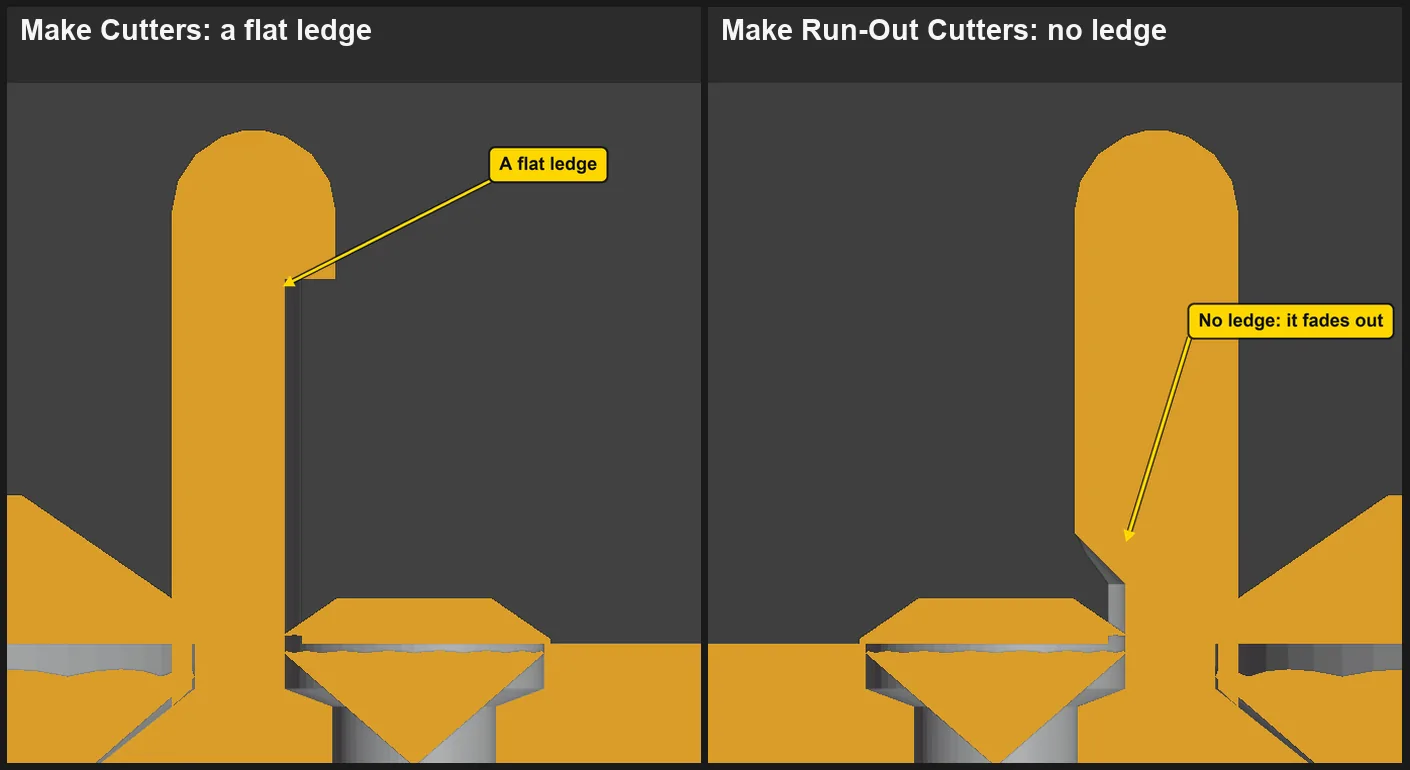
DoLook at the two pictures side by side: the plate cut through the middle of a claw and its small stone, the plain seat on the left and the run-out on the right.
You should seeOn the left the plain seat takes a notch out of the claw as high as 1.95 mm over the plate, and ends in a flat ledge. On the right the run-out cuts only to 0.55 mm and fades away: no ledge, and the claw keeps its width above. A setter would not accept the plain seat’s ledge, which is why the run-out exists. At the foot the claw keeps 0.62 mm of its 0.90. It is a claw of the Round 5.00, and 0.62 is over the bench’s least for a claw shared by two stones (0.45) and for one stone (0.35), and over the Standards Check’s own least, 0.60 (P3-08).
It worked whenThe pictures show a ledge on one claw and none on the other.
Step 7. Save your work
WhereThe 3D view: move the pointer over it.
DoPress Ctrl+S.
You should seeBlender writes your copy at once, with no question, because the file already has a name. An asterisk, *, in the title bar marks changes that are not saved, and it goes now. Save your work and get it back (P0-12) says more about saving.
It worked whenThe title bar begins my-run-out and carries no asterisk.
No picture: the only change is a message on the status bar, and it fades.
Check your result
| What to read | Where | What it should say |
|---|---|---|
| The run-out result | The CAD/CAM tab, Setting section, Cutters & Seats panel, the box Seat Run-Out, under its button | “1 run-out cutter made” and “The cone stands 0.71 mm high” |
| The run-out’s two numbers | The same box, the two fields | Run-Out Angle, degrees reads 45 and Run-Out Above Table, mm reads 0.08 |
| The cutters | The same panel, at its foot | The line “2 cutters in CJ Cutters”: one for each small stone, and none for the Round 5.00 |
| The notch in each claw | Step 6’s pictures: your plate cut through each claw, for the picture only | The plain seat cuts 1.95 mm up the claw and stops in a ledge; the run-out cuts 0.55 mm up and fades |
| What the claw keeps | Step 6’s pictures | The claw keeps 0.62 mm of its 0.90 across at its foot, over 0.60 |
Try it yourself
Open your copy again. Click the left small stone, change Run-Out Angle, degrees to 60 and press Make Run-Out Cutters once more: the cone stands 0.41 mm high instead of 0.71, since a wider angle makes a lower cone. Press Cut Metal with the plate clicked last. Do not press Make Run-Out Cutters with the Round 5.00 selected: its claws are its own.
What you learned
- Make Cutters cuts a seat whose top stands open for 2 mm above the stone, so a neighbour’s claw loses a notch up to that height and keeps a flat ledge. Make Run-Out Cutters closes the top as a cone and cuts no deeper.
- Use it for a small stone’s seat that runs into a neighbour’s claw. A stone’s own claws are never cut at its own girdle: the setter does that at the bench, from the stone’s final place.
- Make the plate active and press Cut Metal once for every seat. Clear a big stone’s seat cutter once its seat is cut, or Cut Metal will cut it again. Open the back under a field of stones (P5-08) is next.
Next: Open the back under a field of stones with Azure Cutters