
What you will make
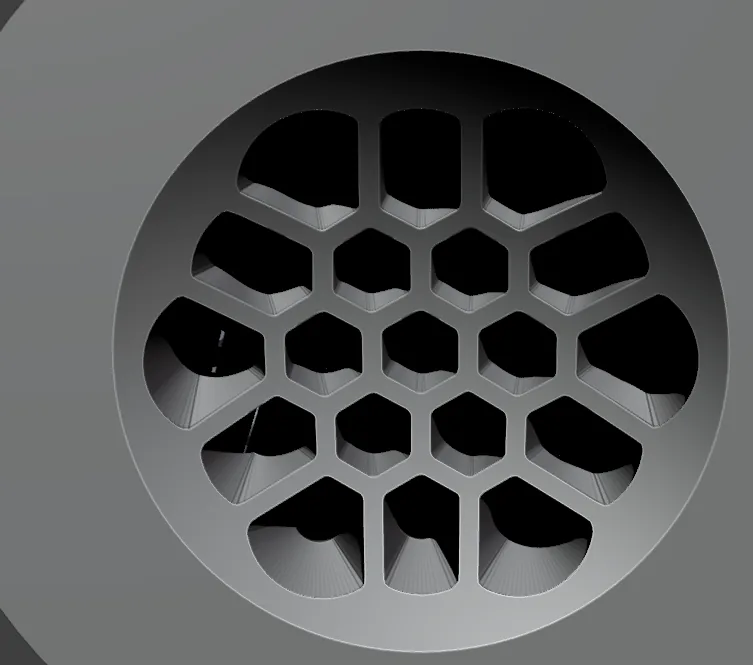
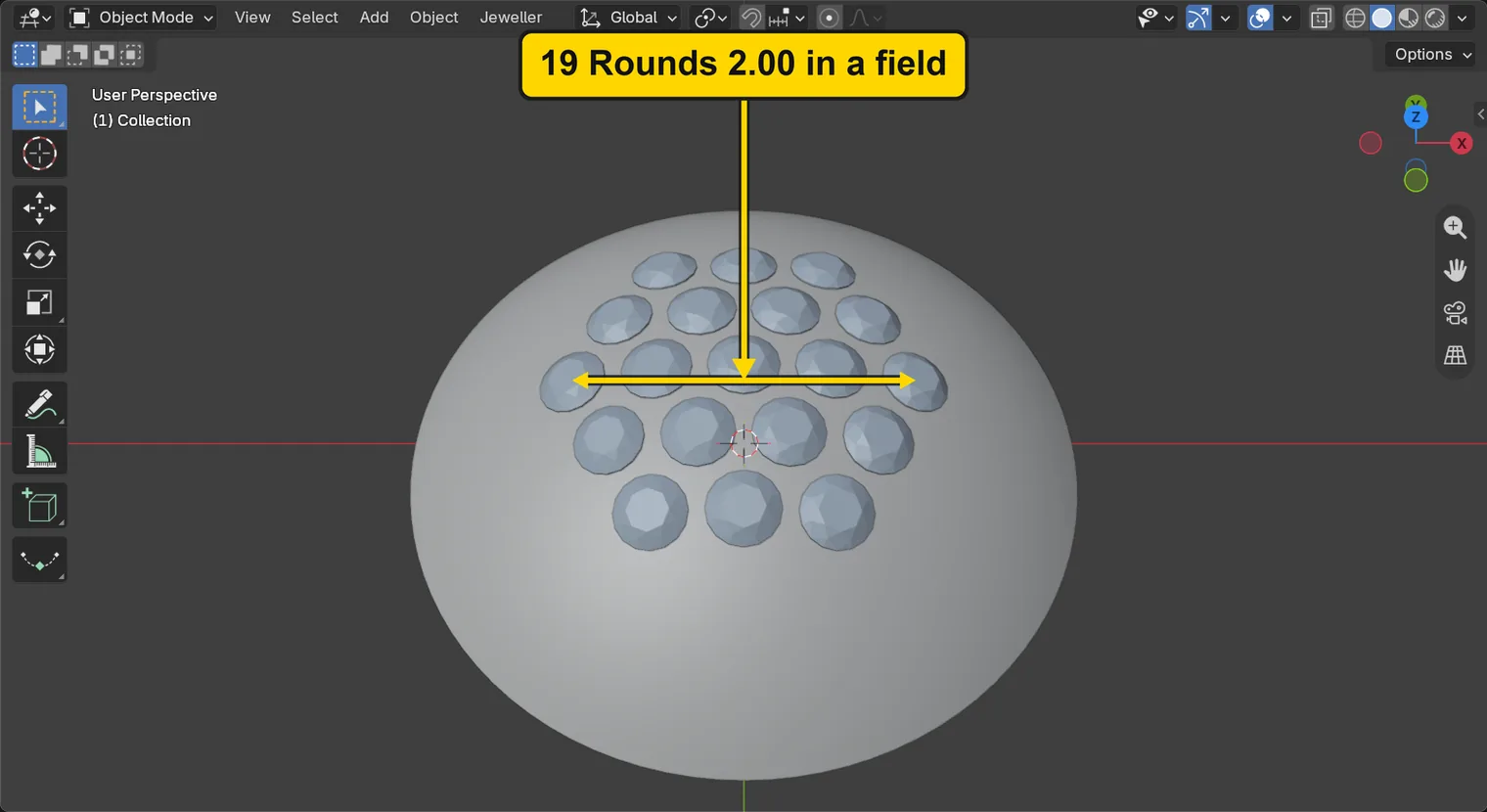
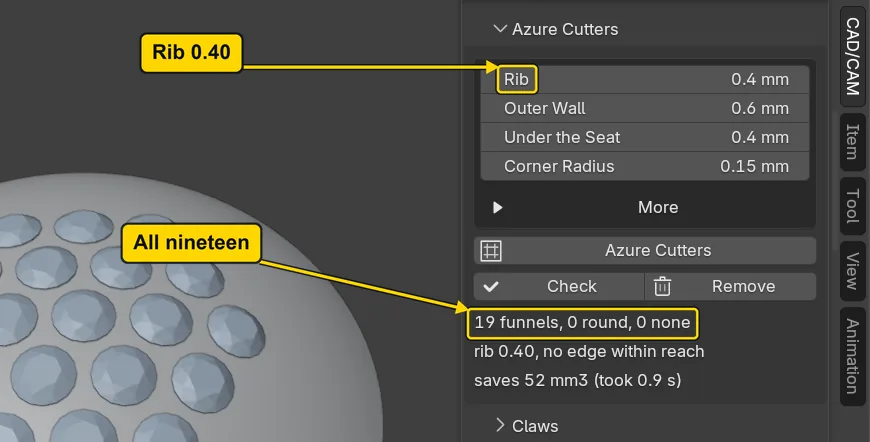
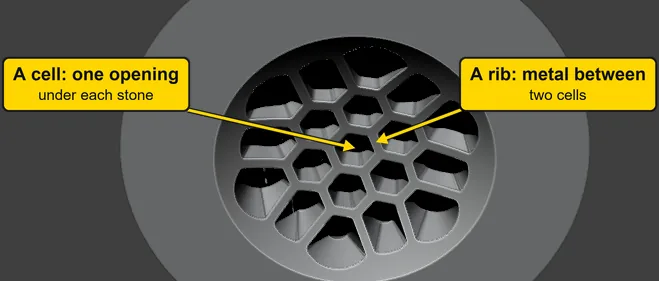
A soft dome 20 mm across and 4 mm high, hollow like a shell with metal 2.4 mm thick, carrying 19 Round 2.00 stones in a hexagonal field. A Round 2.00 is a round stone 2.00 mm across. You open the back under the stones. Azure is the bench word for an opening cut from the back so that light reaches a stone. Each stone gets a funnel, an opening that widens from the hole under its seat to its own cell, the six-sided opening on the underside. The cells share the back like a honeycomb, with a rib, the bar of metal between two openings, of 0.40 mm between neighbours. The line under the button reads “19 funnels, 0 round, 0 none”: the add-on’s verdict for the field, one of funnel, round or none for each stone, and it says why. These stones have seats only. Nothing holds them yet: grains or claws would come later, and this page only opens the back. A rib of 0.40 is a drill form’s figure, under the 0.60 least for metal that carries load. Nothing on this dome carries load, and a piece for a customer would not use it.
About 20 minutes.
Files
- p5-08-start.blend (270 KB): open this one to begin.
- p5-08-finished.blend (694 KB): the result, to compare with yours.
Both were made in Blender 5.2.0.
Before you start
- You have done Part 0, Blender from nothing, and Choose what lies under a seat: a divot or a hole through (P5-06): Make Cutters and Cut Metal. The start file holds a dome and 19 Round 2.00 stones standing on it, in millimetres. The dome is a plain drill form with a thin foot: a piece for a customer needs a rim of its own.
- CAD/CAM Jeweller 2.22.0 or later (Preferences > Add-ons shows the version).
Build it
Step 1. Open the start file and save your copy
WhereThe top bar: the row of words that begins File, Edit.
DoDownload p5-08-start.blend from Files above and open it. Then choose File > Save As and save it under the name below, in a folder of yours. Open an exercise file and keep the start file safe (P0-07) shows how.
Typemy-azure-back.blend
You should seeThe 3D view shows a grey dome seen from above and in front, with nineteen small pale round stones standing on it in a hexagonal field. Nothing is selected. The title bar, the strip above File and Edit, begins my-azure-back.
It worked whenThe title bar, the strip above File and Edit, begins my-azure-back.
Step 2. Open the Azure Cutters panel
WhereThe sidebar. If it is shut, press N with the pointer over the 3D view. In the section bar, click Setting, fold Stone Settings by clicking its title once, then click the title of Azure Cutters.
DoOpen Azure Cutters and read its box of numbers.
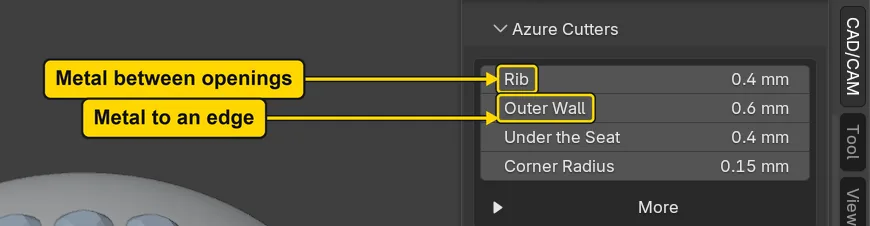
You should seeA box of four numbers, Rib 0.4 mm, Outer Wall 0.6 mm, Under the Seat 0.4 mm and Corner Radius 0.15 mm, and three buttons, Azure Cutters, Check and Remove. An azure is an opening cut from the back of the metal up to the hole under a stone, so that light reaches the stone and the back can be cleaned. A rib is the bar of metal between two openings, and a wall is the metal between an opening and an edge. Rib and Under the Seat are under the bench’s 0.60 least for metal that carries load, and Outer Wall is at it: they are the add-on’s starting numbers for a drill form like this one, and no customer’s piece should use them. Leave the numbers as they are.
It worked whenYou can read Rib and the three buttons.
Step 3. Click the dome and press Azure Cutters
WhereThe 3D view: click the dome, away from the stones. Then the panel Azure Cutters: the button Azure Cutters, under the box of numbers.
DoClick the dome, then press Azure Cutters.
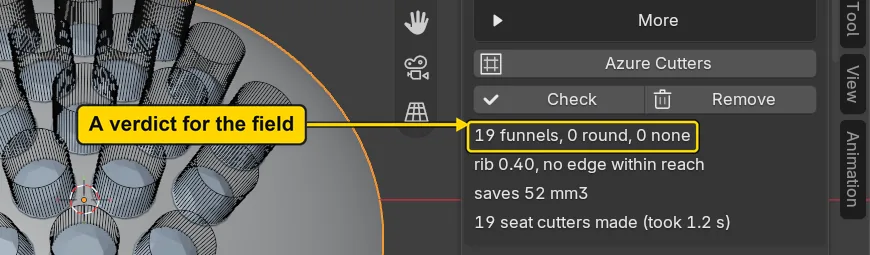
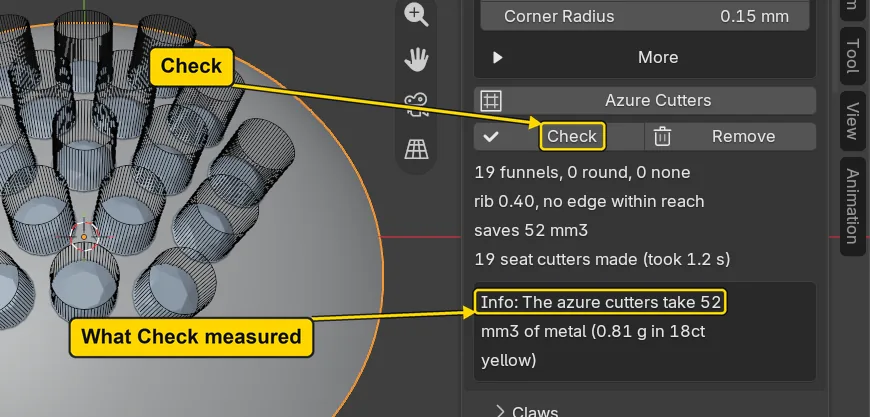
You should seeA line under the buttons, “19 funnels, 0 round, 0 none”, then “rib 0.40” and “saves 52 mm3” (mm3 is cubic millimetres: the volume of metal the cutters will take). Every stone got a funnel. The add-on first gave each stone a seat cutter, “19 seat cutters made”, and then one azure cutter under it. The dome had to be the active object, the metal. Nothing is cut yet, so you can change a number and press again: the cutters are replaced, never doubled.
It worked whenThe line under the buttons reads “19 funnels, 0 round, 0 none”.
If it goes wrongThe status bar says “Make the metal object active first”: the dome is not the active object. Click it in the 3D view, then press Azure Cutters again.
If it goes wrongThe orange outline is round a stone and not the dome: you clicked a stone. Click the dome’s grey face between the stones, or near its foot, then press Azure Cutters again.
Step 4. Press Check
WhereThe panel Azure Cutters: the button Check, beside Remove.
DoPress Check.
You should seeA box under the buttons that lists what the add-on measured in the cutters it built, worst first. Here it holds one line, “Info: The azure cutters take 52 mm3 of metal (0.81 g in 18ct yellow)”, and no warning: every stone has its funnel. 18ct yellow is the alloy the add-on weighs in until you choose another, and 0.81 g is what that volume of metal weighs in it. The box shows at most eight lines and says how many more there are.
It worked whenA box under the buttons reads “Info: The azure cutters take 52 mm3 of metal (0.81 g in 18ct yellow)”.
Step 5. Try a Rib of 0.80 and read the verdicts
WhereThe panel Azure Cutters: the field Rib, then the button Azure Cutters.
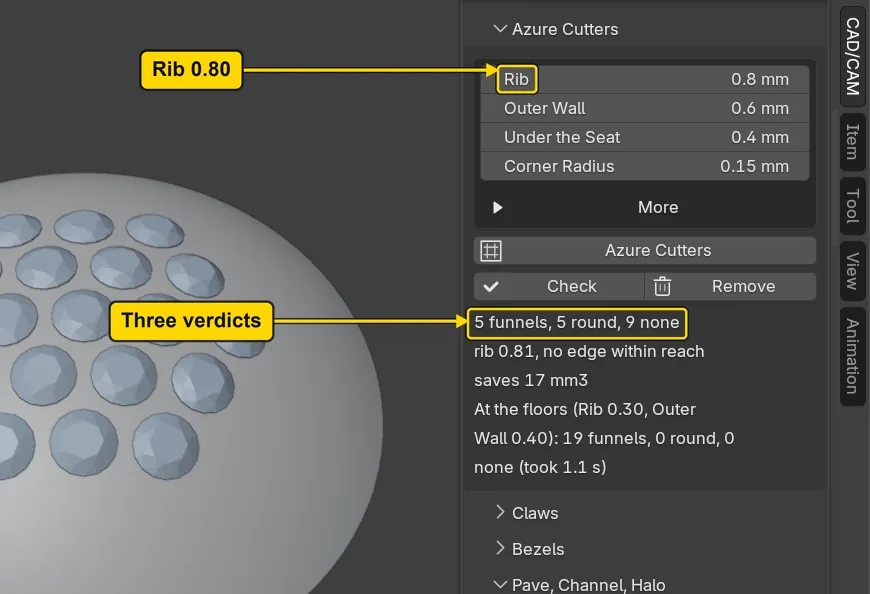
DoClick the middle of Rib, type 0.80 and press Enter, then press Azure Cutters.
You should seeThe line changes to “5 funnels, 5 round, 9 none”: a wider rib leaves less room, so only 5 stones keep a funnel, 5 fall back to a round opening the size of the hole, and 9 get no azure and keep their seat as it is. These are the three verdicts. The line also reads “rib 0.81”, the narrowest rib the cutters leave, a hair over the 0.80 you asked. Its end reads “At the floors (Rib 0.30, Outer Wall 0.40): 19 funnels, 0 round, 0 none”: the add-on reads the field once more at the smallest rib and wall it allows, and at those every stone still fits a funnel, so the nones come from the 0.80 you asked for and not from a full field. This is a trial: the next steps put it back.
It worked whenThe line under the buttons reads “5 funnels, 5 round, 9 none”.
Step 6. Press Check to read why
WhereThe panel Azure Cutters: the button Check.
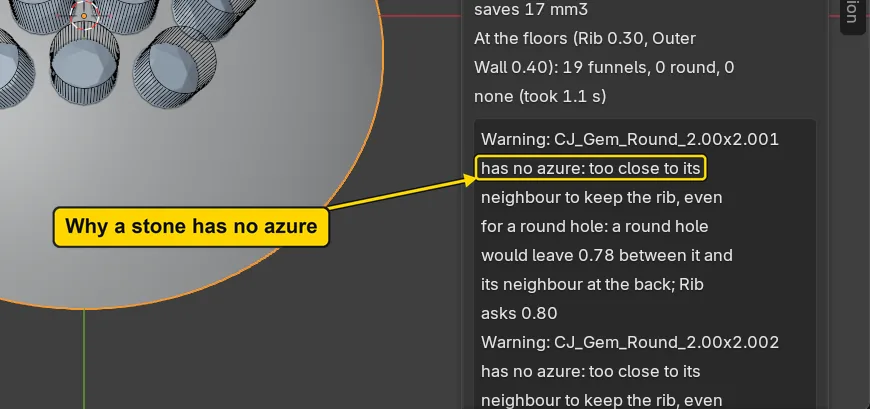
DoPress Check.
You should seeThe box now holds a line for each stone that did not get a funnel, with its reason in numbers, for example “Warning: CJ_Gem_Round_2.00x2.001 has no azure: too close to its neighbour to keep the rib, even for a round hole: a round hole would leave 0.78 between it and its neighbour at the back; Rib asks 0.80”. The box shows eight lines and then “and 7 more”. The reasons are the add-on’s own and name the rib or the wall that is too thin.
It worked whenThe box under the buttons holds warnings that give each reason.
Step 7. Press Remove
WhereThe panel Azure Cutters: the button Remove, beside Check.
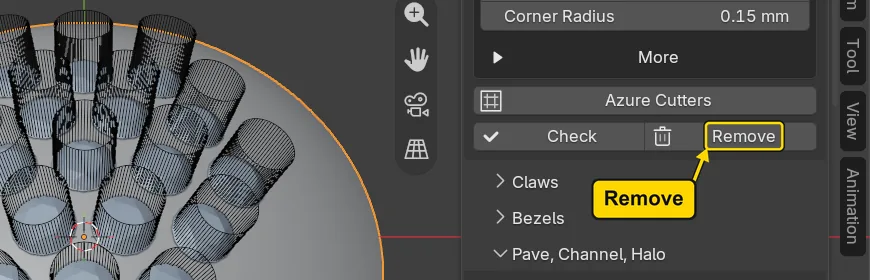
DoPress Remove.
You should seeThe azure cutters go and the line under the buttons clears. The status bar says “10 azure cutters removed” for a moment: the trial made one azure cutter for each of its 5 funnels and 5 round openings, and none for the 9 stones left alone. Remove takes away the azure cutters only: the 19 seat cutters stay, one for each stone, so the seats are still to be cut.
It worked whenThe line under the buttons is gone and the box of reasons is gone with it.

Step 8. Put Rib back to 0.40 and press Azure Cutters again
WhereThe panel Azure Cutters: the field Rib, then the button Azure Cutters.
DoClick the middle of Rib, type 0.40 and press Enter, then press Azure Cutters.
You should seeThe line reads “19 funnels, 0 round, 0 none” again, with “rib 0.40” and “saves 52 mm3”. The saving is the metal the azure cutters will take out of the back of the dome. A rib of 0.40 is the add-on’s starting number.
It worked whenThe line under the buttons reads “19 funnels, 0 round, 0 none” and Rib reads 0.4 mm.
Step 9. Open Cutters & Seats and press Cut Metal
WhereThe sidebar: fold Azure Cutters by clicking its title once, open Cutters & Seats and find the button Cut Metal. The dome is still the active object.
DoFold Azure Cutters, open Cutters & Seats and press Cut Metal.
You should seeThe status bar says that the seats and the azures are cut, and ends “result manifold”: the dome is still one closed solid. Cut Metal is the ordinary button of P5-06: it cuts the seats and the azure cutters together. The front shows nothing new: the openings are on the back.
It worked whenThe dome has an orange outline and the stones still sit in their seats.

If it goes wrongThe status bar says “Make the metal object active first”: the dome is not the active object. Click it in the 3D view, then press Cut Metal again.
Step 10. Look at the back of the dome
WhereThe 3D view.
DoClick the hollow ball of the gizmo, the one opposite the blue Z ball, and look at the dome from below. A click works on a touchpad too. The picture shows the view.
You should seeThe inside of the dome (the gizmo is the small ball of coloured letters at the top right of the 3D view: Look from the front, top and right with no number pad, P0-06, shows it; to come back, click the blue Z ball, then choose View > Frame All), seen from a little to one side, with 19 six-sided openings, one under each stone, in a honeycomb. The metal between two openings is the rib, 0.40 mm at the narrowest, and each six-sided opening is a cell. Each cell runs up to the hole under its stone. The back can be cleaned and polished, and light reaches the stones.
It worked whenYou see a honeycomb of six-sided openings in the back of the dome.
Step 11. Look at a section through the dome
WhereThe 3D view.
DoLook at the picture, which is the dome cut through its middle and seen from the front.
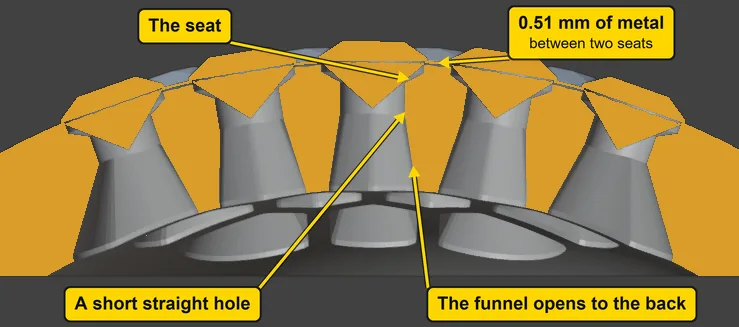
You should seeUnder each stone its seat, a short straight hole under the seat, and then the funnel that opens out to the cell on the back. The funnel widens only towards the back, so a bur or a brush reaches every face, and a band of metal stays under each seat before the funnel opens: the add-on’s Under the Seat 0.4 mm. At the top, between two neighbouring seats, only 0.51 mm of metal is left: a thin ridge, under the 0.60 least, because these stones are set 2.40 apart and a Round 2.00 with its seat, 1.90 across at the top, takes most of that. That is why nothing holds the stones yet. Grains or claws come later, and a bench would judge the metal for them then.
It worked whenUnder the Seat still reads 0.4 mm on the panel: the metal kept under a seat before the funnel opens.
Step 12. Save your work
WhereThe 3D view: move the pointer over it.
DoPress Ctrl+S.
You should seeBlender writes your copy at once, with no question, because the file already has a name. An asterisk, *, in the title bar marks changes that are not saved, and it goes now. Save your work and get it back (P0-12) says more about saving.
It worked whenThe title bar begins my-azure-back and carries no asterisk.
No picture: the only change is a message on the status bar, and it fades.
Check your result
| What to read | Where | What it should say |
|---|---|---|
| The line of the run | The CAD/CAM tab, Setting section, Azure Cutters panel, under the buttons | “19 funnels, 0 round, 0 none” and “rib 0.40” |
| The Rib field | The same panel, the box of numbers at its head | Rib reads 0.4 mm (the panel drops the zero of 0.40) |
| The metal taken out | The same panel, the line after the cutters | “saves 52 mm3” |
| The cutters | The Outliner, the list at the top right of the window: open the collection CJ Cutters | Seat cutters and azure cutters, 19 of each, still in the file |
| The metal between two seats | Step 11’s picture: your dome cut through its middle, for the picture only | 0.51 mm at the top, between the seats of two neighbouring stones |
| The back | Step 10’s picture: the dome seen from below. To look from below yourself, click the hollow ball of the gizmo, the small ball of coloured letters at the top right of the 3D view, opposite the blue Z ball | 19 six-sided openings, one under each stone, with a rib of metal between them |
Try it yourself
Open your copy again and do steps 1 to 3. Click the dome, type 0.60 in Rib and press Azure Cutters: all nineteen stones still keep a funnel. Then type 1.00 and press the button again: every stone reads none. Press Remove and set Rib back to 0.40 before you press Cut Metal.
What you learned
- Azure Cutters makes one cutter a stone, from the seat’s hole to a cell on the back, with the dome active. The line under it counts the funnels, the round openings and the stones left alone. Check says why.
- The three verdicts are a funnel, the full cell; round, a round opening the size of the hole; and none, no azure. A bigger Rib or Outer Wall turns funnels into rounds and then into none.
- Remove takes the azure cutters away and leaves the seat cutters. Cut Metal cuts seats and azures together. Sink a stone flush (P5-09) is next.