
What you will do
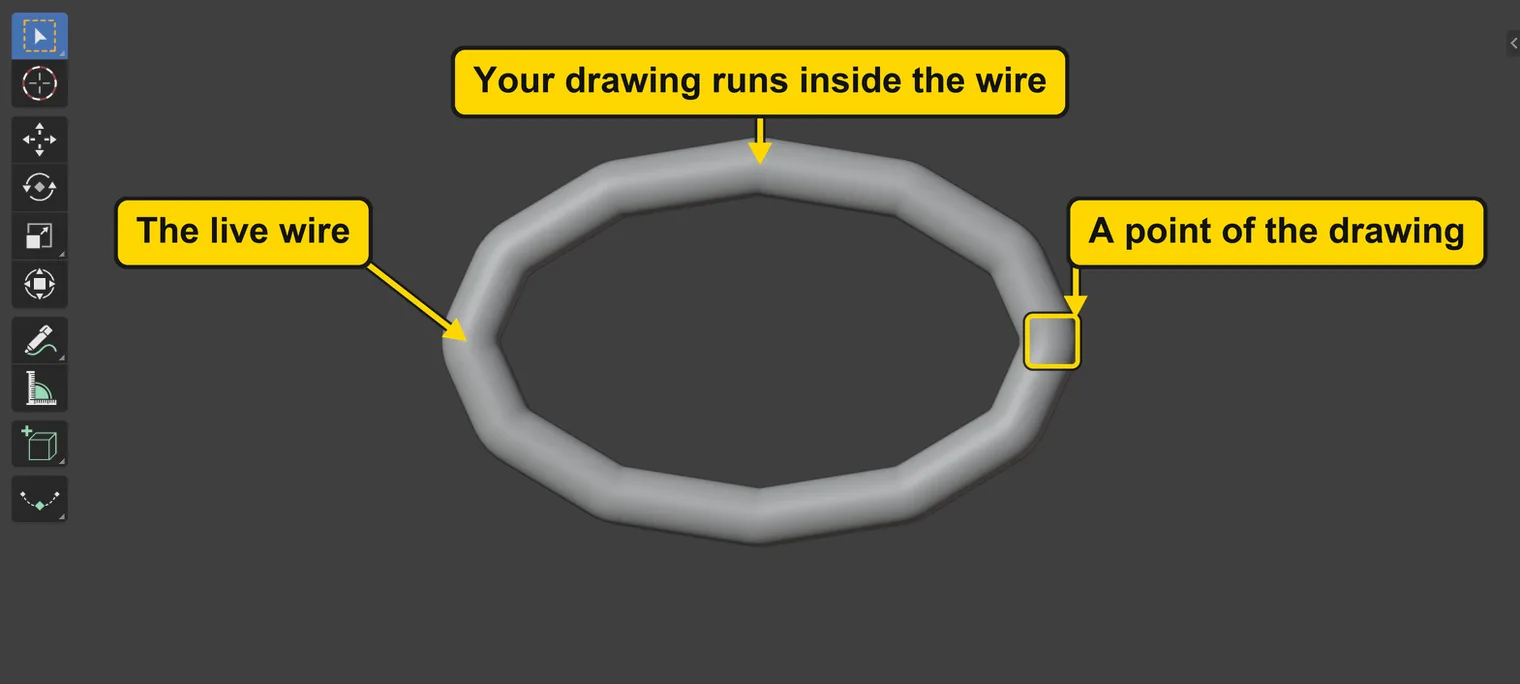
You will move a point of a drawn outline and see the wire made from it follow, then press Make Real and see the wire stop following. Most of the add-on’s tools make live metal, so this is the idea to hold on to: live follows the drawing, real does not.
About 8 minutes.
Files
- p0-21-start.blend (104 KB): open this one to begin.
- p0-21-finished.blend (173 KB): the result, to compare with yours.
Both were made in Blender 5.2.0.
Before you start
- You can go into Edit Mode and pick a point: Go into Edit Mode and pick one face (P0-14).
- You can move by a typed number: Move, turn and scale by a typed number (P0-10).
- The file is in millimetres, as the start file is: Work in millimetres (P0-20).
Build it
Step 1. Open the start file and save your copy
WhereThe top bar: the row of words that begins File, Edit.
DoDownload p0-21-start.blend from Files above and open it. Then choose File > Save As and save it under the name below, in a folder of yours. Open an exercise file and keep the start file safe (P0-07) shows how.
Typemy-live.blend
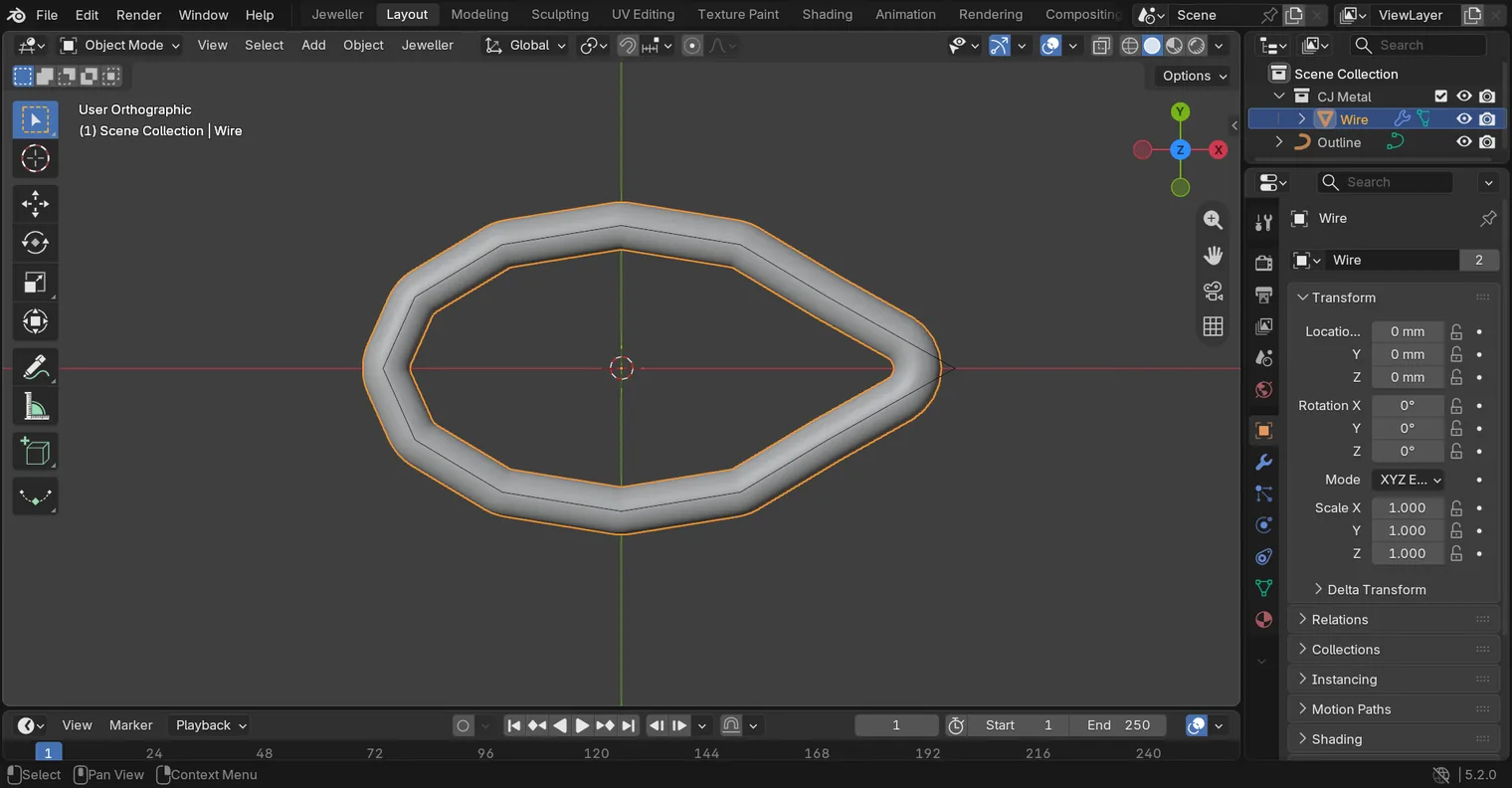
You should seeA closed outline lies on the grid, seen from above, with a round wire along it. The drawing is a closed curve, a thin line that runs down the middle of the wire, so the wire hides it: you meet its points in the next step. The wire is metal the add-on made from the drawing. The wire is live: it follows the drawing. Nothing is selected. The Outliner lists Outline and, in a collection called CJ Metal, Wire.
It worked whenThe 3D view shows a closed outline with a round wire along it.
Step 2. Go into Edit Mode on the drawing
WhereThe Outliner, then the 3D view.
DoClick Outline in the Outliner. Then press Tab with the pointer over the 3D view.
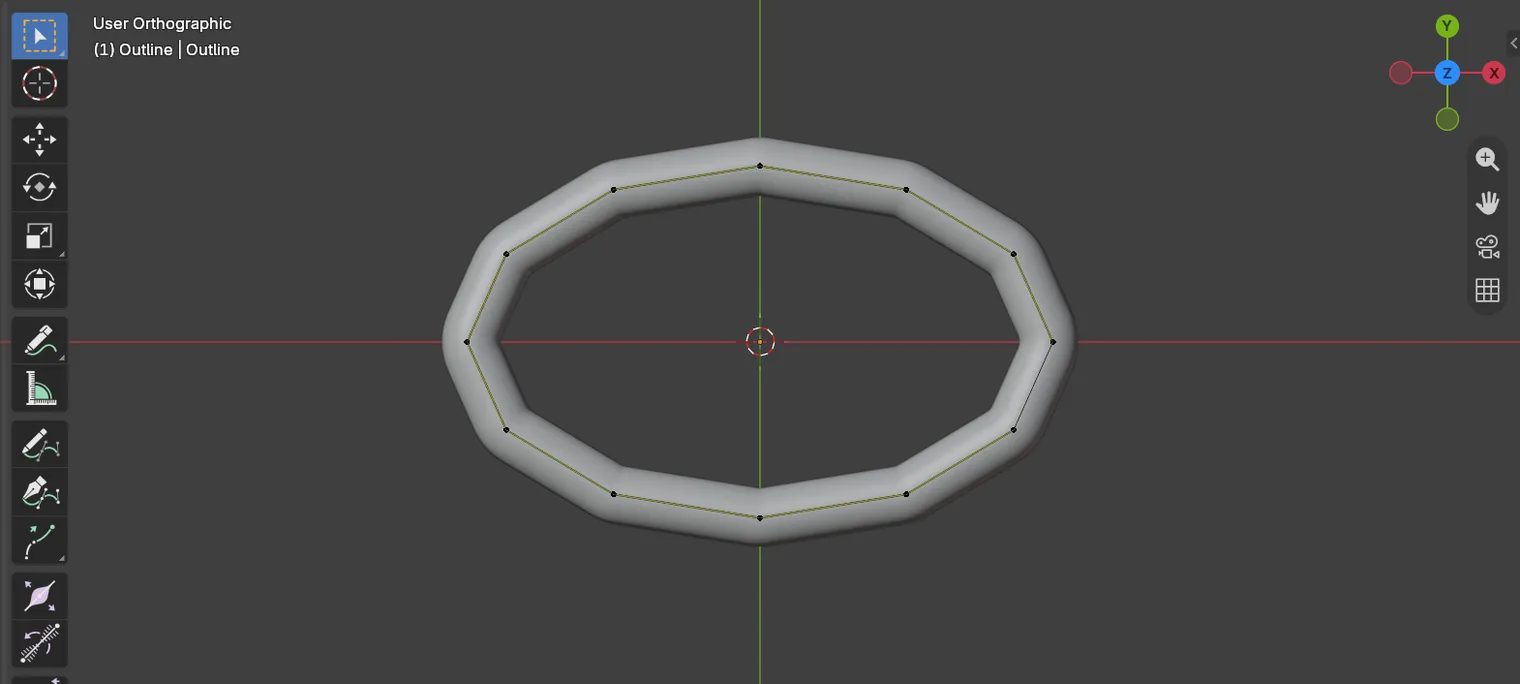
You should seeThe mode switch at the left of the header now reads Edit Mode, and the drawing shows its points, small dots round the line. This is Edit Mode, which you met on a box in P0-14.
It worked whenThe drawing shows a small dot at each of its points.
Step 3. Pick a point of the drawing
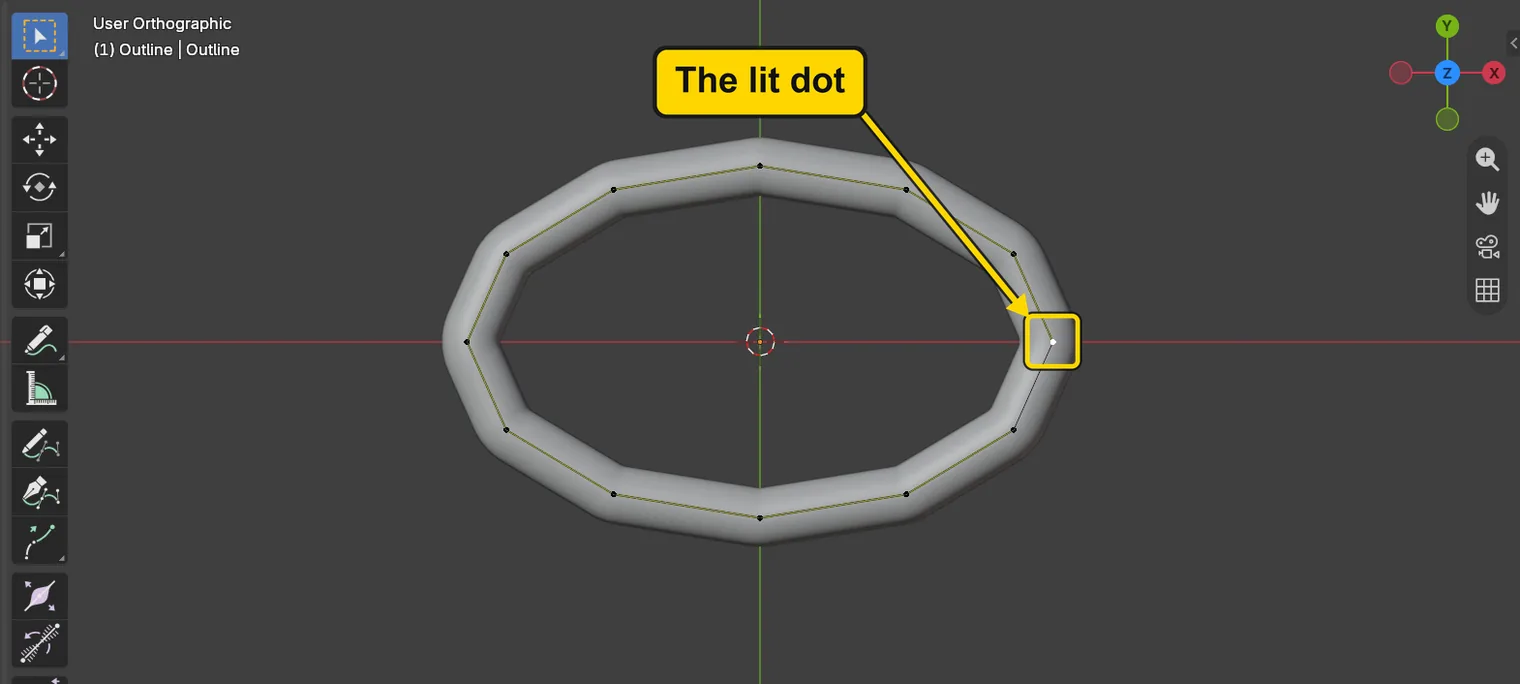
WhereThe 3D view, on the dot at the right end of the outline.
DoClick that dot: it lights. If nothing lights, click again closer to the dot.
You should seeThe dot at the right end turns white, and the others stay black. It is the point you will move.
It worked whenOne dot, at the right end of the outline, is white.
Step 4. Move the point: the wire follows
WhereThe 3D view: the pointer stays over it.
DoPress G, X, 4 and Enter.
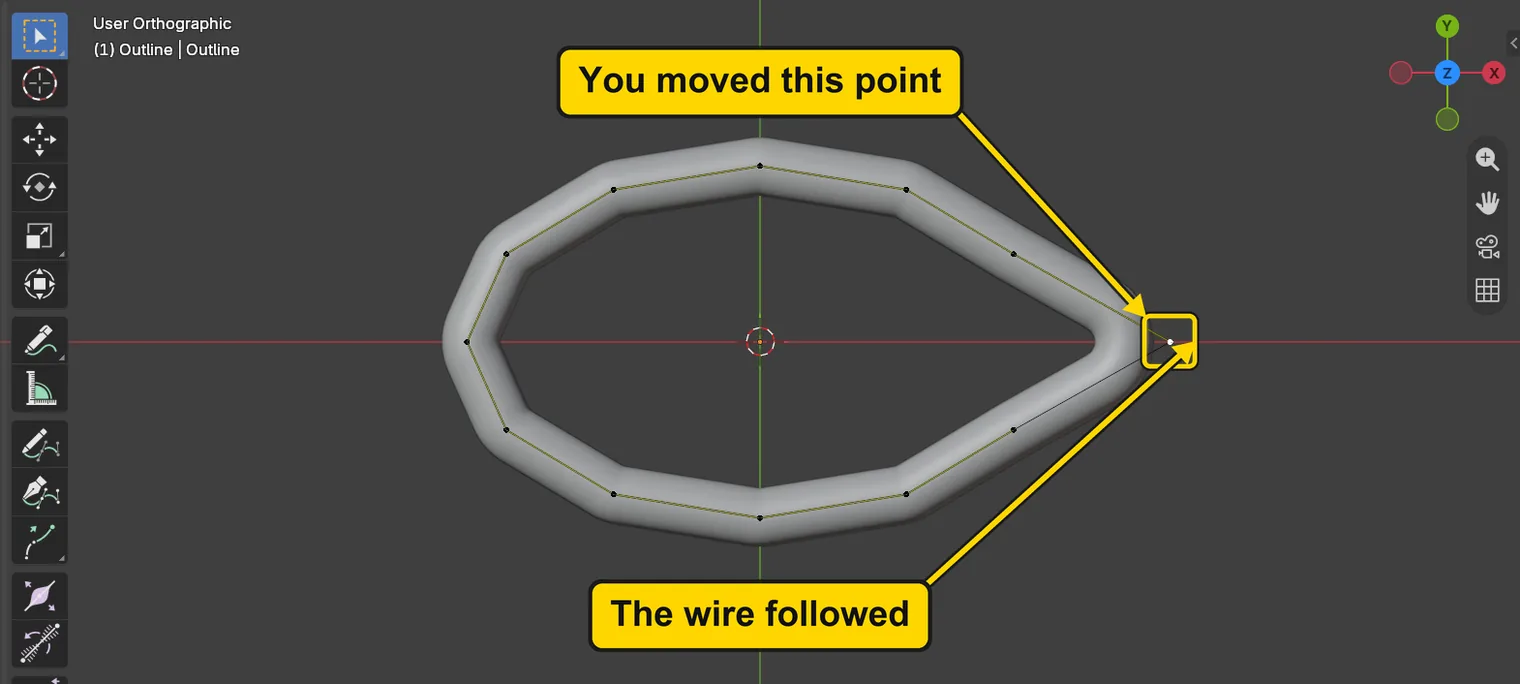
You should seeThe point slides 4 mm to the right, and a moment after the mouse is still, the wire follows. That is live.
It worked whenThe wire bulges out to the right with the drawing.
Step 5. Go back to Object Mode and pick the wire
WhereThe 3D view, then the Outliner.
DoPress Tab to leave Edit Mode. Then click Wire in the Outliner.
You should seeThe wire is selected. Next you will make it real.
It worked whenThe words at the top left of the 3D view end in Wire.
Step 6. Find Make Real
WhereThe sidebar: the CAD/CAM tab, then Metal in the section bar.
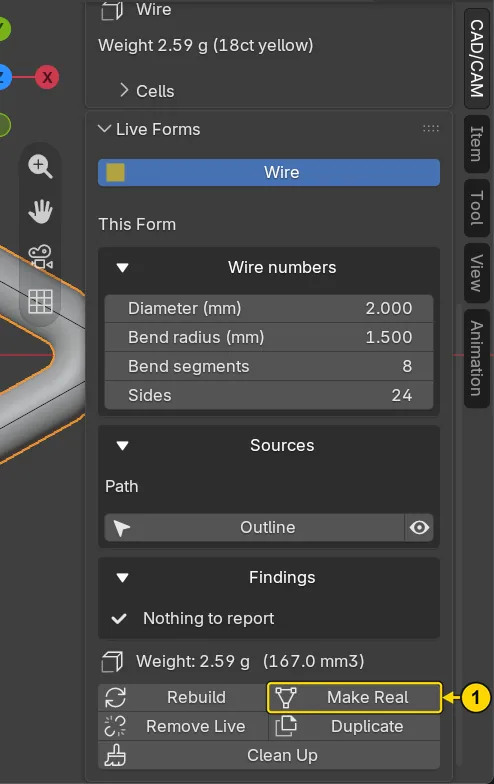
DoClick the CAD/CAM tab, then Metal. The panel Live Forms stands under the bar, with the button Make Real (marked 1).
You should seeNothing has changed yet. Make Real works on the form you picked, the wire.
It worked whenThe panel Live Forms shows the button Make Real.
Step 7. Press Make Real
WhereThe panel Live Forms.
DoPress Make Real.
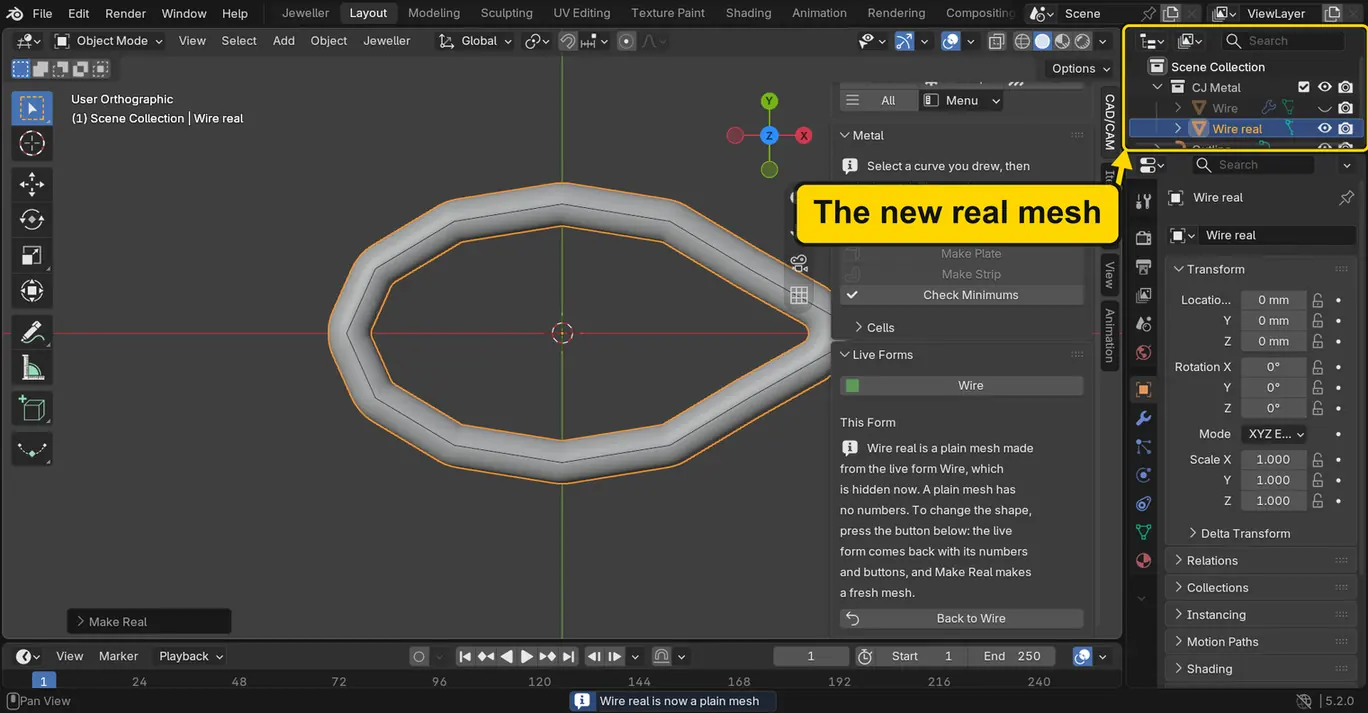
You should seeA new row appears in the Outliner, named Wire real, in CJ Metal. It is an ordinary object: the same shape as the wire, but a copy that follows nothing, with no live numbers behind it. The live wire is hidden, not deleted.
It worked whenThe Outliner lists a row named Wire real, and the eye beside Wire is closed.
Step 8. Move a point again: the mesh stays
WhereThe Outliner, then the 3D view, on the dot at the left end of the outline.
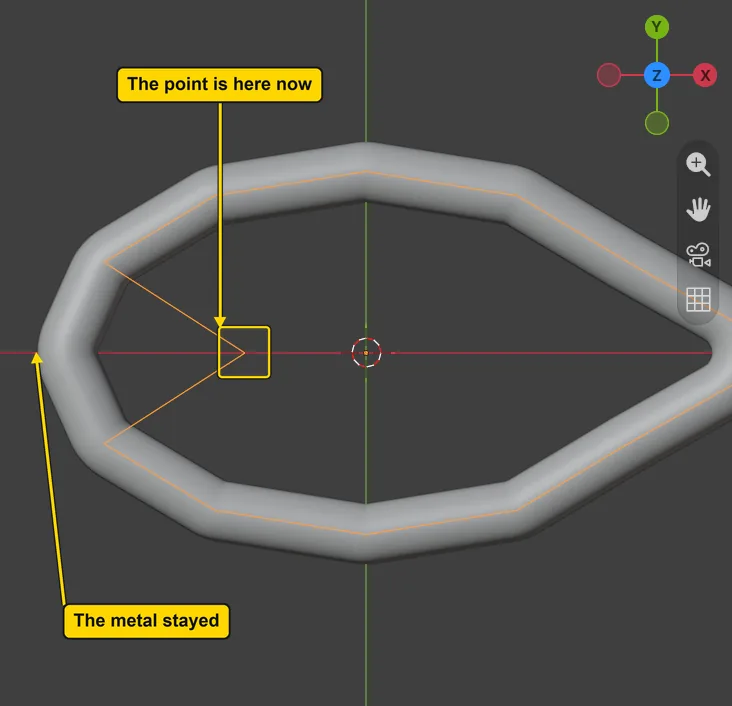
DoClick Outline in the Outliner. Move the pointer over the 3D view and press Tab. Click the dot at the left end, then press G, X, 6 and Enter.
You should seeThe point slides 6 mm to the right, in from the end of the metal. The mesh you can see does not move. It is no longer live. The hidden wire has followed the drawing, and you cannot see it.
It worked whenThe metal in the 3D view is the same shape as before you moved the point.
Step 9. Save your work
WhereThe 3D view: move the pointer over it.
DoPress Ctrl+S.
You should seeBlender saves your copy over itself, with no question, and the start file is untouched. An asterisk, *, in the title bar marks changes that are not saved, and it goes now.
It worked whenThe title bar, the strip above File and Edit, begins with the name of your copy, and no asterisk stands by it.

Check your result
| What to read | Where | What it should say |
|---|---|---|
| The wire’s size | The sidebar’s Item tab, the row Dimensions:, with the real mesh clicked in the Outliner | X reads about 24.3 mm, the size it had when you pressed Make Real |
| The real mesh | The Outliner, at the top right of the window | A row named Wire real, beside the row Wire |
| Your copy | The title bar, the strip above File and Edit | It begins my-live |
Try it yourself
Click Wire in the Outliner and look at the row of eyes: it is hidden now, and the real mesh stands in its place. Click Outline, press Tab, move the point once more with G: the hidden wire follows, and the mesh you can see does not.
What you learned
- A live form follows the drawing it came from: move a point or change a number and the metal is made again.
- Make Real gives you an ordinary object, a copy that no longer follows anything. The live form stays in the file, hidden.
- Make a form real when its numbers are right, and not before.