
What you will do
You will make the Bar exactly 25 mm long, 6 mm wide and 3 mm thick by typing into the three Dimensions fields. Almost every number in this workbook goes into a field like these.
About 5 minutes.
Files
- p0-13-start.blend (102 KB): open this one to begin.
- p0-13-finished.blend (107 KB): the result, to compare with yours.
Both were made in Blender 5.2.0.
Before you start
- You can open a file and save a copy of it: Open an exercise file and keep the start file safe (P0-07).
- You can select a form with a click: Select, add to the selection, clear it, spot the active one (P0-08).
- The file is in millimetres, so every number you type here is millimetres.
Build it
Step 1. Open the start file and save your own copy
WhereThe top bar: the row of words that begins File, Edit.
DoDownload p0-13-start.blend from Files above and open it. Then choose File > Save As and save it under the name below, in a folder of yours. Open an exercise file and keep the start file safe (P0-07) shows how.
Typemy-field.blend
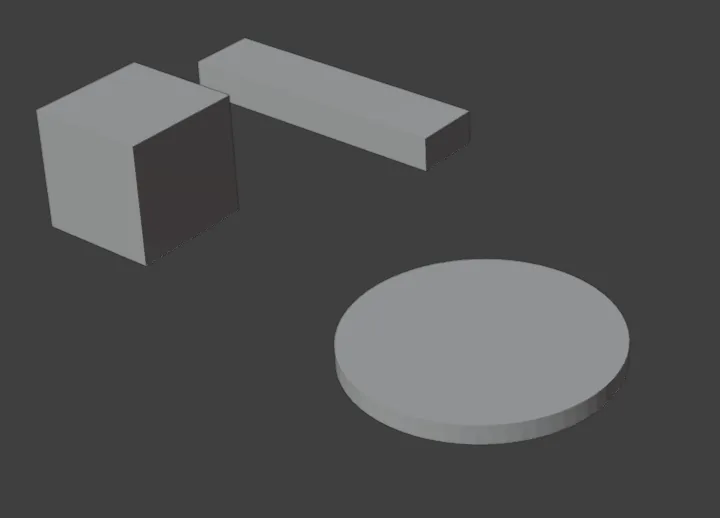
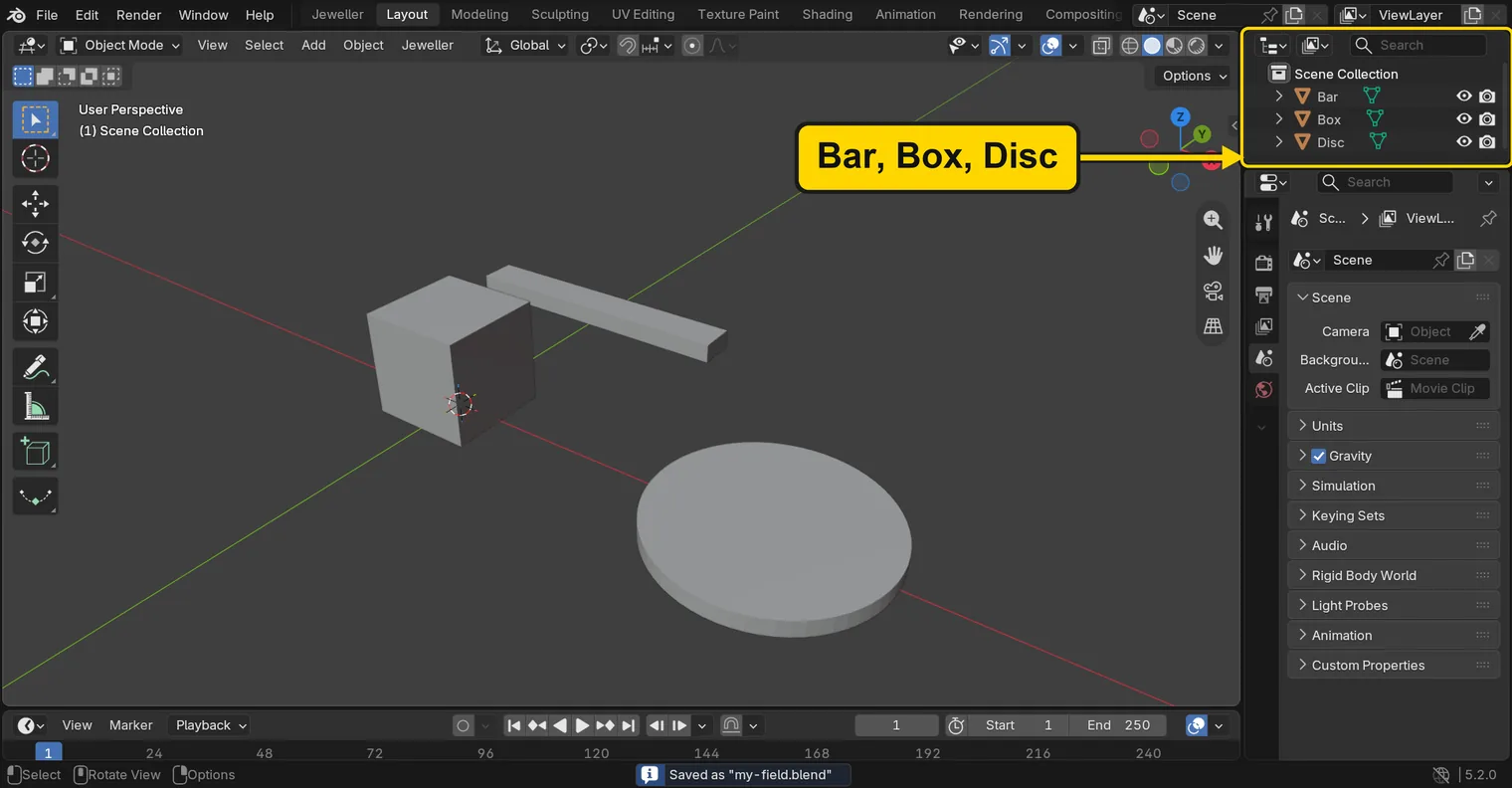
You should seeThe 3D view shows a box, a bar and a disc. The Outliner, the list at the top right of the window, lists Bar, Box and Disc, and the title bar, the strip above File and Edit, begins my-field.
It worked whenThe title bar begins my-field.
Step 2. Select the Bar
WhereThe 3D view: the long bar behind the box.
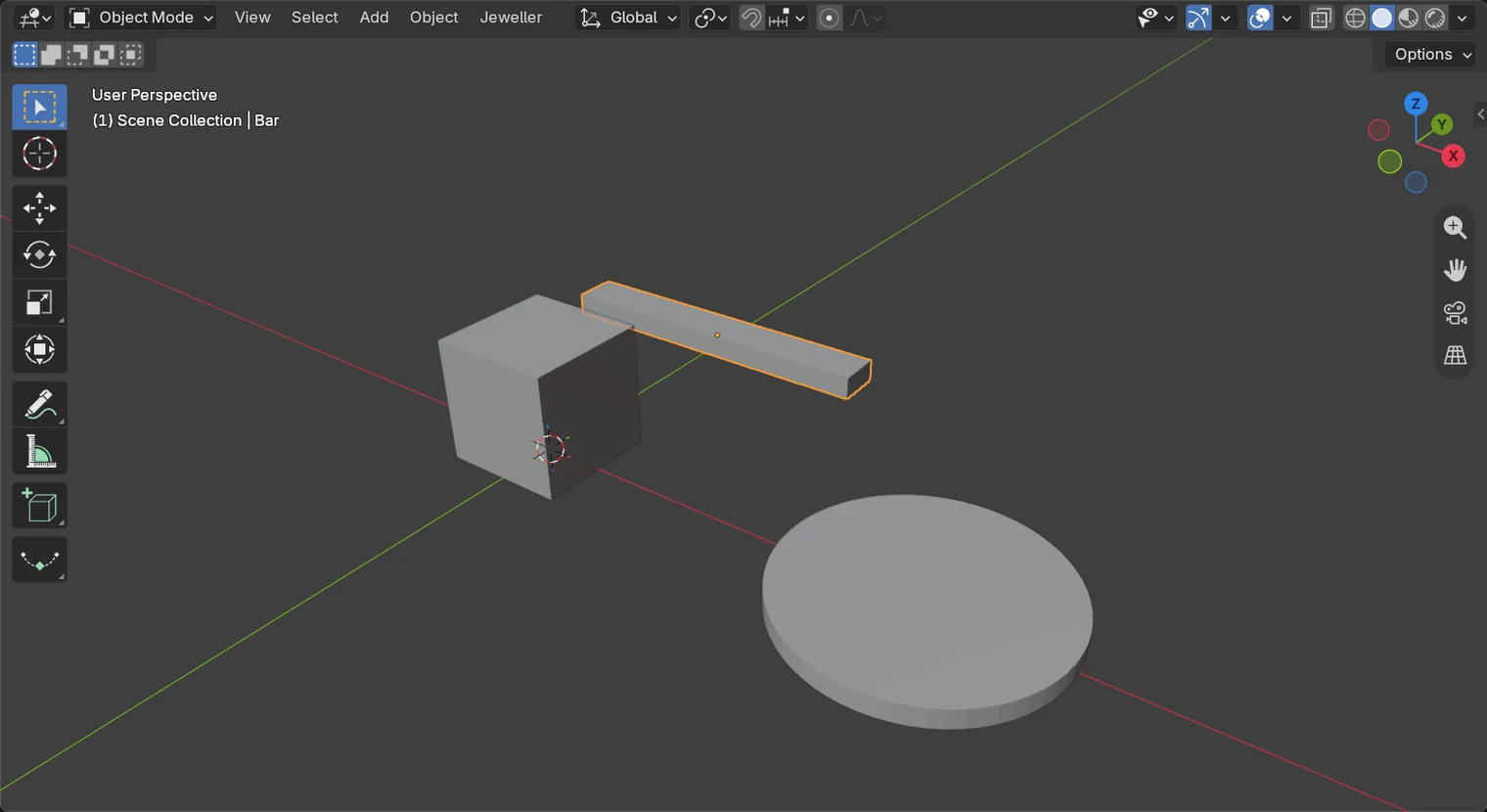
DoClick the bar once.
You should seeThe bar has an orange outline. The fields you are about to use belong to the selected form.
It worked whenThe bar is outlined and the words at the top left of the 3D view name the Bar.
Step 3. Open the Item tab
WhereThe 3D view, then the sidebar at its right.
DoWith the pointer over the 3D view, press N, then click the Item tab on the sidebar’s right edge.
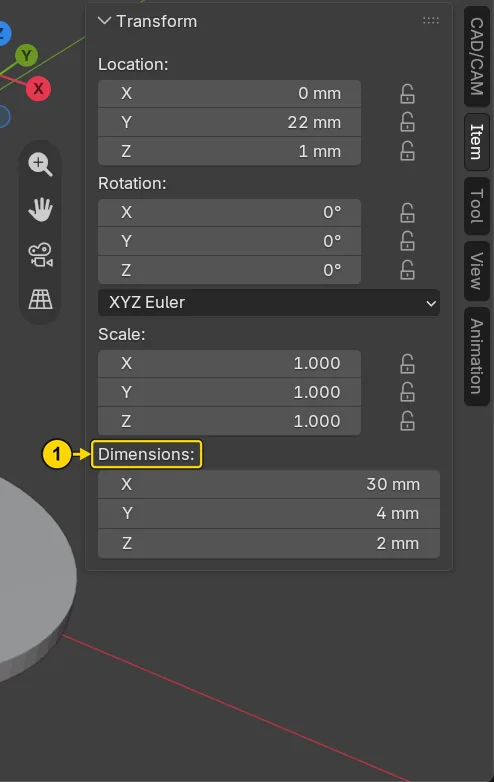
You should seeDimensions: is the last block of the tab. It shows the bar’s length X, width Y and thickness Z: 30, 4 and 2 mm.
It worked whenThe sidebar is open on Item, and Dimensions X reads 30 mm.
Step 4. Type the length
WhereThe sidebar: the X field under Dimensions:.
DoClick once in the middle of the X field, type 25 on the number row, and press Enter.
You should seeOne click opens the field for typing, and what you type replaces the number in it. The bar is shorter now, and X reads 25 mm. Blender makes the bar shorter by shrinking it, so Scale: X above it reads 0.833.
It worked whenDimensions X in the sidebar reads 25 mm.
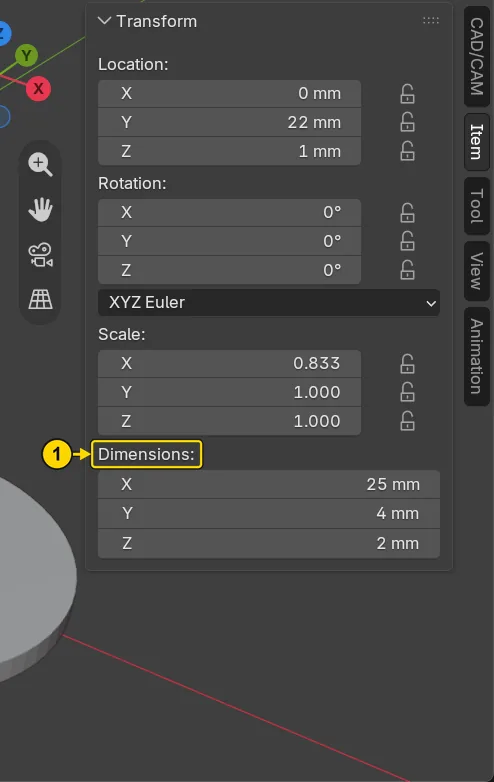
25, Enter: X, under the mark 1, reads 25 mmStep 5. Type the width and the thickness with Tab
WhereThe sidebar: the Y field under Dimensions:.
DoClick once in the Y field, type 6, press Tab, type 3, then press Enter.
You should seeTab sets the number and opens the next field down at once, so Z is ready to type into. Y now reads 6 mm and Z reads 3 mm.
It worked whenDimensions Y reads 6 mm and Z reads 3 mm.
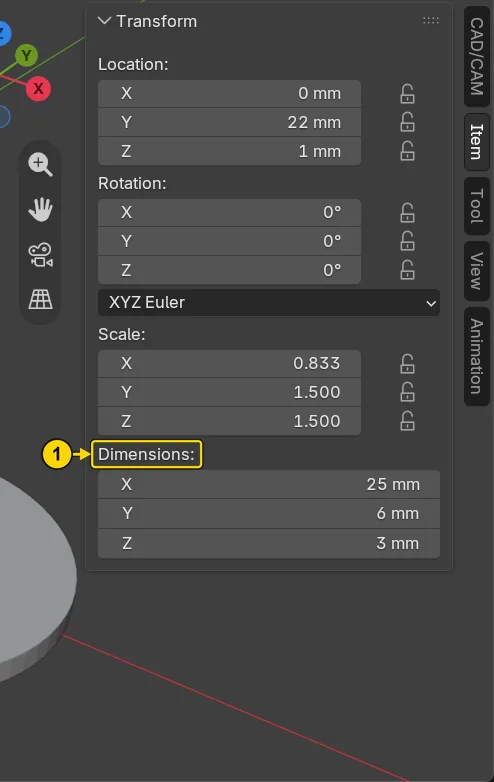
6, Tab, 3, Enter: Dimensions, marked 1, reads 25, 6 and 3 mmStep 6. Meet the slip: drag across a field
WhereThe sidebar: the X field under Dimensions:.
DoPress on the X field, move the mouse sideways with the button held, and let go.
You should seeThe number changes with every pixel you move, and no typing opens. This is the slip a beginner makes by moving the mouse during a click. The bar is unharmed: you put it right in the next step.
It worked whenDimensions X no longer reads 25 mm.
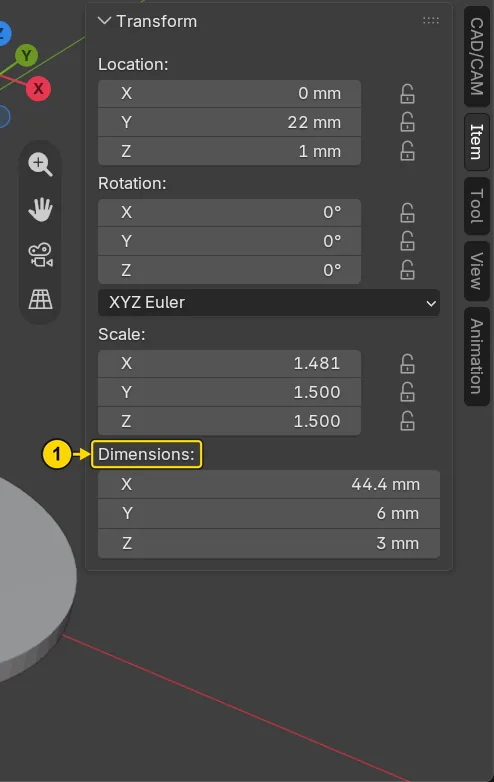
Step 7. Put it right by typing the number again
WhereThe sidebar: the X field under Dimensions:.
DoClick once in the middle of the X field, type 25, and press Enter.
You should seeA typed number is exact, so the slip is gone. X reads 25 mm again.
It worked whenDimensions X reads 25 mm.
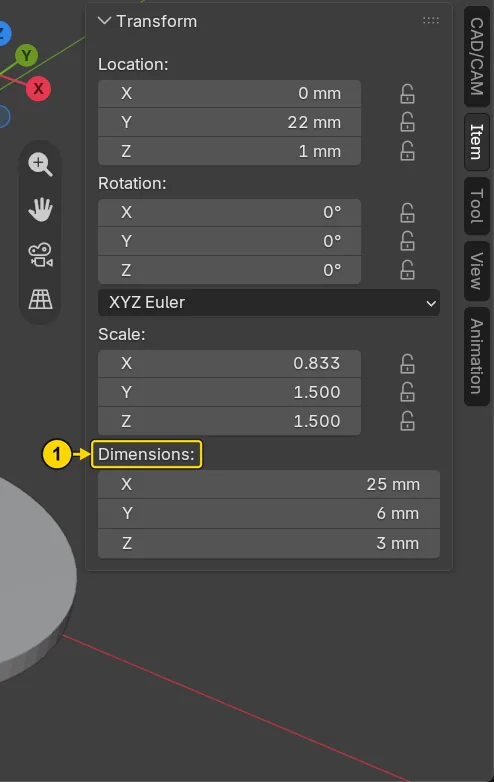
Step 8. Save your work
WhereThe 3D view: move the pointer over it.
DoPress Ctrl+S.
You should seeBlender writes your copy at once, with no question, because the file already has a name. An asterisk, *, in the title bar marks changes that are not saved, and it goes now. Save your work and get it back (P0-12) says more about saving.
It worked whenThe title bar begins my-field, and no asterisk stands in it.
No picture: the only change is a message on the status bar, and it fades.
Check your result
| What to read | Where | What it should say |
|---|---|---|
| Length | The Item tab of the sidebar, Dimensions:, X | 25 mm |
| Width | The Item tab, Dimensions:, Y | 6 mm |
| Thickness | The Item tab, Dimensions:, Z | 3 mm |
Try it yourself
Open your copy again, click the bar, and click once in the Z field of Dimensions:. Type 1.5, with a full stop for the decimal point, and press Enter: Z reads 1.5 mm and the bar is thinner. A decimal goes in a field just like a whole number.
What you learned
- Click a number field once, in the middle of it. It opens for typing with its number selected, so what you type replaces it.
Entersets the number.Tabsets it and goes on to the next field.- A drag across a field changes its number. If you did not mean it, click the field once and type the number you want.