

A ring is its section swept round a circle. Profiles give you ten named sections to start from, let you open one as a curve and move its points, and keep the band live so the shank changes as you edit. Sweep carries a profile along a rail, so the same idea makes wire, bezels and pipes.
Where to find it
CAD/CAM tab > Rings section > Rings panel, then the closed sub-panels Section and Stations under Build Shank. Sweep1, Sweep2 and Pipe are in the Draw section, panel Sweep.
Use it
Step 1. Build a live band
WhereCAD/CAM tab > Rings section > Rings panel.
Doleave the Live tick on and click Build Shank.
You should seea band that stays live. See Rings.
Step 2. Pick a section
Wherethe Section panel, under Build Shank.
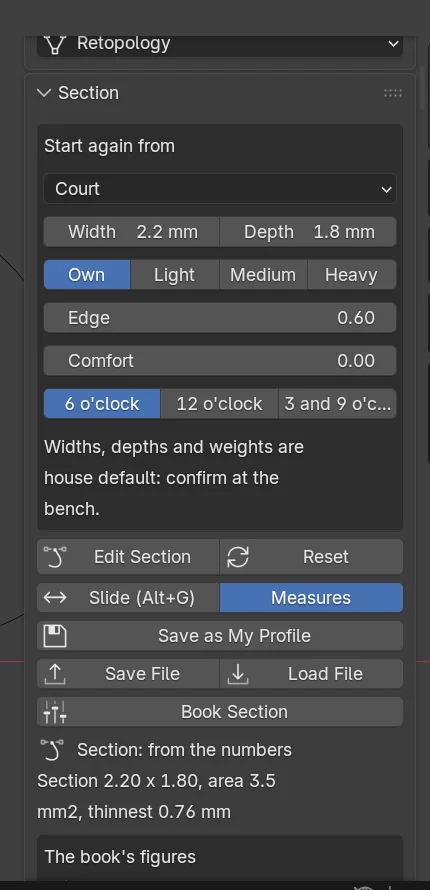
Dopick a section, for example Court, and type its Width and Depth.
You should seethe band change, and the book’s figures for the station you choose, 6 o’clock to start. The sizing area there is 2.2 mm wide by 1.8 mm deep (book p.165).
Step 3. Edit the section
Wherethe Section panel.
Doclick Edit Section. Drag the points, handles and segments of the curve. Alt+G slides a point along its segment.
You should seethe band change as you drag. The panel then says whether the section is from the numbers or edited by hand, with a one-line summary of its width and depth.
If it goes wronga shape that cannot ride a ring is refused. Reset Section brings the named start back.
Step 4. Keep it
Wherethe Section panel.
Doclick Save as My Profile.
You should seethe section listed under My profiles. It comes back at any width and depth and travels with the .blend file. Save Profile File writes it to a small file that another .blend or another jeweller can load. Load Profile File checks the whole file first, lists every problem and brings a good one back exactly as saved. A file with any problem is refused.
Step 5. Sweep a profile along a rail
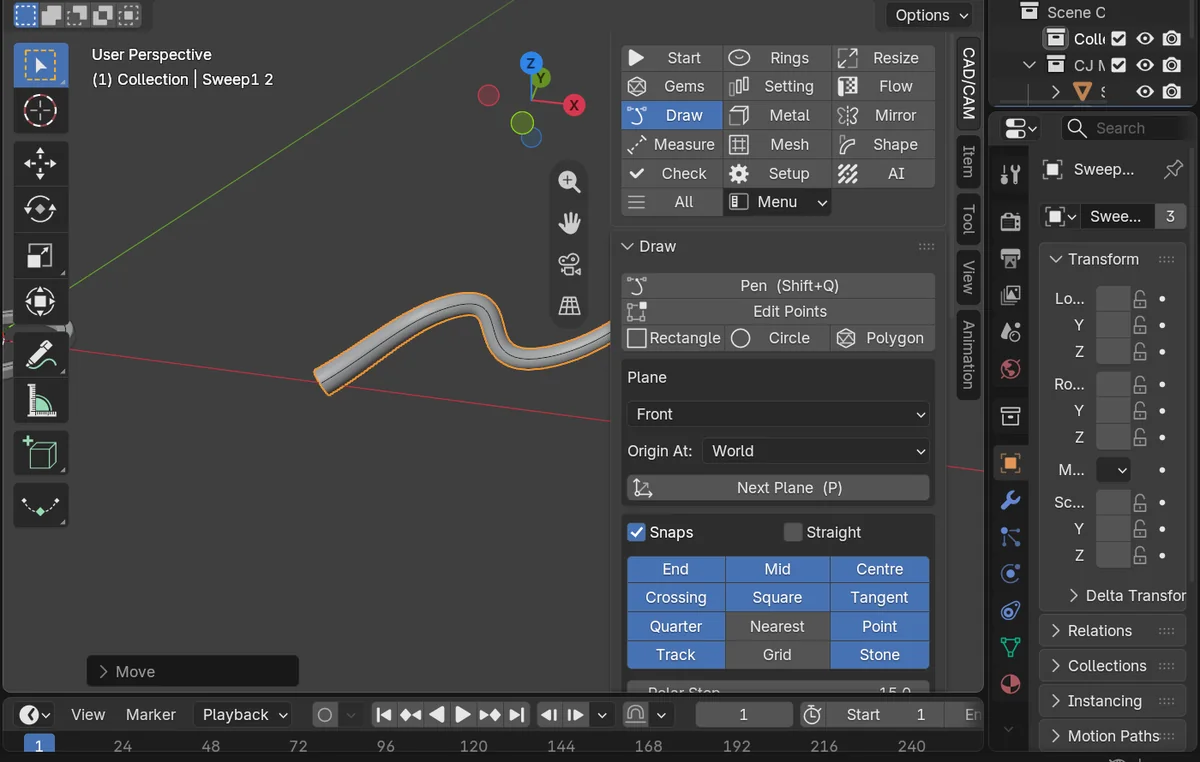
WhereCAD/CAM tab > Draw section > Sweep panel.
Dodraw an open curve for the rail and a closed curve for the profile, round the origin of its plane. Select both and click Sweep1. Sweep2 carries a profile between two rails. Pipe makes a round wire along a curve, with a start and an end diameter.
You should seethe solid along the rail. Twist and scale are typed. All three stay live: move a rail point or a profile point and the solid follows.
The ten sections
| Section | What it is |
|---|---|
| D Shape | Flat inside, domed outside: the classic wedding band. |
| Court | Curved inside and out: the comfort-fit standard. |
| Flat | A square section with softened corners. |
| Flat Court | Flat outside, curved inside. |
| Knife Edge | Rising from the edges to a central ridge. |
| Bevelled | Flat, with the outer corners chamfered. |
| Half Round | A true half ellipse on a flat inside: a D Shape with no riser. |
| Bevel Court | A flat court with the outer corners chamfered. |
| Round | An ellipse of the width and depth: a round wire when they are equal. |
| Rectangle | A rectangle with a corner radius: square or rectangular wire. |
Settings
| Setting | Default | What it changes |
|---|---|---|
| Width | 4.0 mm | Across the section. 0.2 to 40 mm. A house default: confirm it at the bench. |
| Depth | 1.5 mm | From the inner face to the outside. 0.2 to 20 mm. A house default. |
| Edge | 0.55 | How high the outer wall stands, as a share of the depth. Knife Edge. |
| Corner | 0.1 mm | The corner radius. Flat. |
| Chamfer | 0.25 | How much of the outer corner is cut away. Bevelled. |
| Comfort | 0 | How far the inside curves away from the finger. 0 to 1. |
The panel shows only the numbers that the section takes.
Stations
Stations shows a live shank’s numbers at three places: 12 o’clock, the shoulders and 6 o’clock. Each has a width, a depth and a profile, and the shank is solved again as you change them. The badge reads Preview or Checked. The bore stays within 0.005 mm of the finger size and the section within 0.01 mm of what you asked. Make Parametric turns a shank made before 2.19.0 live without changing its look. For cathedral, tapered and graduated shoulders in one click, see the shoulder presets on Rings.
Good to know
- The point of a profile that sits on the rail is the profile’s own origin, the middle of the plane it was drawn on. A profile drawn away from the origin sits off the rail by that distance, and the finding on the sweep says so in words.
- Several sections blend point for point. A single profile keeps its own points.
- Twist round a closed rail meets itself only when the twist is a whole turn.
- Make Real bakes a sweep into a plain mesh and keeps the live sweep, hidden.
- A section you edited is a plain closed curve, so it can be the profile of a sweep.