

Pattern Builder fills an outline with identical cells and cuts them out, or raises them, live. Use it for back plates, galleries, pierced bands and any surface that carries a repeat. You make the pattern flat on the Flow guide of the piece, and it appears on the piece at once and follows every change.
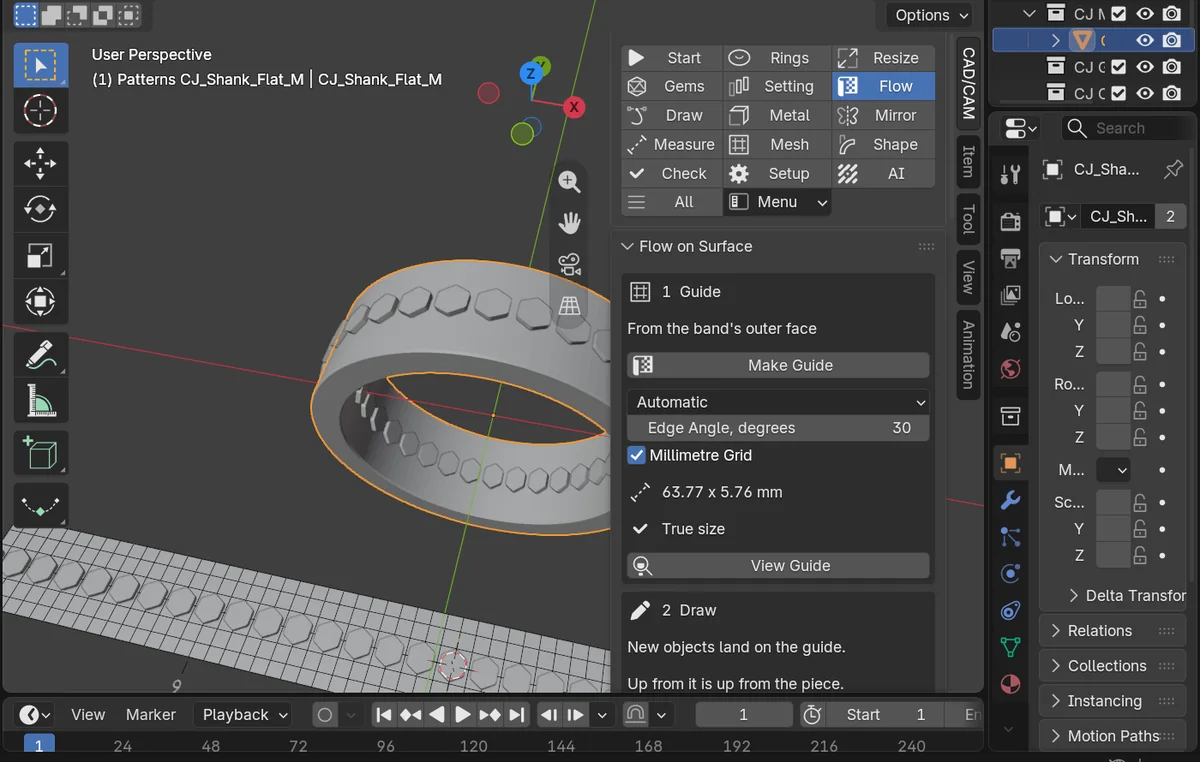
Where to find it
CAD/CAM tab > Flow section > Pattern Builder panel, after Flow on Surface, with the closed sub-panel More Pattern Settings. Menu: Jeweller > Flow.
Use it
Step 1. Draw the outline
WhereCAD/CAM tab > Draw section.
Doclick Rectangle, type 30x20 and press Enter. See Draw and Metal.
You should seeone closed curve.
Step 2. Use it as the outline
WhereCAD/CAM tab > Flow section > Pattern Builder panel.
Doselect the curve and click Use Curve as Outline. Tick Cut a Back Plate if you also want the flat plate that the cells are cut from. Plate Thickness starts at 1.0 mm.
You should seehoneycomb cells, the default family, laid inside the outline and cut out. The cells follow the outline’s points when you move them.
If it goes wronga pattern with no cell is refused and makes nothing, and the panel says what to change.
You can also start from a piece. Build a band in the Rings section. A new band is a live form, so with the band selected press Make Real in the Live Forms panel of the Metal section, then click Make Pattern. If you skip that step the add-on refuses and tells you to make the band real first. If the band has no Flow guide, Pattern Builder makes one. Make Pattern on a live band makes nothing and says to make the band real first. On a narrow band no cell fits at the starting numbers.
Step 3. Choose a family
Wherethe Pattern Builder panel.
Dopick another family in the picker.
You should seethe cells laid out again at once. There are twelve: Grid, Brick, Honeycomb, Triangles, Diamond, Round Holes, Your Own Cell, Star, Girih, Rose, Scales and Waves.
Step 4. Change a number
Wherethe Pattern Builder panel.
Dochange Cell, Rib or Margin.
You should seethe pattern laid out again. A number below its least is held up to it, with a sentence saying what you asked and what was used.
Step 5. Make it real
Wherethe Pattern Builder panel.
Doclick Make Real.
You should seethe cells cut from the metal and a line giving the grams actually taken out.
If it goes wrongon a band, Make Real checks the file, not only the mesh. If it cannot make a file a slicer reads as closed, the band is put back and the sentence says so.
Settings
| Setting | Default | What it changes |
|---|---|---|
| Cell | 1.60 mm | The open width across flats of a cell. Least 0.80 mm. |
| Rib | 0.40 mm | The wall between neighbouring cells. Least 0.30 mm. |
| Margin | 0.60 mm | The metal from the outline to the nearest cell. Least 0.40 mm. |
| Rotation | 0 | Turns the pattern about its origin. -180 to 180 degrees. |
| Corner Radius | 0.20 mm | Rounds every corner. Held to 0.45 of the cell. |
| Keep Clear | 0.60 mm | The distance from every cell to a stone or other keep-out. Least 0.40 mm. |
| Output | Pierce | Pierce cuts the cells out of the face. Raised builds them up above it. |
| Through | On | Cuts the whole wall. Off, a pocket of Depth (1.00 mm to start). |
| Height | 0.40 mm | Raised metal above the face. Least 0.30 mm. |
| Border | 0.60 mm | The width of the rim at the outline. Least 0.40 mm. |
| Fit Seam | On | Nudges the pitch so a whole number of cells goes round a closed band. |
Every figure marked house default is the studio’s own choice where the book is silent, and says so on screen. Symmetry, Axis On, Edge Cells and the family’s own numbers (Row Slide, Angle, Packing, Order, Wave Height, Scale Depth) are under More Pattern Settings.
Buttons
| Button | What it does |
|---|---|
| Make Pattern | Lays identical cells inside the outline and cuts them out live. |
| Use Curve as Outline | Uses the selected closed curve as the outline. |
| Pierce and Rim | Cuts the cells through the face and keeps a rim at its edge. |
| Refresh Keep-outs | Finds the stones and cutters on the piece and keeps the cells clear of them. |
| Leave Out, Put Back | Leaves out, or puts back, the cell nearest the 3D cursor. The list is of positions, so it survives changes to the numbers. |
| Follow New Guide | After a Resize the guide is made again. This carries the pattern onto the new guide and keeps every number. |
| Make Real, Remove | Bakes the pattern, or takes it off. |
Good to know
- It lays at most 20,000 cells.
- The grams shown on a pattern carried on a band are labelled as the flat figure. Make Real gives the grams actually taken out.
- A pattern on a live form follows every change, so edits you make to the metal by hand in Edit Mode last only until the next change to a number.