

The AI Door is one safe way in for your own AI app. Instead of writing its own code, your app is told to use the door. It builds in a scratch scene with the add-on’s own reviewed tools and checked numbers, measures what it made, and asks you to keep it. Your own scene and objects are not touched until you press Keep. The door has no key and spends nothing. It is separate from AI Studio, whose pictures and 3D models keep their own gate and their own click.
Where to find it
CAD/CAM tab > AI section > AI Door. The Pave Planner panel sits under it.
Use it
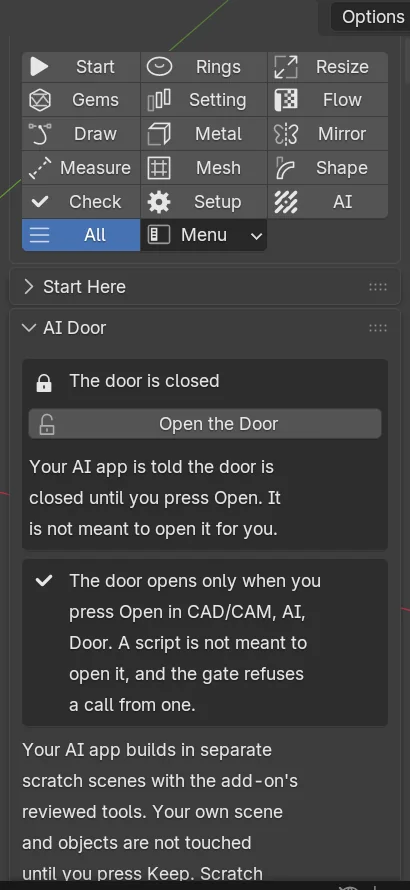
Step 1. Open the door
WhereCAD/CAM tab > AI section > AI Door.
Doclick Open the Door.
You should see“The door is open”, with the minutes left, and a Close the Door button. The door is closed at every start and nothing about it is saved.
If it goes wrongthe door cannot be opened from code. The gate refuses a call from a script, so the click must be yours.
Step 2. Share what your AI app may see
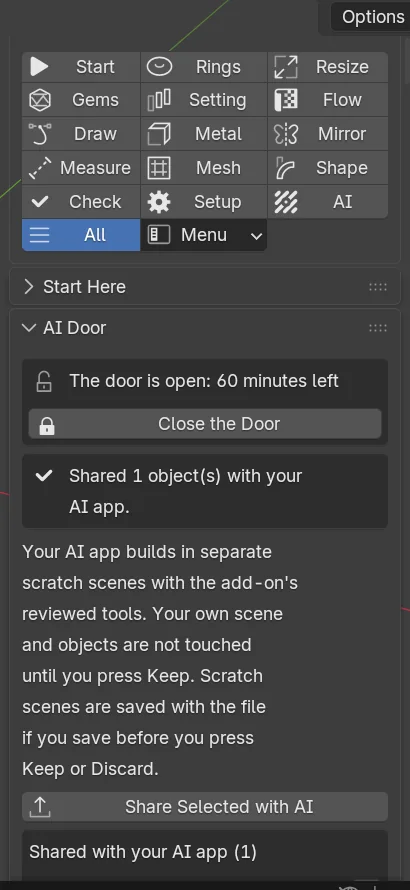
Wherethe AI Door panel.
Doselect the objects and click Share Selected with AI.
You should see“Shared 1 object(s) with your AI app”, with Remove beside each shared object. Nothing else of your file is visible to the app. A mark lasts for this session only.
Step 3. Give your AI app the guide
Wherethe AI Door panel.
Doclick Copy the Door Guide for Your AI, then paste the guide into your AI app.
You should seethe guide on your clipboard. It tells the app how to use the door.
Step 4. Let your AI app build
Whereyour AI app.
Doask it to build or measure something. The door lists the last 20 calls.
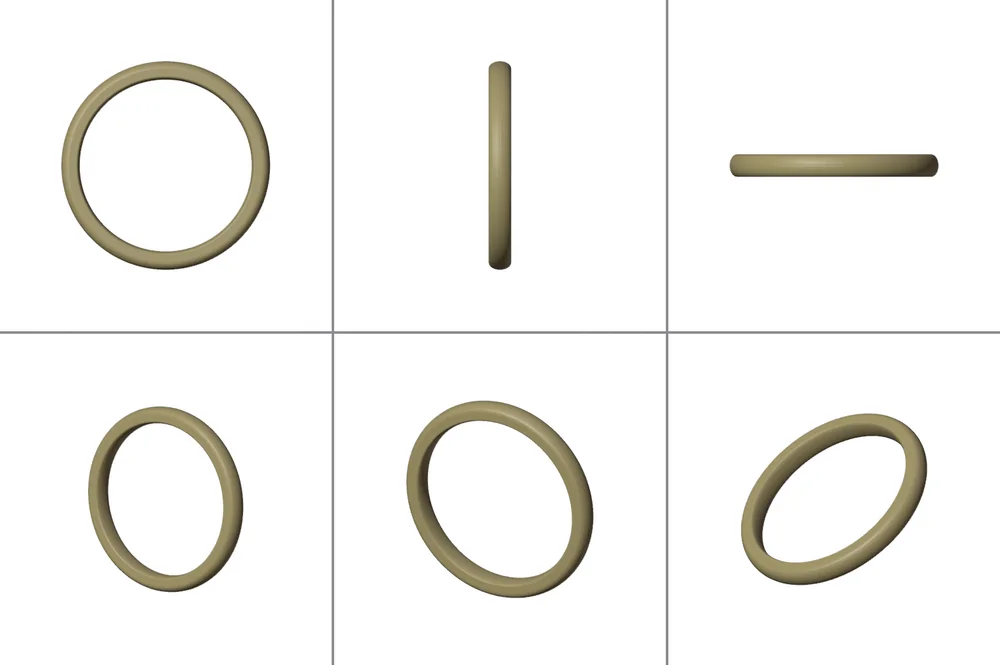
You should seethe app working in separate scratch scenes, named for the door. It can look at what it made as a contact sheet of six views. Scratch scenes are saved with the file if you save before you press Keep or Discard.
Step 5. Keep or discard
Wherethe AI Door panel.
Dowhen your AI app asks to keep a result, click Keep to move the objects into your own scene, or Discard to remove the scratch scene.
You should seewith Keep, the objects in your scene. Keep always needs your own click.
If it goes wrongif the result changed after your AI app asked, nothing moves and it must ask again.
Stop closes the door at once. Your AI app’s next call is refused and the answer says Stop was pressed. A job that is already running finishes first, because Blender cannot hear a click while it builds. A pave fill, the one job that can run long, stops itself: the pave steps of one job share 15 seconds, and a fill that reaches them keeps the stones it has placed and says what it did not reach, so your AI app can ask for a smaller region. The door also closes itself after a quiet time you set, and never stays open more than 8 hours.
What your AI app can do
| Verb | What it does |
|---|---|
| status | Says whether the door is open, the minutes left, the limits, what is shared and what waits for your click. |
| cards | Lists the tools on the door’s list, with their arguments, ranges and choices. |
| check_job | Gives every reason a job cannot run. Nothing is built. |
| run_job | Builds a checked job in a scratch scene. |
| look, measure | A fresh contact sheet, and the machine’s own measurements: bodies, ring, claws, findings, weights. Read only. |
| shared, copy_shared | Lists, and copies into the scratch scene, the objects you shared. A copy, never the object itself. |
| keep, discard | Asks you to move the result into your scene, or removes a scratch scene the door made. |
| log | The last calls. |
What is on the door’s list
The door builds only with tools on its list: Make Cutters, Cut Metal and Make Claws, and from 2.19.0 Pave Fill from Faces. A person reads the card of each tool before it joins the list. The AI Studio tools, which spend money, and the door’s own controls are never on it. The door also refuses file writers and preference writers.
The pave planner
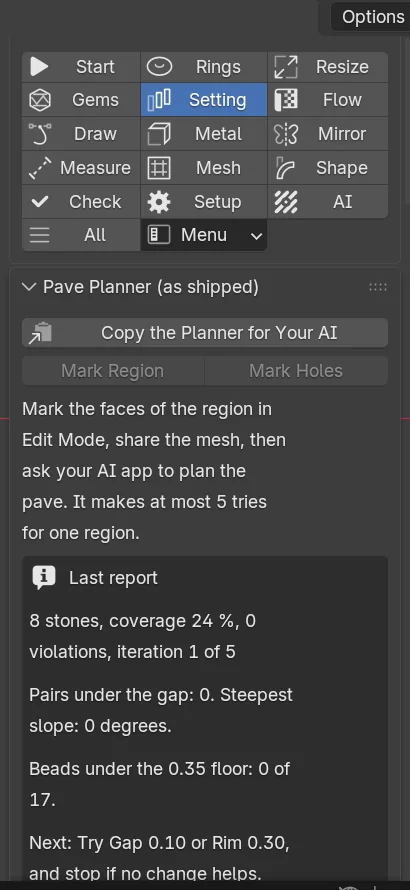
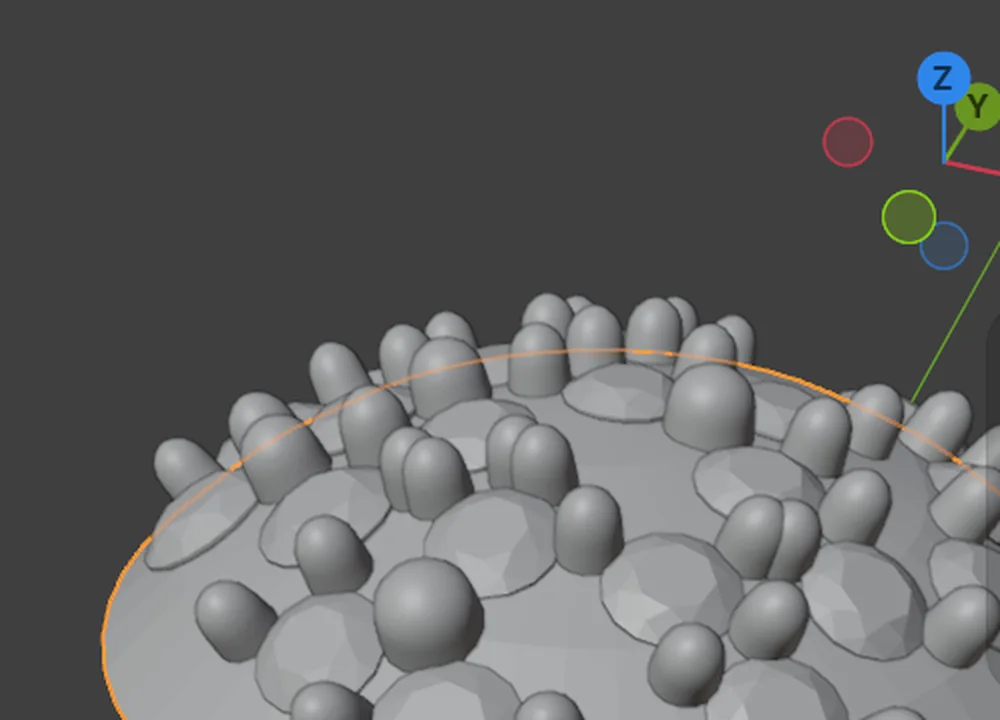
The pave planner gives your AI app a plan for filling a surface with pave. It adds no geometry of its own: every stone it reports was placed by Pave Fill from Faces, through the door, in a scratch scene.
- Mark the faces of the region in Edit Mode with Mark Region, and the places to leave empty with Mark Holes. See Bezels, pave and channel.
- Share the mesh with Share Selected with AI.
- Click Copy the Planner for Your AI and paste it into your AI app.
The app copies your shared mesh, fills a job with the faces fill, checks it, runs it and reads a report for each region: the stones per size, the coverage, the violations, the pairs under the gap, the steepest slope and the beads against the claw floor. It changes one thing at a time and tries again in a clean scene, at most five tries for each region, then asks you to keep the best. You press Keep.
Settings
| Setting | Default | What it changes |
|---|---|---|
| Quiet time | 60 minutes | How long the door stays open without a call. 5 to 240 minutes. |
| Scratch scenes | At most 6 | How many scratch scenes stand at once. |
| Tries for each region | At most 5 | How many times the planner tries one region before it stops. |
| Pave time | 15 seconds | The time the pave steps of one job share. A fill that reaches it stops between stones, keeps the stones it placed and says what is left. |
| Pave limits | 1,000 stones, 640 mm², 150,000 faces | The most one pave step may ask for, with its smallest stone from 0.80 to 2.0 mm and its largest at most 3.0 mm. A step over any of them is refused in words before a stone is placed: run it by hand from the panel. |
Good to know
- The door holds no credential and makes no network call. It never signs in to any plan.
- A job is checked in full before anything is built, and a refusal lists every reason.
- A copy of a shared object is named “Shared N (AI copy)”. It keeps no modifier or constraint that points at an object you did not share, and the answer says which it left off.
- The door writes its results, a contact sheet and any export to a folder of its own. The panel shows where.
- A faces fill takes seconds on a large region. On a curved surface it covers less of the area than on a flat one.
- The planner’s limit of five tries is a request to your AI app. The door’s caps and your Stop still apply.