
What you will do
You will pick a form by its name in the Outliner, hide the Bar and bring it back, and do the same with the keys H and Alt+H. When a piece has many parts, the Outliner is how you find one, and hiding is how you get the others out of the way.
About 5 minutes.
Files
- p0-09-start.blend (102 KB): open this one to begin.
- p0-09-finished.blend (103 KB): the result, to compare with yours.
Both were made in Blender 5.2.0.
Before you start
- You can open a file and save a copy of it: Open an exercise file and keep the start file safe (P0-07).
- You can select a form with a click: Select, add to the selection, clear it, spot the active one (P0-08).
Build it
Step 1. Open the start file and save your own copy
WhereThe top bar: the row of words that begins File, Edit.
DoDownload p0-09-start.blend from Files above and open it. Then choose File > Save As and save it under the name below, in a folder of yours. Open an exercise file and keep the start file safe (P0-07) shows how.
Typemy-outliner.blend
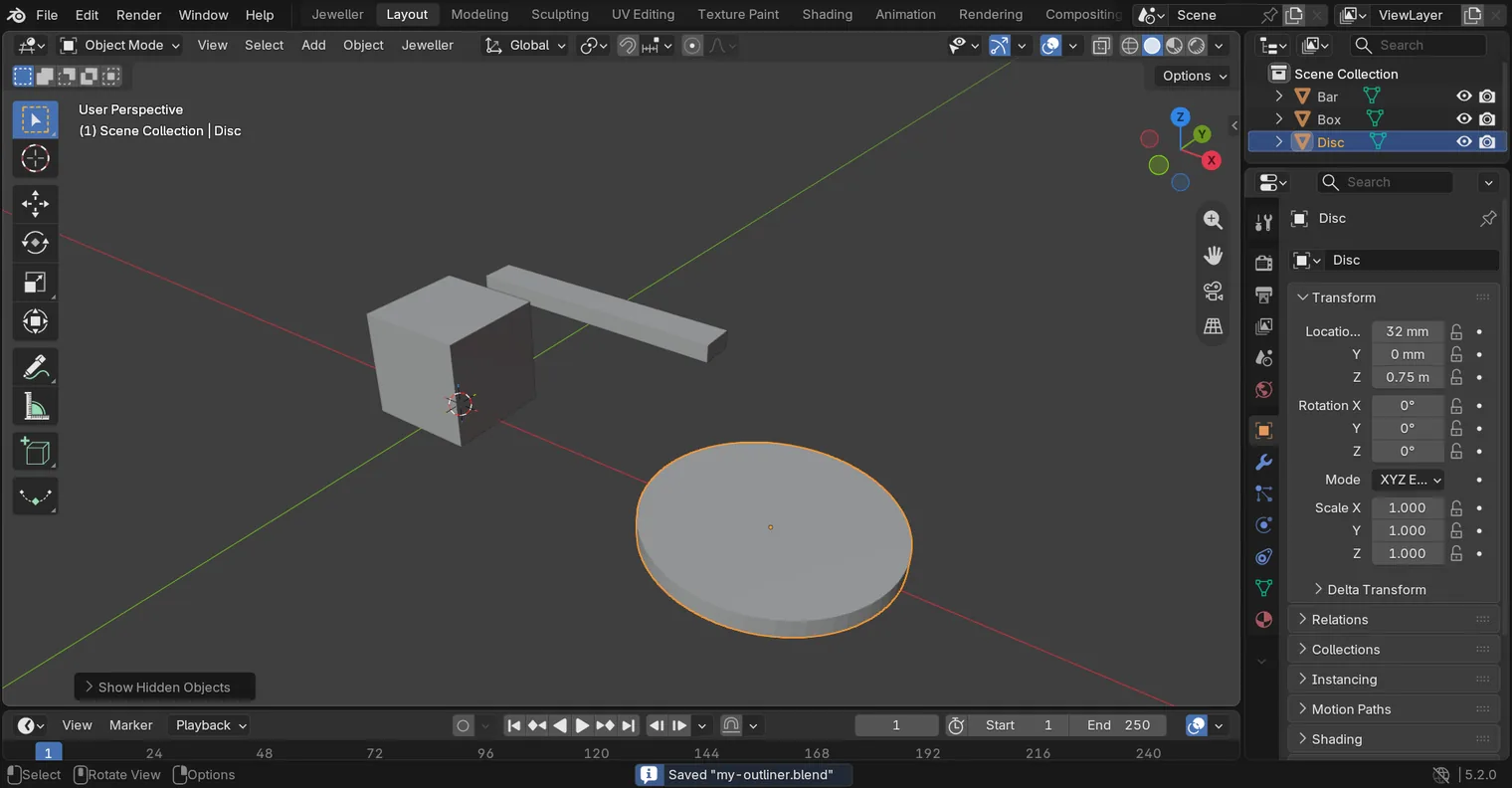
You should seeThe 3D view shows a box, a bar and a disc. The Outliner, the list at the top right of the window, lists Bar, Box and Disc, and the title bar, the strip above File and Edit, begins my-outliner.
It worked whenThe title bar begins my-outliner.
Step 2. Pick the Disc by its row
WhereThe Outliner, the list at the top right of the window.
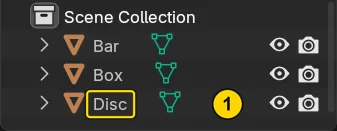
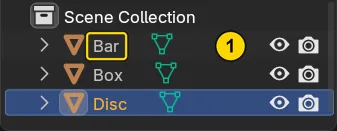
DoClick the word Disc in the Outliner (marked 1).
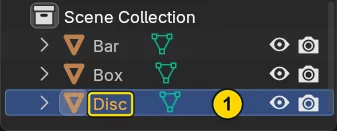
You should seeThe disc gets an orange outline in the 3D view, its row lights up, and Disc stands at the top left of the 3D view. A click on a row picks that form, wherever it is.
It worked whenThe Disc’s row is lit in the Outliner.
Step 3. Hide the Bar with its eye
WhereThe Outliner: the small eye at the right end of the Bar’s row.
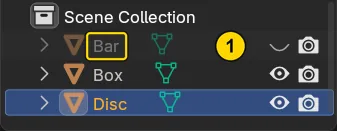
DoClick the eye on the row of the Bar.
You should seeThe bar vanishes from the 3D view. Its row stays in the Outliner, dimmed, and its eye shuts. The bar is hidden, not deleted.
It worked whenThe Bar’s row in the Outliner is dimmed and its eye is shut.
Step 4. Show the Bar again
WhereThe Outliner: the same eye.
DoClick the eye on the Bar’s row again.
You should seeThe bar comes back in the 3D view, and its row is no longer dimmed.
It worked whenThe Bar’s row in the Outliner is no longer dimmed.
Step 5. Hide the selected form with H
WhereThe 3D view: leave the pointer over it.
DoPress H.
You should seeThe disc vanishes: H hides what is selected, and the Disc is the one selected.
It worked whenThe 3D view shows the box and the bar, and no disc.
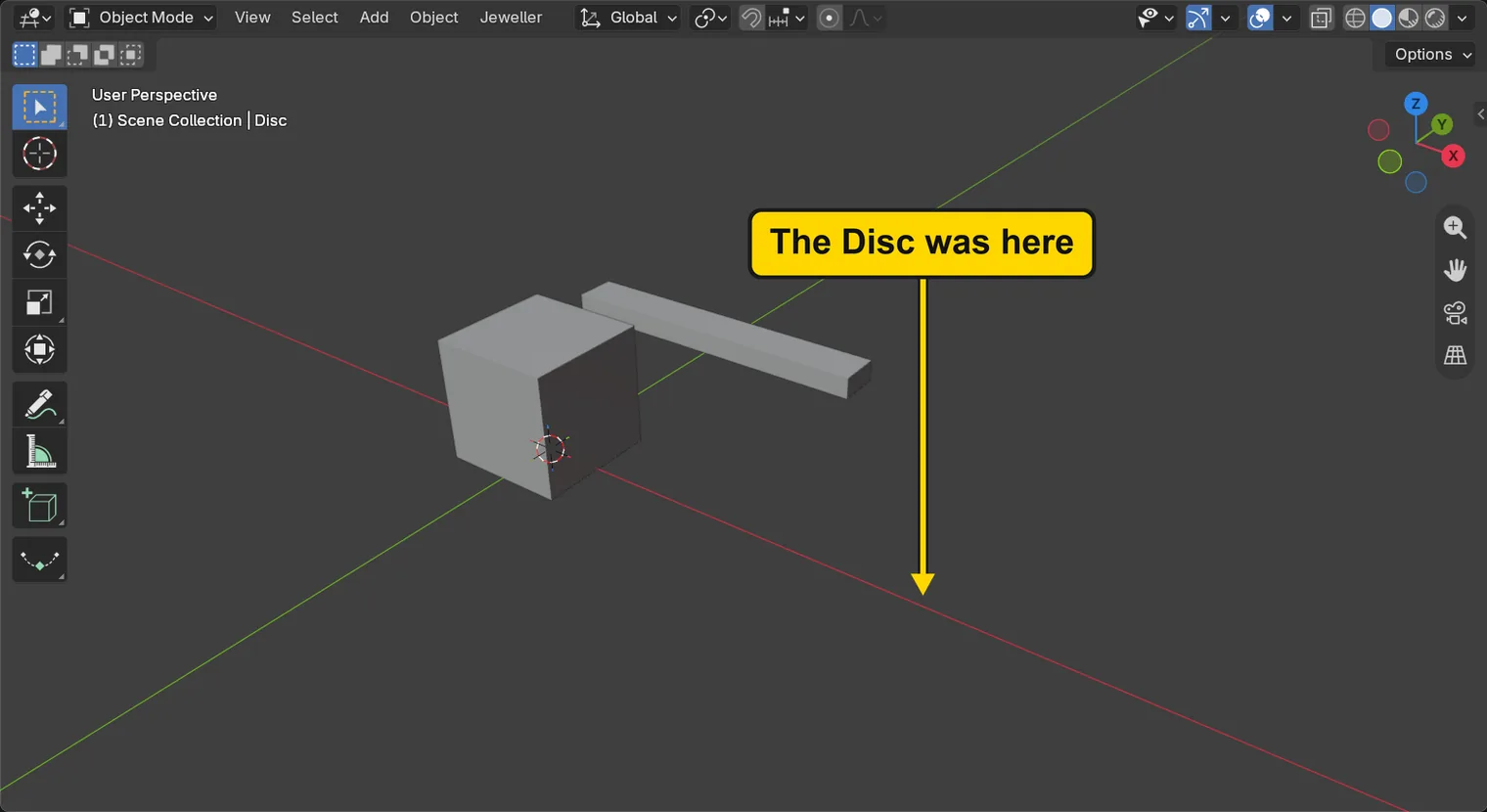
H hid the DiscIf it goes wrongNothing hides: nothing was selected, and H hides only what is selected. Click a row in the Outliner first, then press H over the 3D view.
Step 6. Show everything with Alt+H
WhereThe 3D view: the pointer stays over it.
DoPress Alt+H.
You should seeThe disc is back, and it is selected again. Alt+H shows whatever is hidden. A small box may show at the foot of the 3D view. It is taught in Change a tool’s numbers just after pressing it (P0-16).
It worked whenThe Disc is outlined in orange in the 3D view.
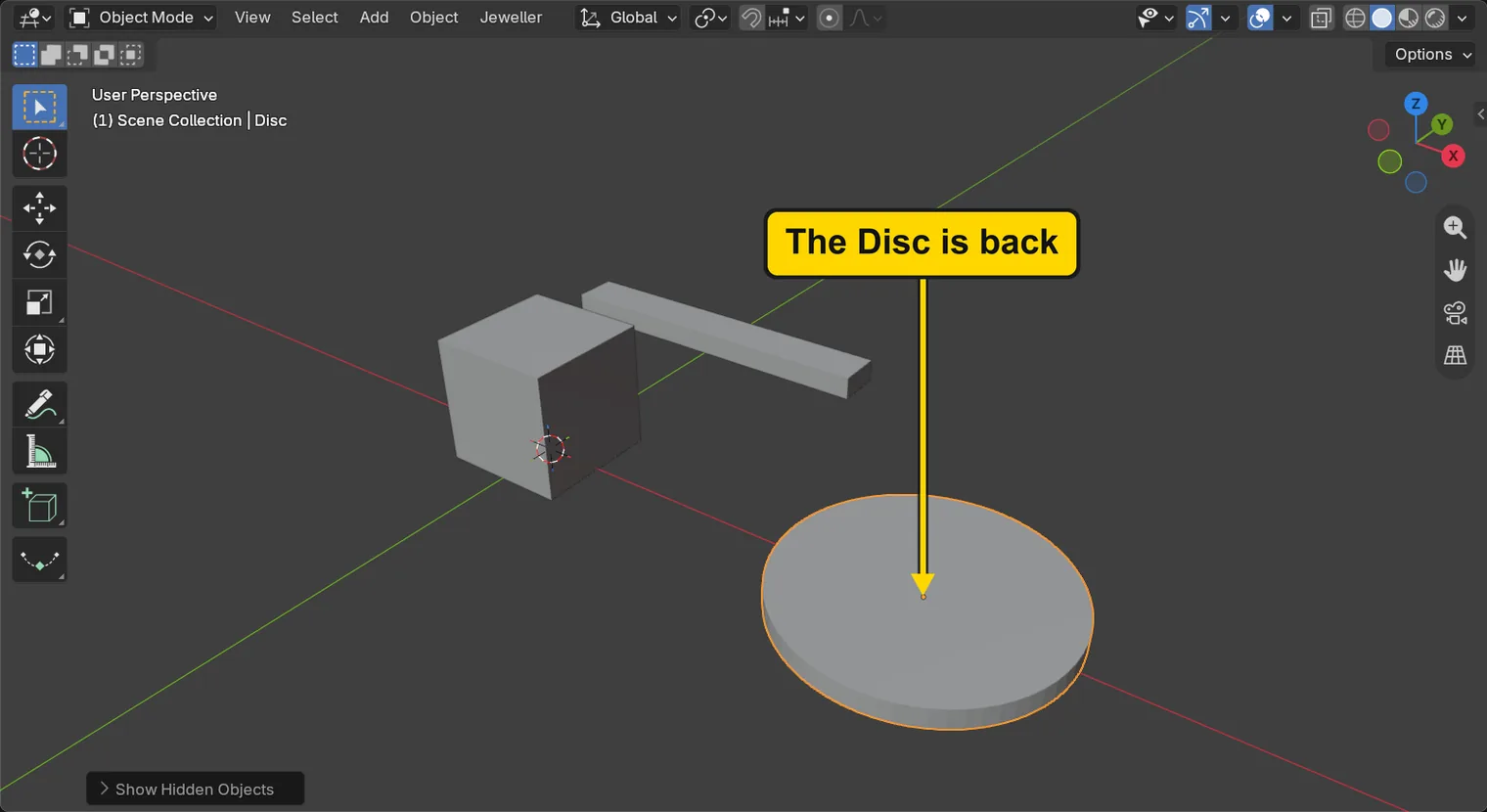
Alt+H: the Disc is back and selectedStep 7. Save your work
WhereThe 3D view: move the pointer over it.
DoPress Ctrl+S.
You should seeBlender writes your copy at once, with no question, because the file already has a name. An asterisk, *, in the title bar marks changes that are not saved, and it goes now. Save your work and get it back (P0-12) says more about saving.
It worked whenThe title bar begins my-outliner, and no asterisk stands in it.
No picture: the only change is a message on the status bar, and it fades.
Check your result
| What to read | Where | What it should say |
|---|---|---|
| All three forms | The 3D view | The box, the bar and the disc all show |
| The Disc | The Outliner, at the top right of the window | Its row is lit, and the eye beside it is open |
| The active one | The words at the top left of the 3D view | They name the Disc |
Try it yourself
Open your copy again. Click the eye beside Bar, then move the pointer over the 3D view and press Alt+H: the bar comes back, and it is selected. The eye and H hide in the same way, so Alt+H brings back what either hid.
What you learned
- A click on a row in the Outliner selects that form, wherever it stands in the 3D view.
- The eye beside a row hides the form from the 3D view. Click it again to show the form. The form stays in the file.
Hover the 3D view hides what is selected, andAlt+Hshows what was hidden.