
What you will make
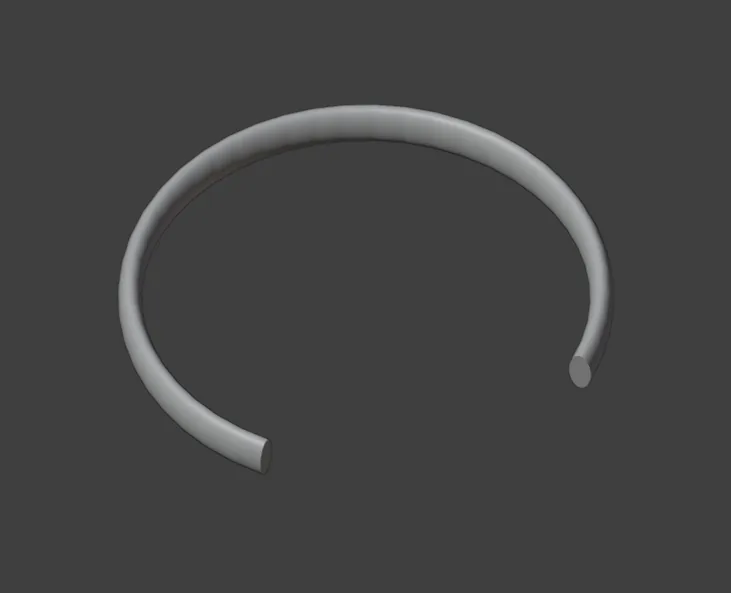
An open bangle, a C of metal made by carrying a small oval section 3 mm by 6 mm along an arc: 63.00 across the outside, 57.00 inside, 6.00 high. A bangle is sized by its inside: for a 63 inside the arc would be drawn 66 across. The opening the wrist passes through is about 40 across at the inside edges. In CAD a section is swept when the same cut has to run the whole length of a piece: a bangle, a wire with a shape, the band of a bezel (at the bench a bezel is strip bent round the stone, and sweeping is CAD’s way). Twist is a number to learn the tool with. It weighs 30.87 g in 18ct yellow gold.
About 15 minutes.
Files
- p2-12-start.blend (100 KB): open this one to begin.
- p2-12-finished.blend (446 KB): the result, to compare with yours.
Both were made in Blender 5.2.0.
Before you start
- You have done Draw a rectangle and a circle to exact sizes (P2-01): you know the CAD/CAM tab, the Draw section and the Item tab, the strip of tabs at the right edge of the sidebar.
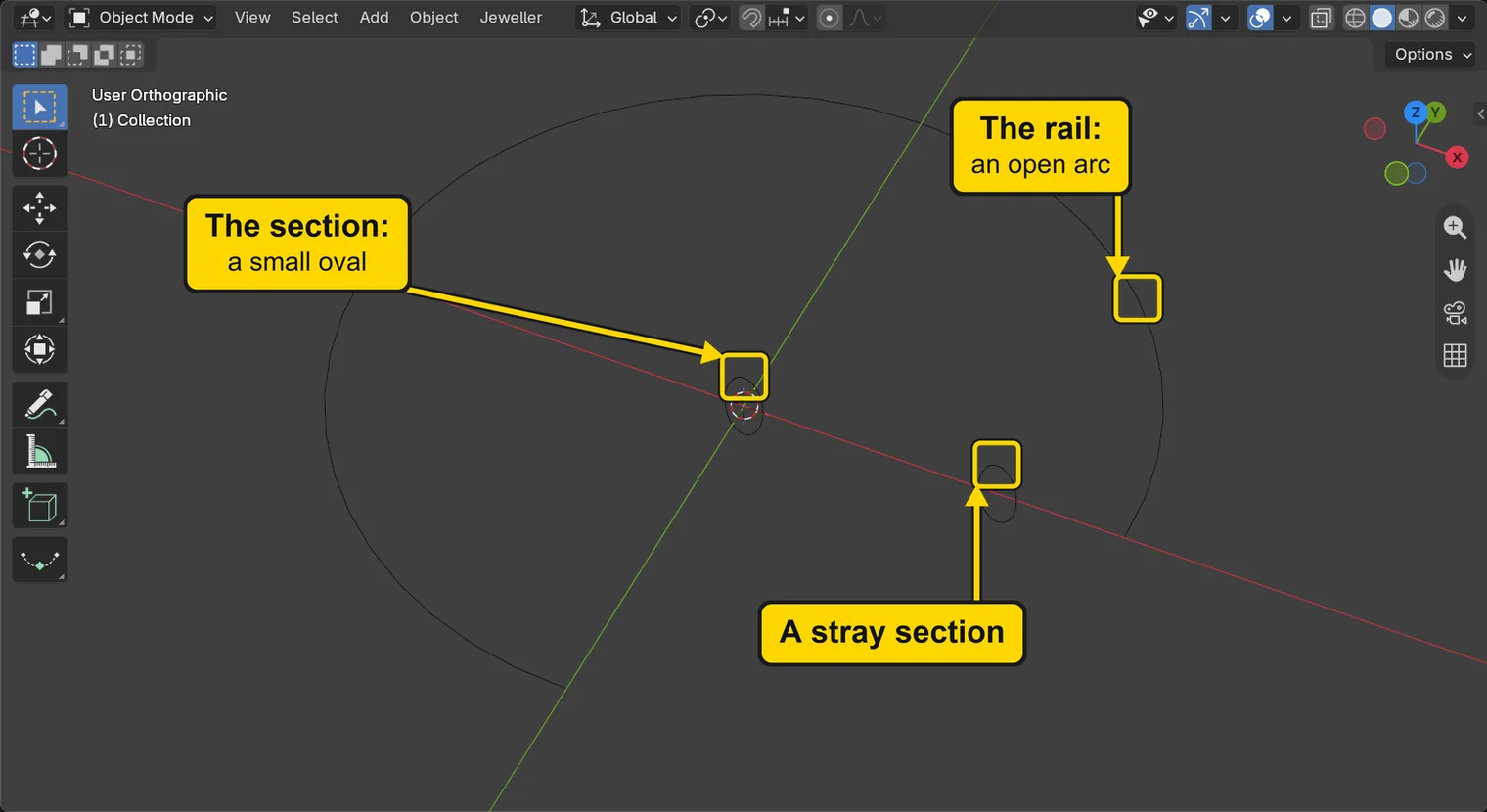
- The add-on is installed. The start file is in millimetres and holds three drawings: an open arc, and two small ovals.
Build it
Step 1. Open the start file and save your copy
WhereThe top bar: the row of words that begins File, Edit.
DoDownload p2-12-start.blend from Files above and open it. Then choose File > Save As and save it under the name below, in a folder of yours. Open an exercise file and keep the start file safe (P0-07) shows how.
Typemy-bangle.blend
You should seeThe 3D view shows a large open arc and two small ovals, one at the middle of the arc and one off to the right of it. The words at the top left of the 3D view begin User Orthographic. The title bar, the strip above File and Edit, begins my-bangle.
It worked whenThe title bar, the strip above File and Edit, begins my-bangle.
Step 2. Open the Sweep panel
WhereThe sidebar, at the right of the 3D view: the CAD/CAM tab, then Draw in the section bar. The section bar is the row of small word buttons at the top of the tab.
DoClick the CAD/CAM tab, click Draw, then scroll down to the Sweep panel: put the pointer over the sidebar and slide two fingers down on a touchpad, or turn the mouse wheel.
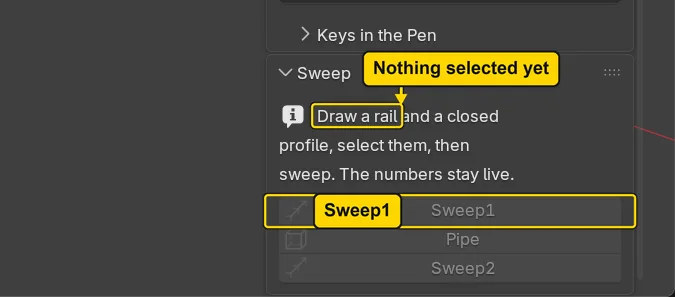
You should seeThe Sweep panel: three buttons, Sweep1, Pipe and Sweep2, which are grey, and a line that says “Draw a rail and a closed profile, select them, then sweep.” A profile is the section: a closed curve, one that ends where it began. A rail is the open curve it is carried along. The buttons stay grey until a curve is selected.
It worked whenThe Sweep panel shows Sweep1, and its line begins “Draw a rail”.
Step 3. Select the rail and the section
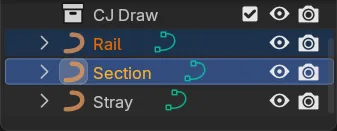
WhereThe Outliner, the list at the top right of the window: the rows Rail and Section. They stand in a collection, a folder of the file, named CJ Draw: if you cannot see them, click the small arrow beside CJ Draw to open it.
DoClick Rail, then hold Ctrl and click Section.
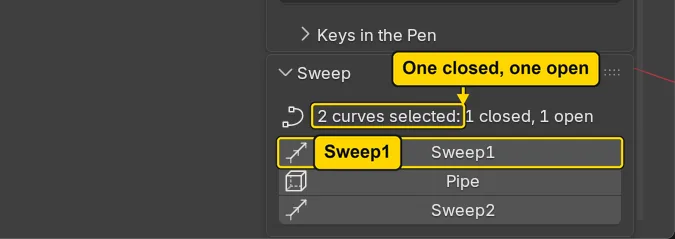
You should seeBoth rows lit, and the Sweep panel reading “2 curves selected: 1 closed, 1 open”. The arc is the one open curve and the oval is the one closed curve. Sweep1 takes the closed one as the section and the open one as the rail, whichever you clicked first. Sweep1 is no longer grey.
It worked whenThe Sweep panel reads “2 curves selected: 1 closed, 1 open”.
Step 4. Press Sweep1
WhereThe Sweep panel, the Sweep1 button.
DoPress Sweep1.
You should seeA bangle along the arc: a solid in the 3D view, and under the buttons the name Sweep1 1 with a list of numbers and a Weight line. The sweep is live: the numbers under the name can still change it. The oval rides the arc by the object’s origin, its small dot, which stands at the middle of the oval, so the arc runs through the middle of the oval.
It worked whenThe panel shows the name Sweep1 1, and the 3D view shows a solid along the arc.
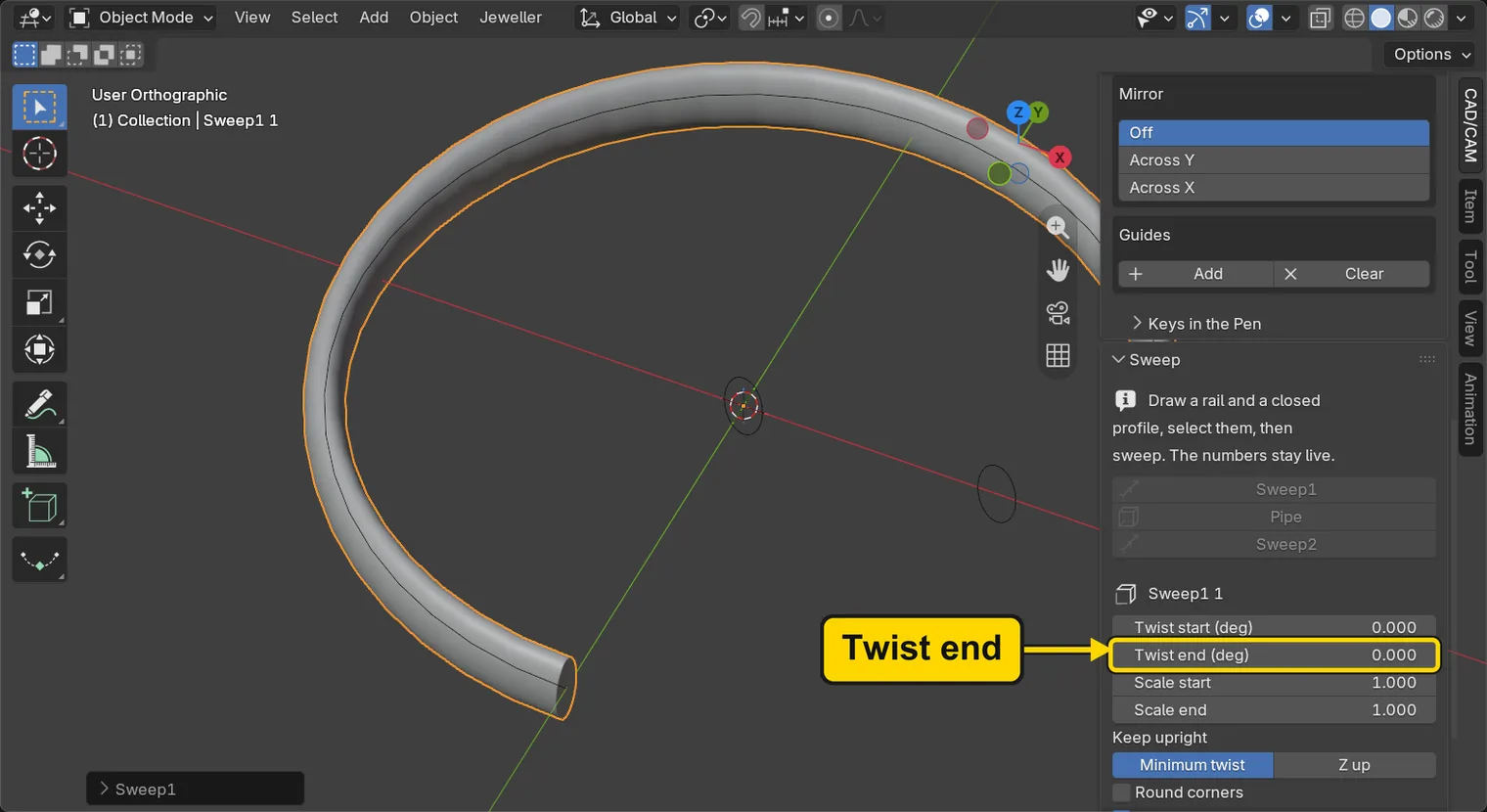
Step 5. Type a Twist end
WhereThe Sweep panel, the field Twist end (deg). Then the Item tab: the tabs stand in a strip at the right edge of the sidebar.
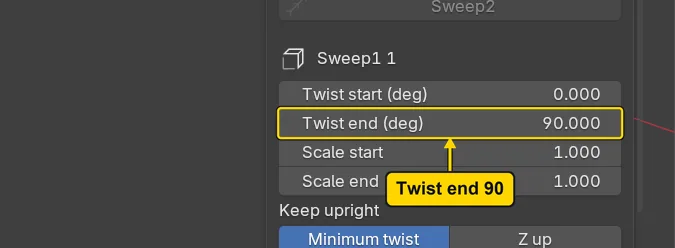
DoClick the Twist end (deg) field, type 90, then press Enter. Then click the Item tab, read Dimensions:, and click the CAD/CAM tab to come back.
Type90
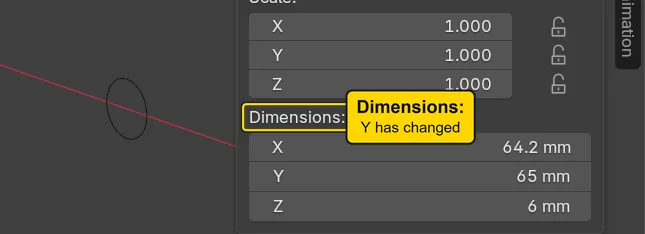
You should seeThe oval turns evenly along the arc, so that at the far end it has turned a quarter turn: the bangle’s far end looks different, and Dimensions: in the Item tab now reads Y 64.97 instead of Y 63.00, the 63.00 of before. Twist end is the turn of the section at the end of the rail, in degrees. The start does not turn.
It worked whenThe Twist end (deg) field reads 90.0.
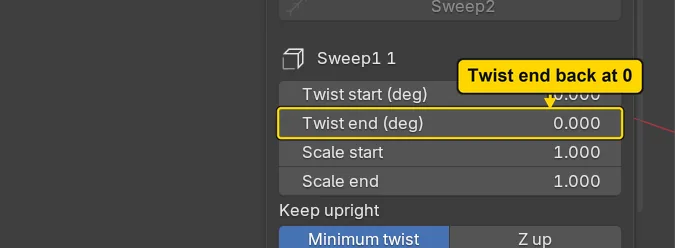
Step 6. Put Twist end back
WhereThe Sweep panel, the field Twist end (deg). Then the Item tab.
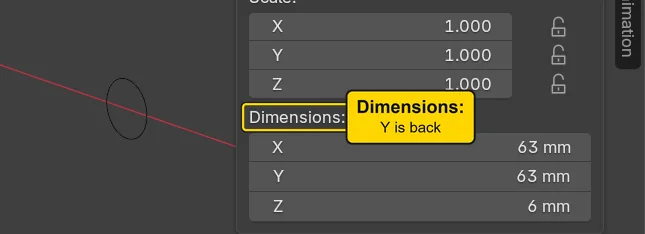
DoClick the Twist end (deg) field, type 0, then press Enter. Then click the Item tab, read Dimensions:, and click the CAD/CAM tab to come back.
Type0
You should seeThe bangle’s end turned back, and Dimensions: in the Item tab reads Y 63.00 again. A live number is a way to try a change and take it back. Typing the old number is the way back that always works.
It worked whenThe Twist end (deg) field reads 0.0.
Step 7. Press Make Real
WhereThe Sweep panel, the Make Real button, under the numbers.
DoPress Make Real.
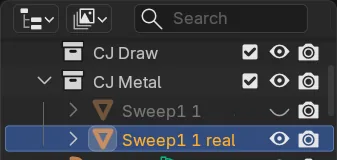
You should seeA new row in the Outliner, Sweep1 1 real, now the selected one. The live sweep, Sweep1 1, is still in the list with its eye shut: it is kept, hidden, so that you can come back to it. The new one is an ordinary object: it no longer follows the drawing, so no number can change it. The small eye at the right of a row is drawn closed, a curved line, when the object is hidden.
It worked whenThe Outliner lists Sweep1 1 real, and the row of Sweep1 1 has a shut eye.
Step 8. Meet the stray section on purpose
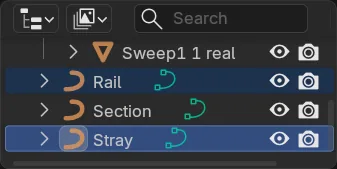
WhereThe Outliner: the rows Rail and Stray. This step makes a sweep that goes wrong, so that you know its message. Your bangle is unharmed.
DoClick Rail, hold Ctrl and click Stray, then press Sweep1.
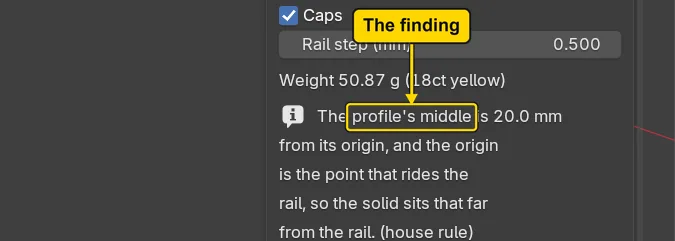
You should seeA very large ring, with a line on the Sweep panel that begins “The profile’s middle is”. It says the object’s origin, the small dot of the section, is the point that rides the rail, so the solid sits that far from it. Stray was drawn 20 mm from the middle of its plane, where its dot stands, and the sweep carries it there. The add-on says so in words, and only when the section is more than twice its own size away.
It worked whenThe Sweep panel shows the line “The profile’s middle is”.
If it goes wrongThe panel says “Select two curves” in a red box: Only one curve was selected, or three. Press Esc, click Rail and Ctrl+click Stray again, then press Sweep1.
Step 9. Take the stray sweep back with Ctrl+Z
WhereThe 3D view: move the pointer off the sidebar and into the dark area.
DoPress Ctrl+Z once.
You should seeThe large ring gone from the 3D view. The first sweep, the real bangle and your drawings are all still there. Ctrl+Z takes back the last press, and Sweep1 is one press.
It worked whenThe Outliner no longer lists Sweep1 2.
Step 10. Save your work
WhereThe 3D view: move the pointer over it.
DoPress Ctrl+S.
You should seeBlender writes your copy at once, with no question, because the file already has a name. An asterisk, *, in the title bar marks changes that are not saved, and it goes now. Save your work and get it back (P0-12) says more about saving.
It worked whenThe title bar begins my-bangle and carries no asterisk.
No picture: the only change is a message on the status bar, and it fades.
Check your result
| What to read | Where | What it should say |
|---|---|---|
| The bangle’s size | The Item tab of the sidebar, Dimensions:, with the real bangle selected (its name ends in real) | X 63.00 mm, Y 63.00 mm, Z 6.00 mm: the outside; the inside is 6.00 less |
| Twist end | The CAD/CAM tab, Draw section, Sweep panel, with the live sweep selected | It reads 0.0: you put it back |
| The live sweep after Make Real | The Outliner, the list at the top right: the row of the live sweep, Sweep1 1 | Its eye is shut: the live sweep is kept, hidden |
Try it yourself
Open your copy again, click Sweep1 1 in the Outliner so that the Sweep panel shows its numbers, and type 0.5 in Scale end (a number under 1 shrinks the section along the rail: the far end of the bangle gets smaller). Then type 1 in Scale end to put it back.
What you learned
- Sweep1 carries a closed curve, the section, along an open curve, the rail. Select both and press it. The sweep stays live: its numbers can still change.
- The point that rides the rail is the section’s object origin, its small dot. A drawing’s dot stands at the middle of the plane it was drawn on, here the world origin, where the red and green lines cross. A section drawn far from its dot sits far from the rail, and the panel says so.
- Make Real makes an ordinary object beside the live sweep, which is kept, hidden. The ordinary object no longer follows the drawing.