
What you will make
A file of live forms, looked after. A live form is a piece of metal that follows a drawing, such as the plate and strip in this file. You will rebuild a plate, copy it so that the copy has its own outline and moves alone, stop the copy following its outline and keep its shape, and remove the hidden helpers that a deleted form leaves behind. A jeweller does this housekeeping before a file is sent on, so that it holds only what it should.
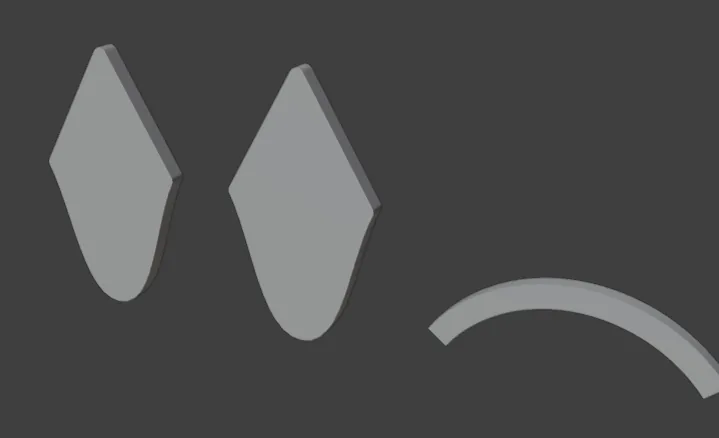
About 10 minutes.
Files
- p2-11-start.blend (127 KB): open this one to begin.
- p2-11-finished.blend (141 KB): the result, to compare with yours.
Both were made in Blender 5.2.0.
Before you start
- You have done Part 0, and you have cut a hole in a live plate (Cut a hole that stays live, P2-09). The start file holds a drop plate and a strip of metal, both live, in millimetres.
- The add-on is installed, and its CAD/CAM tab is in the sidebar.
Build it
Step 1. Open the start file and save your copy
WhereThe top bar: the row of words that begins File, Edit.
DoDownload p2-11-start.blend from Files above and open it. Then choose File > Save As and save it under the name below, in a folder of yours. Open an exercise file and keep the start file safe (P0-07) shows how.
Typemy-forms.blend
You should seeThe 3D view looks straight at the front: a drop-shaped plate on the left and a curved strip to its right, both solid grey. The title bar, the strip above File and Edit, begins my-forms.
It worked whenThe title bar, the strip above File and Edit, begins my-forms.
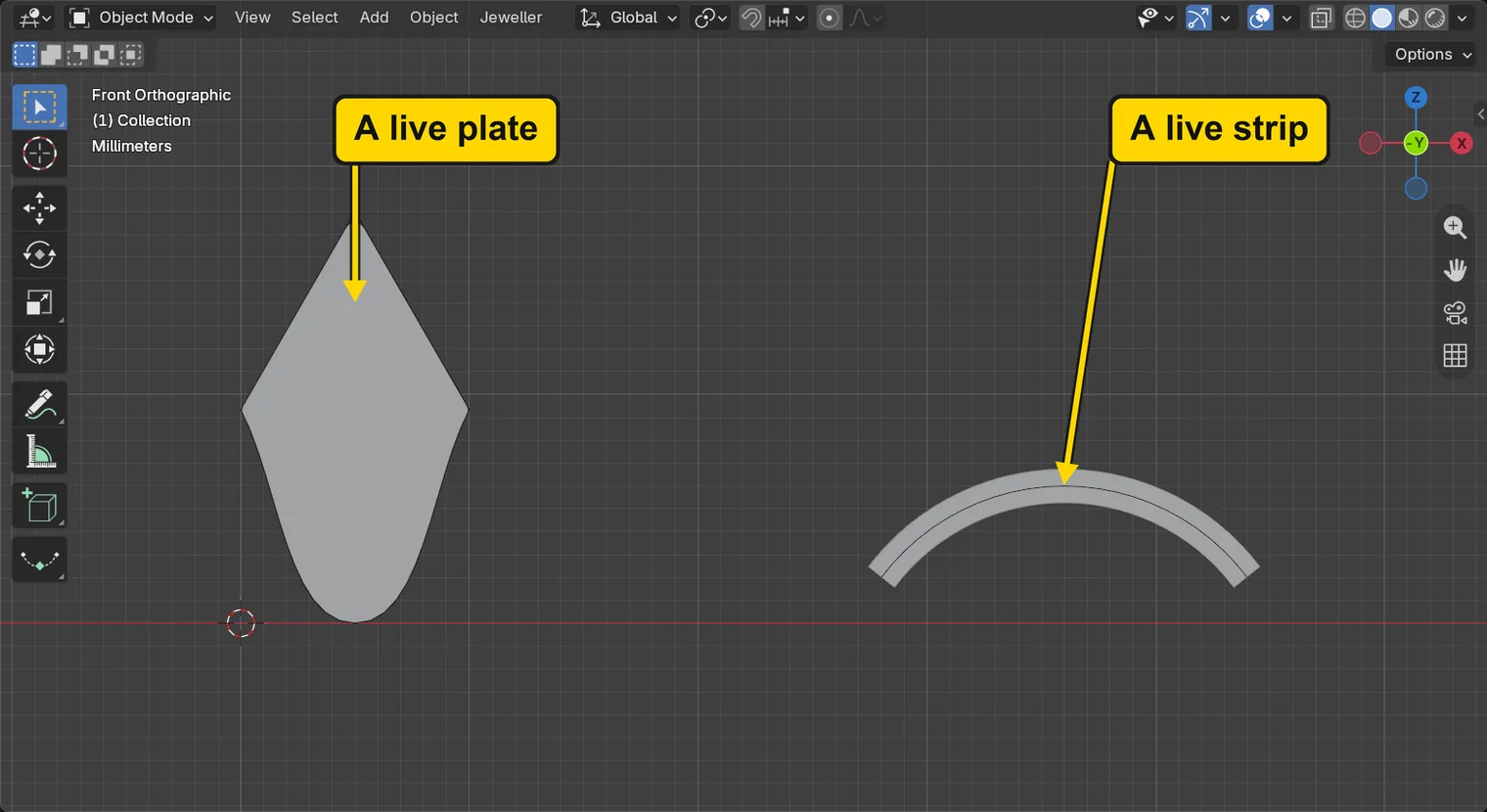
Step 2. Open the Metal section and choose the plate
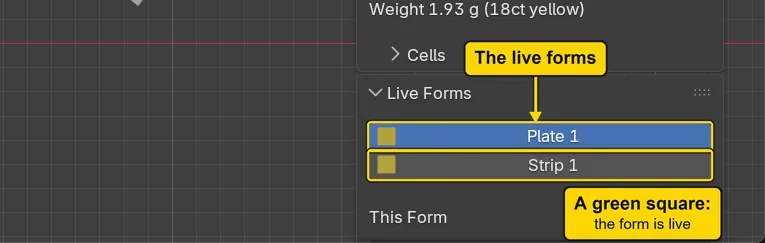
WhereThe section bar, then the Live Forms panel lower in the sidebar.
DoClick Metal, then click Plate 1 in the list of forms.
You should seeThe plate turns orange. The list names both live forms, each with a small coloured square: green reads live, up to date; yellow, stale, waiting to rebuild; orange, frozen, too heavy to follow a drag; red, error, the last rebuild failed. Both squares here are green. This Form opens under the list for the plate, with the buttons Rebuild, Make Real, Remove Live, Duplicate and Clean Up.
It worked whenThis Form names Plate 1.
Step 3. Press Rebuild
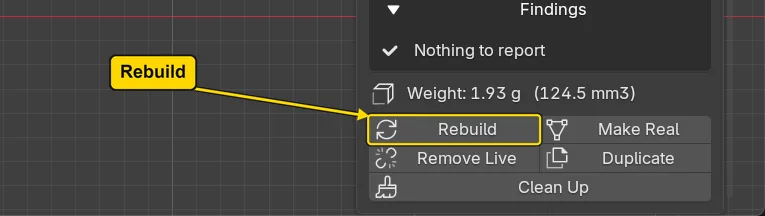
WhereThe Live Forms panel, under This Form: the button Rebuild.
DoPress Rebuild.
You should seeNothing changes on the plate: it was already up to date. The status bar says “Plate 1 rebuilt”, and its message fades. Rebuild is for a form that is too heavy to follow its drawing while you drag: you press it to build the form at once.
It worked whenThe plate looks as before and its square is still green.
Step 4. Press Duplicate
WhereThe Live Forms panel, under This Form: the button Duplicate.
DoPress Duplicate.
You should seeA third form, Plate 2, joins the list. It stands exactly over Plate 1, so the 3D view looks the same. It is not a link: its outline is a copy of the first one’s, drawn again in the same place.
It worked whenPlate 2 is in the list.
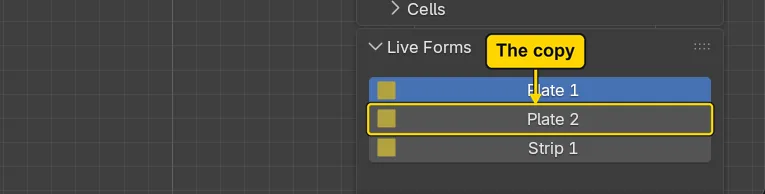
Step 5. Choose the copy and select its outline
WhereThe Live Forms panel: click Plate 2 in the list, then, under Sources, press the name of its outline.
DoClick Plate 2, then press the outline’s name under Outlines.
You should seeThe copy’s own outline is selected and orange, and This Form shows the copy. Its name is CJ Pen.002: Select on a source always selects that source.
It worked whenThe outline is orange.
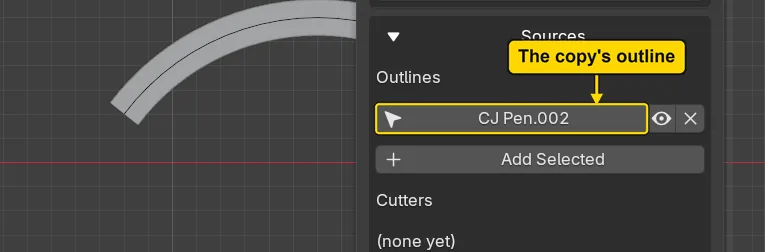
Step 6. Move the copy alone
WhereThe 3D view. Move the pointer off the sidebar and into the dark area.
DoPress G, then X, then type 14, then press Enter.
You should seeThe copy of the plate slides to the right and stands beside the first, which has not moved. G starts a move, X keeps it along the X axis, 14 is millimetres and Enter drops the outline there. The copy follows its own outline, so moving the outline moved the copy and nothing else. The small box at the bottom left, headed Move, is Blender’s Adjust Last Operation box: leave it alone.
It worked whenTwo plates stand side by side.
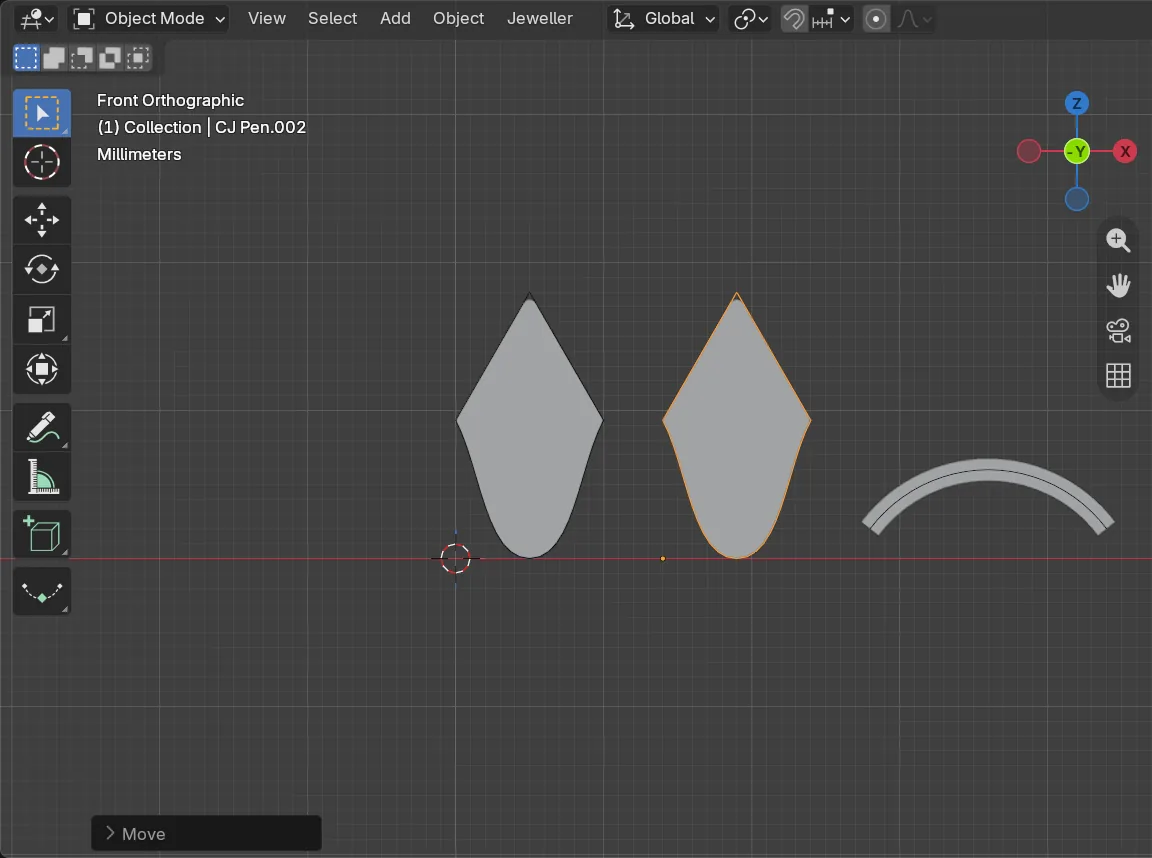
If it goes wrongNothing moves: the pointer is still over the sidebar. Move it over the 3D view and press the keys again.
Step 7. Press Remove Live on the copy
WhereThe Live Forms panel, under This Form: the button Remove Live.
DoPress Remove Live.
You should seePlate 2 leaves the list, and its plate stays in the 3D view. The plate keeps its shape as an ordinary object: it no longer follows its outline. The outline is a drawing in the file that nothing uses.
It worked whenPlate 2 is no longer in the list, and its plate is still in the 3D view.
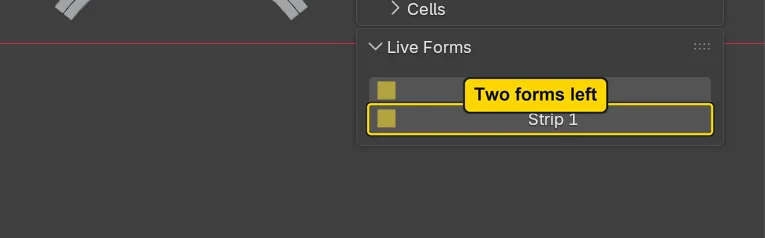
Step 8. Choose the strip
WhereThe Live Forms panel: the list at its top.
DoClick Strip 1 in the list of forms.
You should seeThe strip turns orange. You are about to delete it: it leaves hidden helper objects behind, and the next steps show how to clear them.
It worked whenThe strip is orange.
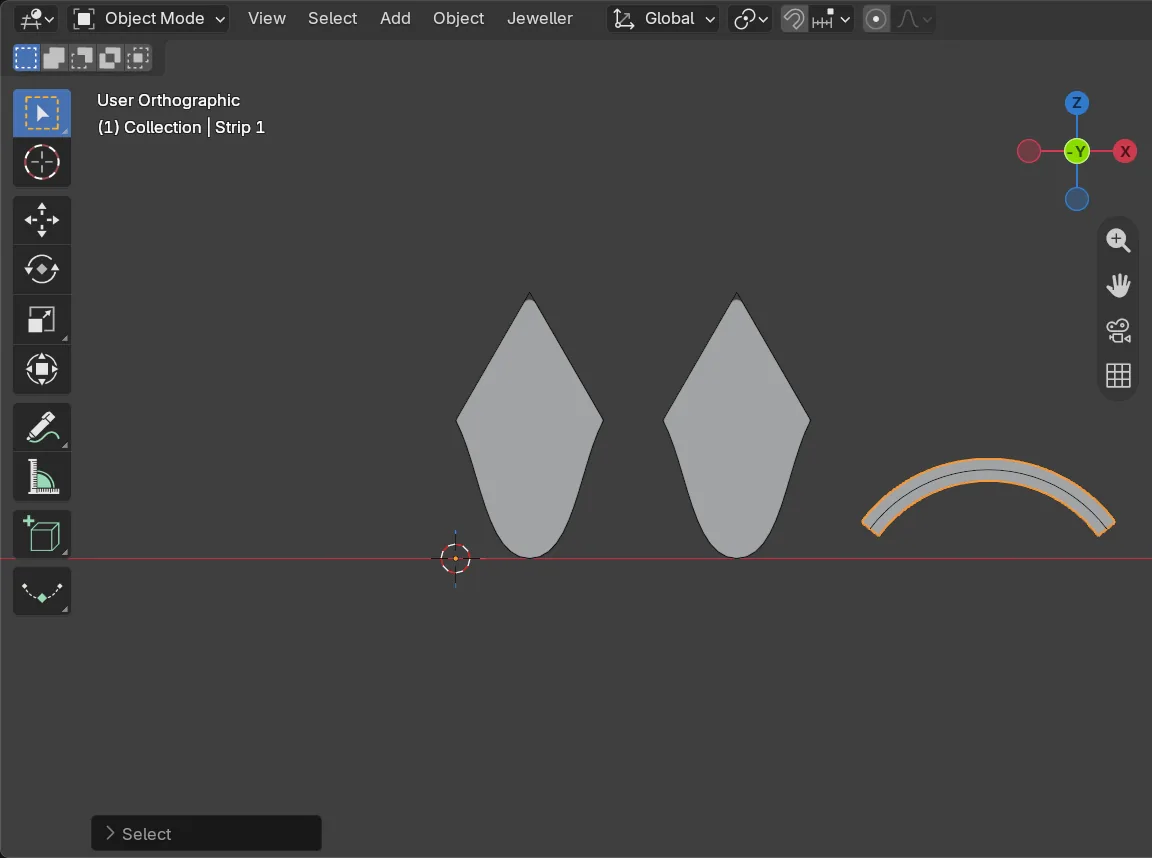
Step 9. Delete the strip
WhereThe 3D view. Move the pointer off the sidebar and into the dark area.
DoPress Delete.
You should seeThe strip is gone from the 3D view, and only its drawing, the thin dark arc, stays. The form is gone with it, but its hidden helpers, the pieces the add-on built it from, are still in the file. You cannot see them in the 3D view: they are hidden on purpose.
It worked whenThe strip is gone from the 3D view and only the thin arc of its drawing is left.
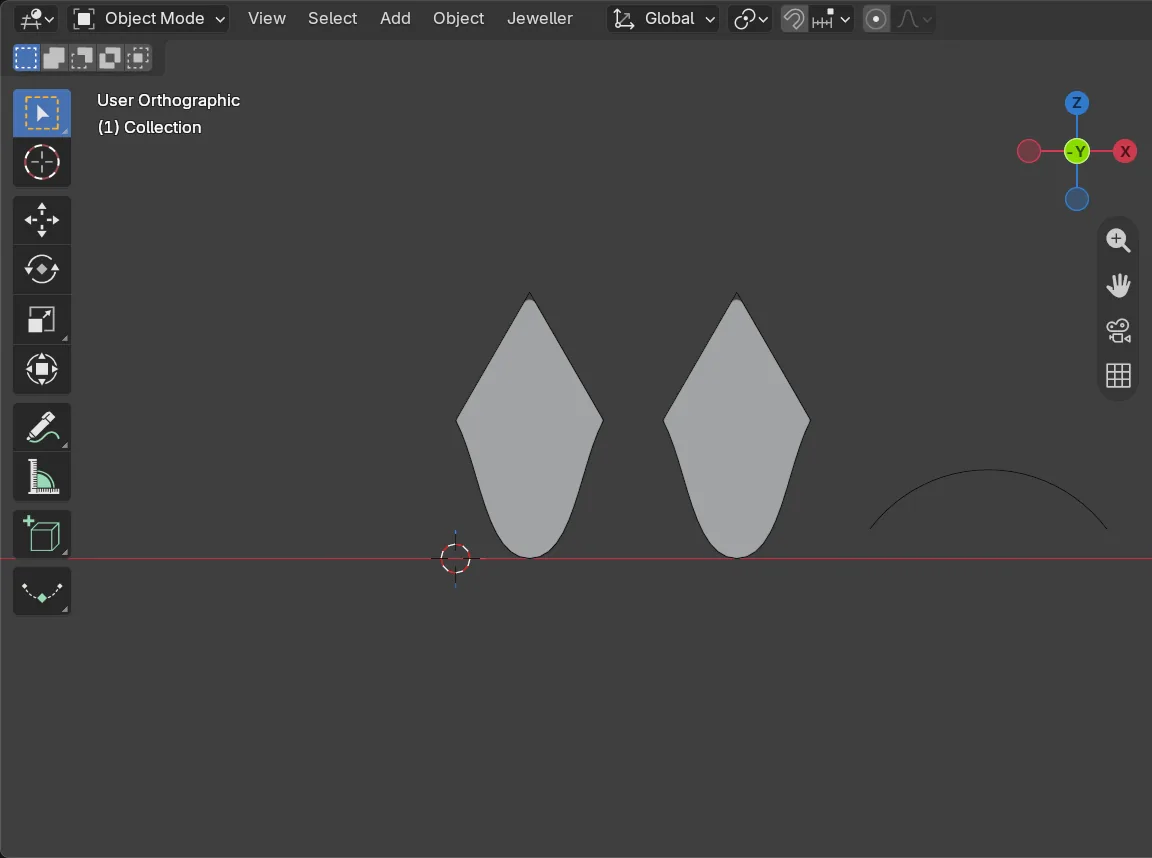
If it goes wrongNothing is deleted: the pointer is still over the sidebar. Move it over the 3D view and press the key again.
Step 10. Press Clean Up
WhereThe Live Forms panel, under This Form: the button Clean Up, the last one.
DoPress Clean Up.
You should seeThe status bar says “Removed the helpers of 2 form(s) that are gone”, and its message fades. Two forms are gone: the strip you deleted and the copy that Remove Live made plain. Clean Up never touches the helpers of a form that is still live: Plate 1 keeps its own, and it is still in the list.
It worked whenThe list of live forms names Plate 1 and no other.

Step 11. Save your work
WhereThe 3D view: move the pointer over it.
DoPress Ctrl+S.
You should seeBlender writes your copy at once, with no question, because the file already has a name. An asterisk, *, in the title bar marks changes that are not saved, and it goes now. Save your work and get it back (P0-12) says more about saving.
It worked whenThe title bar begins my-forms and carries no asterisk.
No picture: the only change is a message on the status bar, and it fades.
Check your result
| What to read | Where | What it should say |
|---|---|---|
| The list of live forms | The Live Forms panel, the list at its top | Plate 1 |
| The copy | The 3D view, looking at the front | Two plates side by side, 14 mm apart; the first has not moved |
| The plate that is no longer live | The Live Forms panel | Plate 2 is not in the list, and its plate is still in the 3D view |
| What Clean Up leaves | The Live Forms panel, the list at its top | Plate 1: Clean Up never removes a live form |
Try it yourself
Open your copy again. Click Plate 1 in the list and press Make Real, then look in the Outliner, the list at the top right of the window, for a new object called Plate 1 real. The live Plate 1 is still in the list of forms.
What you learned
- Rebuild builds a form now: it is for a form too heavy to follow its drawing as you drag. Duplicate makes a copy with its own sources, so moving one does not move the other.
- Remove Live keeps the plate as it is and stops it following its sources. A deleted form leaves hidden helpers, and Clean Up removes them and says how many forms’ helpers went.
- The live forms of a file are listed in the Live Forms panel: that is where to look first.