
What you will make
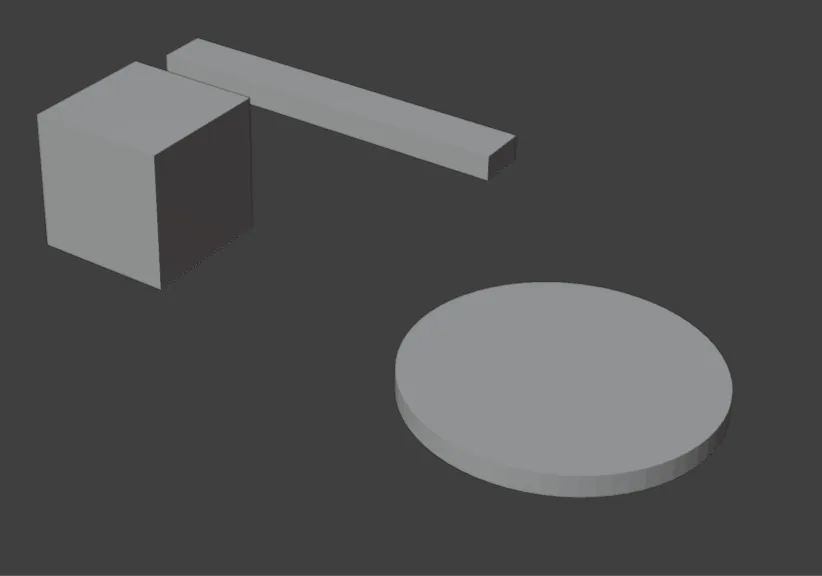
Your own copy of the practice file: a box, a bar and a disc, in a file called my-practice.blend, in a folder of yours. Every exercise in this workbook begins this way. The copy is the one you change, and the start file stays as it came, so that you can always begin again.
About 8 minutes.
Files
- p0-07-start.blend (102 KB): open this one to begin.
- p0-07-finished.blend (102 KB): the result, to compare with yours.
Both were made in Blender 5.2.0.
Before you start
- You know the top bar and the Outliner: Name every part of Blender’s screen (P0-02).
- These pictures were taken on Windows. The File Browser is Blender’s own, and its buttons are the same on any computer, but your folders will have other names.
Build it
Step 1. Download the start file
WhereThe Files section of this page, near the top.
DoClick p0-07-start.blend. Your web browser saves it, in your Downloads folder unless you have told it otherwise.
You should seeThe file arrives. It is a Blender file, ending .blend: you do not unzip it. Leave Blender aside for a moment and let your browser finish.
It worked whenYour browser says the download has finished.
No picture: this happens in your web browser, not in Blender.
Step 2. Open the File Browser
WhereThe top bar: the row of words that begins File, Edit.
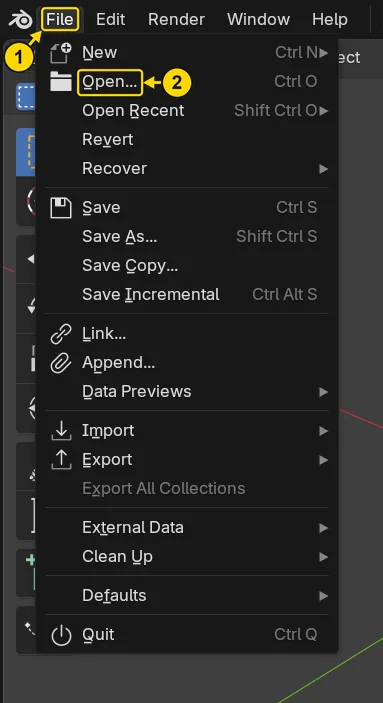
DoClick File (marked 1), then Open… (marked 2).
You should seeA second window opens, in front of the first. It is Blender’s File Browser, and its title bar says Blender File View. Ctrl+O opens it too.
It worked whenThe File Browser stands open, with a list of files in its middle and Open and Cancel at its foot.
Step 3. Go to your Downloads folder
WhereThe left column of the File Browser, under System.
DoClick Downloads. Or click the long field at the top of the window, type the path of the folder, and press Enter.
You should seeThe list in the middle of the window now shows that folder. The left column also lists your other folders and drives.
It worked whenP0-07-start.blend stands in the list.
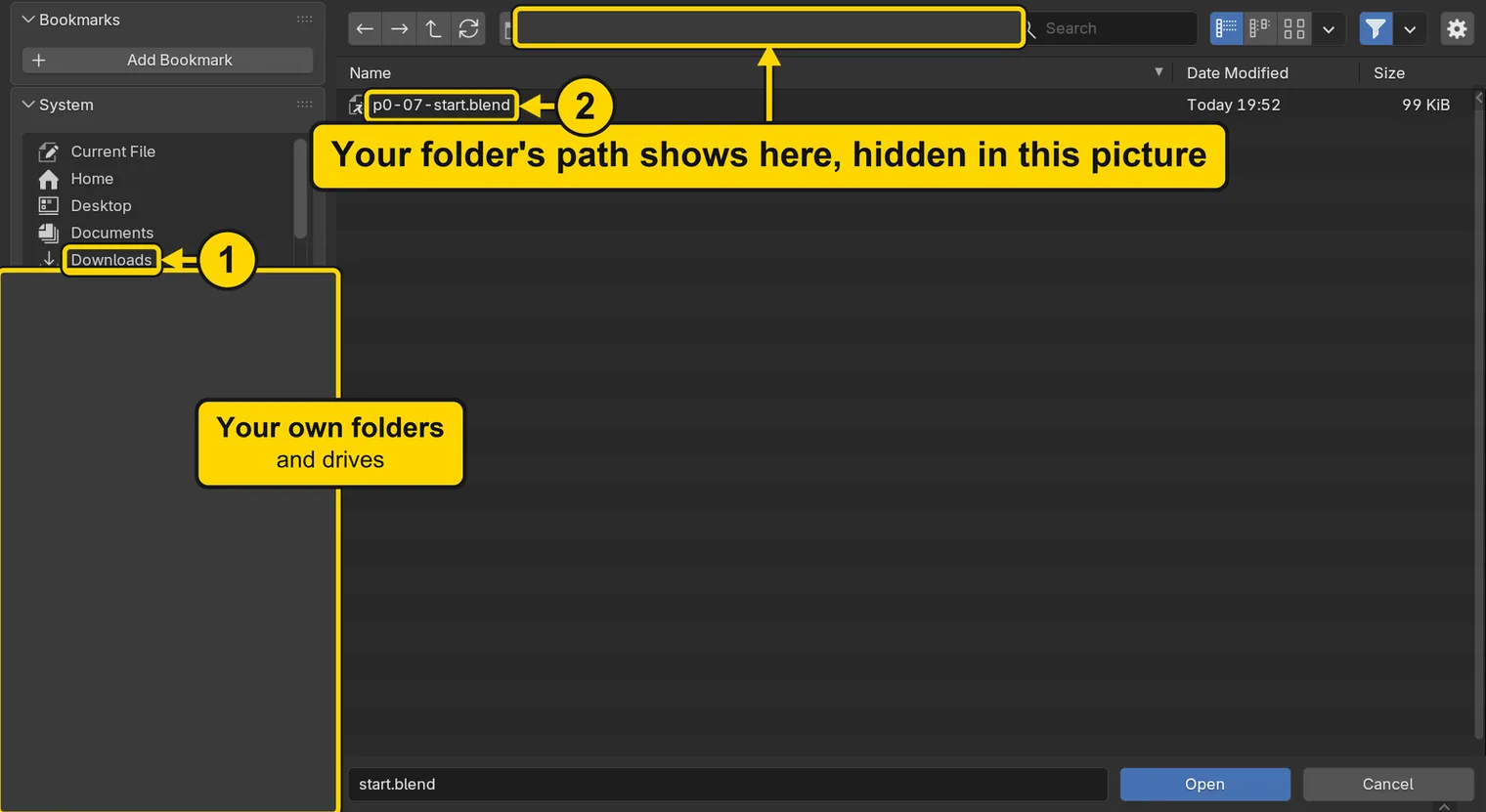
If it goes wrongThe file is not in the list: the File Browser stands in another folder, or the file does. Your web browser’s own list of downloads can show you where it went.
Step 4. Open the file
WhereThe list in the middle of the File Browser, and the buttons at its foot.
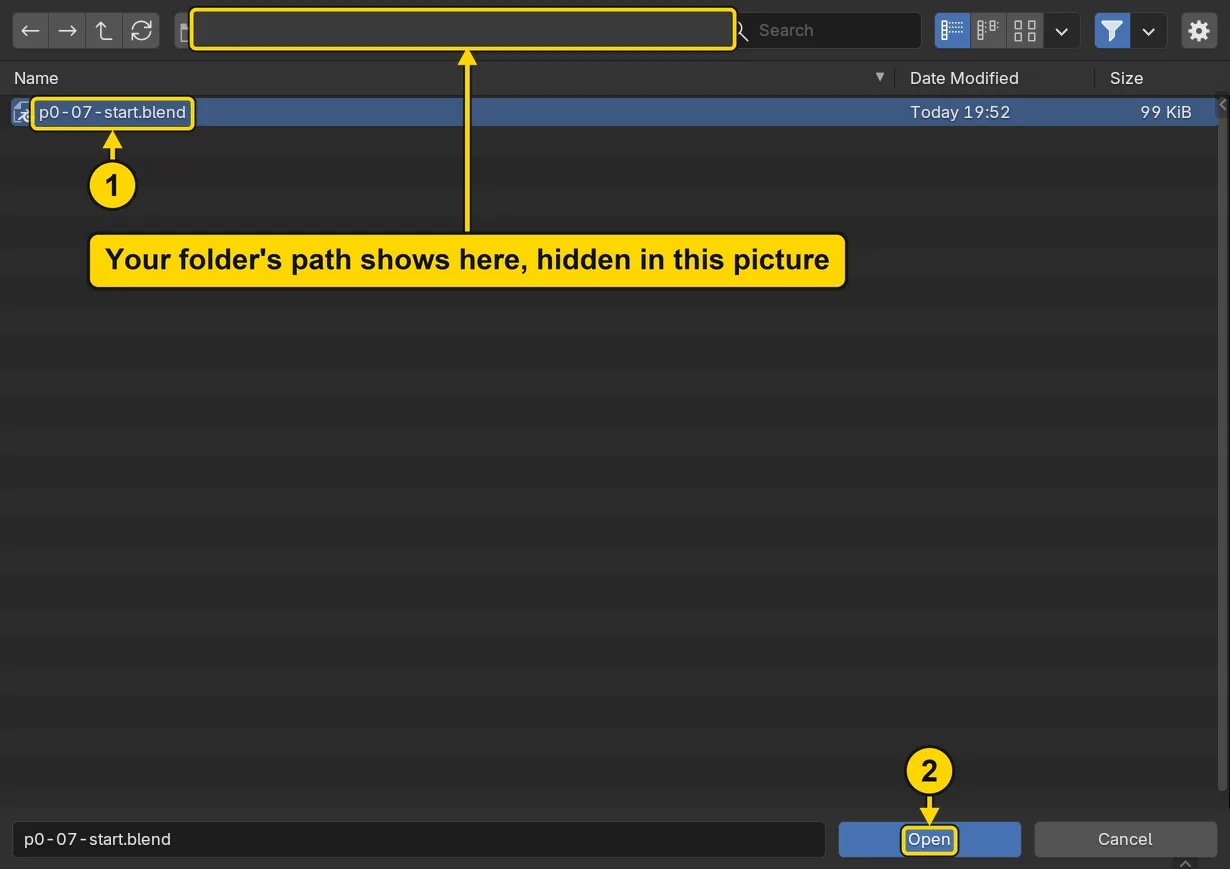
DoClick p0-07-start.blend in the list (marked 1). Then press Open (marked 2).
You should seeThe File Browser shuts. The 3D view now shows a box, a bar and a disc, and the title bar begins p0-07-start. The title bar is the strip above File and Edit (marked 1 in the second picture). If your window has none, read the status bar instead: just after a save it says Saved and your file’s name.
It worked whenThe Outliner, at the top right of the window, lists Bar, Box and Disc.

Step 5. Start your own copy, and meet the red field
WhereThe top bar of Blender’s window: the same File menu.
DoClick File, then Save As…. Ctrl+Shift+S does the same.
You should seeThe File Browser opens again, this time to save, in the folder of the file you have open. The field at its foot is red and the button beside it reads Overwrite, because a file of that name is already here. Do not press it: it would write over your start file.
It worked whenThe File Browser stands open, with the red field and Overwrite at its foot.

Step 6. Go to a folder of your own
WhereThe left column of the File Browser, or the long field at the top.
DoClick Documents in the left column (marked 1). Or click the long field at the top, type the path of a folder of yours, and press Enter.
You should seeThe list in the middle shows that folder, and the red has gone: the button now reads Save As (marked 2). Any folder you can find again will do.
It worked whenThe field at the foot is no longer red, and the button beside it reads Save As.
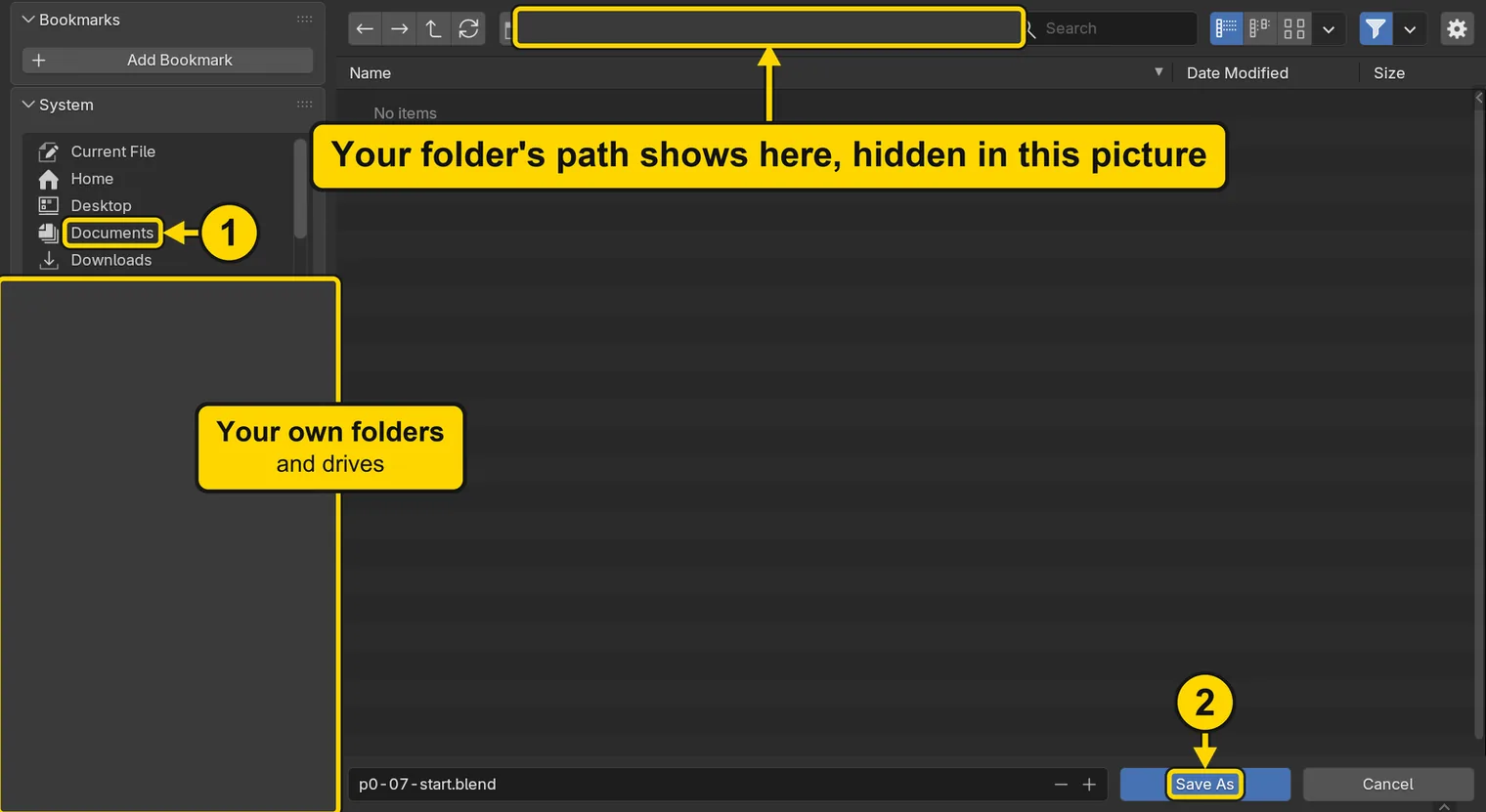
Step 7. Name your copy and save it
WhereThe field at the foot of the File Browser, and the button beside it.
DoClick the field (marked 1), type the name below and press Enter. If the window is still open, press Save As (marked 2).
Typemy-practice.blend
You should seeThe File Browser shuts, the status bar begins Saved, and the title bar, the strip above File and Edit, now begins my-practice. You are working in your copy from here on.
It worked whenThe title bar begins my-practice.
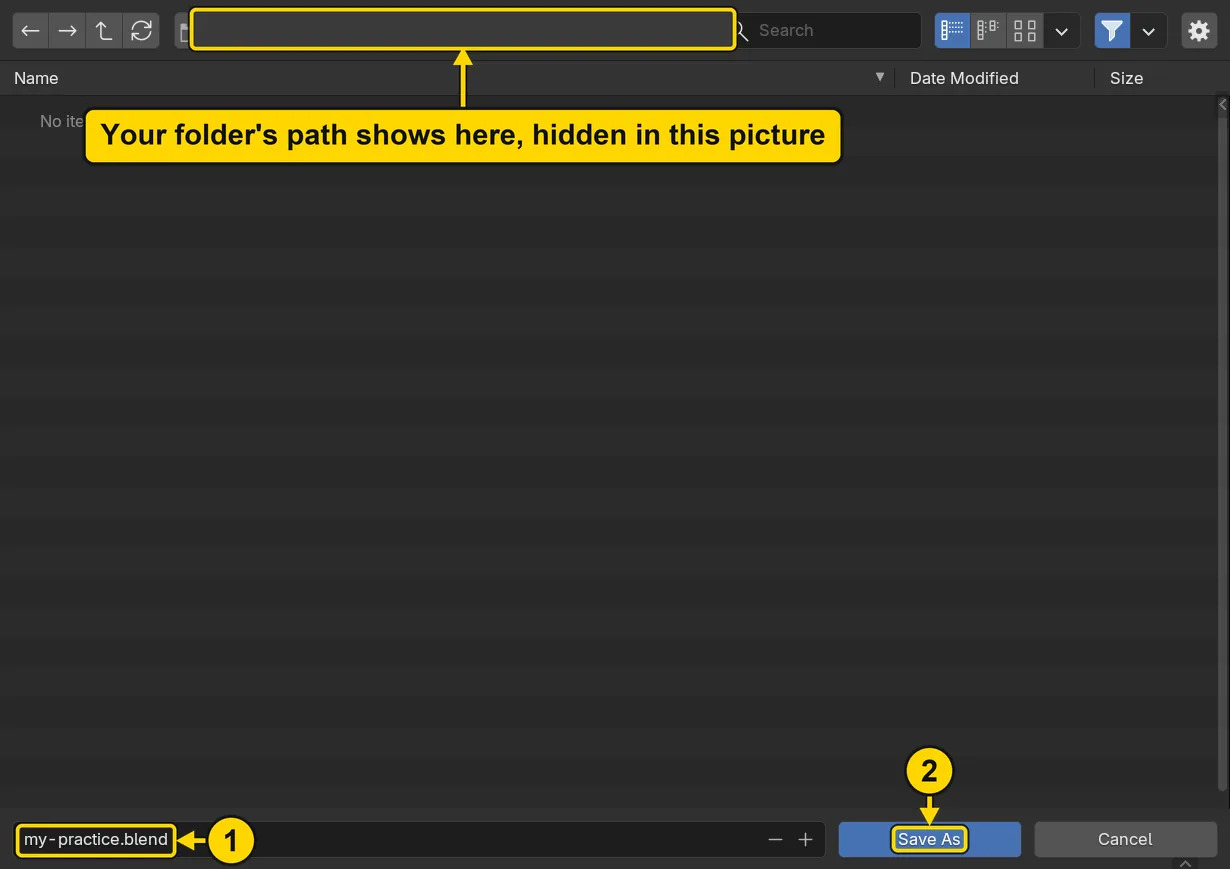
If it goes wrongThe field stays red and the button reads Overwrite: a file of that name is already in this folder. Type another name, or that file will be written over.
Step 8. See your two files
WhereThe top bar of Blender’s window.
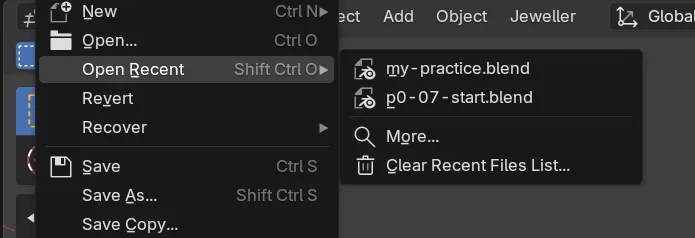
DoClick File, then rest the pointer on Open Recent. Press Esc twice to shut the menus.
You should seeBlender lists the files you have had open, the newest first. Your copy is at the top, and the start file, which you never changed, is under it.
It worked whenMy-practice.blend stands above p0-07-start.blend.
Check your result
| What to read | Where | What it should say |
|---|---|---|
| The file you are in | The title bar, the strip above File and Edit | It begins my-practice |
| What is in it | The Outliner, at the top right of the window | Bar, Box and Disc |
| Your two files | File, then Open Recent | my-practice.blend at the top, p0-07-start.blend under it |
Try it yourself
Click File, rest the pointer on Open Recent, and click p0-07-start.blend: the start file opens, just as it came. Then open my-practice.blend the same way, and the title bar changes back.
What you learned
- File > Open shows Blender’s File Browser: pick a folder at the top or the left, pick a file in the middle, press Open.
- File > Save As first, before you change anything: your copy gets your name, and the start file stays as it came.
- The title bar always says which file you are in.
Next: Select, add to the selection, clear it, spot the active one