
What you will do
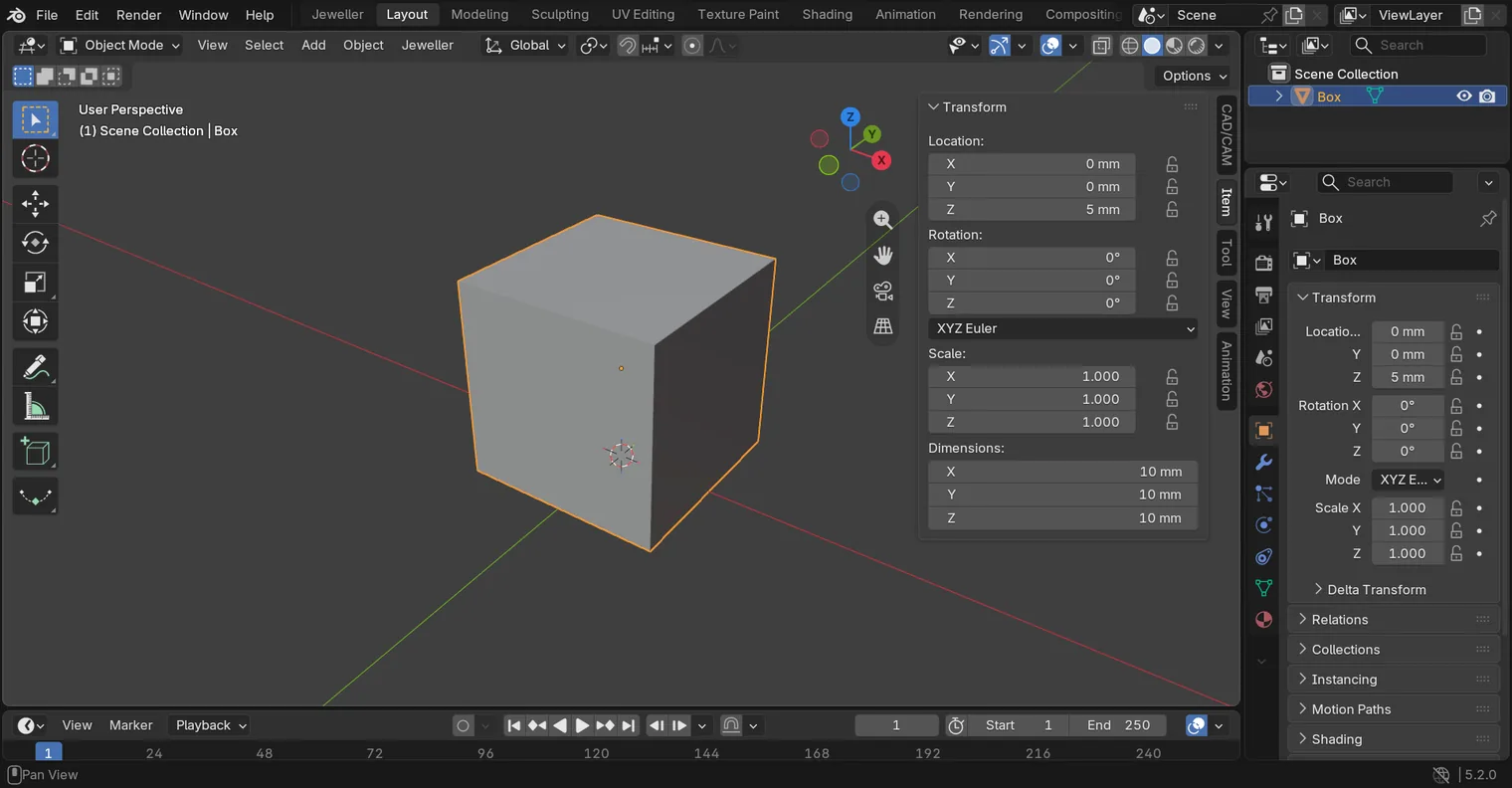
You will open a file whose units are metres, see a box that reads 10 m, and press one button to make it read 10 mm. The add-on counts one Blender unit as one millimetre, and its tools make things at true size, so a file in metres shows every size a thousand times too large.
About 5 minutes.
Files
- p0-20-start.blend (99 KB): open this one to begin.
- p0-20-finished.blend (103 KB): the result, to compare with yours.
Both were made in Blender 5.2.0.
Before you start
- You can open the CAD/CAM tab and its section bar: Open the CAD/CAM tab and find your way round it (P0-19).
- You can read a number in the sidebar’s Item tab: Type an exact number into a field (P0-13).
Build it
Step 1. Open the start file and save your copy
WhereThe top bar: the row of words that begins File, Edit.
DoDownload p0-20-start.blend from Files above and open it. Then choose File > Save As and save it under the name below, in a folder of yours. Open an exercise file and keep the start file safe (P0-07) shows how.
Typemy-units.blend
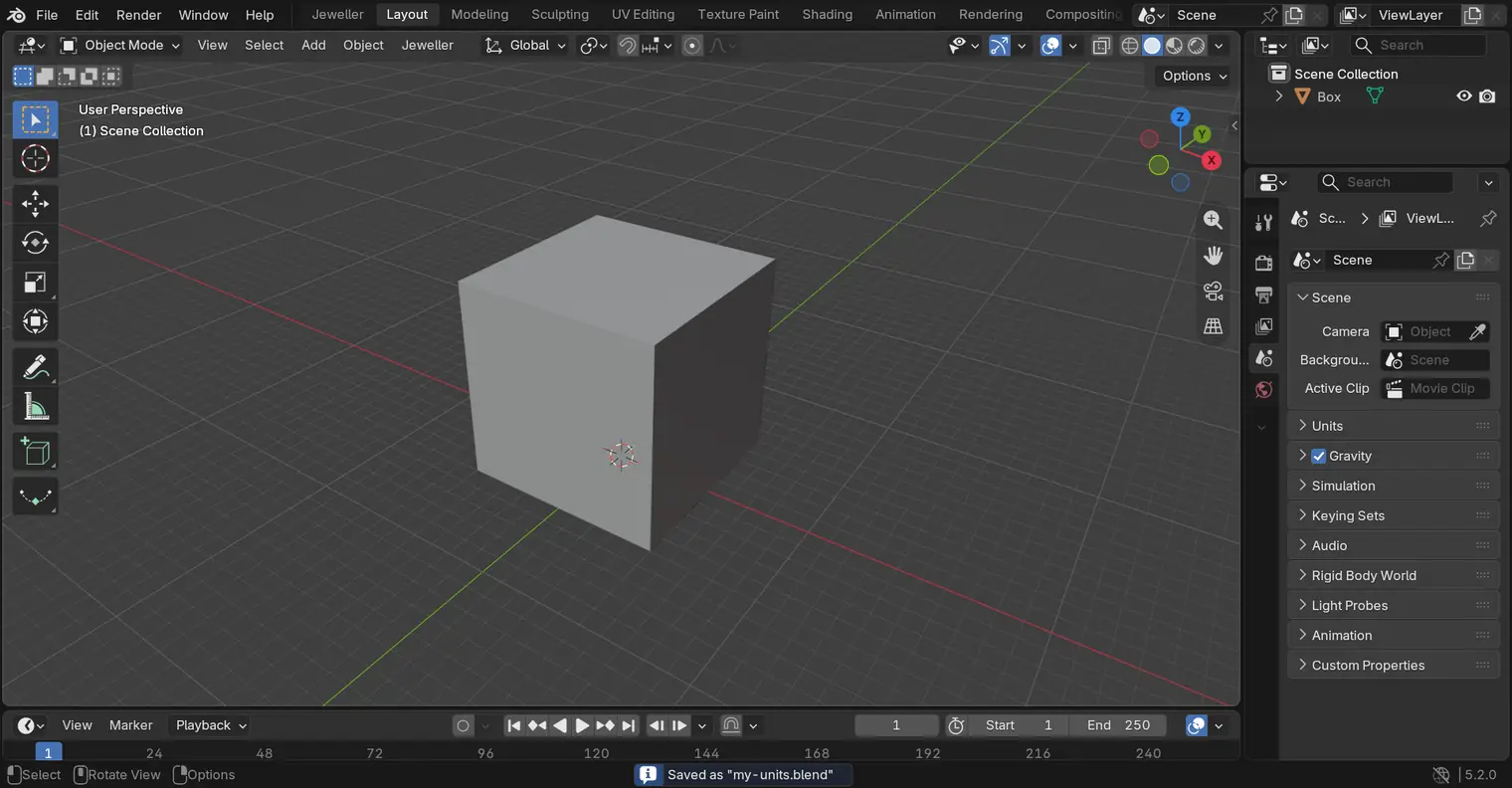
You should seeA box stands on the grid, and it is large: this file’s units are metres. The Outliner lists Box only. Your copy is open, and the start file is left as it came.
It worked whenThe Outliner, at the top right of the window, lists Box.
Step 2. Read the box’s size
WhereThe Outliner, then the sidebar: press N with the pointer over the 3D view if it is shut.
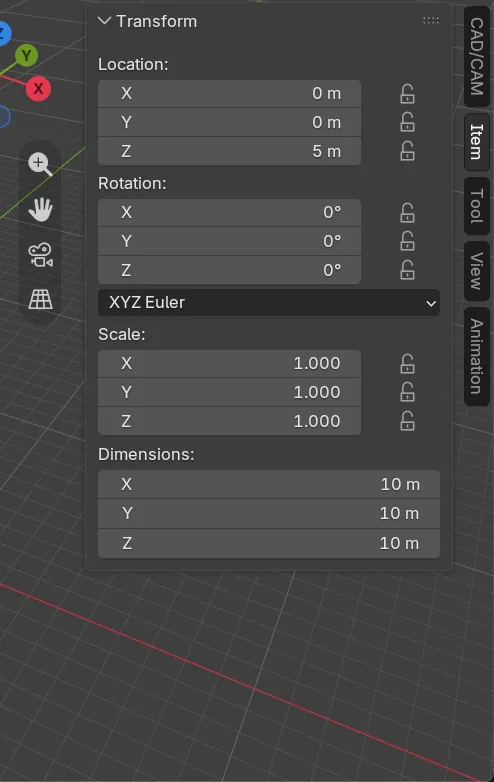
DoClick Box in the Outliner. Then click the Item tab on the sidebar’s edge.
You should seeThe row Dimensions: reads 10 m for X, Y and Z. The box was made 10 units wide, and in this file a unit is a metre.
It worked whenDimensions X, Y and Z read 10 m.
Step 3. Find the units line
WhereThe sidebar: the CAD/CAM tab, then the section bar.
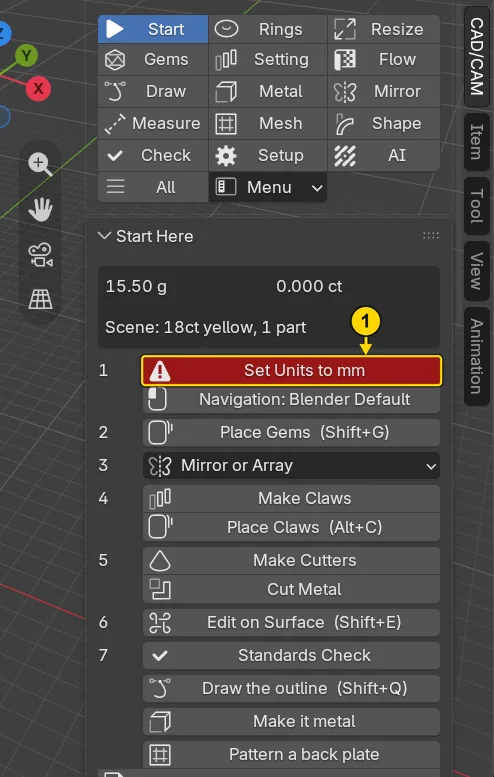
DoClick the CAD/CAM tab, then Start in the section bar. Look at row 1 of Start Here.
You should seeRow 1 is a red button, Set Units to mm, because the file is not in millimetres. The add-on checks this for you every time.
It worked whenRow 1 of the panel Start Here reads Set Units to mm, in red.
Step 4. Press Set Units to mm
WhereThe panel Start Here, row 1.
DoPress Set Units to mm.
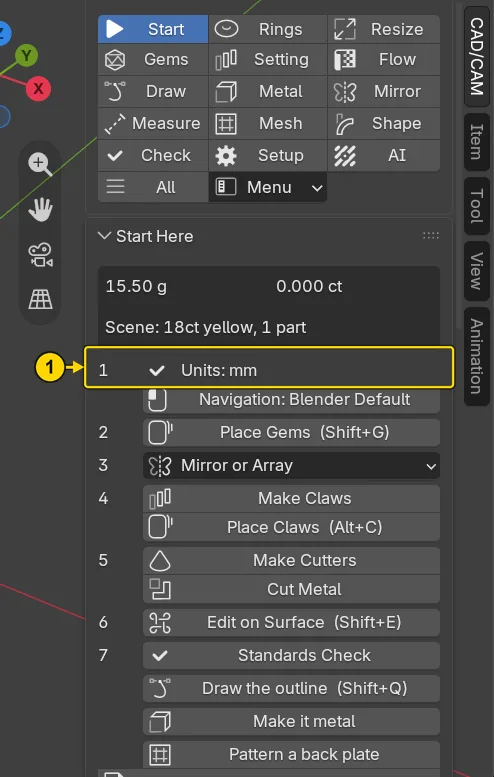
You should seeThe red button turns into a line, Units: mm, with a tick. The file now counts one unit as a millimetre.
It worked whenRow 1 of Start Here reads Units: mm, with a tick.
Step 5. Read the box again
WhereThe sidebar’s Item tab.
DoClick the Item tab.
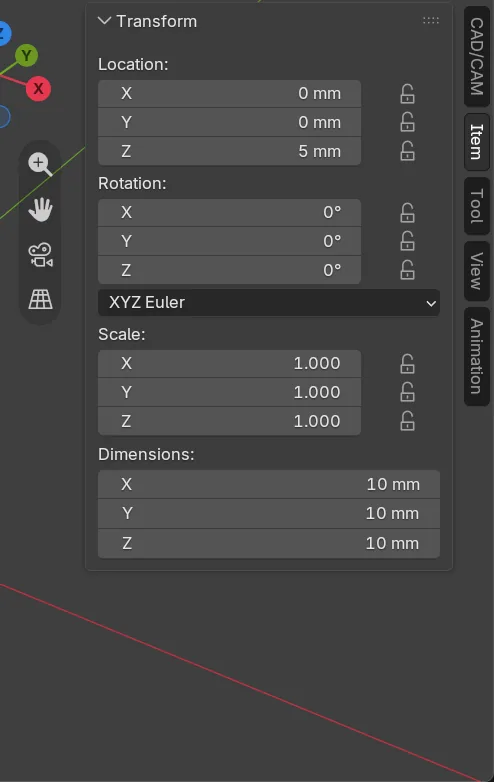
You should seeThe row Dimensions: now reads 10 mm. The box is the same box, with the same 10 units: only the name of the unit has changed.
It worked whenDimensions X, Y and Z read 10 mm.
Step 6. Save your work
WhereThe 3D view: move the pointer over it.
DoPress Ctrl+S.
You should seeBlender saves your copy over itself, with no question, and the start file is untouched. An asterisk, *, in the title bar marks changes that are not saved, and it goes now.
It worked whenThe title bar, the strip above File and Edit, begins with the name of your copy, and no asterisk stands by it.

Check your result
| What to read | Where | What it should say |
|---|---|---|
| The units line | The sidebar, CAD/CAM tab, Start section, Start Here, row 1 | Units: mm, with a tick |
| The box’s size | The sidebar’s Item tab, the row Dimensions: | 10 mm for X, Y and Z |
| Your copy | The title bar, the strip above File and Edit | It begins my-units |
Try it yourself
Click File, rest the pointer on New, and click General. The new file opens in millimetres at once: open the CAD/CAM tab and the Start section, and row 1 of Start Here reads Units: mm with a tick. Only a new file does this. A file you open keeps the units it was saved in.
What you learned
- One Blender unit is one millimetre, and the add-on’s tools make things at true size. A file in metres shows the same box ten metres wide.
- Row 1 of Start Here says Units: mm with a tick, or offers Set Units to mm in red. Press it at the start of every file you did not make in the add-on.
- Opening a file never changes its units: a new file from File > New opens in millimetres, if you left the tick on in the first page, and every other file keeps what it was saved in.
Next: See what live means