
What you will make
A Round 5.00 (a round stone 5.00 mm across) held by four claws whose legs run down outside the stone, lean in a little and end on a bar of metal below where the straight claws stopped. The bar stands for the rail of a head. The leg is the part of the claw under the stone’s girdle, its widest edge. Bend Leg gives each claw one smooth bar for its leg, and the top of the claw, over the stone, does not change: the tips stay where they were. The legs keep clear of the stone. They carry it, so they count as structural metal: at the bench a leg is 0.80 thick or more. Leave Leg Thickness, mm on auto here, and read the claw’s own Thickness (P3-07) before you cast.
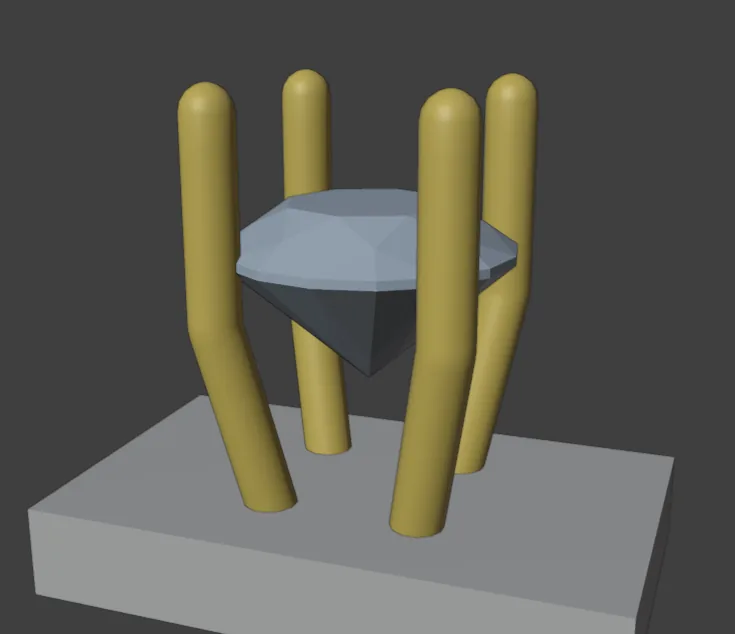
About 10 minutes.
Files
- p3-09-start.blend (111 KB): open this one to begin.
- p3-09-finished.blend (130 KB): the result, to compare with yours.
Both were made in Blender 5.2.0.
Before you start
- You have done Part 0, Blender from nothing, and Give a stone claws, then change them (P3-07): the claws, Thickness and Height above table. The start file holds a Round 5.00 with four claws, over a bar, in millimetres.
- CAD/CAM Jeweller 2.22.0 or later is installed (Preferences > Add-ons shows the version), and its CAD/CAM tab is in the sidebar.
Build it
Step 1. Open the start file and save your copy
WhereThe top bar: the row of words that begins File, Edit.
DoDownload p3-09-start.blend from Files above and open it. Then choose File > Save As and save it under the name below, in a folder of yours. Open an exercise file and keep the start file safe (P0-07) shows how.
Typemy-legs.blend
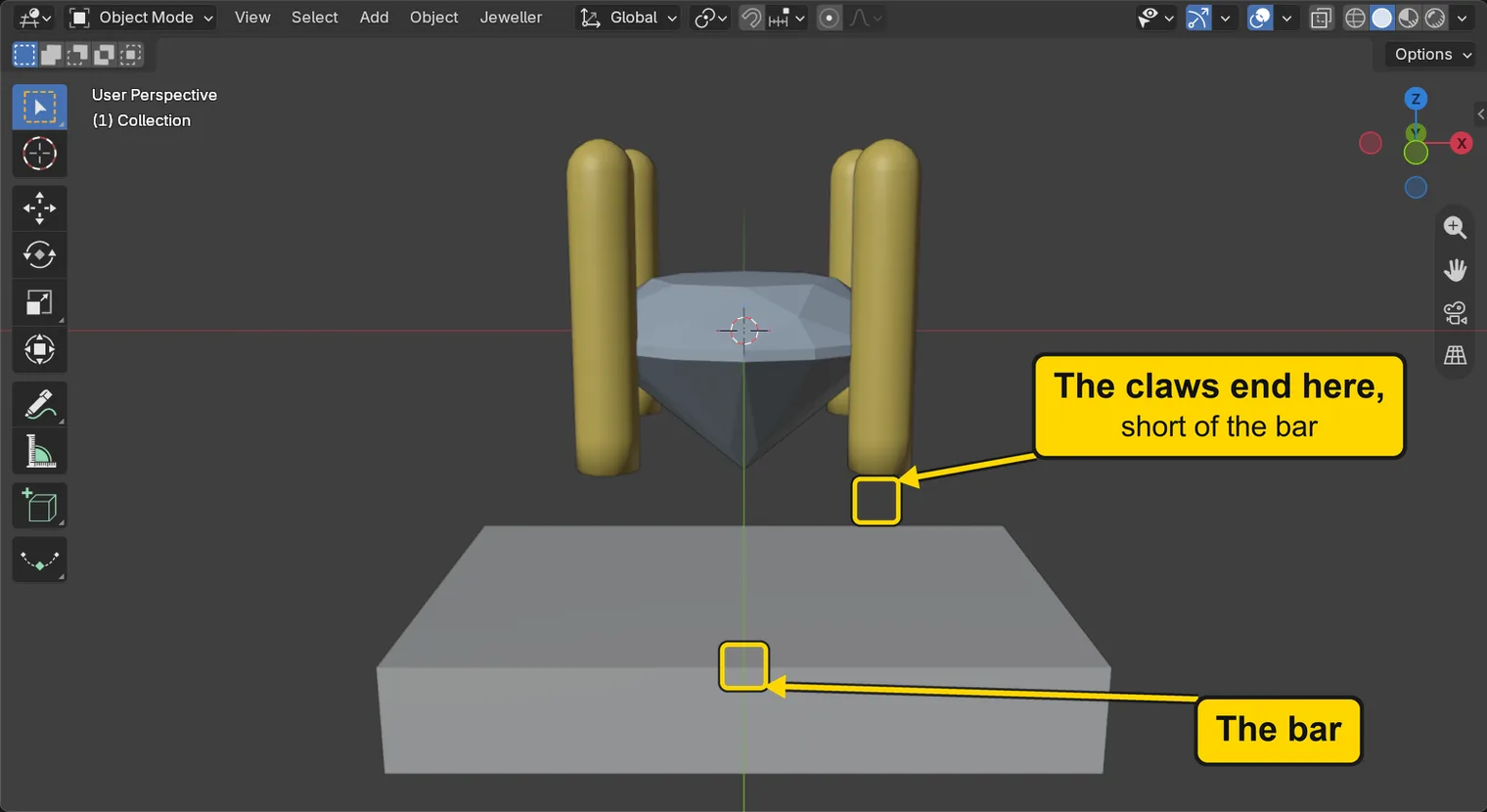
You should seeThe 3D view shows a pale round stone, held by four claws, in the air over a grey bar, seen from the front and a little above. The straight claws end well above the bar. Nothing is selected. The title bar, the strip above File and Edit, begins my-legs.
It worked whenThe title bar, the strip above File and Edit, begins my-legs.
Step 2. Click the stone
WhereThe 3D view: click the stone.
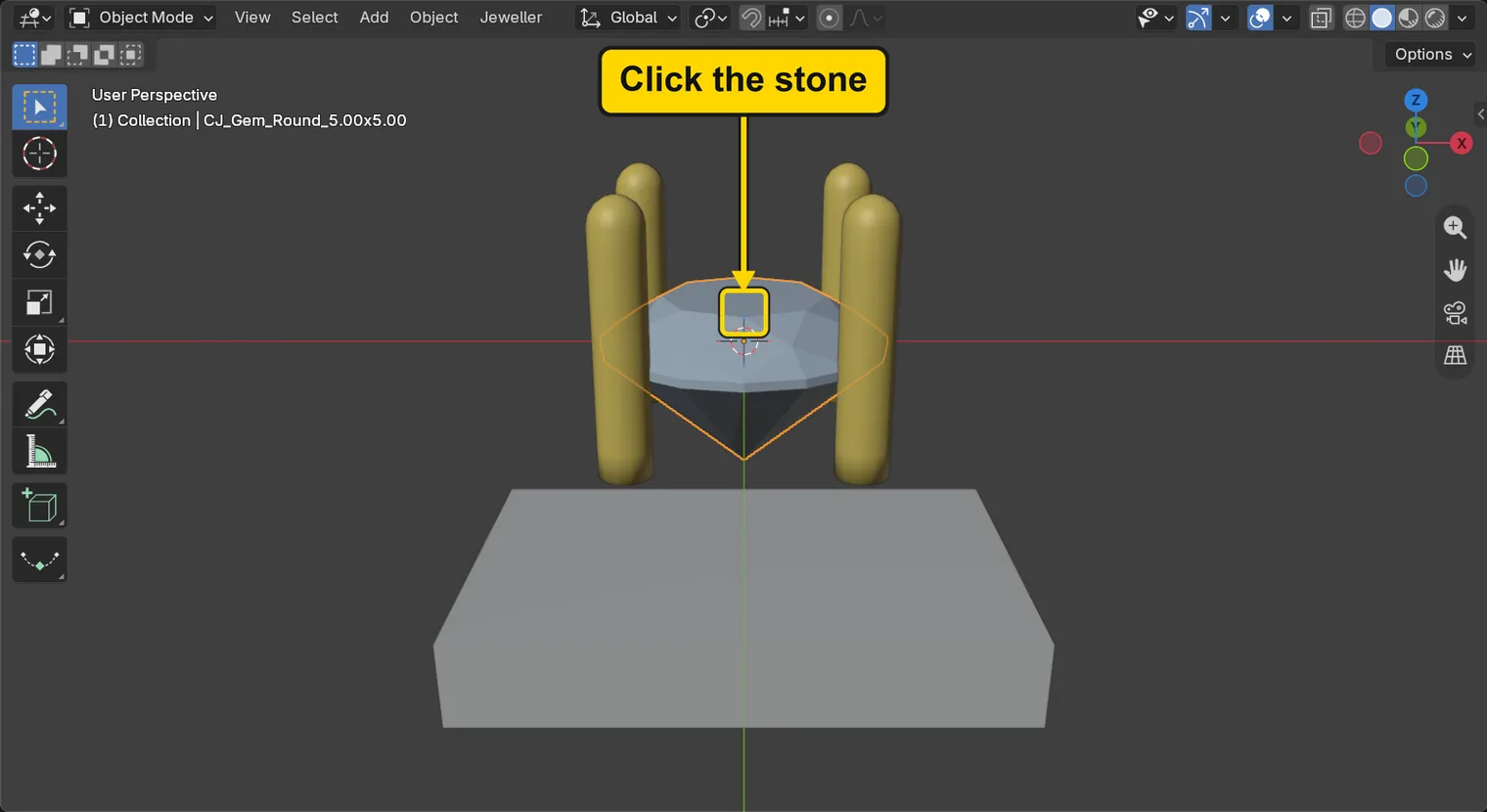
DoClick once on the stone.
You should seeThe stone has an orange outline. Bend Leg acts on the claws you have selected, or on the claws of the stone you have selected. With neither, the status bar says “Select one or more claws, or a gem that has claws”.
It worked whenThe words at the top left of the 3D view end CJ_Gem_Round_5.00x5.00.
Step 3. Find the Bent Leg box
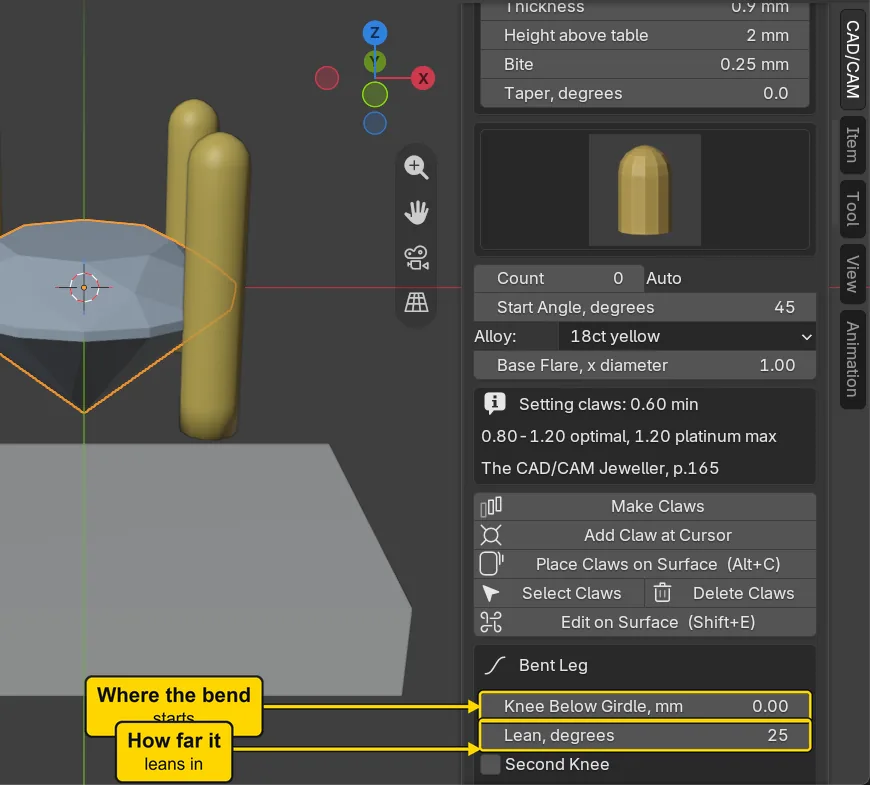
WhereThe sidebar: if it is shut, press N with the pointer over the 3D view. The section bar: click Setting. A list at the top of the section names every panel in words: it is not a button. Under the list stands the open panel Stone Settings: click its title once to fold it, so that the panel titles stand close together (scroll with the wheel, or slide two fingers on a laptop’s touchpad, if you need to). Then click the title of the panel Claws, the line with a small arrow beside it, and scroll down to the box Bent Leg.
DoClick Setting in the section bar, open the panel Claws, and scroll down to Bent Leg.
You should seeThe box Bent Leg with its numbers in this order: Knee Below Girdle, mm (where the bend starts, counted down from the girdle), Lean, degrees (how far the leg leans in towards the stone, from upright), a tick box Second Knee (leave it unticked for now) and Foot with Foot Below Girdle, mm (how far down the leg ends). The two buttons Bend Leg and Straighten stand lower in the box.
It worked whenYou can read Knee Below Girdle, mm, Lean, degrees and Foot Below Girdle, mm.
Step 4. Type the three numbers
WhereThe Bent Leg box: the three fields in the table below.
DoFor each field, click the middle of it once, type the number and press Enter. The bar’s top stands 4.20 below the girdle, so the foot goes to 4.50, which runs the end of the leg 0.30 into the bar.
You should seeThe three fields read 1.00 mm, 15.0 degrees and 4.50 mm. Foot reads At a Depth, which is its starting choice: the leg ends at a depth you type. Nothing has moved yet. Leave Second Knee, Bend Radius, mm and Leg Thickness, mm as they are.
It worked whenKnee Below Girdle, mm reads 1.00, Lean, degrees 15.0 and Foot Below Girdle, mm 4.50.
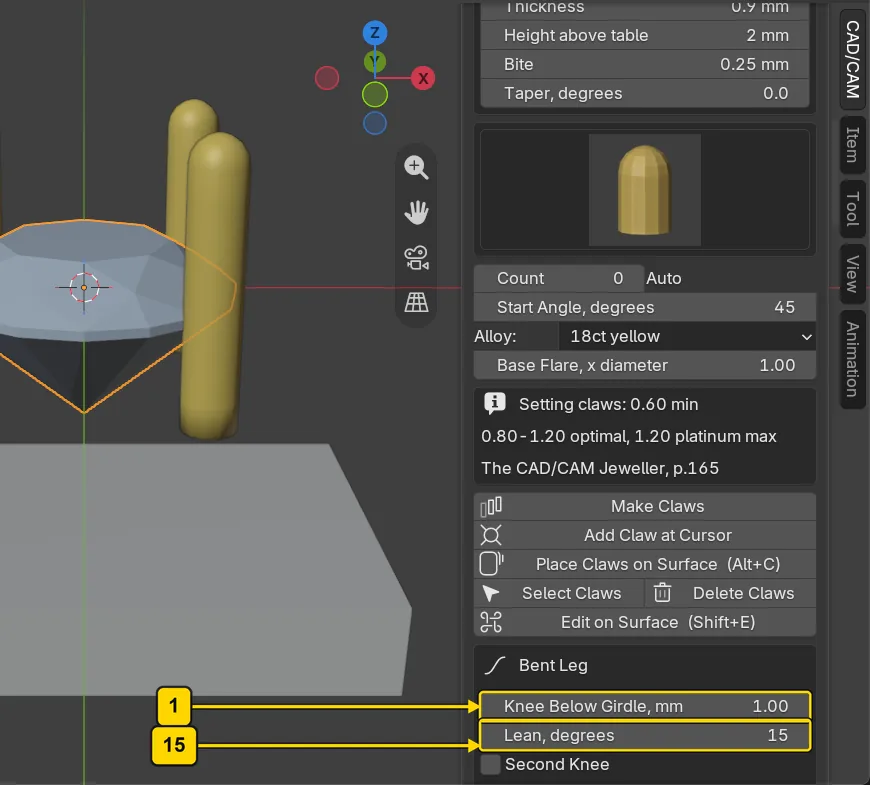
| Field | Type | Why |
|---|---|---|
| Knee Below Girdle, mm | 1.00 | the leg stays straight for the first 1.00 under the girdle |
| Lean, degrees | 15 | a gentle lean towards the stone |
| Foot Below Girdle, mm | 4.50 | the end of the leg goes 0.30 into the bar |
Step 5. Press Bend Leg
WhereThe Bent Leg box, the button Bend Leg, beside Straighten.
DoPress Bend Leg with the stone still selected.
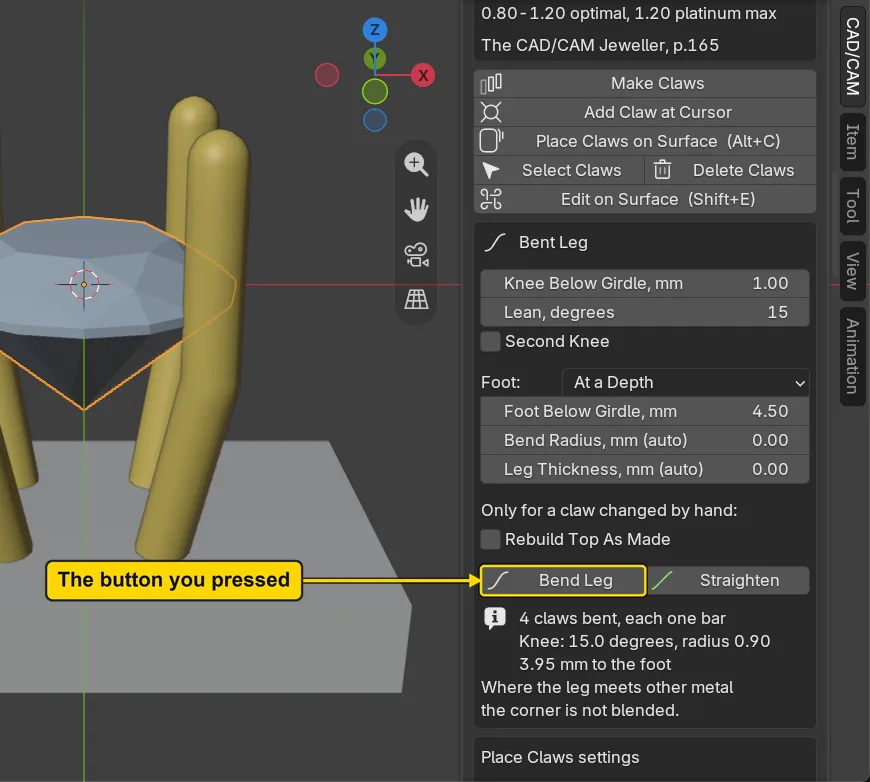
You should seeEach leg bends in and runs down into the bar. Four short lines appear under the buttons: “4 claws bent, each one bar”, “Knee: 15.0 degrees, radius 0.90” (the bend and its radius), “3.95 mm to the foot” and “Where the leg meets other metal the corner is not blended”. The 3.95 is the length of the leg itself, measured along it from where it joins the claw to its foot: it is not the 4.50 you typed, which is a depth. The top of each claw, over the stone, has not moved: the tips are where they were. Each leg is one smooth bar with no joint and no ball.
It worked whenThe line “4 claws bent, each one bar” stands under the buttons.
Step 6. Look at the bent legs from the front
WhereThe 3D view. To look from the front, choose View > Viewpoint > Front, then View > Frame Selected.
DoLook at the picture.
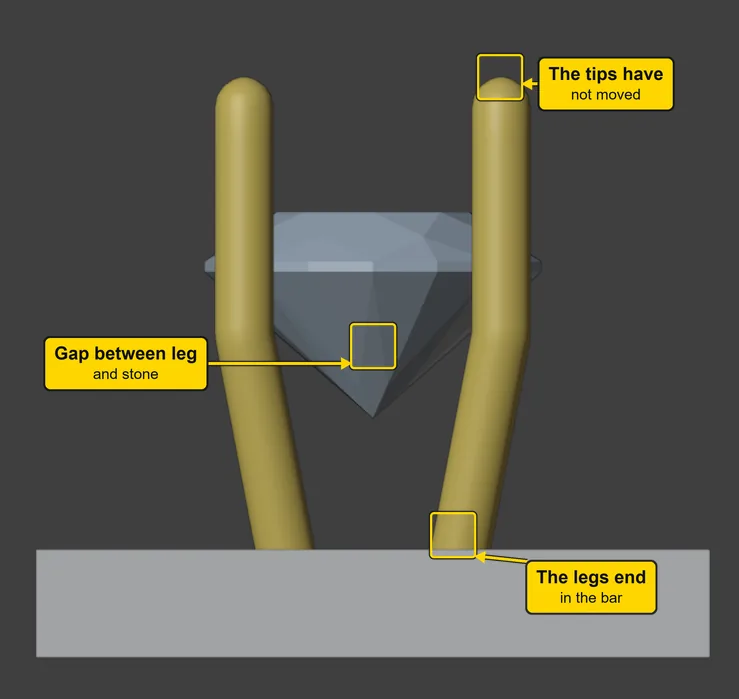
You should seeTwo bent legs, the near ones: the other two claws stand behind them. The tips stand where they stood. Under the girdle each leg runs straight for 1 mm, then leans in and ends in the bar. A thin gap shows between each leg and the stone. A claw’s leg does not cut or touch the stone’s pavilion, the pointed lower part.
It worked whenYou see two bent legs ending in the bar, with a gap between each leg and the stone.
Step 7. Press Straighten
WhereThe Bent Leg box, the button Straighten, beside Bend Leg.
DoPress Straighten with the stone still selected.
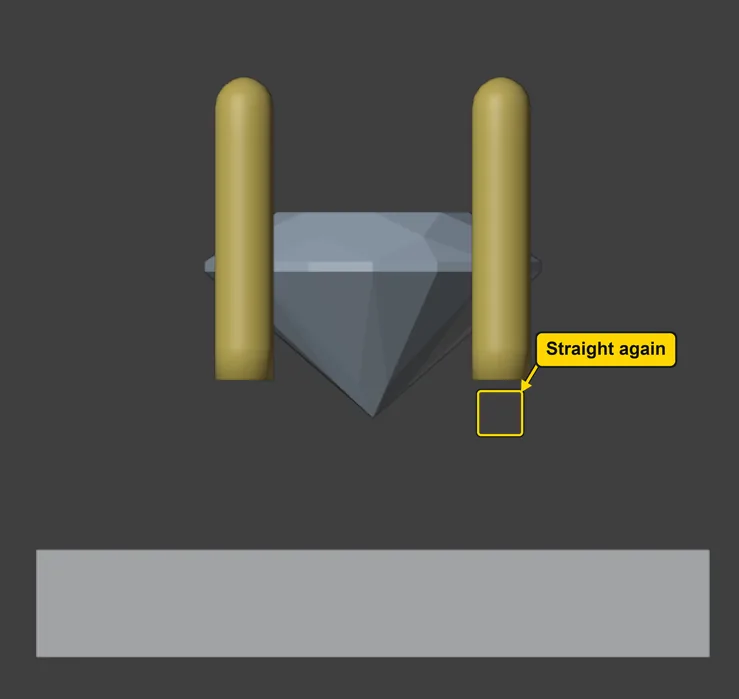
You should seeThe legs go straight again and stop short of the bar, as they were when you opened the file. The status bar says “4 claws straightened”. Straighten takes the bend off and nothing else: the top of the claw is the same as before.
It worked whenThe legs stand straight, ending above the bar.
Step 8. Bend the legs again, and see what Lean does
WhereThe Bent Leg box. Click the stone first if it is no longer selected.
DoPress Bend Leg again: Lean, degrees still reads 15.
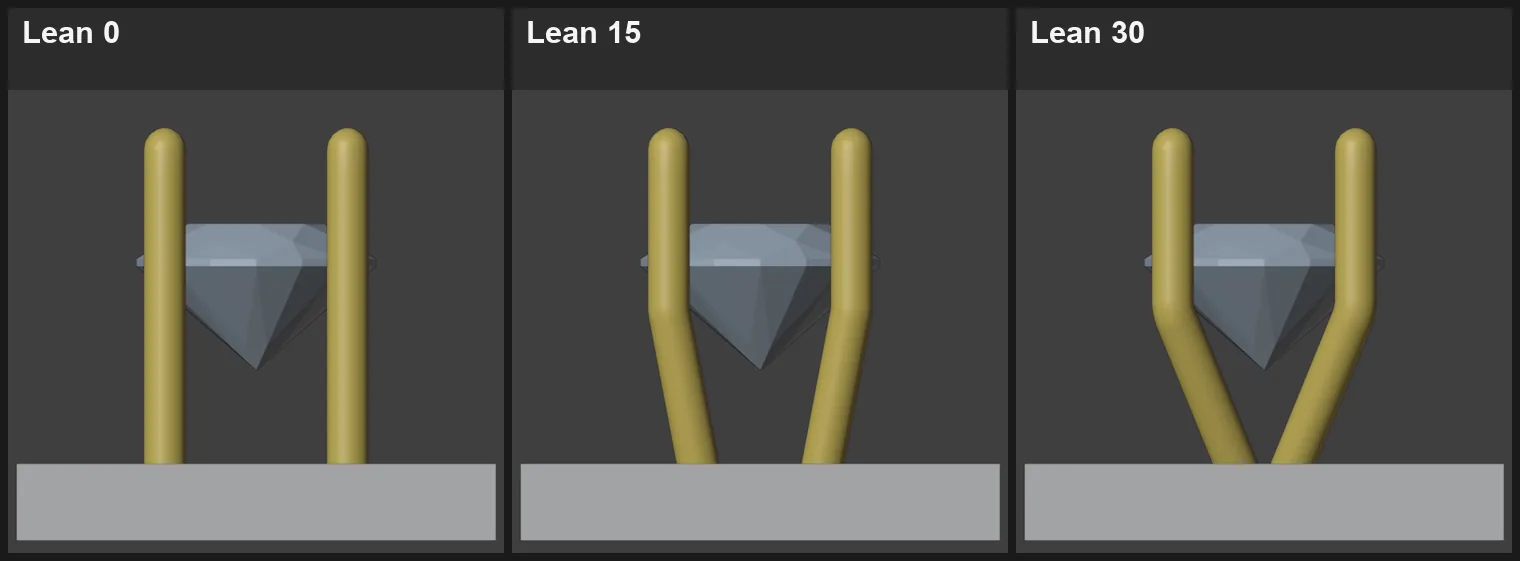
You should seeThe legs bent again, as at step 5. The picture shows the same stone bent three ways, made by typing 0, then 15, then 30 into Lean, degrees and pressing Bend Leg each time. At 0 the leg drops straight down and does not come in. At 15 it leans in and meets the bar. At 30 the four feet are drawn in under the stone and crowd each other. The panel does not stop you. Choose a lean the picture shows is clear: 15 here.
It worked whenThe line “4 claws bent, each one bar” stands under the buttons again, and the legs stand bent as at step 5.
Step 9. Look at the finished stone
WhereThe 3D view.
DoLook at the picture. To see your stone like this, choose View > Frame Selected, then orbit a little, turning the view round the stone.
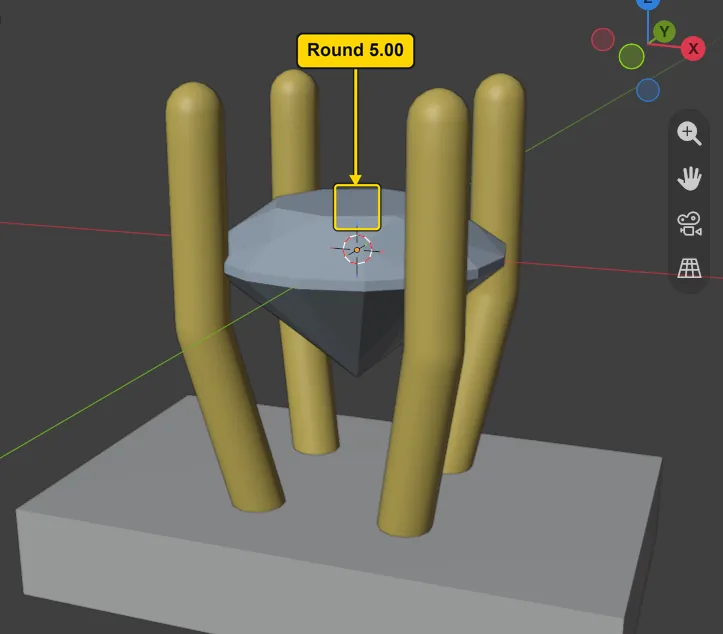
You should seeA round stone held by four gold claws. Under it, each leg bends in and ends on the bar, clear of the stone, and the claws are one piece each, with no joint at the knee.
It worked whenYou see the bent legs ending on the bar.
Step 10. Save your work
WhereThe 3D view: move the pointer over it.
DoPress Ctrl+S.
You should seeBlender writes your copy at once, with no question, because the file already has a name. An asterisk, *, in the title bar marks changes that are not saved, and it goes now. Save your work and get it back (P0-12) says more about saving.
It worked whenThe title bar begins my-legs and carries no asterisk.
No picture: the only change is a message on the status bar, and it fades.
Check your result
| What to read | Where | What it should say |
|---|---|---|
| The three numbers | The CAD/CAM tab, Setting section, Claws panel, the box Bent Leg, scrolled down so that all three fields show | Knee Below Girdle, mm reads 1 mm, Lean, degrees reads 15 and Foot Below Girdle, mm reads 4.5 mm (the panel drops the trailing zeros) |
| What the press made | The same box, the lines under the buttons Bend Leg and Straighten, read again at step 8 | The first line reads “4 claws bent, each one bar” and the third reads “3.95 mm to the foot”, the length of the leg along itself, not the depth you typed. A fourth line says the corner where the leg meets other metal is not blended |
| The tips | The 3D view, from the front, against the first picture of this page | The four tips stand at the same height as before the bend |
| The feet | The 3D view, from the front, at step 8 | Two bent legs end in the bar and two stand behind them, and a thin gap shows between each leg and the stone |
Try it yourself
Open your copy again and click the stone. Click Straighten, then tick Second Knee in the Bent Leg box and press Bend Leg: each leg now bends twice. Press Straighten and untick it to go back. To see what Lean, degrees does on your own stone, type 0, then 30, and press Bend Leg each time.
What you learned
- Bend Leg gives each claw of the selected stone one swept bar for its leg, set by Knee Below Girdle, mm, Lean, degrees and Foot Below Girdle, mm. The top of the claw never changes.
- A leg that leans too far brings the feet together under the stone. Look at the picture of three leans in step 8 before you choose Lean, degrees.
- Straighten takes the bend off and gives back the claw as it was made.