
What you will make
A leaf blade 20.00 mm long and 8.00 mm wide, 1.20 mm thick at its fullest, made by carrying one oval section between two curved rails. A jeweller sweeps between two rails when the width of a piece changes along it, a leaf, a petal or a wing: the rails set the outline, and the section sets the thickness. It weighs 1.67 g in 18ct yellow gold. The tips are cut flat, and a bench would point them. The thinnest part, at the far end, is 0.60: on the least, and fine for a leaf that carries nothing.
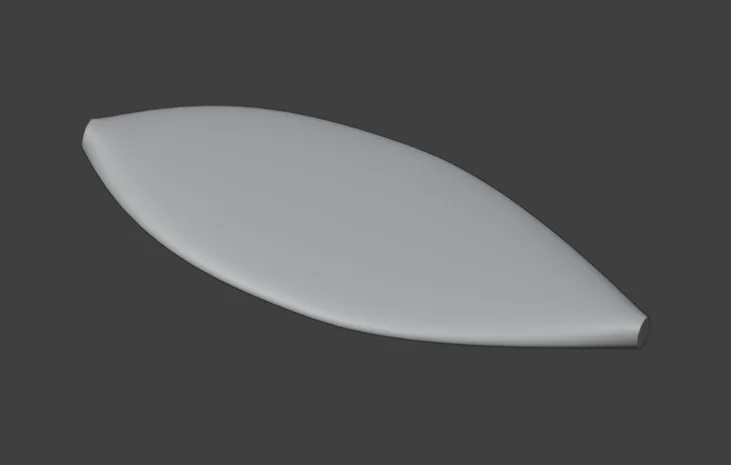
About 15 minutes.
Files
- p2-14-start.blend (99 KB): open this one to begin.
- p2-14-finished.blend (151 KB): the result, to compare with yours.
Both were made in Blender 5.2.0.
Before you start
- You have done Sweep a section along a rail (P2-12): you know Sweep1, the Sweep panel and selecting two curves in the Outliner.
- The add-on is installed. The start file is in millimetres and holds three drawings: two curved rails and a small oval, seen from above.
Build it
Step 1. Open the start file and save your copy
WhereThe top bar: the row of words that begins File, Edit.
DoDownload p2-14-start.blend from Files above and open it. Then choose File > Save As and save it under the name below, in a folder of yours. Open an exercise file and keep the start file safe (P0-07) shows how.
Typemy-leaf.blend
You should seeThe 3D view shows two curved lines, one above the other, and a small oval below them. The words at the top left of the 3D view begin Top Orthographic. The title bar, the strip above File and Edit, begins my-leaf.
It worked whenThe title bar, the strip above File and Edit, begins my-leaf.
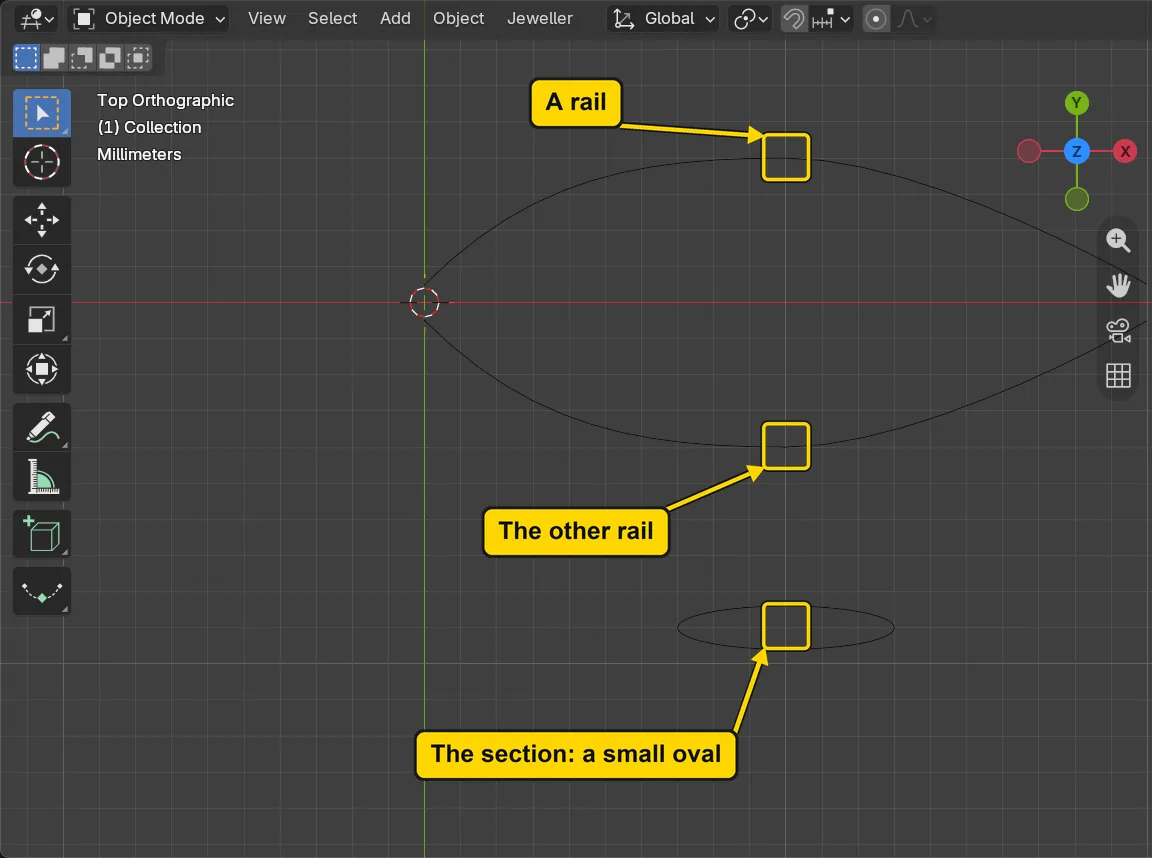
Step 2. Select the two rails and the section
WhereThe sidebar: the CAD/CAM tab, Draw in the section bar, then scroll down to the Sweep panel. Then the Outliner, the list at the top right: the rows Upper, Lower and Section.
DoOpen the Sweep panel as in Sweep a section along a rail (P2-12). Click Upper, hold Ctrl and click Lower, then Ctrl+click Section last.
You should seeThe three rows lit and the panel reading “3 curves selected: 1 closed, 2 open”. The two open curves are the rails, and the closed oval is the section. Sweep2 is no longer grey.
It worked whenThe Sweep panel reads “3 curves selected: 1 closed, 2 open”.
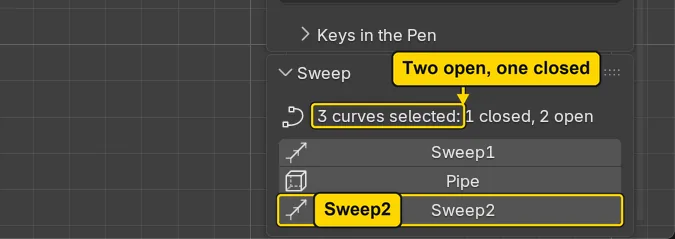
Step 3. Press Sweep2
WhereThe Sweep panel, the Sweep2 button.
DoPress Sweep2.
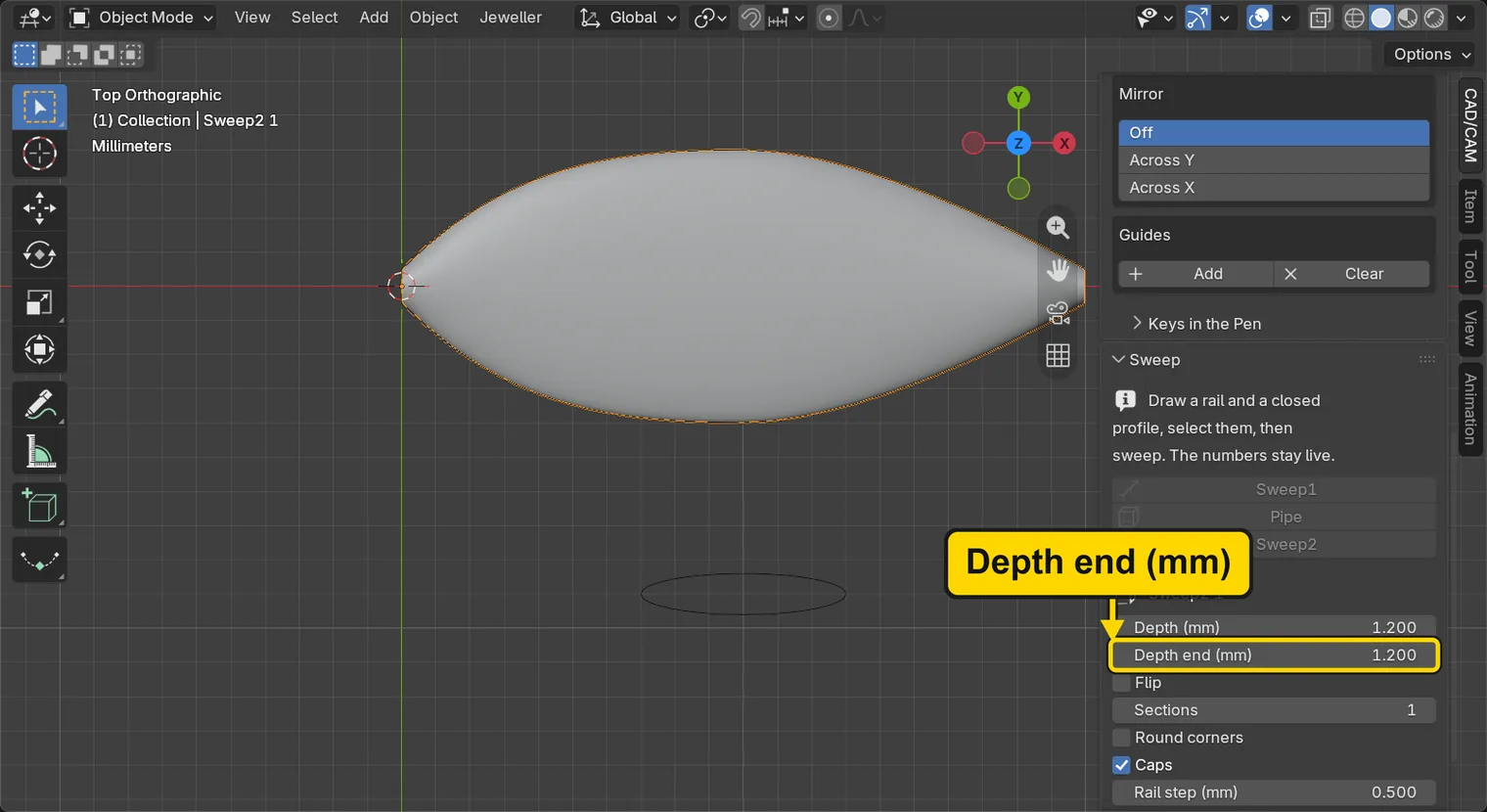
You should seeA leaf blade between the two rails, and in the panel the name Sweep2 1, with a list of numbers and a Weight line. The sweep is live. The section was drawn small, to the side: only its shape counts, and Sweep2 stretches it across the gap between the rails.
It worked whenThe panel shows the name Sweep2 1, and the 3D view shows a leaf between the rails.
Step 4. Read the leaf’s size
WhereThe sidebar: the Item tab, the strip of tabs at the right edge of the sidebar, below CAD/CAM.
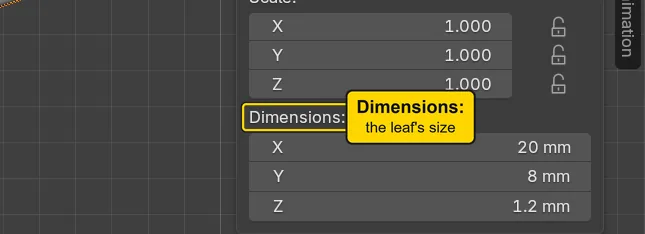
DoClick the Item tab and read Dimensions:. Then click the CAD/CAM tab to come back.
You should seeDimensions: reads X 20.00 mm, Y 8.00 mm, Z 1.20 mm: a leaf 20 long and 8 wide, lying flat on the Top plane, 1.20 thick. The rails give the 20 by 8, and the oval’s height gives the 1.20.
It worked whenDimensions: reads X 20.00 mm and Y 8.00 mm.
Step 5. Make the far end thinner
WhereThe Sweep panel, the field Depth end (mm).
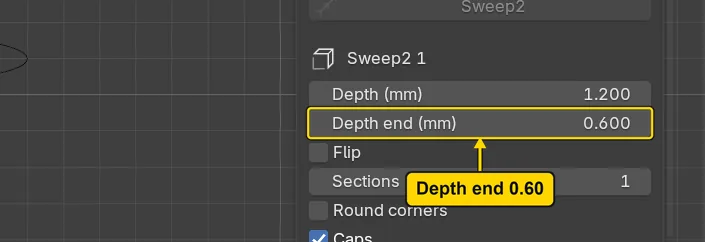
DoClick the Depth end (mm) field, type 0.6, then press Enter.
Type0.6
You should seeThe leaf thinner towards the right-hand end, from 1.20 at the left to 0.60 at the right. From above the thickness does not show, but the Weight line, a little lower in the panel, does: 1.67 g before, 1.26 g now. Depth (mm) is the thickness at the start of the rails, Depth end (mm) at their end, and the change runs evenly between them. The outline stays the same: the rails set it.
It worked whenThe field Depth end (mm) reads 0.600.
Step 6. Put Depth end back
WhereThe Sweep panel, the field Depth end (mm).
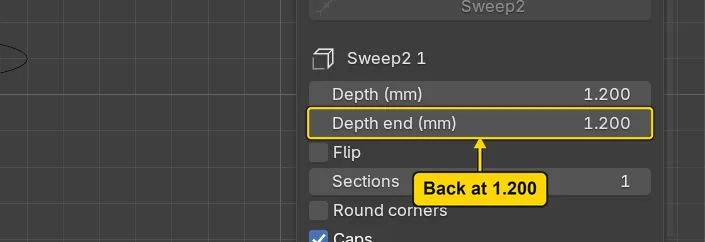
DoClick the Depth end (mm) field, type 1.2, then press Enter.
Type1.2
You should seeThe leaf even again, 1.20 thick all along, and the Weight line back to 1.67 g.
It worked whenThe field Depth end (mm) reads 1.200.
Step 7. Meet the refusal on purpose
WhereThe Outliner: the rows Upper and Lower. This step makes a red box, so that you know it. Your leaf is unharmed.
DoClick Upper, hold Ctrl and click Lower, then press Sweep2.
You should seeA red box, headed “Report: Error”, that reads “Select two rails and a closed curve. Sweep2 needs three curves, and you have 2 selected.” Sweep2 needs two rails and a section, and you gave it only the rails. The box shuts with Esc, and nothing was made: the Outliner still lists one sweep.
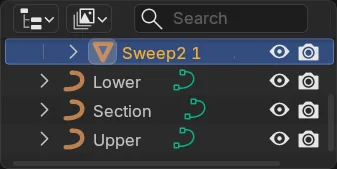
It worked whenThe red box begins “Select two rails and a closed curve”, and the Outliner lists only Sweep2 1.
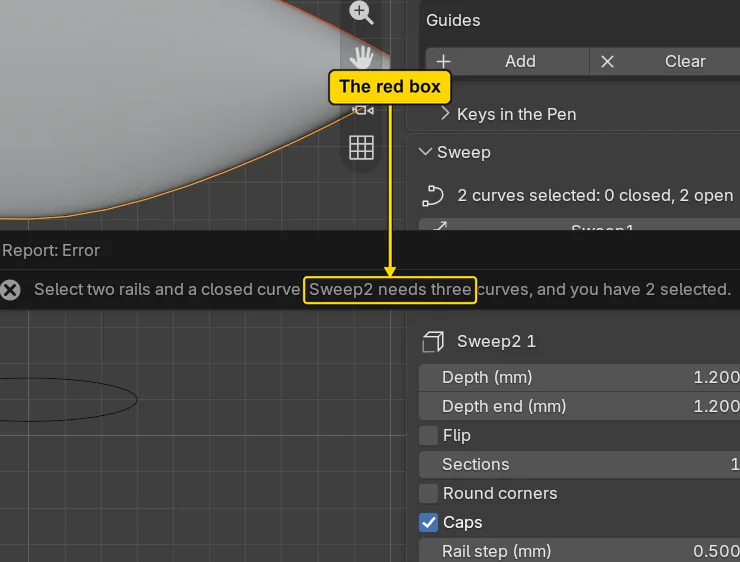
If it goes wrongThe red box stays on the screen: Press Esc with the pointer over the 3D view. Nothing was made, so there is nothing to undo.
Step 8. Close the red box
WhereThe 3D view: move the pointer over the dark area.
DoPress Esc.
You should seeThe red box gone. Pressing Esc is the way out of a red box; nothing was changed. Select the leaf in the Outliner to see it by itself.
It worked whenThe red box has gone.
Step 9. Save your work
WhereThe 3D view: move the pointer over it.
DoPress Ctrl+S.
You should seeBlender writes your copy at once, with no question, because the file already has a name. An asterisk, *, in the title bar marks changes that are not saved, and it goes now. Save your work and get it back (P0-12) says more about saving.
It worked whenThe title bar begins my-leaf and carries no asterisk.
No picture: the only change is a message on the status bar, and it fades.
Check your result
| What to read | Where | What it should say |
|---|---|---|
| The leaf’s size | The Item tab of the sidebar, Dimensions:, with the leaf selected | X 20.00 mm, Y 8.00 mm, Z 1.20 mm |
| Depth end | The CAD/CAM tab, Draw section, Sweep panel, with the leaf selected | Depth end (mm) reads 1.20, the same as Depth (mm) |
| One leaf only | The Outliner | One sweep, Sweep2 1: the refusal made nothing |
Try it yourself
Open your copy again, select the leaf and press the Flip switch in the Sweep panel: the leaf’s thickness stands on the other side of the rails. Press Flip again to put it back.
What you learned
- Sweep2 carries a closed section between two open rails: select both rails and the section, and press it. The rails set the outline, and the section sets the thickness.
- Depth (mm) and Depth end (mm) are the thickness at the start and at the end of the rails. They run evenly from one to the other.
- A refusal is a red box that shuts with
Esc: nothing was made.