
What you will do
You will add a cube without opening a single menu, only by typing its name. Blender has hundreds of commands in menus inside menus. When you forget where one lives, F3 finds it for you.
About 5 minutes.
Files
No file to download. You begin from Blender’s own File > New.
Before you start
- You know where a key goes: the area under the pointer (Send a key to the right place, P0-03).
- You know the box at the bottom left of the 3D view, where a new thing’s numbers can be changed (P0-16).
Build it
Step 1. Start a new file
WhereThe top bar: the row of words along the very top of the window.
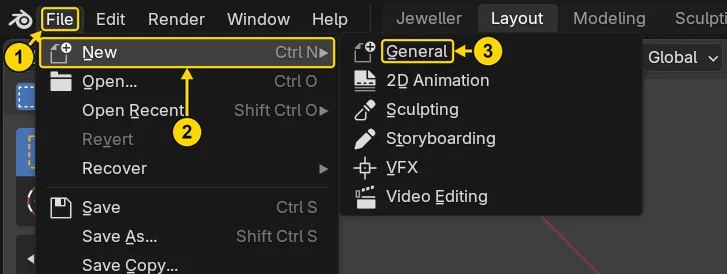
DoClick File (marked 1), rest the pointer on New (marked 2), then click General (marked 3).
You should seeA new file: a grey cube in the middle of the 3D view, with a camera and a light round it.
It worked whenIn the Outliner, at the top right of the window, you can read Camera and Cube.
If it goes wrongA box asks whether to save your changes: press Don’t Save: you only have Blender’s own cube to lose.
Step 2. Open the search
WhereThe 3D view: the large dark area in the middle of the window.
DoMove the pointer over the 3D view and press F3. On a laptop that may need Fn held down too. Or click Edit, then Menu Search…: it is the same box.
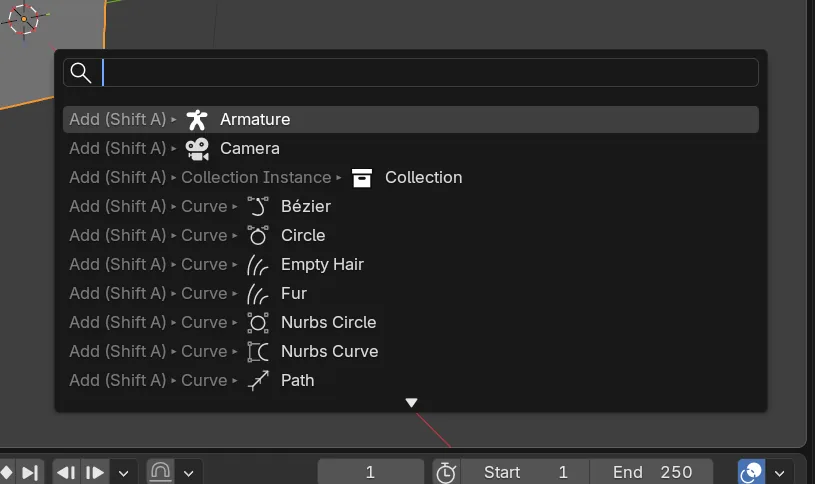
You should seeA search box opens at the pointer, with a blinking line in its field, ready for you to type. A short list of commands stands under the field.
It worked whenA search box stands over the 3D view.
If it goes wrongNothing opens: hold Fn, or use the Edit menu.
Step 3. Type the name
WhereThe search box.
DoType Cube. Do not press Enter yet.
TypeCube
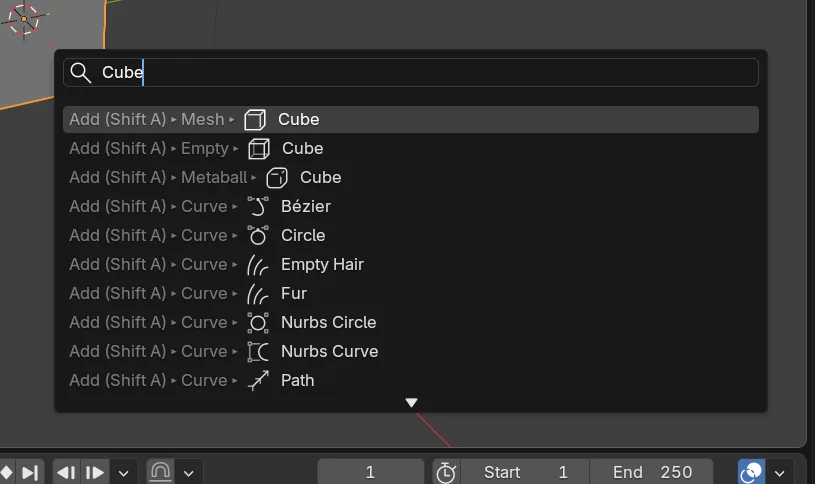
You should seeThe list under the field changes to the matches. Each row starts with the menu the command lives in. The first row, lit, reads Add (Shift A), then Mesh, then Cube: the menu path to the command, with the key that opens the Add menu.
It worked whenThe first row of the list is lit and ends in Cube.
Step 4. Run it
WhereThe search box, then the box at the bottom left of the 3D view.
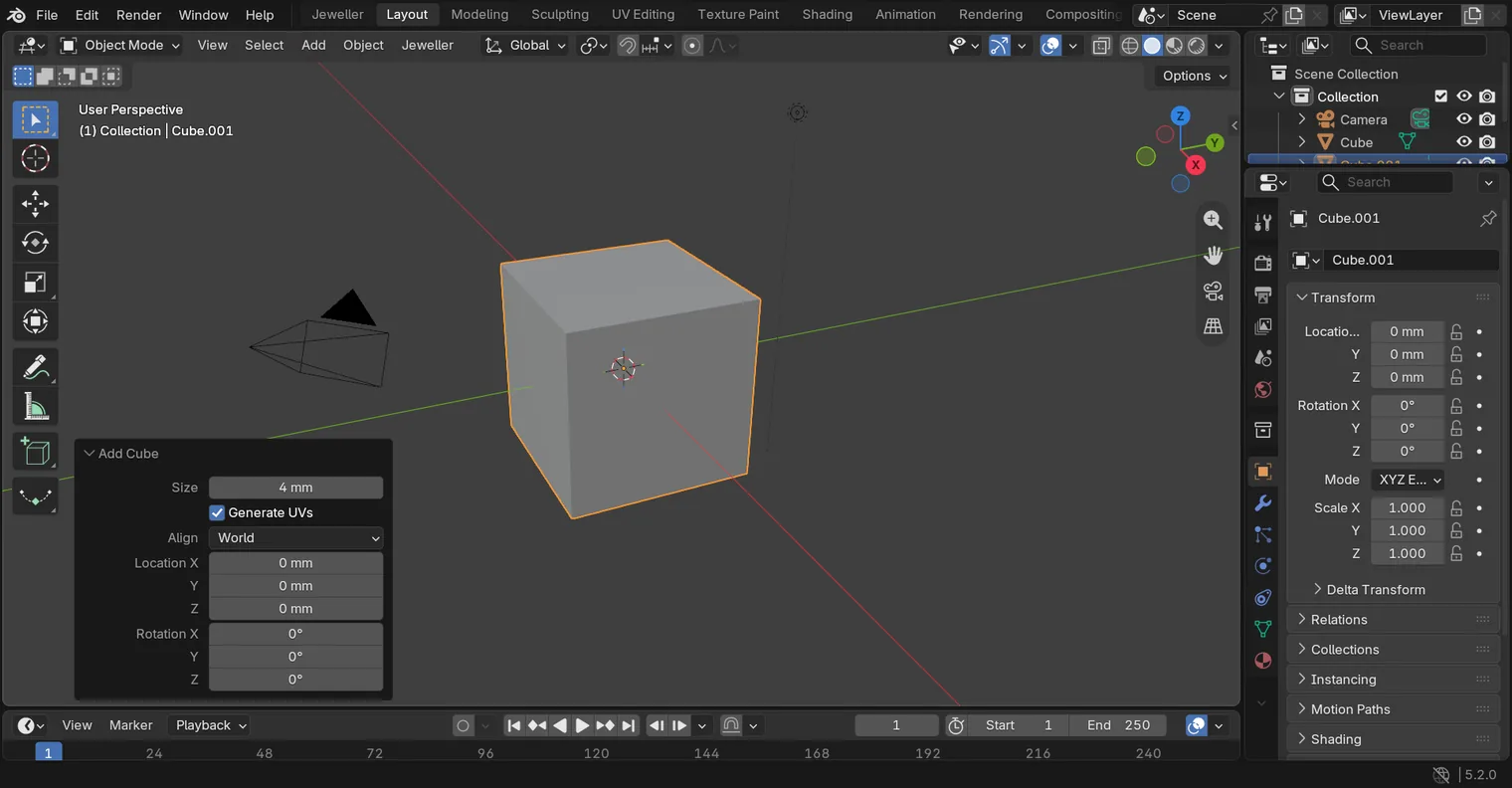
DoPress Enter. Then, in the box at the bottom left (Blender’s Adjust Last Operation box: if only its title shows, click the title), click the number beside Size, type 4 and press Enter.
Type4
You should seeA cube appears, as if you had used Add > Mesh > Cube. Blender’s Add menu works in metres (P0-16), so it makes the cube 2000 mm across until you change it. With the 4 it is a small cube in the middle of the grid, round the cube that a new file already has, which is 2 mm across.
It worked whenThe words at the top left of the 3D view end in Cube.001.
Step 5. Search for a command of the add-on
WhereThe 3D view.
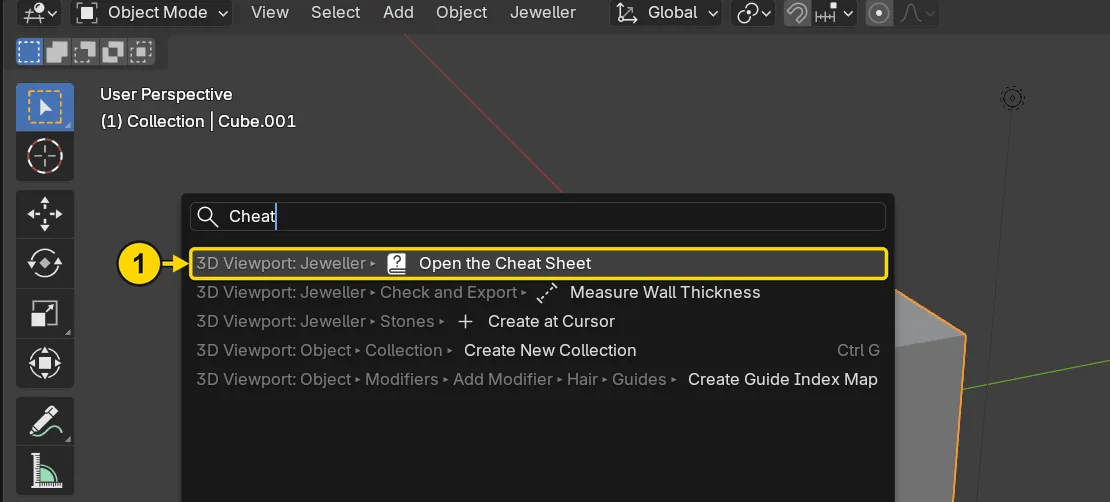
DoOpen the search as in step 2: press F3 over the 3D view, or click Edit, then Menu Search…. Type Cheat, and read the list. Then press Esc.
TypeCheat
You should seeThe list shows Open the Cheat Sheet, with its menu in front of it. Esc leaves the search and runs nothing.
It worked whenThe search has gone, and the Outliner still lists the same four things.
If it goes wrongNothing opens: hold Fn, or use the Edit menu.
Check your result
| What to read | Where | What it should say |
|---|---|---|
| The list of things | The Outliner, at the top right of the window | Camera, Cube, Cube.001 and Light. If a row is out of sight, turn the mouse wheel over the list, or slide two fingers on the touchpad, or slide two fingers on the touchpad |
| The new cube | The words at the top left of the 3D view | They end in Cube.001 |
Try it yourself
Press F3 again and type Frame All. Press Enter: the view fits everything in sight, which is what Home or View > Frame All does. Then press F3 and type Cheat: the add-on’s own command Open the Cheat Sheet is on the list, with its menu in front of it. Press Esc to leave without running it.
What you learned
F3over the 3D view opens a search for commands. Type a few letters, and the list narrows.- A row shows the menu a command lives in, so the search also teaches you where to look next time.
Enterruns the first row. Escleaves the search and runs nothing. The add-on’s commands are in the search too.